Schedule and visits
See your jobs for the day on your phone, get directions, check in on arrival, complete the visit with the customer's signature and log your time.
Schedule (under More on a phone) is made for the day on the road: your jobs in order, the address and directions, and check in and complete visit right there on the job.
Your day
Schedule opens on Today, with the date and how many jobs you have. Use the arrows either side of the date to move a day back or forward, and the calendar button at the top to jump to a date.
Each job shows its start and end time, what it is, the booking type (for example Onsite visit), the customer and site, the address and its status, such as Booked. Tap a job to open it.
A job
The top of the job shows the booking type and ticket number, what the visit is for, its status and when it is. The buttons:
- Check in: press it when you arrive.
- Complete visit: when you have finished (see below).
- No access: when nobody lets you in.
Where shows the address, with Directions to open it in your phone's maps app. Details lists the Customer, Site, Contact (with their number and email), the Ticket, the Type, Who is booked, and the Travel time either way. Tap the ticket to open it and read the history before you go in.
Check in
Press Check in when you arrive. The booking moves to In progress and the time is kept. It works without a signal too: the check-in is kept on the phone and sent when you are back online, so a basement comms room is no problem.
Complete the visit
- Press Complete visit.
- Write what you did. It goes on the time entries and the booking, so write it for the customer's invoice as much as for your colleagues.
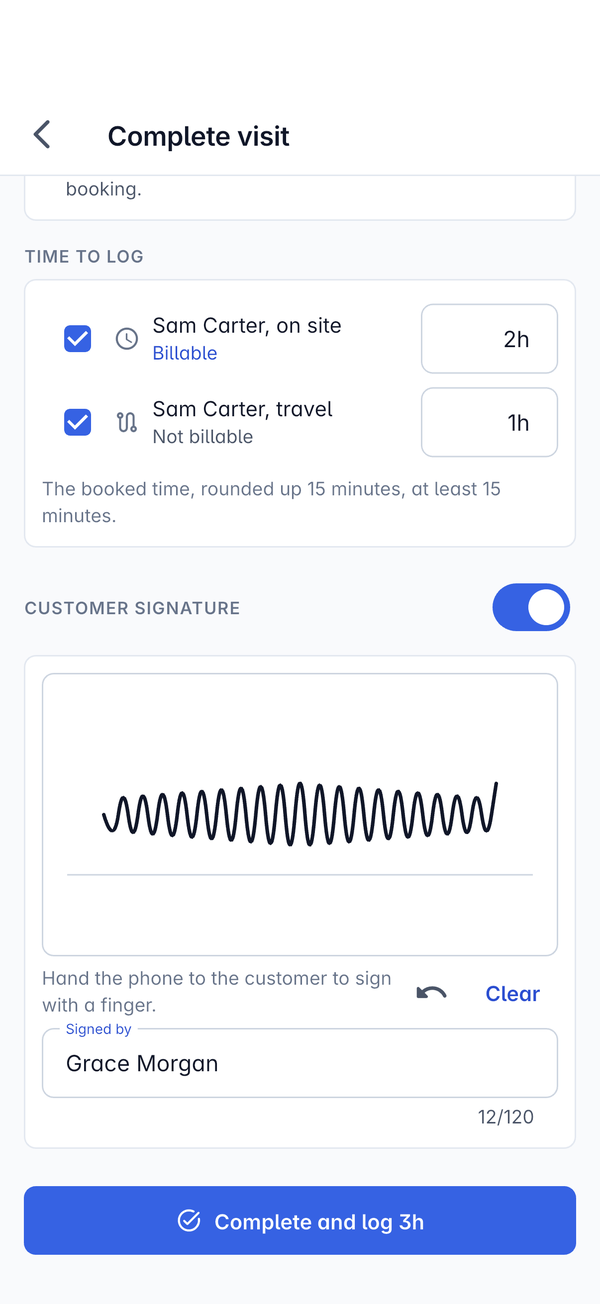
- Check Time to log. There is a line for each technician's time on site and, when the booking type logs travel, one for travel, each marked Billable or Not billable. Untick a line to log nothing for it, or change the time. The note underneath explains where the times came from, for example "The booked time, rounded up 15 minutes, at least 15 minutes."
- For a signature, leave Customer signature on and hand the phone to the customer to sign with a finger. The undo button takes back the last stroke and Clear starts again. Type their name in Signed by.
- Press Complete and log (the button shows the total, for example Complete and log 3h).
The booking becomes Completed and the time entries appear on the ticket and in your timesheet, exactly as when a visit is completed on the web. Completing a visit also works offline and is sent when you are back online.
If nobody lets you in
Press No access and describe what happened. The booking is marked No access, whoever booked it is told so they can rebook it with the customer, and no time is logged.
Offline
Today's jobs stay readable without a signal, so you can still find the address and the contact's number. Check-in and check-out are kept on the phone and synced when you are back online. See Working offline and sync conflicts.
For how the time is worked out and the settings behind it, see Checking in and completing a visit.
Was this page helpful?
Thanks for the feedback.