Quotes and projects
Check and send quotes from your phone, and work your project tasks: see what is due, change a task's status, log time and follow the project's health.
Quotes and Projects are both under More on a phone and in the rail on a tablet. They show when your team uses them and your role allows it.
Quotes
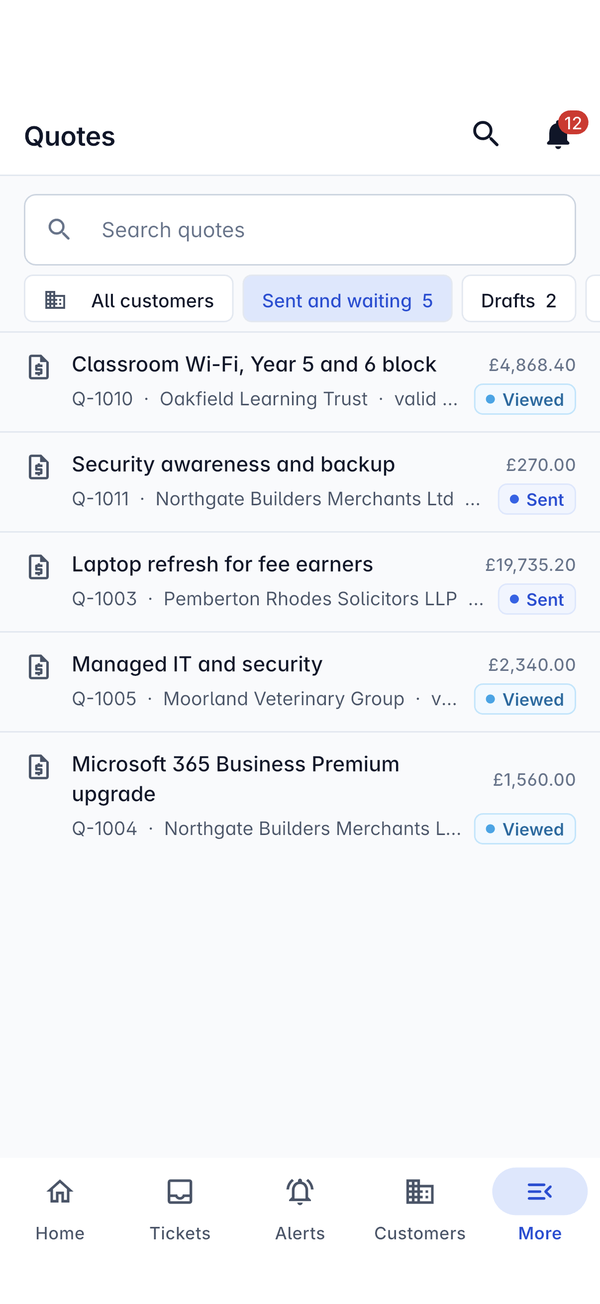
The quote list opens on the quotes that are out with customers. At the top are Search quotes, All customers (pick one customer) and the views, each with a count, such as Sent and waiting and Drafts. Swipe the row for more.
Each quote shows its title, number, customer, how long it is valid, the total and its status: Draft, Sent, Viewed once the customer has opened it, and so on.
A quote
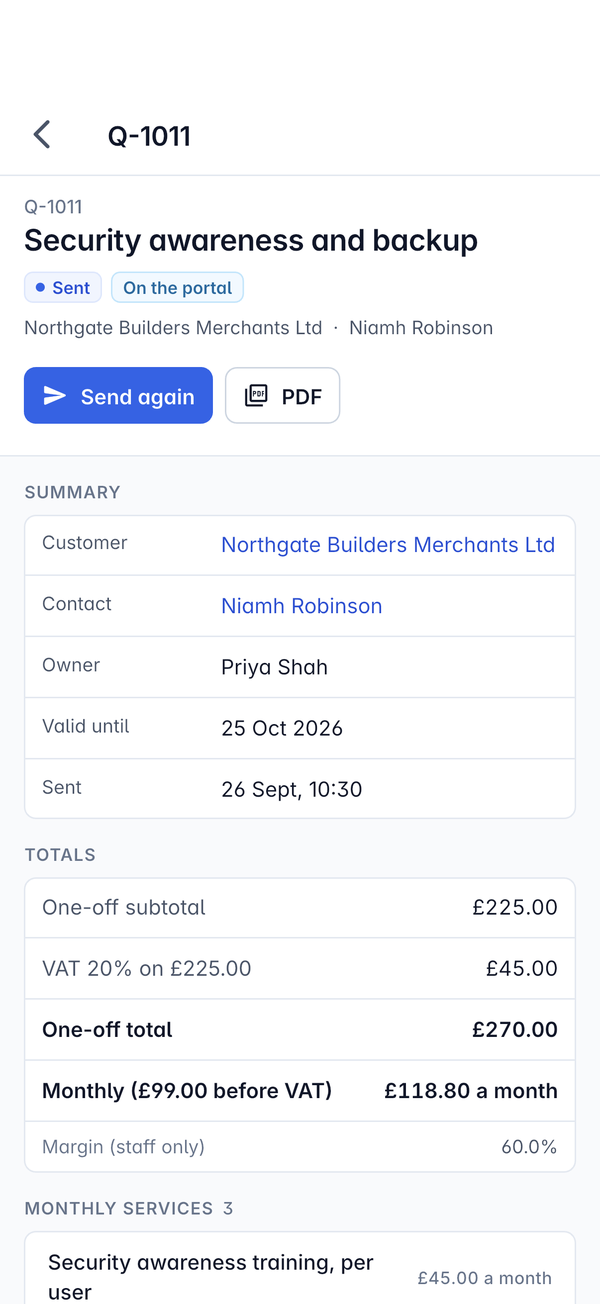
Tap a quote to open it. The top shows the number, title, status, On the portal when the customer can see it there, and the customer and contact.
- Send again sends a sent quote to the customer again, for example when they cannot find the email. A draft that is ready can be sent from its page too.
- PDF opens the quote as the customer sees it.
Summary lists the Customer, Contact, Owner, Valid until and when it was Sent. Totals shows the one-off subtotal, the tax (for example VAT 20% on £225.00), the One-off total, the monthly amount with and without tax, and the Margin (staff only), which customers never see. Amounts are in the quote's own currency with its own tax, as on the web. The lines follow, grouped as on the quote, such as Monthly services.
For building quotes and what happens when a customer accepts, see Sending a quote and versions and Acceptance and what happens next.
Projects
Projects has two tabs: My tasks and Projects.
My tasks
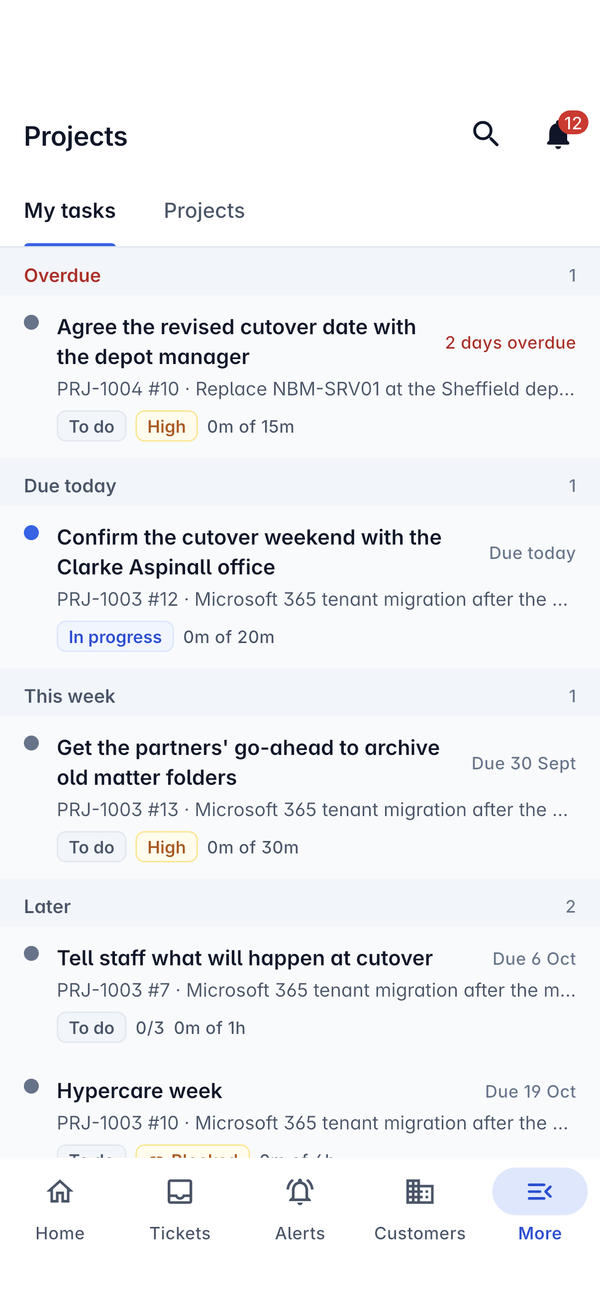
My tasks is your to-do list across every project, grouped into Overdue, Due today, This week and Later, each with a count. Each task shows its title, the project's number and the task's own number (PRJ-1004 #10), the project's name, the status (To do, In progress), the priority, any checklist progress (0/3), Blocked when it waits for another task, and the time used against the estimate (0m of 15m).
A task
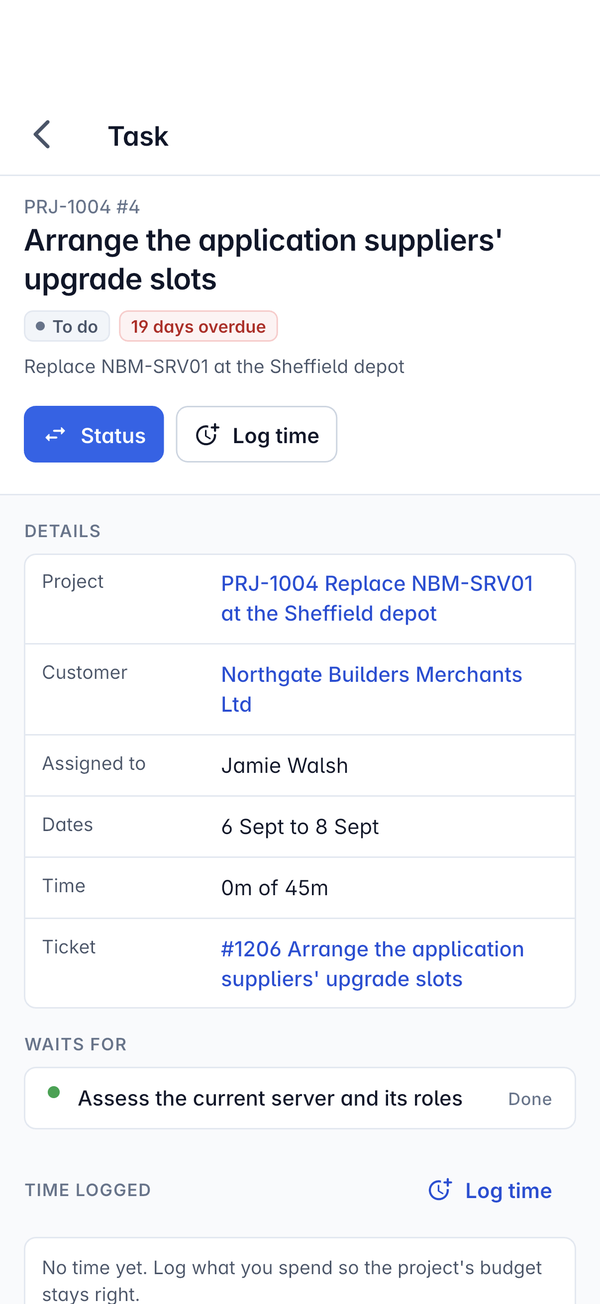
Tap a task to open it. Under the title are its status, how overdue it is, and the project it belongs to.
- Status moves it on, for example from To do to In progress or done.
- Log time records time against the task, so the project's budget stays right.
Details lists the Project, Customer, Assigned to, Dates, the Time used against the estimate and any Ticket it is linked to. Waits for shows the tasks it depends on and whether they are Done, then come the Description, Time logged and the comments.
A project
The Projects tab lists the projects. Open one to see its number and name, pills such as Active, Late and 7 overdue tasks, the customer and site, and Health in plain words, for example "54% of the budget used for 34% of the work". Details has the Customer, Site, Contact, Owner, Type, Dates, Progress (with a bar), Time used against the budget and the Next milestone.
On a tablet the task list stays on the left and the task opens alongside it.
Was this page helpful?
Thanks for the feedback.