Custom domains
Serve the staff app and the customer portal on your own addresses, verified through your DNS, with certificates issued automatically.
Each brand profile can have its own address for the staff app (for example hub.yourcompany.co.uk) and another for the customer portal (for example portal.yourcompany.co.uk). Once the DNS points at Tenvara and the address is verified, Tenvara gets a certificate for it automatically and serves everything on it in that profile's brand.
You need access to your domain's DNS to set this up.
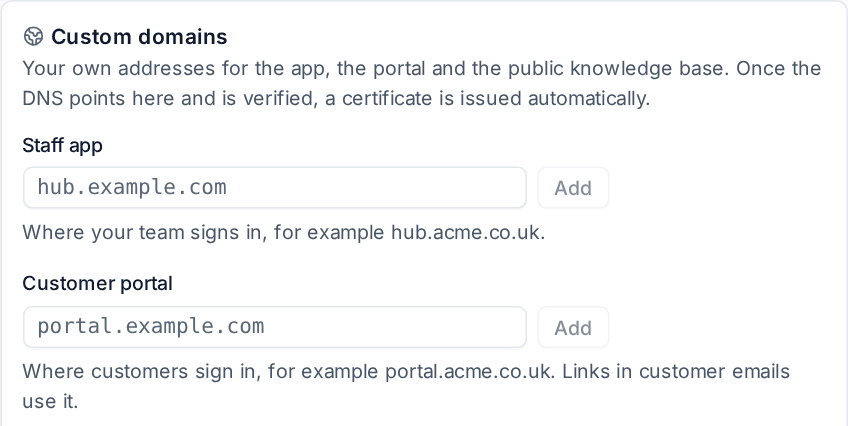
What each address does
| Address | What it is for |
|---|---|
| Staff app | Where your team signs in. The web app wears the profile's brand on this address |
| Customer portal | Where customers sign in. Links in customer emails (invitations, ticket updates, invoices) use it once it is verified |
Adding a domain
- Open Settings > Branding and pick the profile in the picker at the top right.
- Scroll to Custom domains.
- Type the address under Staff app or Customer portal and press Add.
- Tenvara shows the DNS records to create, with their Type, Name and Value, each with a copy button. Add one of them at your DNS provider:
- a CNAME record pointing the address at your Tenvara install's address, or
- A and AAAA records pointing at the same addresses your install uses, or
- when the address sits behind a proxy that hides where it points, a TXT record named
_tenvara-verify.followed by your address, with the token shown.
- Press Check now.
Note: DNS changes can take a while to reach everyone. If the first check fails, wait and press Check now again.
Status
| Status | Meaning |
|---|---|
| Waiting for DNS | Added, not verified yet |
| Verified | The DNS points here. A certificate is issued and the address is live |
| Not pointing here | The last check found records that point somewhere else |
The time of the last check shows beside each address. To stop using an address, press the remove button beside it.
How it works
- Only verified addresses get a certificate. Tenvara asks for one the first time someone opens the address, so the first visit can take a few seconds longer.
- Every request on a verified address is shown in that profile's brand: the sign-in page, the portal, booking pages and status pages.
- A customer signed in to the portal sees their own profile, whichever address they came in on.
Email sending domain
Custom domains change where people open Tenvara, not where email comes from. The address emails are sent from, and its sending domain, stay in the outgoing email settings. The name emails come from is set per profile in Emails come from (see Brand profiles).
Related: What your customers see, White-label overview.
Was this page helpful?
Thanks for the feedback.