Password rotation and privileged access
Rotate local administrator passwords on every device into the vault, keep privileged Active Directory accounts rotated, and sign in to devices with a vault credential you never see.
Shared local administrator passwords and domain admin accounts nobody has changed in years are some of the riskiest things in a customer's network. Password rotation gives every device its own local administrator password, made on the device, kept in the vault and changed on a schedule. It also looks after privileged Active Directory accounts, and lets technicians sign in with a credential without ever seeing it.
Open Docs and choose Password rotation under Security. The page has three tabs: Local administrators, Policies and Active Directory.
How rotation works
- A policy says which devices, which account and how often.
- On the schedule, or when you press Rotate now, Tenvara asks the device's agent for a new password.
- The agent makes a random password on the device, sets it on the account, and sends it back sealed with a one-off key that only Tenvara can open.
- Tenvara stores it in the vault as a credential linked to the device, named Local administrator (device name).
The password is never sent to the device and never rests in plain text in a command or its result. Rotation works on Windows and Linux devices with the agent.
Adding a rotation policy
- On Password rotation, press New policy.
- Enter a Name, for example "Windows workstations".
- Under Devices, choose Every customer, One customer or A device group, then pick the customer or group.
- Choose the Operating system.
- Enter the Account: Administrator, root, or your own managed account.
- Leave Create the account where it is missing on if Tenvara should create it as a member of the local administrators (Windows and Linux).
- Leave Enable the account if it is disabled on if the account should always be usable.
- Set Rotate every (days) and Characters if this policy needs its own values. Empty uses the settings.
- Tick Administrators only if only administrators should see these passwords.
- Press Save policy.
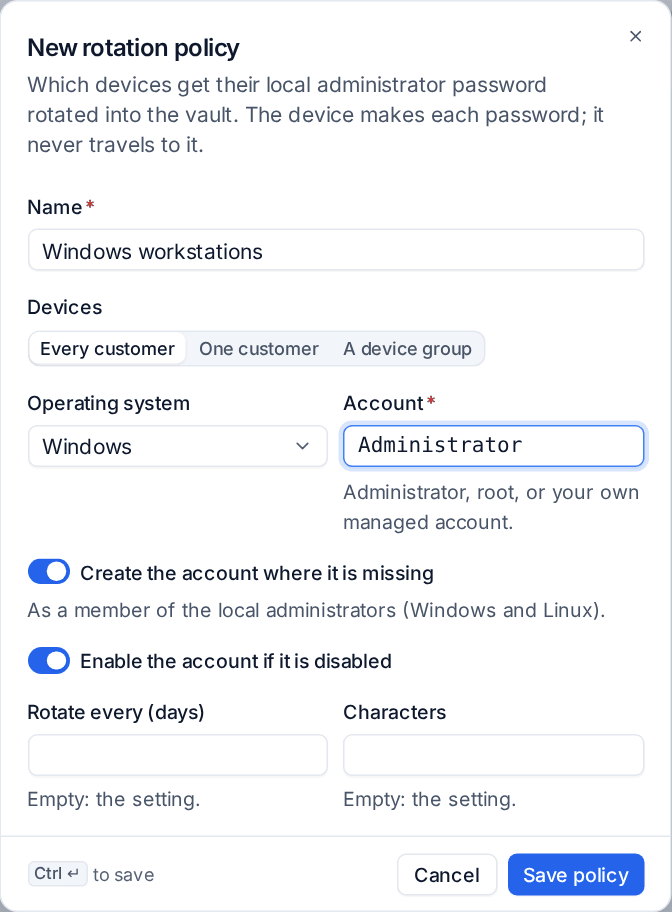
A device takes the policy of its device group first, then its customer's, then the one for every customer, for its operating system. So you can set a default for everyone and override it for one customer's servers.
The Local administrators list
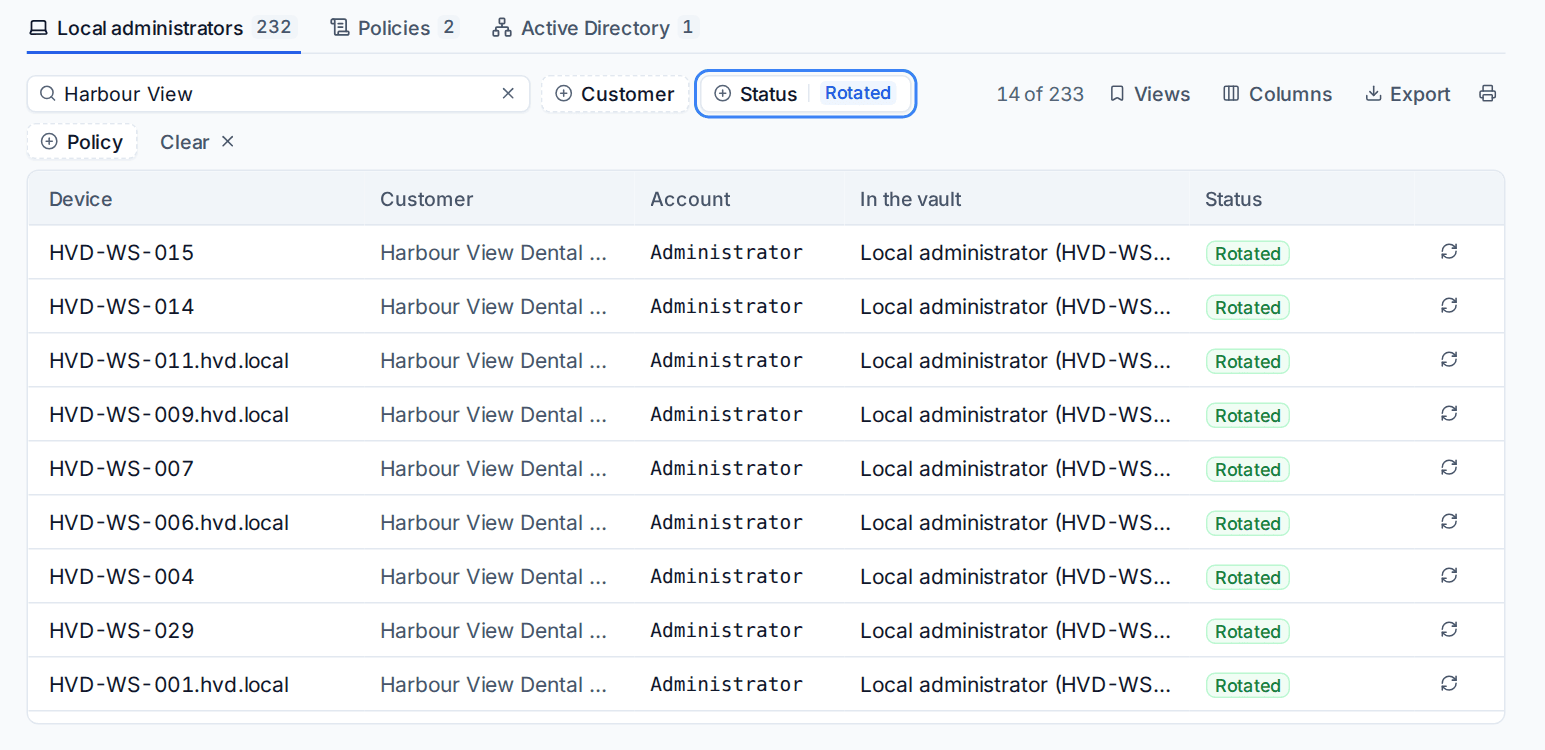
The Local administrators tab lists every device a policy covers, with its Account, the credential In the vault, its Status (for example Rotated, Rotating or Failed), when it was Last rotated and when it rotates Next. Filter by Customer, Status or Policy.
The figures at the top count devices rotated, failures, rotations due this week, directory accounts and locked-out accounts.
To rotate one device straight away, press the rotate button at the end of its row.
Note: A device has to be online to rotate. If its agent does not answer before the command expires, the rotation shows Failed and, if alerts are on, raises an alert for the customer. It is tried again on the next schedule.
Using a rotated password
Open the credential from the list, from the device's Documentation section, or from Docs > Credentials. It works like any other credential: reveal, copy and every access logged in Who has seen it. Its Password rotation panel shows the device, status, last and next rotation, and a Rotate now button.
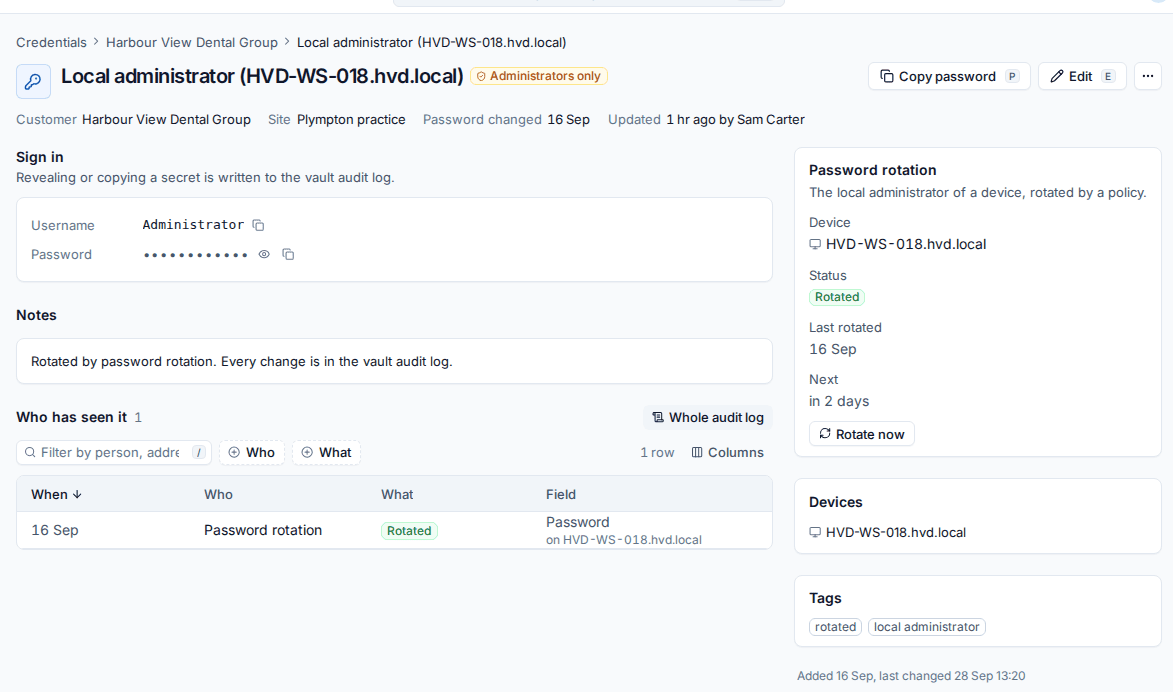
Rotate again after a password is used (in the settings) sets the next rotation that many hours after someone reveals, copies, fills or types the password, so a password that has been seen does not stay valid for long.
Active Directory accounts
Tenvara reads a customer's domain through the agent on one of their domain controllers.
- On the Active Directory tab, press Add a domain controller.
- Choose the customer and the Server (a device with the agent).
- Press Add and read the accounts.
Tenvara lists the domain's accounts with their State (Active, Locked out or Disabled), when the password was set and the last sign-in. Privileged accounts (members of Domain Admins, Enterprise Admins, Schema Admins, Administrators and the operator groups) are marked Privileged. Accounts are read again on a schedule, or press Read now.
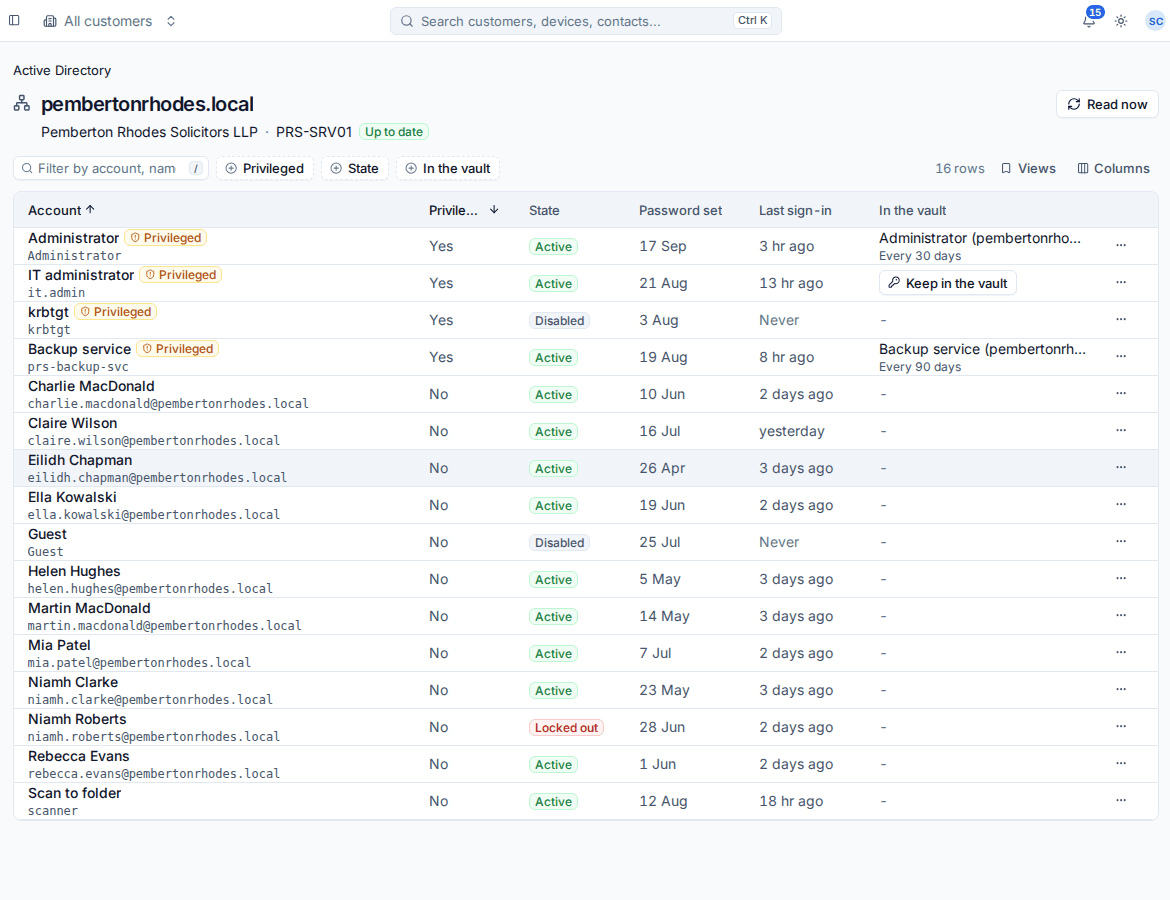
From an account's ... menu you can:
- Keep in the vault and rotate now: the domain controller sets a new random password and the vault keeps it, rotated on its own schedule. Privileged accounts are kept for administrators only.
- Rotate the password now for an account already in the vault.
- Unlock a locked-out account.
Warning: Anyone still using an account's old password needs the new one from the vault after a rotation. Tell the customer before you take over a shared service account.
Signing in without seeing the password
In a remote session
In the remote viewer, the key button (Type a credential in) lists the vault credentials linked to the device first, then the customer's others. Put the cursor in the sign-in box, then choose:
- Sign in: the device types the username, Tab, the password and Enter.
- Password: the device types only the password.
The technician never sees the password, and each use is written to the vault audit log as typed into a session on that device. See Remote control.
SSH from a device
On a device's Tools > Terminal, SSH with a credential opens a terminal from the device to another host on its network, signed in with a vault credential. Enter the Host and Port, choose the credential under Sign in with, and press Connect. The password never appears on screen or in the terminal output.
Settings and permissions
Settings > Documentation > Password rotation has Rotate passwords on their schedule, Rotate every, Characters in a new password, Include symbols in new passwords, Rotate again after a password is used, Raise an alert when a rotation fails and Read Active Directory accounts every. See Settings overview.
Password rotation uses the Credentials permission: view to see it, manage to add policies and rotate.
Related: The credentials vault, Reviews and the vault audit log.
Was this page helpful?
Thanks for the feedback.