Licence and updates
How a self-hosted install's licence works, from the daily check-in to grace and read-only, offline licences, limits, Tenvara updates and the support bundle.
A self-hosted Tenvara install runs on a signed licence. Settings > Licence shows what the licence covers, how much of it is in use and how the install keeps it current. Settings > Updates shows which version you run and what is newer. Both are for administrators. On a hosted instance we look after the licence and updates for you.
What the licence holds
The licence lists the modules you have, any limits on devices, staff users and customers, when it runs until and how long it includes updates. Every part of Tenvara checks the licence itself, with a key built into the software, so it cannot be edited.
The top of Settings > Licence shows the licence with its state (for example Active), the Edition, the Kind (Online (checks in daily) or Offline), when it Started and Expires, Updates until, your Release channels, the Grace period and Read-only from.
Usage and limits

- Devices: every device, however it was added.
- Staff users: active users who can sign in.
- Customers: active and onboarding customers. Inactive ones do not count, so archiving a customer who has left frees their place.
At a limit, only adding more is refused: nothing already there is switched off or hidden. You are warned when you reach 90% of a limit.
Modules

The Modules card lists which modules are in the licence. Customers and devices are always included. A module that is not in your licence shows as Not in your licence in Modules and cannot be switched on.
The daily check-in
Once a day the install tells the licence server it is running and gets a fresh lease, valid for 14 days. The check-in carries the install's id, its version and a few counts (devices, staff, customers), never customer data. That is also how a renewal, an upgrade or an added module reaches your install: the next check-in brings the licence up to date.
The Check-in card shows the Last check-in, Last successful and Lease valid until, with a table of recent check-ins and their result. Check in now checks that the server can reach the licence server, then checks in.
Note: The server needs to reach the internet over HTTPS for the check-in. If your install cannot, use an offline licence (below).
When something goes wrong
Tenvara never stops working without warning, and nothing is ever deleted because of the licence.
- Grace: if check-ins have been failing for two days, or the licence has passed its end date, the install keeps working normally and an amber banner says when read-only starts and what to do.
- Read-only: after 14 days without a successful check-in (when the last lease runs out), 14 days after the licence's end date, or if a licence is revoked, Tenvara becomes read-only and a red banner says so.
While read-only:
- everything stays visible and exportable, passwords can still be revealed, and reports still run;
- backups keep running and restores always work, so your customers' data is never locked away;
- agents, monitoring and incoming email carry on;
- only changes are refused. Signing in, your own profile and Settings > Licence keep working, so you can always put things right.
To fix it, check the server can reach the internet and press Check in now, or renew and add the new licence.
Adding or replacing a licence
- Go to Settings > Licence and press Add licence (or Replace licence).
- Choose Upload a file and pick the licence file (
.tvl), or Paste the text: everything fromBEGIN TENVARA LICENCEtoEND TENVARA LICENCE. - Press Add licence. Tenvara checks in straight away.
Offline licences
For an install that cannot reach the internet:
- On Settings > Licence, open Offline activation.
- Copy the Activation request and send it to us. It holds this install's id, public key, fingerprint, version and counts: no customer data.
- We send back an offline licence file bound to this install. Upload it under Upload the offline licence.
Offline installs never check in. Updates for them are downloaded and uploaded by hand.
Instance id and fingerprint
The This install card shows the Instance id the licence is tied to and the install's Fingerprint. The fingerprint changes when the database moves to another server; Tenvara notices and tells you, and nothing stops working because of it. Keep the volumes listed in Installing self-hosted backed up so a restore keeps the same identity.
Updates
Settings > Updates shows This install's version, the Newest version your licence can have and Support until. It checks each morning, and Check now asks the licence server straight away.
Under Newer versions, each release is listed with its release notes. A version published after your support ended is marked Outside your support: renew your support to get it.
How to upgrade gives the command to run on the Docker host. In short: back up, then run the installer with --upgrade:
./install.sh --upgrade
Add --version to pick a version rather than the newest. People are signed out for a few minutes while Tenvara restarts. The installer checks the signature of every image before it starts anything; see Installing self-hosted.
Tip: Agents update themselves, separately from Tenvara itself, with stable and beta channels, a pilot ring and maintenance windows. See Agent updates and release channels.
The support bundle
When something is wrong and you need help, Settings > Diagnostics > Support bundle makes one ZIP with what support needs to see.
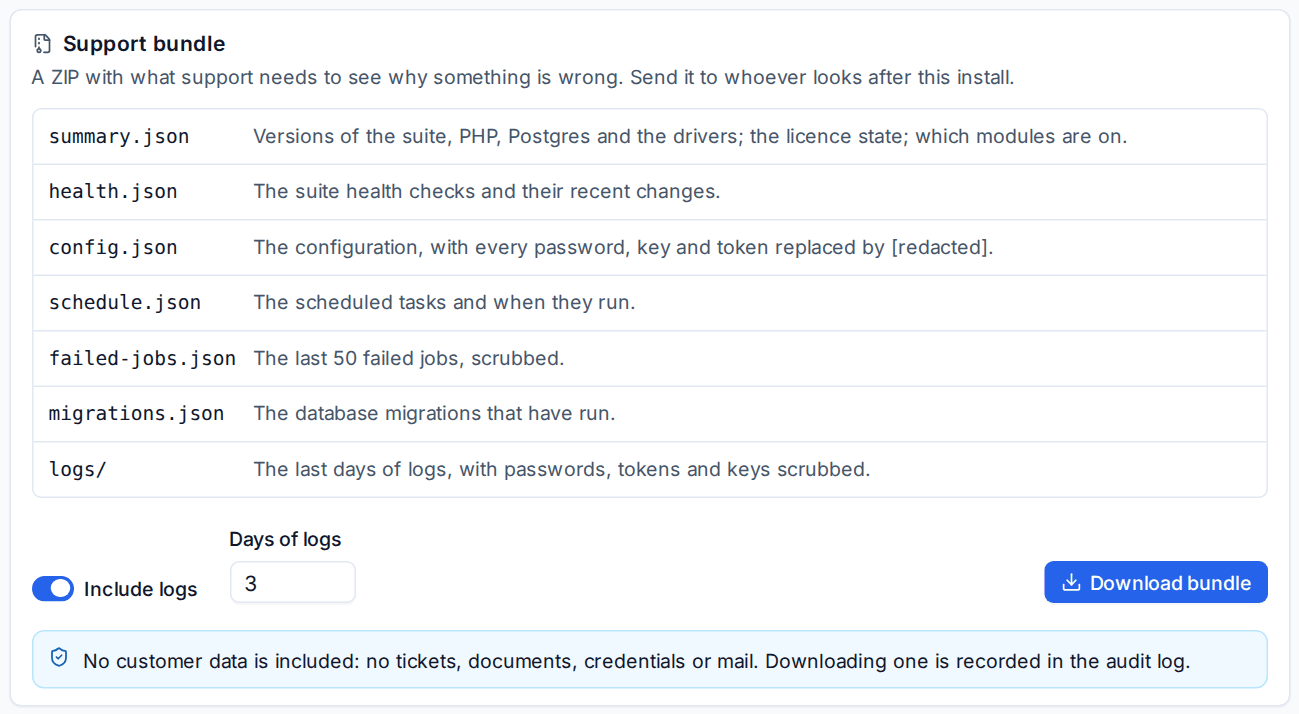
It holds versions, the licence state, health checks, the configuration with every password, key and token replaced by [redacted], scheduled tasks, failed jobs and migrations, and (with Include logs) 1 to 14 days of logs with secrets scrubbed.
- Choose Include logs and the Days of logs.
- Press Download bundle and send the file to whoever supports your install.
No customer data is included: no tickets, documents, credentials or mail. Downloading a bundle is recorded in the audit log.
Related
Was this page helpful?
Thanks for the feedback.