Whole Mac backup
Back up a whole Mac (every account, home folder, application and setting) from an APFS snapshot, give the agent Full Disk Access, and choose what is left out.
A Mac can be backed up whole: every account, home folder, application and setting on it. Tenvara reads the Mac from an APFS snapshot, so everything is captured at one instant and files that are open in apps are no problem. Single files and folders restore from a whole Mac backup the same way as from any folder backup.
What a whole Mac backup holds
Since macOS 10.15 the system itself lives on a sealed, signed volume that macOS puts back when it is installed. Everything that makes a Mac someone's is on the data volume: the accounts, /Users, /Applications, /Library, /usr/local, /opt and the system's own settings. The whole Mac backup is that data volume.
Each backup:
- Makes a local APFS snapshot of the Mac.
- Mounts the snapshot read-only and backs it up, sending only what changed since the last backup.
- Removes the snapshot again, whether the backup worked or not.
Caches, swap, temporary files, the Trash, Spotlight indexes, other volumes and similar are left out by default (see Exclusions below).
Turning it on
New Macs that can be backed up whole get Whole Mac chosen when you protect them. A Mac protected before keeps what it had (usually the /Users folder) until you change it.
- Open the Mac's device page and find Backup.
- Turn Protected on if it is not already.
- In the list of volumes and folders, tick Whole Mac (shown with apfs and System). You can untick the
/Usersfolder, since the whole Mac includes it.
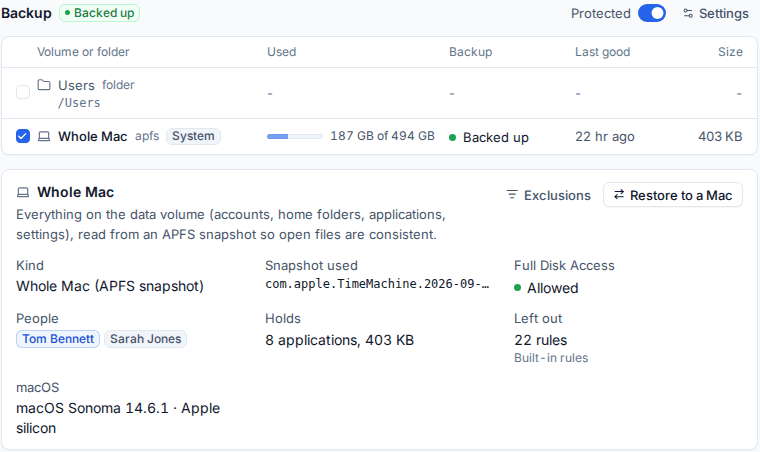
The backup then follows the Mac's schedule and retention like any other backup. See Protecting devices and Schedules and retention.
Full Disk Access
macOS hides mail, messages, Safari, other apps' data and parts of every home folder from programs that have not been given Full Disk Access, even when they run as root, and refuses to mount a snapshot without it. The agent needs Full Disk Access for a whole Mac backup.
Give it in either of two ways:
- By hand on the Mac: open System Settings > Privacy & Security > Full Disk Access and turn on the agent. If it is not listed, add it with +.
- With a privacy profile (PPPC) for the agent, pushed by your MDM. This is the better choice for many Macs.
The agent checks Full Disk Access each time it reports, and the device page shows it on the Whole Mac card. When it is off, the Mac's backup shows a warning with these steps, and its whole Mac backups fail with the same message rather than quietly backing up an incomplete Mac. The usual failed backup alert follows, so you hear about it.
Note: A Mac older than macOS 10.15, or one whose data volume is not APFS, cannot be backed up whole. Back up its folders instead.
The Whole Mac card
Under the list of volumes and folders, the Whole Mac card shows:
- Kind: Whole Mac (APFS snapshot).
- Snapshot used by the latest backup.
- Full Disk Access: Allowed, or the problem.
- People: the accounts in the backup, with administrators marked.
- Holds: how many applications, and the size.
- Left out: how many exclusion rules applied, and whose they are (built in, from Settings, or this Mac's own).
- macOS: the version and processor.
Exclusions
Exclusion rules use gitignore style, one rule per line, from the top of the data volume. For example /private/var/vm/ is that folder, **/Library/Caches/ is every caches folder, and *.iso is every disc image.
For every Mac
Open Settings > Backup, the Defaults tab, and find Whole Mac backups. Edit the rules and press Save. Reset to default puts the built-in list back.
For one Mac
- On the Whole Mac card, press Exclusions.
- Choose Follow Settings > Backup to use the rules from Settings, or Rules for this Mac to give this Mac its own list.
- Edit the rules and press Save.
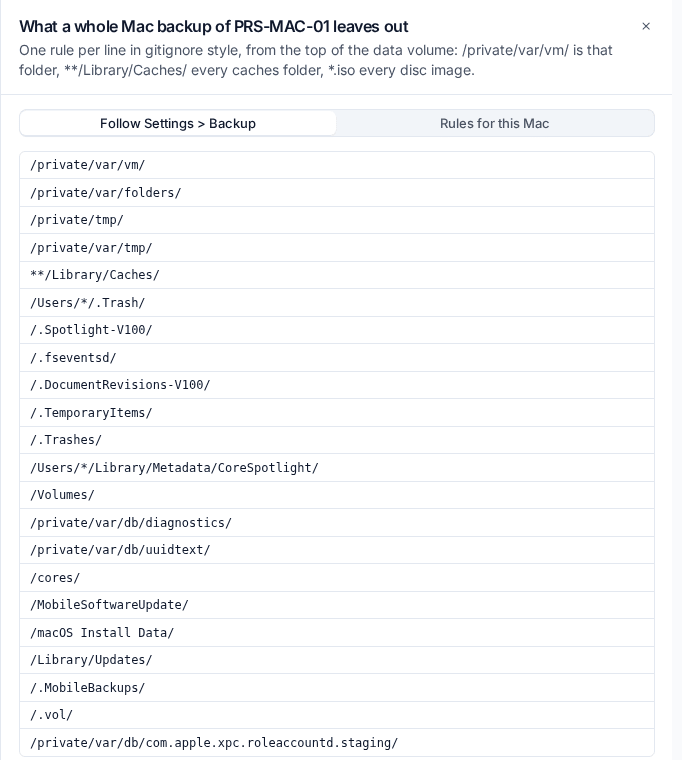
An empty list on Rules for this Mac leaves nothing out.
Tip: Leave out large folders that are already safe elsewhere, such as a synced cloud drive or a folder of virtual machine images, to keep backups small and fast.
Restoring from a whole Mac backup
Use the normal Restoring flow and choose the Mac and its Whole Mac backup. You can browse the snapshot like any folder, pick files and folders, and restore them to where they came from, to another folder on the Mac, or as a download. Files restored to where they were get back the owner they had; files restored into another folder belong to that folder's owner, so the person they are for can open them.
Related
Was this page helpful?
Thanks for the feedback.