The settings catalogue and overrides
Find any setting by searching, see what you have changed, put things back to their defaults, give one customer or contract its own value, and try changes on yourself first in test mode.
Almost every rule, threshold, lifetime and piece of wording in Tenvara is a setting you can change, and every one of them starts at a sensible default. Behind the scenes they all live in one settings catalogue, which is what lets you search for them, see what you have changed, reset them and, for many, give a single customer or contract its own value.
If you change nothing, Tenvara behaves exactly as the defaults describe. A setting is only stored once you choose something different.
Finding a setting
You do not need to know which page a setting lives on.
- Open Settings.
- Press Search settings at the top of the Settings sidebar.
- Type a word, for example "prefix", "close" or "retention".
- Pick a result. Each one shows the setting's name and where it lives, for example Numbering > Tickets.
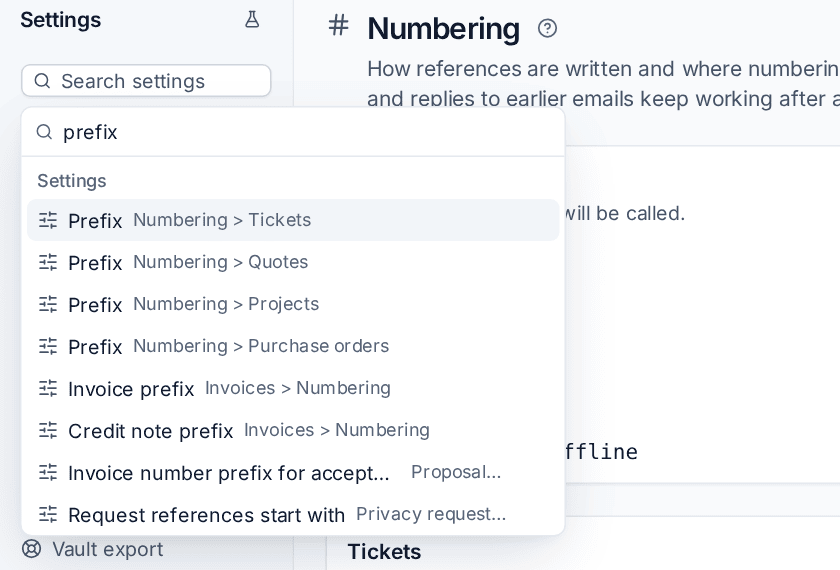
Tenvara opens the right page, scrolls to the field and highlights it for a moment. The search looks at each setting's name, its description, the card it sits in, extra keywords and its current value, and it also finds whole Settings pages.
Tip: The command palette (
Ctrl KorCmd K) searches settings too, so you can jump to one from anywhere in the app.
Seeing what you have changed
Any field that no longer has its default value shows a Changed marker, with Reset to default beside it and the default written underneath (for example "Default: Off").

- Reset to default puts that one setting back. If the setting is wording, it goes back to the built-in text in each reader's language.
- Reset this page, in the header of pages that have it, lists everything on the page that differs from the default and puts it all back in one go after you confirm.
Each card on a settings page has its own Save button, so you can change one card without touching the rest. Discard throws away changes you have not saved. Changes are checked against the setting's limits (for example a number of days between 1 and 365), whether they come from the screen or the API.
Every change and reset is recorded in the audit log with the value before and after.
Settings for one customer or one contract
Many settings can differ for one customer, and some for one contract. For example:
- how long a resolved ticket waits before it is closed automatically;
- the reopen window for replies to old tickets;
- the customer portal's welcome text, support email and phone number, which portal sections the customer sees, and whether their people can register themselves;
- how long each kind of data is kept;
- how long their devices are expected to last, and their warranty and refresh rules;
- Microsoft 365 check thresholds, network discovery alerts and printer offline alerts;
- for a contract, rollover of unused hours, prepaid blocks, the warning before a maximum and whether the fee is billed in advance or arrears.
A value is worked out in this order: the contract's own value, then the customer's, then yours in Settings, then the default.
Give a customer its own value
- Open the customer and choose the Settings tab.
- Find the setting. Each one says what it uses now and where that comes from, for example "Uses On from the default" or "Uses 14 days from Settings".
- Turn on Own value and choose the value for this customer.
- Press Save.
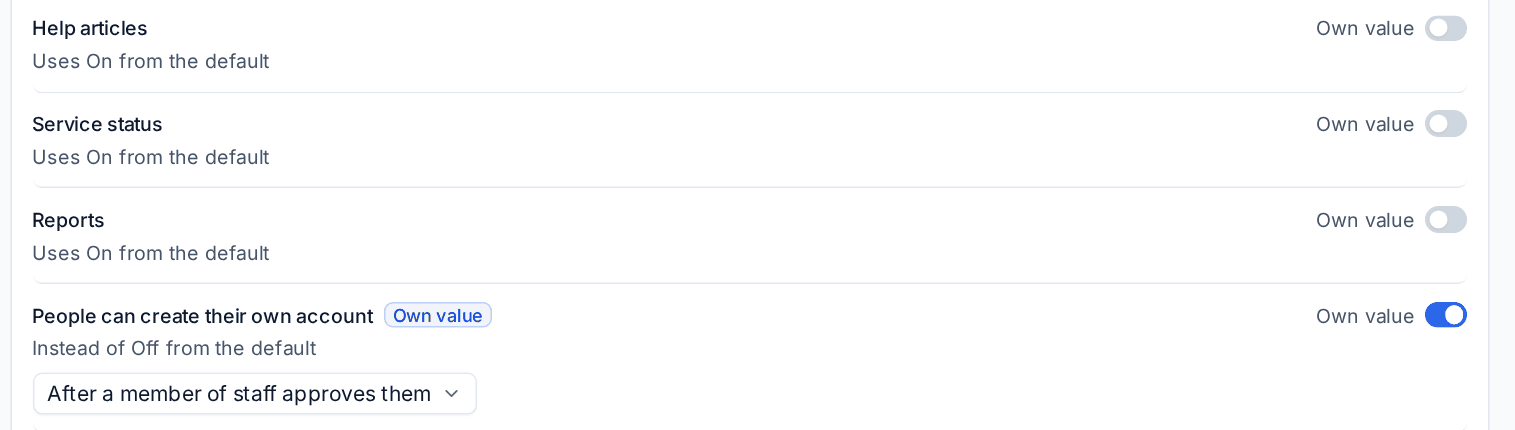
The line under the setting then reads "Instead of" the value it would otherwise have. Turn Own value off to follow everyone else again.
Give a contract its own value
Open the contract and use its Settings overrides card in the same way. A contract made from a contract template starts with the template's values. A contract's own value wins over its customer's.
On the main Settings pages, settings that some customers or contracts override say how many differ, so you know a change there will not reach everyone.
Note: Everyone who can see the customer or contract can read its own values. Only administrators can change them.
Test mode: try changes on yourself first
Test mode lets an administrator try settings changes and see the result in the app before anyone else gets them.
- In Settings, press the flask button at the top of the sidebar (Try changes first (test mode)).
- A bar under the top bar says "Test mode is on. Settings you change now only apply for you."
- Change settings as usual. Fields you change show Trying instead of Changed.
- Look around the app: screens, previews and wording show your trial values, to you only.
- Press Review to see each change, what everyone has now and what you are trying. Take any one back with Stop trying this change.
- Press Apply to everyone to put every trial change in place at once, or Discard to throw them all away.
While test mode is on, nothing Tenvara does in the background uses your trial values: tickets are not closed early, passwords are not refused, and emails and PDFs use the real settings. So you can try an automatic closing delay or a stricter password rule without any effect on your team or customers.
Note: Test mode covers catalogue settings, the ones with Reset to default. Lists such as statuses, queues, templates and rules are saved for everyone straight away as usual.
If Applying settings tried in test mode to everyone is ticked under Confirm it is you in Settings > Sign-in, Tenvara asks you to confirm who you are before applying. See Sessions, IP allowlists and API tokens.
Related
Was this page helpful?
Thanks for the feedback.