Secure print release
Hold print jobs encrypted on each computer until the person releases them at the printer, from the portal, a phone, a release station or with a code on the printer.
With Secure print, nothing sits in the output tray for someone else to pick up. People print as usual to a printer called Secure print. The job waits, encrypted, on their own computer until they are standing at a printer and release it. There is no print server to install: the Tenvara agent on each computer holds the jobs and sends them straight to the printer the person chooses.
How it works
- You add a Secure print queue for a customer and deploy it, usually to the whole customer or a site, often as the default printer.
- On each Windows computer it reaches, the agent installs a printer called Secure print that prints to the agent itself.
- When someone prints to it, the agent reads who printed what (document name, pages, copies, colour and double-sided), keeps the job encrypted on that computer and tells Tenvara it is waiting.
- The person releases it at a printer. Tenvara checks the printer can take it and the person's quota, works out the cost, and tells the agent holding the job to send it to that printer.
- The agent sends it straight to the printer over the site's network and deletes its copy.
Jobs nobody releases are deleted after 24 hours (you can change this). Printers that are not behind Secure print keep printing directly as before.
Setting up Secure print
Add the queue
- Go to Devices > Printers > Secure print and press Secure print queues.
- Press Add queue and choose the customer. This makes the Secure print printer for that customer.
- Press Deploy and choose a site or the whole customer, optionally as the default printer. See Deploying printers to devices.
Choose the release printers
Open each printer people should collect from (Devices > Printers, then the printer, then edit) and set:
| Field | What it does |
|---|---|
| Secure print release | Jobs held by Secure print can be released here |
| It prints | The languages the printer takes. Held jobs are PostScript, so release printers must take PostScript (business lasers usually do) |
| Keeps jobs for a code typed on the printer | For printers that support PIN or private printing: a job can wait in the printer until the person types a code on its panel |
| Prints colour | From its toner, Yes or Mono only. A colour job released to a mono-only printer prints in greyscale |
| Mono page and Colour page | This printer's own page costs. Empty uses the settings |
Releasing a job
People can release their jobs in several ways. You choose which ones each customer uses in the settings.
From the portal
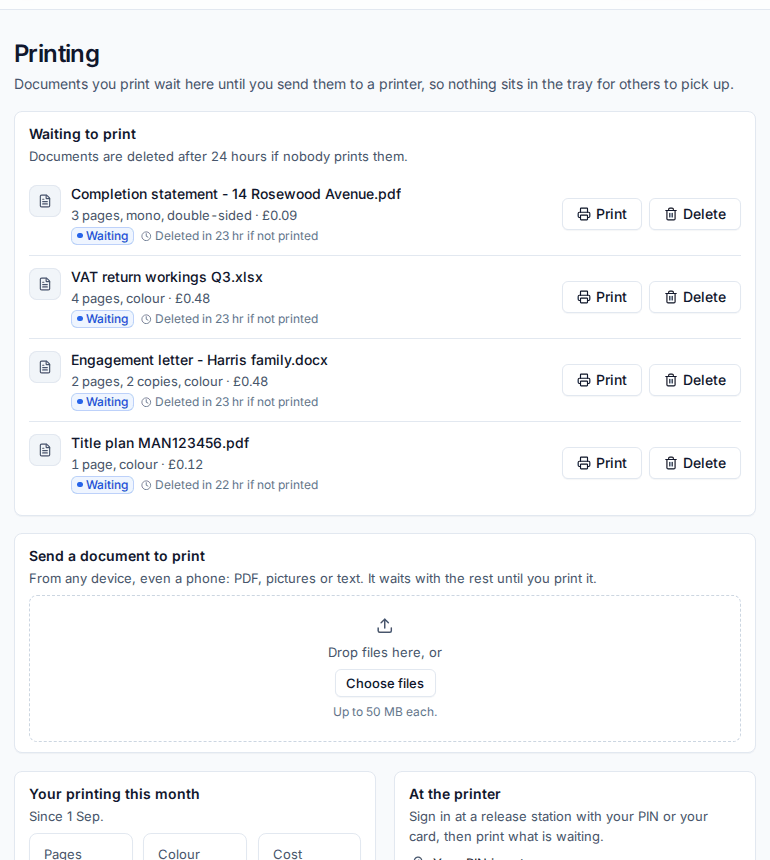
In the customer portal, Printing lists everything Waiting to print, with the pages, colour and cost. They press Print, choose the Printer and press Print now, or Delete a job they no longer need.
From a phone at the printer
Each release printer can have a sticker with a QR code. People scan it with their phone camera, sign in to the portal and see their documents for that printer, with Print and Delete. Make the sticker from the site under Devices > Printers > Sites (Printer stickers, Make sticker), then Print sticker.
At a release station
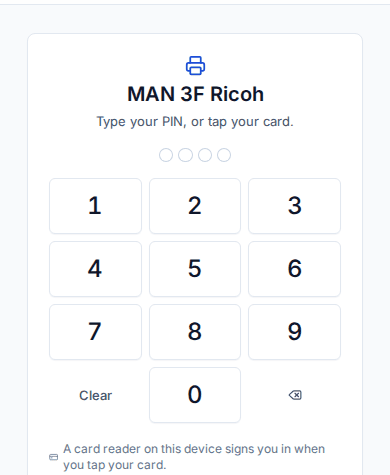
A release station is any tablet or PC by the printer with a browser open on the station page. People type their PIN, then print what is waiting, or everything at once.
- Open the site under Devices > Printers > Sites and press Add station under Release stations.
- Choose the Printer and give the station a Name, for example "Reception tablet".
- Open the link it shows on the station (it is shown once) and keep the browser open full screen.
People set their own PIN under At the printer on the portal's Printing page, or you make one for them on Devices > Printers > People (New PIN, shown once).
With a code on the printer
For printers marked Keeps jobs for a code typed on the printer, people can tick Keep it at the printer until I type a code when they release a job. The job goes to the printer as a private job and they are shown a code once. At the printer they open held or private jobs on its screen, choose the document and type the code.
By a technician
On Devices > Printers > Secure print, click a held job, choose a printer under Release it and press Release. Tick Hold it at the printer under a code to use a printer's private printing.
The Secure print page
Devices > Printers > Secure print shows how many jobs are Held, Failed, and the Pages today and Pages this month. The list has every job with its Person, Status, where it Came from, Pages, Colour and Printer. Filter by any of these or by Customer.
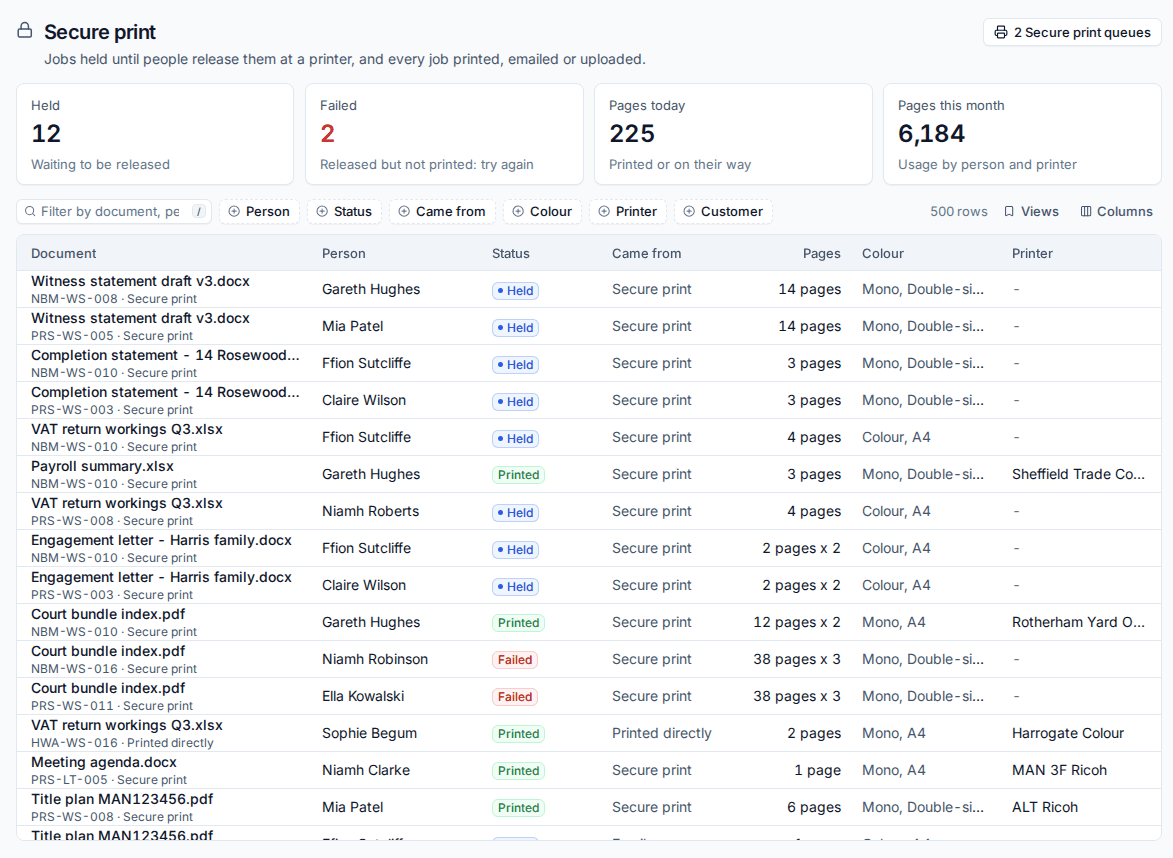
Click a job to see the computer holding it, its format, cost and when it will be deleted, and to release or delete it. A failed job was released but not printed; release it again.
Devices > Printers > People lists everyone who prints, matched to contacts by their sign-in names, with their department, PIN and quotas.
Settings
Settings > Device management > Secure print, under Held jobs and release, has Delete held jobs after, Largest job, Release from the portal and phones, Release at release stations with a PIN or card, Send jobs to the printer held under the person's PIN, Release everything at once by default, PIN length and Release stations sign out after. Most can be set per customer.
Related: Print quotas and costs, Mobile, guest and self-service printing.
Was this page helpful?
Thanks for the feedback.