Problems and major incidents
Group tickets under a parent, work the root cause behind repeat incidents as a problem, and run an outage as a major incident with one timeline and one update to everyone affected.
When several people report the same thing, you want to answer it once. Tenvara gives you three tools for that, all under Service management in the tickets sidebar:
| Tool | Use it for |
|---|---|
| Parent and child tickets | The same issue reported by several people: one ticket is worked, the others follow it |
| Problems | The cause behind repeat incidents: root cause, workaround and known error, worked once |
| Major incidents | An outage that hits many customers at once: one timeline, updates to everyone, a portal banner and a review |
Parent and child tickets
A ticket can take other tickets as its children (one level deep). Children stay open, but they follow their parent:
- a public reply on the parent goes to each child's requester, in their own email thread,
- Update all sets every open child to a status you choose, telling their requesters the way that status usually does,
- Close all closes the open children, and resolving the parent resolves them too.
To link tickets:
- Open the ticket that will be worked (the parent).
- In the Related section of the details panel, press Add children, search by number or subject and choose the tickets. Tenvara suggests Similar open tickets from the last 24 hours.
- Or, from a child, use Make it a child of... in the ticket's More actions menu.
You can also select several tickets in the inbox and link them from the bulk bar. The automation action "Link to a similar open ticket" does it by rule.
Problems
A problem is the cause behind incidents. You work its root cause and workaround once, for every ticket it explains. Problems are numbered PRB-1, PRB-2 and so on.
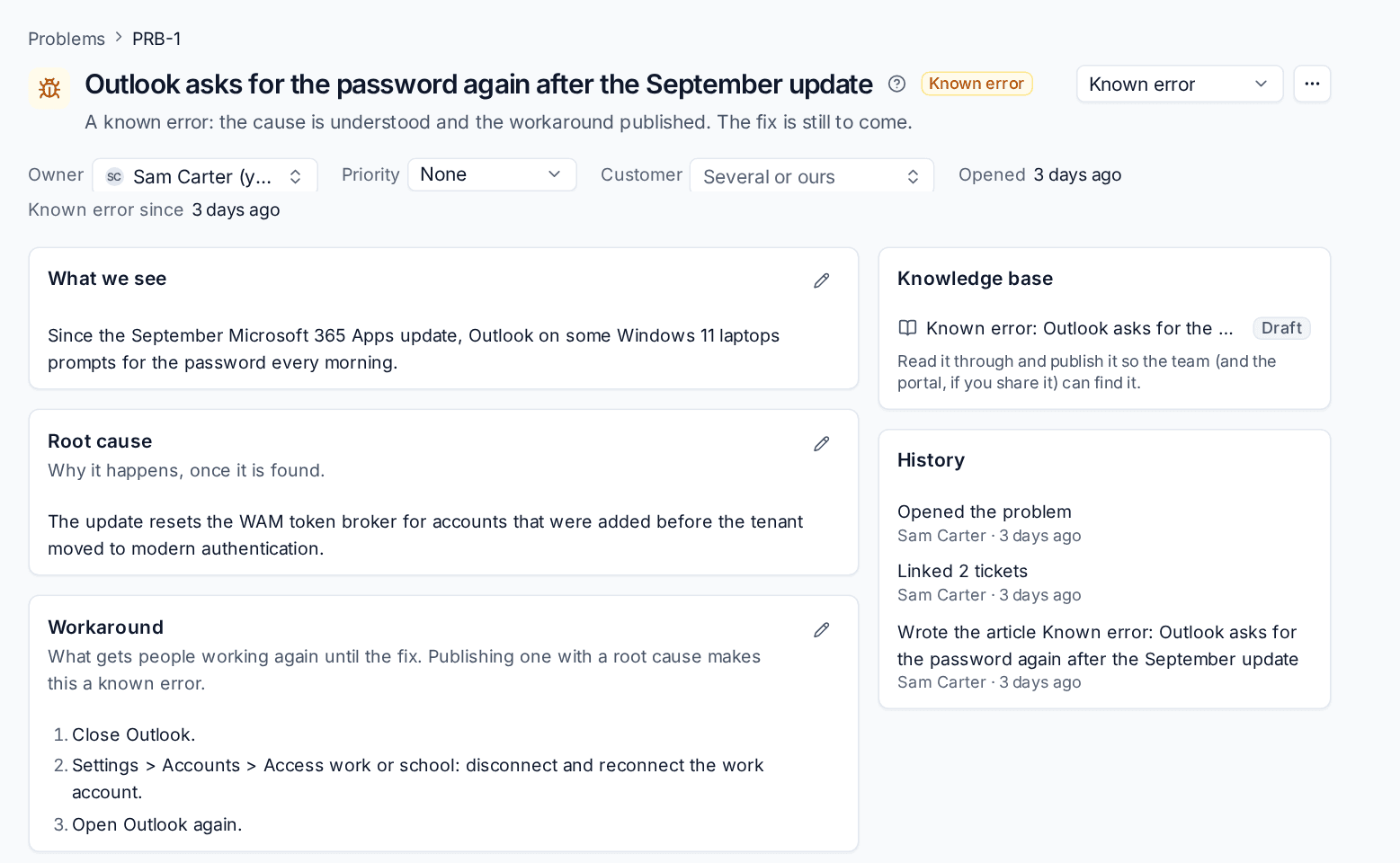
To raise one:
- Go to Problems and press New problem, or use Link to a problem on a ticket and choose A new problem.
- Give it a title, then fill in What we see.
- Set the Owner, Priority and Customer (one customer, or several or your own systems).
- Link the tickets it explains under Tickets it explains.
As you learn more:
- Write the Root cause once it is found.
- Write the Workaround: what gets people working until the fix. Publishing a workaround with a root cause makes the problem a Known error.
- Under Knowledge base, Tenvara writes a known error article as a draft. Read it through and publish it so the team (and the portal, if you share it) can find it.
The History card records every change. The Problems list shows how many are open, how many are known errors and how many open tickets they explain.
Major incidents
A major incident is an outage that affects many customers: hosted phones down, a datacentre link failing, a Microsoft 365 sign-in problem. Major incidents are numbered MI-1, MI-2 and so on.
Declare a major incident
- Press Declare a major incident on Major incidents, from a ticket's menu, or from the command menu (Cmd+K).
- Write the Title in words customers understand: it shows in the portal banner and the emails.
- Choose the Customers affected, or Every customer when your own systems are down.
- Set the Impact: Critical, Major or Minor.
- Optionally write the first message and leave Send it now on, so the first update goes out straight away.
- Press Declare.
When you declare it from a ticket, that ticket becomes the incident's ticket and other tickets can become its children.
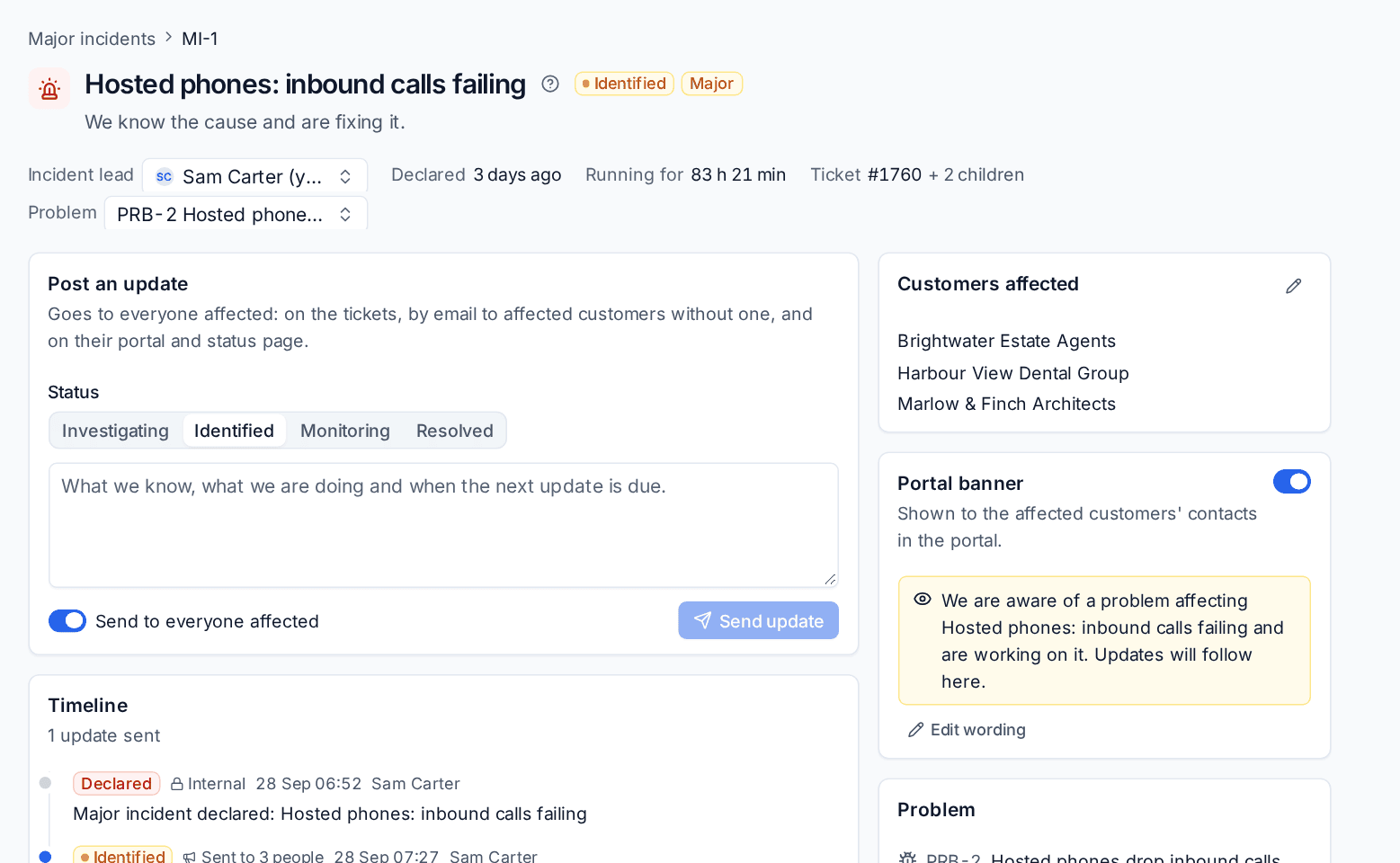
Keep everyone updated
On the incident page, Post an update:
- Choose the status: Investigating, Identified, Monitoring or Resolved.
- Write what you know, what you are doing and when the next update is due.
- Leave Send to everyone affected on to post it on the tickets, email the primary contacts of affected customers who have no ticket, and show it on their portal and status page. Turn it off to keep it as an internal note.
- Press Send update.
The Timeline keeps every update, marked as sent (with how many people) or internal. The Portal banner shows to the affected customers' contacts while the incident is open; use Edit wording to change it. Link the incident to a Problem so the root cause is worked after the outage is over.
After it is resolved
Resolving the incident resolves its ticket and children (unless you change that in settings). A post-incident review starts from your template with the timeline filled in. Reviews to write on the Major incidents page shows any still outstanding, and Average time to resolve covers the last 90 days.
Settings
Settings > Ticket setup > Service desk holds the options:
- Send public replies on a parent to its children and Resolve and close children with their parent.
- Suggest similar tickets from the last so many hours.
- The Problem reference prefix and Major incident reference prefix.
- Who hears a major incident's updates besides the tickets' requesters (by default the primary contacts of affected customers).
- Resolving a major incident resolves its ticket and children.
- The Portal banner wording and the Post-incident review template.
Who else is on a ticket
The same tab also controls collision warnings, so two technicians do not answer the same customer at once:
- Show who is viewing or replying puts the others' avatars in the ticket header and on list rows, with "Alex is replying" while someone writes.
- Warn before sending if someone else replied shows replies other people sent since you opened the ticket, with Send anyway or Cancel.
Related: Status pages, Change management, Working a ticket.
Was this page helpful?
Thanks for the feedback.