White-label overview
What white-labelling changes, who sees which brand, and where to set it up in Settings > Branding.
Tenvara is the default look, not a requirement. With white-labelling, your customers see your product: your name, your logo, your colours and your own web addresses, in the portal, in every email and PDF, in chat and on the agent running on their devices. Your team can see your brand too.
Everything lives in Settings > Branding, which administrators can open.
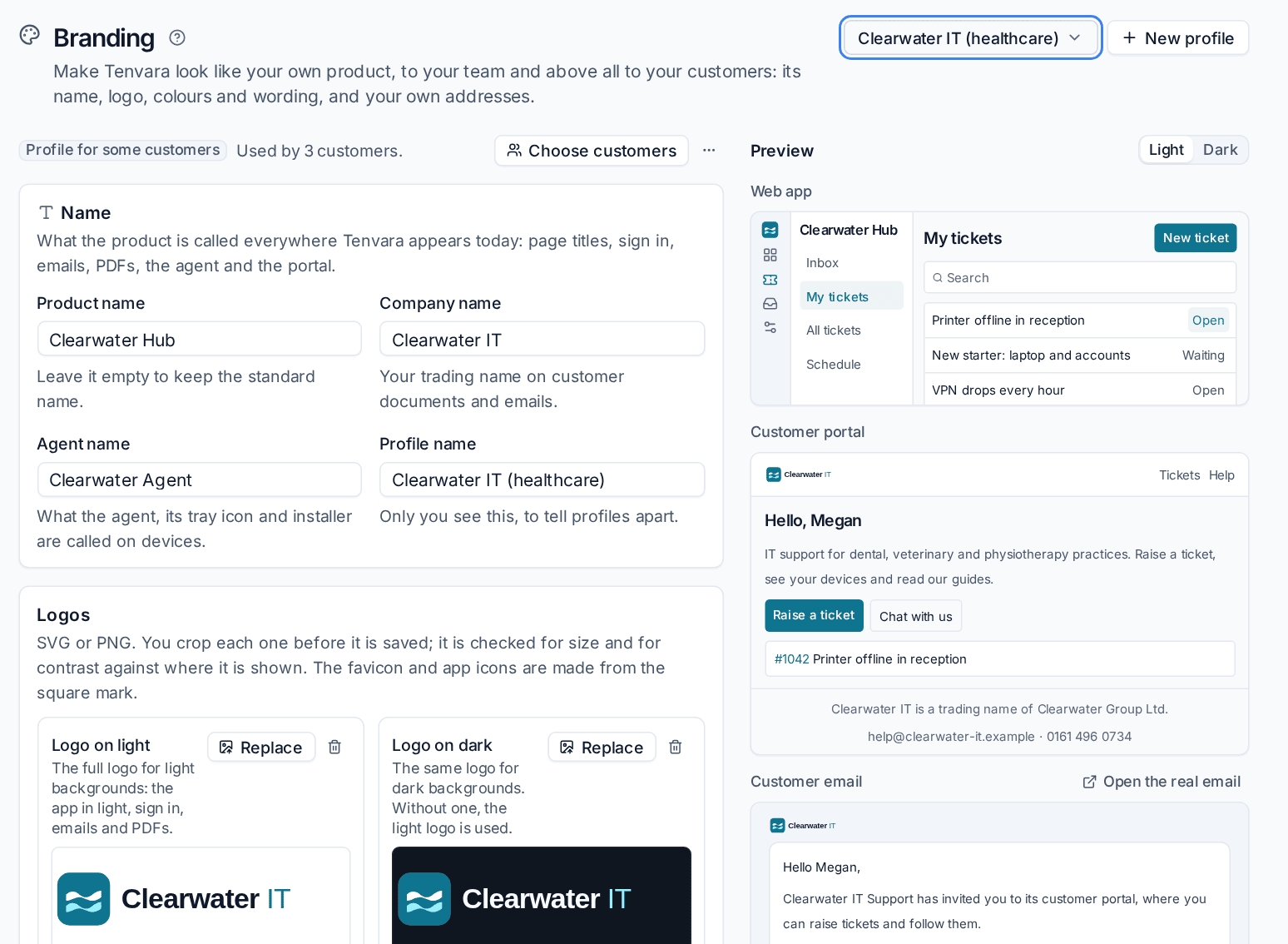
Brand profiles
A brand is set in a brand profile. Every install starts with one, the Default profile, which shows the standard Tenvara look until you change it. Most MSPs only ever use this one: set your name, logo and colours on it and every customer gets them.
If you trade under more than one name (a healthcare arm, a company you bought, a reseller brand), add a profile for each name and assign customers to it. Each customer wears exactly one profile: their own, or the default. See Brand profiles.
What a brand covers
| Where | What changes |
|---|---|
| Customer portal | Product and portal name, logo, favicon, colours, welcome text, footer, support contact details, help links |
| Emails | The logo in the header, the name emails come from, the signature and footer, button and link colours, links to your portal address |
| PDFs | Invoices and credit notes, quotes and proposals, customer reports, project status reports, Cyber Essentials and compliance reports, saved report PDFs |
| Chat | The chat widget and the AI assistant's name and avatar |
| Agent | The name in Apps and features, the Windows service name, the tray icon and menu, the remote control consent prompt and the "being viewed" indicator |
| Web app | The product name, logo, colours and heading font your team sees |
| Addresses | Your own domain for the staff app and another for the portal |
The full list, with what customers see in each place, is in What your customers see.
Who sees which brand
- Customers and their contacts see the profile assigned to their customer, everywhere: the portal they sign in to, the emails sent to them, the PDFs they receive, the chat widget and the agent on their devices.
- Your team sees the default profile's brand in the web app, or the brand of the custom staff app domain they signed in on.
- Emails follow the customer they are addressed to, so a queued email or a scheduled report still goes out in the right brand.
Setting it up
- Open Settings > Branding.
- Fill in the Name card: Product name, Company name and Agent name.
- Upload your logos and square mark under Logos.
- Pick your Brand colour under Colours.
- Fill in the Customer portal, emails and chat card.
- Check the Preview on the right in light and dark, then press Save changes.
- Optionally add your own addresses under Custom domains: see Custom domains.
Every change bumps the profile's version. Open pages pick up the new brand straight away, and connected agents fetch theirs on their own, with no reinstall or restart.
Tip: Leave a field empty to keep the standard value. Resetting a profile simply clears its fields.
"Powered by Tenvara"
A small "Powered by Tenvara" line shows to your team on the sign-in page and in About, and is off for customers. You can switch both in the Help and powered by card. With it off for customers, the portal, emails and chat carry only your brand.
Pages in this section
- Brand profiles: name, logos, colours, wording, help links, and which customers use each profile.
- Custom domains: your own addresses for the staff app and the portal.
- Branded agent and installers: installer packages per customer and what the agent shows on devices.
- What your customers see: the portal, emails, PDFs, chat and pages that open without signing in.
Related: Customer portal settings, Settings overview.
Was this page helpful?
Thanks for the feedback.