Dark web monitoring
Watch your customers' domains and addresses in breach data, check vault passwords against known breaches, work exposures, and send each customer a report.
Dark web monitoring checks your customers' email domains and addresses against published breach data on a schedule. When an address turns up in a breach, you see which breach, what it exposed and whose address it is, and Tenvara raises an alert and a ticket so someone acts on it. It also checks every password in your vault against known breached passwords.
Open Docs and choose Dark web monitoring under Security.
Where the breach data comes from
| Source | What it does | Setup |
|---|---|---|
| XposedOrNot | Checks each address Tenvara knows at a watched domain: contacts, Microsoft 365 users and watched addresses | Free, no key |
| Have I Been Pwned | Its breach list and a domain's own breaches are free. With an API key it searches whole domains, including addresses nobody told Tenvara about, and checks each watched address | Your own Have I Been Pwned API key for the full search |
| Pwned Passwords | Checks vault passwords against known breached passwords | Free, no key |
To add a Have I Been Pwned key, open the menu on the Dark web monitoring page and choose Add a Have I Been Pwned key. Get the key from your Have I Been Pwned account; whole-domain search covers the domains you have verified in your Have I Been Pwned dashboard. The key is stored encrypted and never shown again.
Watching a customer
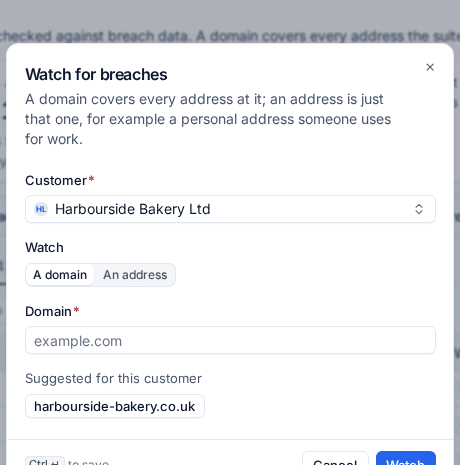
- Press Watch a domain.
- Choose the Customer.
- Under Watch, choose A domain (every address at it) or An address (just that one, for example a personal address someone uses for work).
- Enter the Domain or address. Tenvara suggests the customer's domains under Suggested for this customer, from Domains, Microsoft 365 and their contacts' addresses.
- Press Watch.
The Watched tab lists everything watched, with its open exposures and when it was last checked. From a row you can Pause, Resume or Stop watching. What a watch has found stays when you stop it.
Scans
Scans run on the schedule in the settings: every day or every Monday, at a set time. Press Scan now to scan the customer in scope straight away.
Working exposures
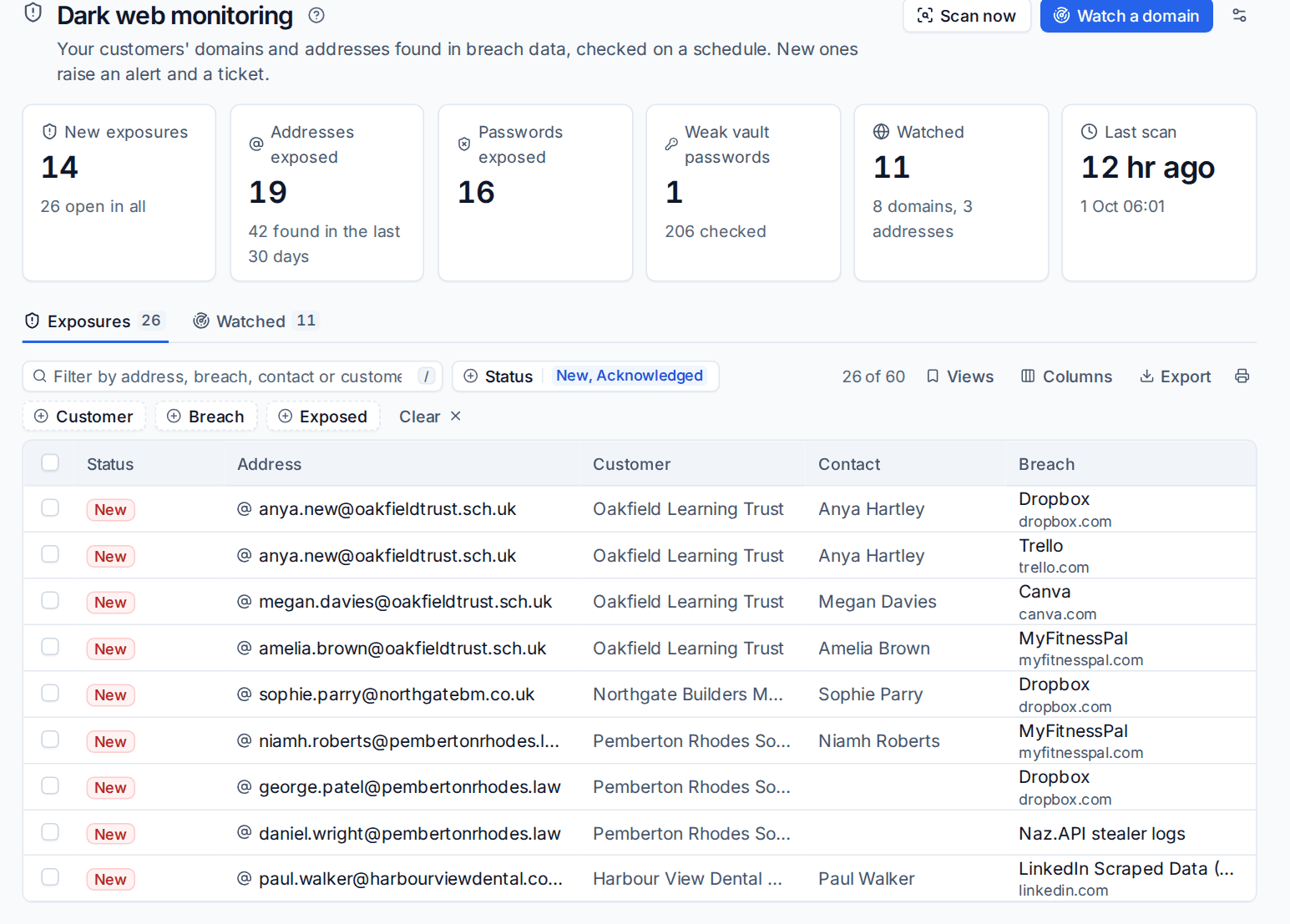
An address found in a breach is an exposure. The Exposures tab lists them with their status (New, Acknowledged or Resolved), the address, customer, matching contact and the breach.
- Click an exposure to see the breach, when it happened, what it exposed and the linked ticket.
- Press Acknowledge once someone is on it.
- When it is dealt with, press Resolve and say What was done, for example "password changed and MFA confirmed on the account".
You can acknowledge or resolve several at once by ticking them. On a row, A acknowledges and R resolves. A resolved exposure stays resolved if the next scan sees it again.
Tip: Breaches that exposed passwords matter most. Filter by Exposed to see those first, change the password everywhere it was used, and check multi-factor sign-in is on.
Alerts and tickets
A scan that finds anything new raises one alert per customer, listing every new exposure. It is critical when passwords were exposed. Your alert rules can turn it into a ticket; if none does, Tenvara opens the ticket itself unless the customer's settings say not to. A later scan adds a note to a ticket that is still open rather than opening another. See Alerts into tickets and notifications.
Weak vault passwords
Every password in your credentials vault is checked against Pwned Passwords, weekly and whenever it changes. Only the first five characters of the password's SHA-1 hash leave the server, so the password itself is never sent. On Docs > Credentials, the Breach check filter and the Found in breaches view show the credentials whose passwords appear in breach data. Each check is recorded in the vault audit log.
The customer report
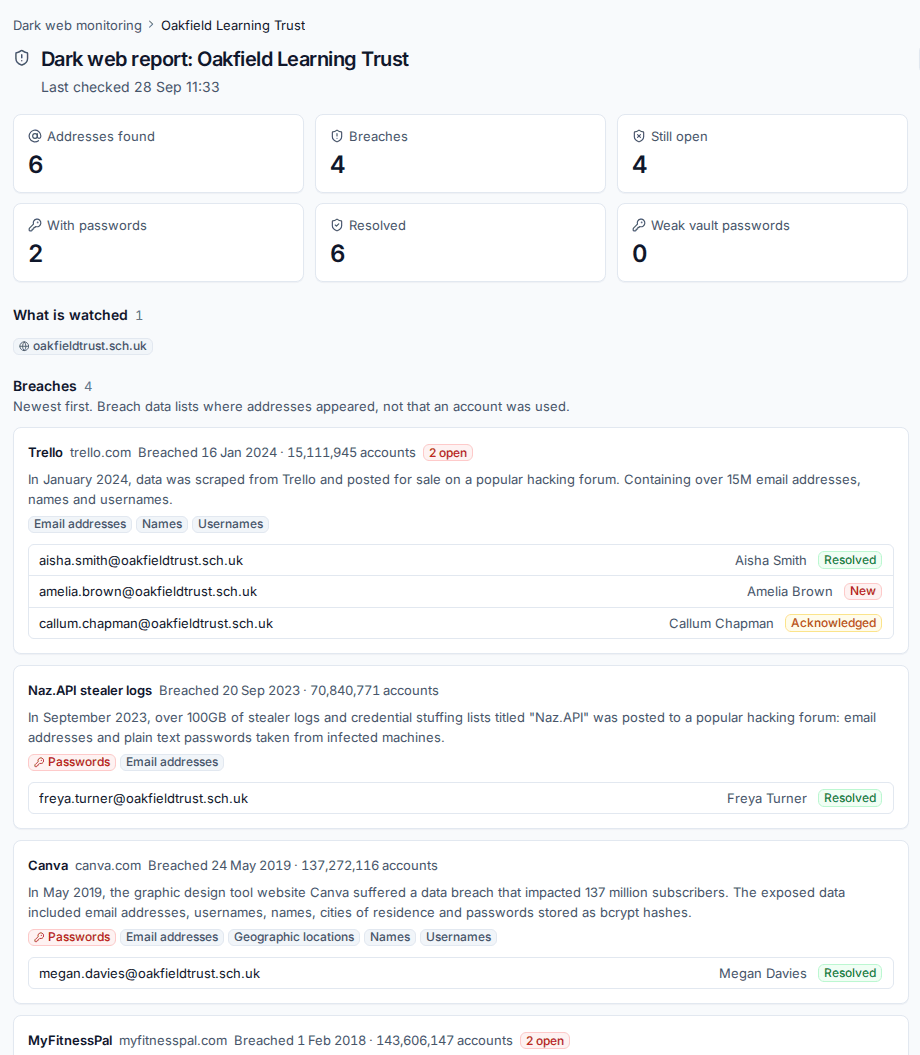
With a customer in scope, press Report for their dark web report: what is watched, every breach newest first with what it exposed and each address's status, the vault passwords found in breach data (named, never shown) and what to do. Download PDF gives the same as an A4 PDF in the customer's branding and language, ready to send.
Settings and permissions
Settings > Documentation > Dark web monitoring has Watch customers' domains and addresses in breach data (on or off, per customer), How often to scan, Scan at, the sources (Ask XposedOrNot (free), Ask Have I Been Pwned), Raise an alert for new exposures, Alert severity, Open a ticket for new exposures, Only open tickets when passwords were exposed and Check vault passwords against Pwned Passwords.
Dark web monitoring uses the Credentials permission: view to see it, manage to watch, scan and work exposures. The Have I Been Pwned key is for administrators.
Related: The credentials vault, Self-service password reset.
Was this page helpful?
Thanks for the feedback.