Billable units, prepaid hours and price uplifts
Bill per device, user or seat from daily counts with drift alerts, sell blocks of prepaid hours, and raise prices once a year with notice letters.
Three things keep recurring billing honest without anyone counting by hand: billable units, which compare what each contract charges with what Tenvara actually manages; prepaid hours, which customers buy ahead and use up; and price uplifts, which put your annual rise through every contract on one date with proper notice.
Billable units
Every morning Tenvara counts, for each customer, the things you usually charge per unit:
- managed workstations and servers (devices with the agent seen in the last 30 days), network devices and mobile devices;
- monitored devices;
- Microsoft 365 users and licensed users, and Microsoft 365 backup seats;
- backed up devices and backup storage;
- security sources and distributor seats;
- units of your own, such as hosted desk phones, that you count by hand.
The counts are kept day by day as history. A count typed by hand carries forward until you change it.
Bind a contract line to a count
On the contract page, under Counted quantities, choose a recurring line and how it uses a count:
- Follow the count: the line's quantity each month is the count. Add At least for a minimum commitment and At most for a cap, and the Count taken on day if it differs from the default.
- Check against it: the typed quantity stays, and the reconcile screen flags any difference.
- None: a typed quantity: the line ignores the counts.
Invoice runs bill lines that follow a count at the counted quantity for the month. How changes during the month are charged is set in Settings > Billing rules > Billable units under Changes in the month: Pro rata by the day, Whole month (the month's highest) or Count on the day.
Reconcile and drift
Billing > Billable units puts every customer's counts side by side with what their contract says and what was last billed:
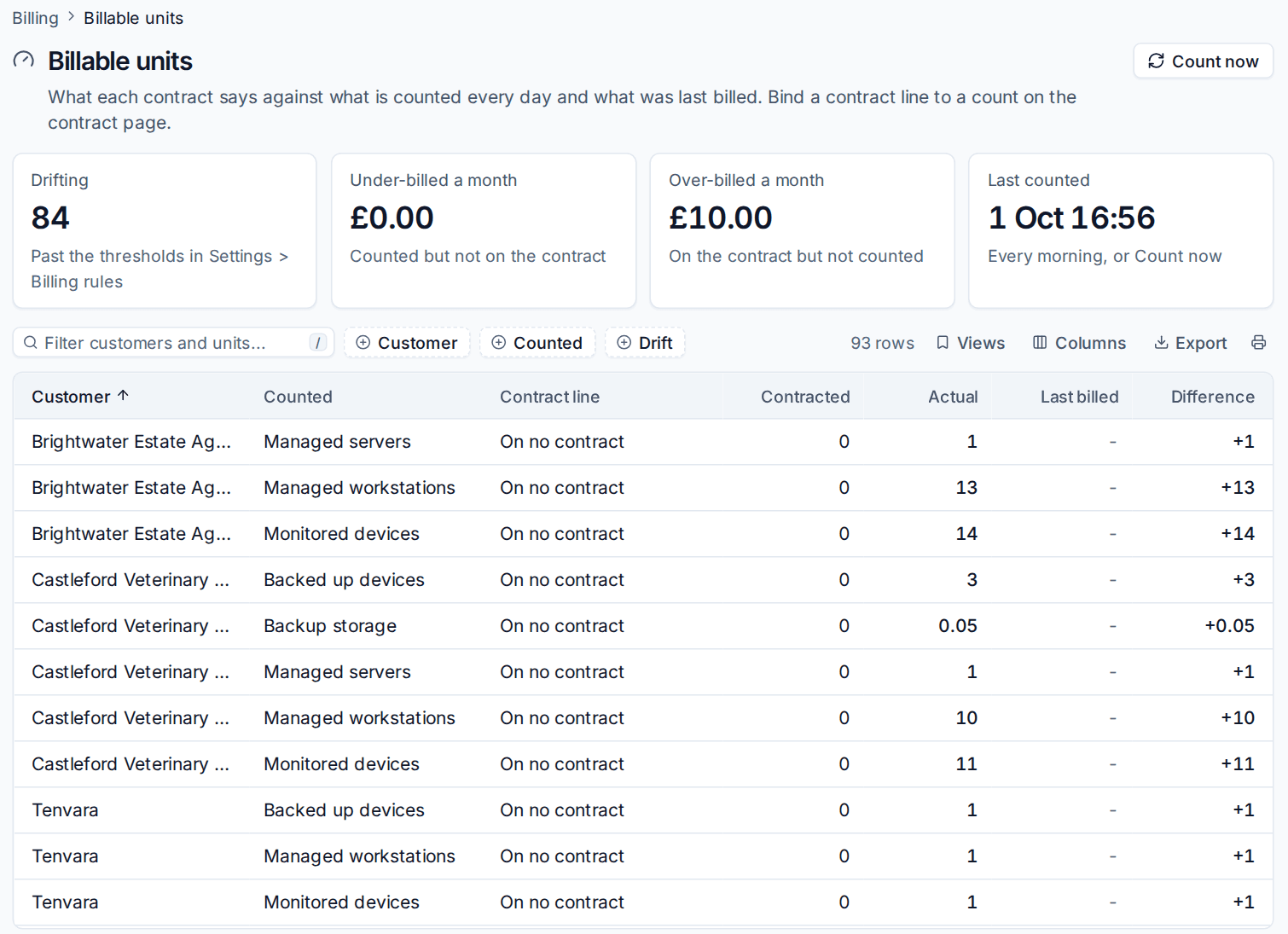
- Drifting: lines whose difference is past your thresholds.
- Under-billed a month: counted but not on the contract.
- Over-billed a month: on the contract but not counted.
Each row shows the Contracted, Actual and Last billed quantities and the Difference. Press Count now to run the count straight away. In Settings > Billing rules > Billable units, Alert on differences raises an alert when a checked line differs by at least the Units difference and the Money difference a month. Mark a known difference as known until the numbers change, so it stops nagging.
Each customer's Contracts and time tab shows their counts with a 90-day trend, and the pencil on a hand-counted unit lets you type today's figure. Add your own units with New unit under What is counted in the billing rules.
Prepaid hours
A prepaid block is a number of hours a customer buys ahead. Their billable time draws it down, after any included hours on their contract and in time order, and anything the blocks do not cover is billed at the normal rate.
To add a block:
- Open the customer's Contracts and time tab and find Prepaid hours.
- Press Add hours, enter the hours, the Price and when it Starts and Expires.
- Choose what it Covers: any of their billable time, or only one contract.
- Leave Bill it on the next invoice run on to invoice the block, or turn it off when it was paid another way.
You can also sell blocks on a quote: a catalogue item named in Settings > Billing rules > Prepaid hours adds the hours by itself when the quote is accepted. Top-up quote makes a quote for another block in one click.
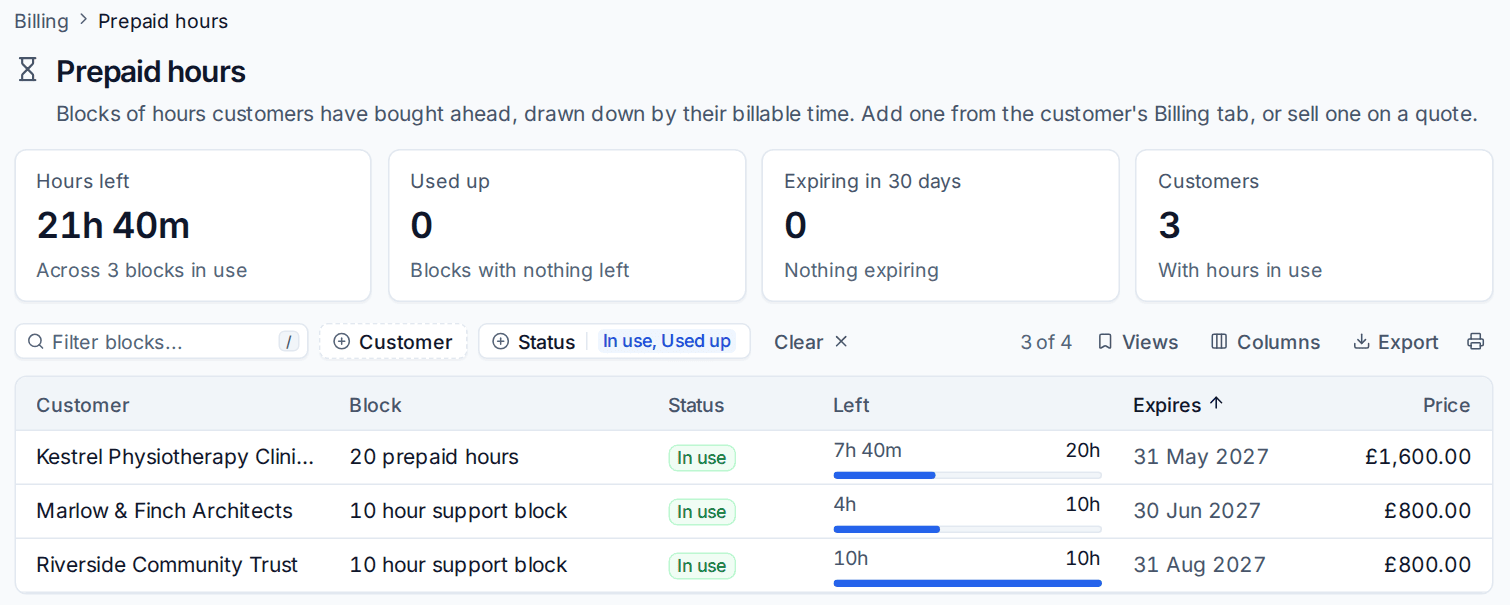
Billing > Prepaid hours lists every block with what is left and when it expires. The account manager, and the customer's billing contact if you choose, are warned when a block runs low or is about to expire, and unused hours are written off on the expiry date. A work type can use more than an hour of a block per hour worked (for example 1.5 for out of hours work), set with Prepaid hours used per hour on the work type. Customers see their balance on the portal's billing page.
Price uplifts
A price uplift raises prices across your contracts on one date, with a notice letter to each customer beforehand.
- Go to Billing > Price uplifts and press New uplift.
- Give it a Name, such as "Annual price review 2026".
- Under Rise by, choose A percentage, or Consumer price index plus a margin (Plus). For a UK install the CPI figure is fetched from the Office for National Statistics; anywhere else, type it.
- Choose New prices from and when Notice letters go on.
- Under What it changes, tick contract fees, recurring lines, overage rates and catalogue items as needed, and choose the Customers (Every contract in force, or Choose customers).
- Choose how to Round new prices and add A paragraph of your own for the letter.
- Press Work out the prices.
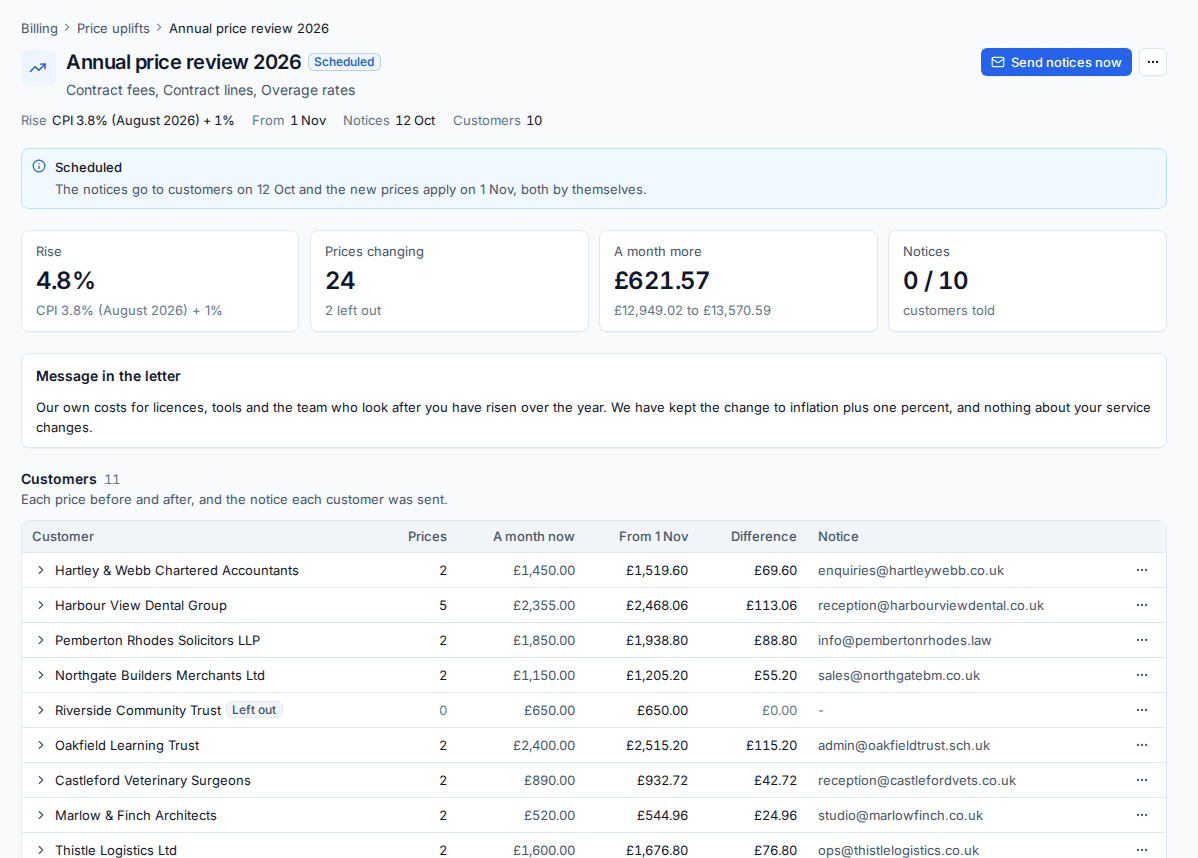
The uplift shows every customer's prices before and after and the difference a month. While it is a draft you can leave a customer or a single price out, or set a price by hand. Licence lines follow their licence price and are left out. Once scheduled, the notice letters (a PDF and an email to each billing contact) go on the notice date, or press Send notices now, and the new prices apply on the date by themselves. The month the rise applies in is billed pro rata, and a price someone changed in the meantime is left alone.
Related
Was this page helpful?
Thanks for the feedback.