Approvals
How customers and your team approve service requests and changes, how approvers decide by email, in the portal or by phone, and where else Tenvara asks for a second yes.
Some work should not start until someone says yes: a new laptop over a certain price, a new starter's licence, a firewall swap during the working day. Tenvara builds approval into the features that need it, so the right person is asked at the right moment and every decision is kept with who, how and when.
| What is approved | Who approves | Set up in |
|---|---|---|
| Service requests from the catalogue | The requester's manager, the customer's approvers, named contacts, and optionally your team | The item's Approval tab |
| Changes | Your change approvers, and the customer for the types you choose | Settings > Ticket setup > Changes |
| Quotes before they are sent | Your team, by value, margin or discount | See Quote approval |
Service request approvals
Each catalogue item has its own approval on its Approval tab, in Settings > Service catalogue.
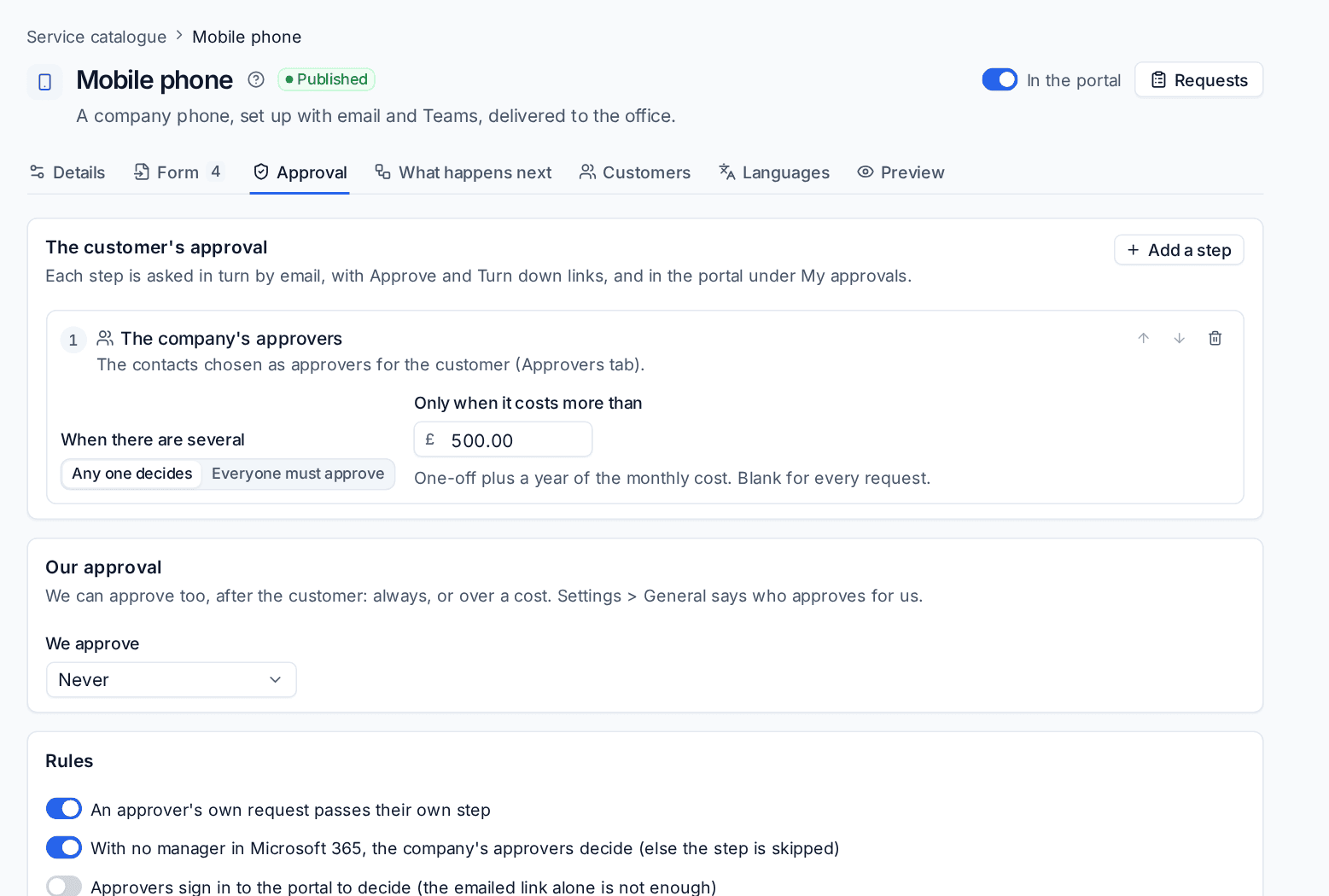
The customer's approval
Press Add a step to add steps. They are asked in turn, and each step can be one of:
- Their manager: the manager of the person asking, from Microsoft 365,
- The company's approvers: the contacts chosen as approvers for the customer,
- Named people: particular contacts, such as the finance director for new equipment.
For each step choose When there are several: Any one decides or Everyone must approve. To ask only for expensive requests, set Only when it costs more than an amount. The cost is the one-off price plus a year of the monthly price, including priced choices on the form. An item with no steps needs no approval, and requests go straight to the work.
Your own approval
Under Our approval, choose We approve: never, always, or only over a cost. Your step comes after the customer's. Who approves for us in the General tab says who decides for you; empty means every administrator.
Rules
- An approver's own request passes their own step.
- With no manager in Microsoft 365, the company's approvers decide (else the step is skipped).
- Approvers sign in to the portal to decide, when the emailed link alone is not enough for this item.
Choose each customer's approvers
- Go to Settings > Service catalogue > Approvers.
- Choose the customer.
- Choose which of their contacts approve requests, for everything or for one item (Add item approvers).
If nobody approves for a customer yet, requests that need their approval come to you to decide.
How approvers decide
Approvers get an email with Approve and Turn down links. The link opens a page that shows the request, its answers and why they were asked; nothing is decided until they press a button, so mail scanners that open links never approve anything. They can add a note for the person who asked.
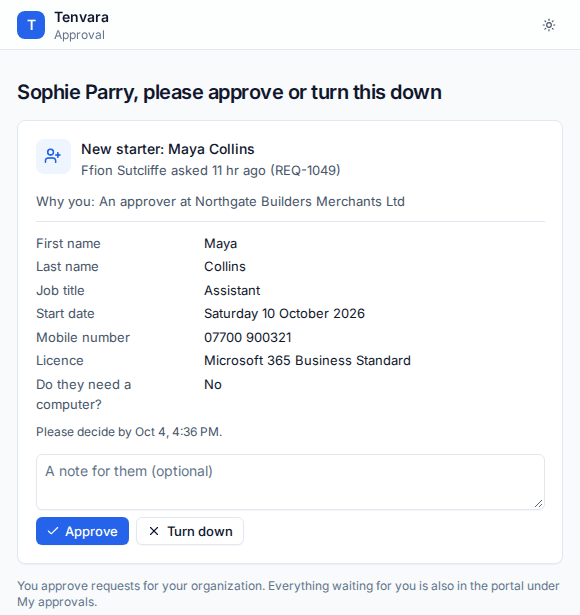
Approvers can also decide in the portal, which lists everything waiting for them. If you use the Teams or Slack app, approval cards arrive there too, with Approve and Reject. See The Teams and Slack apps.
On the staff side, a request waiting for approval shows each approver, when they were asked and when the step closes.
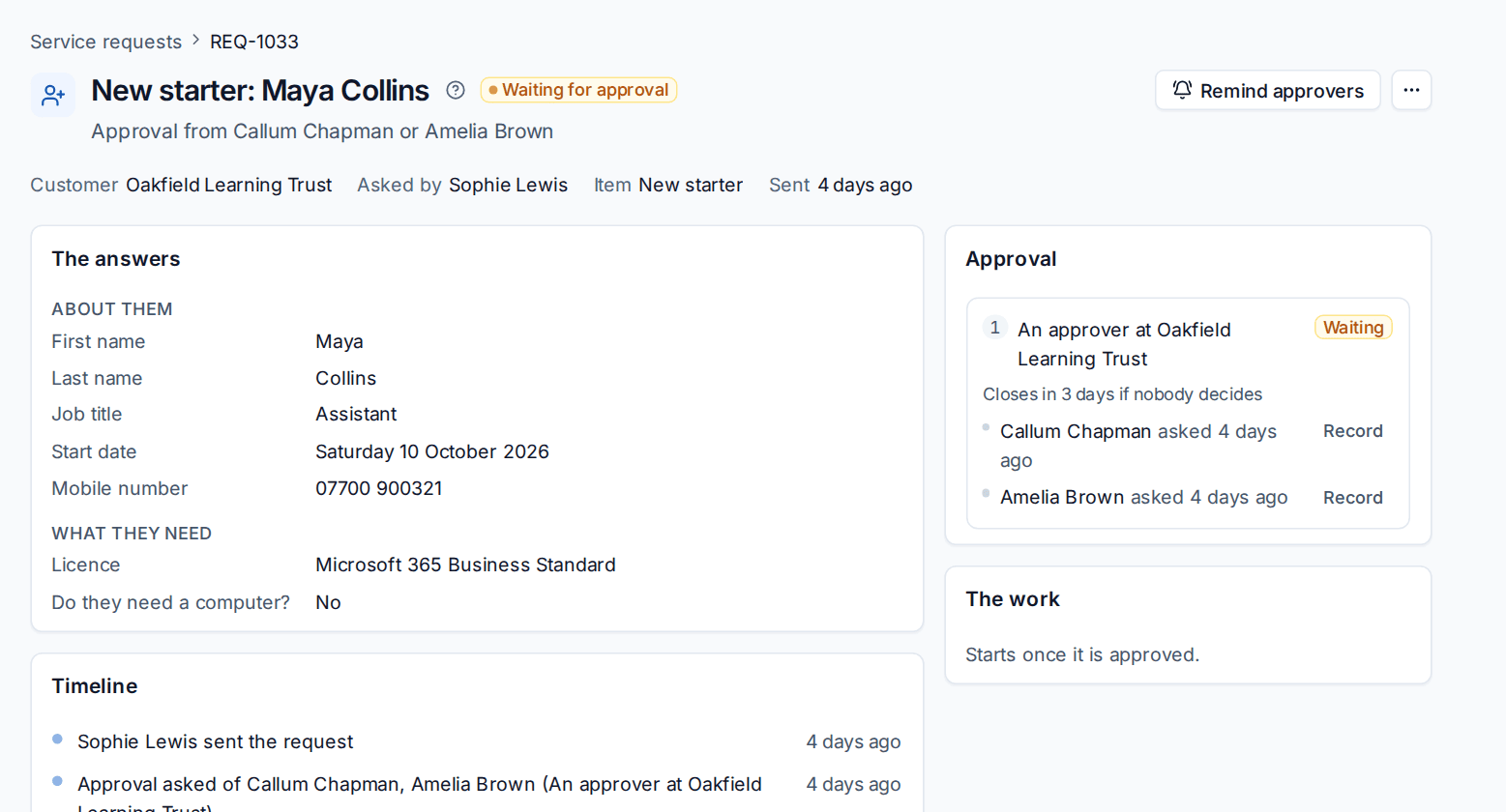
From the request you can:
- Record a decision an approver gave you by phone or email,
- Remind approvers who have not answered,
- decide your own step when it is your turn.
Approvers are reminded after the hours set in General, and a step nobody decides closes after the set number of days. Choose When nobody decides in time: close the request, or pass it to you. The timeline keeps every decision with who, how (email, portal or staff) and when.
Change approvals
Changes are approved by your change approvers and, for the types you choose, by each affected customer. Customer approvers are the customer's service catalogue approvers, or else their primary contacts, so you set them up once for both.
The customer's approver gets an email with their own link. The page explains the change in plain words: why, what they may notice, the risk, the plan and what happens if it goes wrong. They press Approve or Reject, with an optional note, for example a time that suits them better.
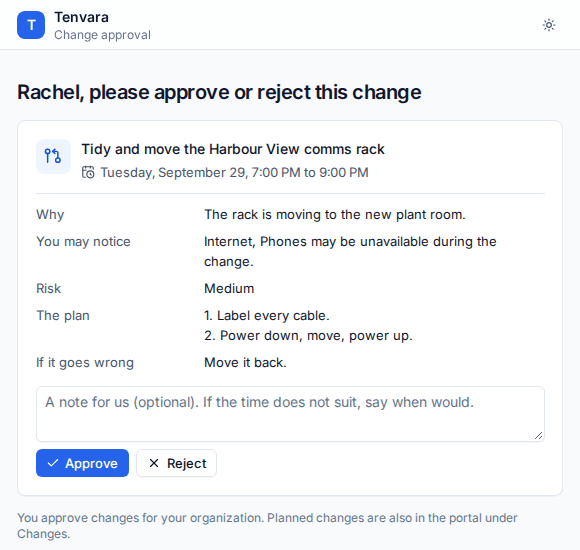
They can also decide in the portal under Changes, and a technician can record an answer given by phone. Any rejection rejects the change, and editing an approved change sends it back for approval. See Change management.
Other approvals in Tenvara
A second yes is also built into:
- restores and deletions that need a second administrator in backup (see Restoring),
- risky Microsoft 365 changes (see Making changes safely).
Related: The service catalogue.
Was this page helpful?
Thanks for the feedback.