Storage locations and immutable backups
Keep backups in more than one place, lock them with S3 Object Lock so nobody can delete them early, and protect deletions with a recovery window and a second administrator.
Tenvara keeps every customer's backups in repositories, and every repository lives in a storage location. You can have several locations, lock a location with S3 Object Lock so its backups cannot be deleted or changed before their time, and copy every repository to a second location on a schedule. Together with soft delete and second-admin approval, this gives you the 3-2-1 setup insurers and auditors ask for.
Storage locations
Open Settings > Backup and the Storage tab. Each location shows its kind, where it points, its repositories and second copies, how much is stored, and whether it is immutable. A location is an S3 bucket (Amazon S3, Wasabi, Backblaze B2, MinIO and other S3-compatible storage) or a Folder on the backup server, such as a NAS mount. New repositories go to the Default location unless a customer's backup policy names another.
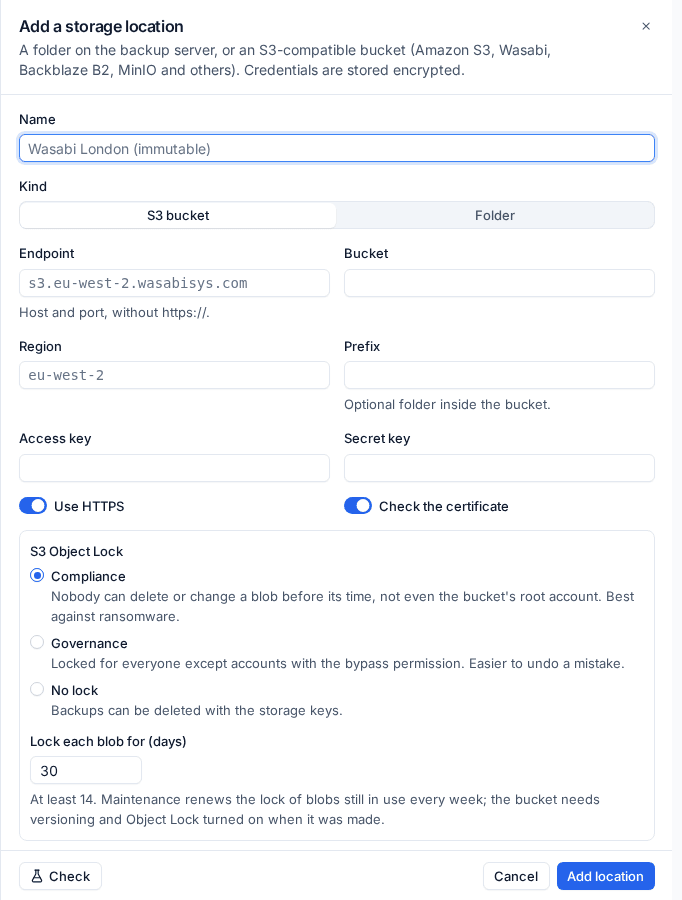
Adding a location
- On the Storage tab, press Add location.
- Enter a Name that says what it is, for example "Wasabi London (immutable)".
- Choose the Kind.
- For an S3 bucket, enter the Endpoint (host and port, without
https://), Bucket, Region, an optional Prefix (a folder inside the bucket), the Access key and Secret key. Leave Use HTTPS and Check the certificate on unless your storage needs otherwise. - Choose the S3 Object Lock setting (below).
- Press Check to test the bucket, then Add location.
Credentials are stored encrypted. Check on a location tests it again, and its ... menu has Make default, Edit, Change Object Lock... and Remove (only for a location with nothing on it).
Where a customer's backups go
On the customer's Backup tab, their backup policy's Storage part sets New repositories kept in and Second copy (or no copy) for that customer. Existing repositories stay where they are. Changing a customer's storage waits for a second administrator.
Immutable backups with S3 Object Lock
An S3 location can lock what it holds. Every piece of backup data written there gets a retention date, and until then nobody can delete or overwrite it: not Tenvara, not someone with a stolen access key, and in compliance mode not even the bucket's owner. Maintenance renews the lock on data still in use every week.
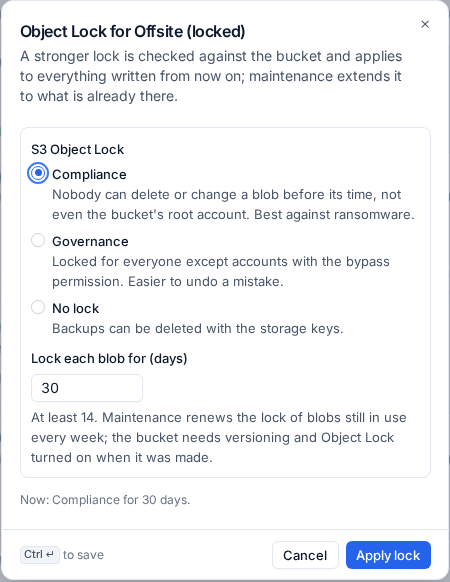
| Mode | What it means |
|---|---|
| Compliance | Nobody can delete or change a blob before its time, not even the bucket's root account. Best against ransomware |
| Governance | Locked for everyone except accounts with the bypass permission. Easier to undo a mistake |
| No lock | Backups can be deleted with the storage keys |
Lock each blob for (days) is 14 to 3,650. To use Object Lock you need your own S3 bucket created with Object Lock turned on (it cannot be added later) and versioning on. Tenvara checks the bucket before it applies a lock, including that a test object really refuses deletion, and says what to fix if anything is wrong.
To lock an existing location, open its ... menu, choose Change Object Lock..., pick the mode and days, and press Apply lock. A stronger lock applies straight away. Weakening one (a shorter period, governance after compliance, or no lock) waits for a second administrator, and locks already written stay until they run out.
Folder locations are not locked, so use an S3 bucket with Object Lock for the copy you want to be untouchable.
Rolling a repository back after an attack
On a versioned S3 location, Roll back storage on a repository in Backup > Repositories returns it to how it was at a chosen time: deleted pieces come back and overwritten ones return to their earlier version. Preview shows what would change first, and a rollback can itself be undone.
Scanning restores for ransomware and malware
Immutable storage stops attackers destroying your backups; scanning stops you restoring their malware. Every restore to a device or Microsoft 365 tenant is checked against known bad hashes and scanned with ClamAV first, and held if anything is found. See Malware scans before a restore.
Second copies
Every repository can be copied to a second location on a schedule. Set this on the Protection tab under Second copies:
- Copy every repository to: the default copy location.
- Copy at most every (hours): 24 by default. A copy starts once the repository has something new.
- Alert when a copy is behind by (hours): 48 by default.
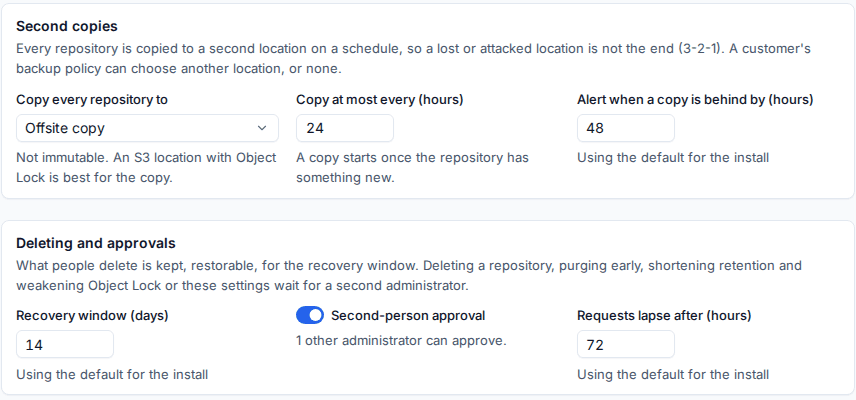
The copy is a complete repository in its own right, so it can be restored from even if the first location is gone. If the source suddenly looks wiped (more than half would go), the copy deletes nothing and says why. A locked copy location locks what is written there.
Backup > Repositories lists every repository with its Location, Object Lock, Second copy and Last test restore. From a repository you can press Copy now, or Use the copy instead when the first location is lost or retired: the repository then lives on the copy's location.
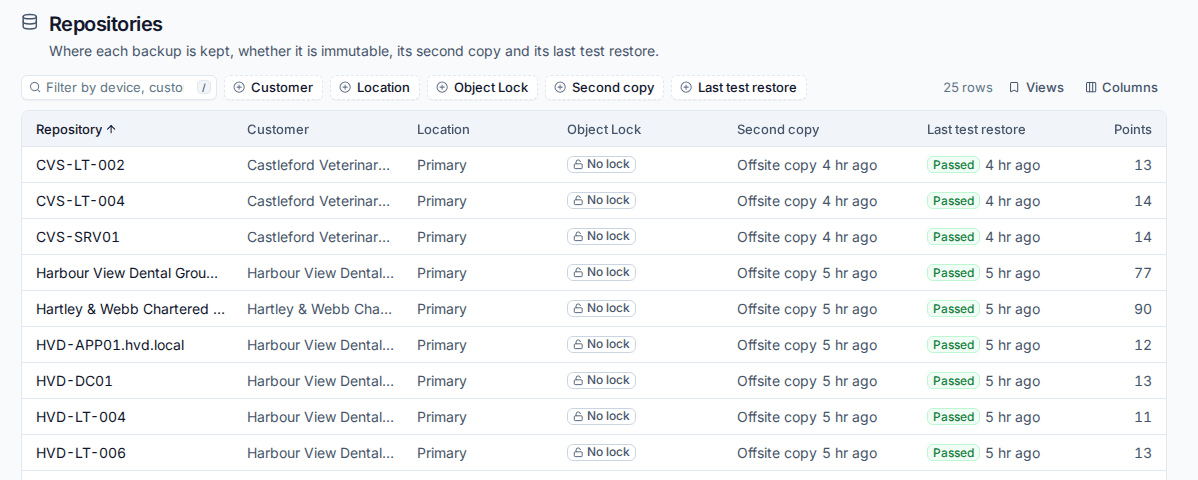
A copy that falls behind while newer backups exist raises a warning alert, which clears with the next good copy.
Deleting safely
The recovery window
What someone deletes in Tenvara (a recovery point, a Microsoft 365 item's backups, a device's backups or a whole repository) is not removed straight away. It moves to Backup > Deleted for the Recovery window (days), 14 by default, with who deleted it, why and when it will be purged. Restore brings it back as it was. When the window ends it is purged for good.

Second-person approval
With Second-person approval on (the Protection tab), destructive actions wait for another administrator:
- deleting a repository or purging a deletion before its window ends;
- shortening retention, in the defaults or a customer's policy;
- weakening or removing an Object Lock;
- weakening these protections (copies off, a shorter recovery window, approvals or scanning off);
- changing a customer's storage;
- restoring files the malware scan flagged.
Other administrators get a notification that opens Backup > Approvals, where they approve (the action runs, with both names in the activity log) or reject it. Requests lapse after 72 hours by default. With no other active administrator, the action runs at once and the activity says so.
Related
Was this page helpful?
Thanks for the feedback.