Bare metal recovery
Make recovery media for a customer, start a dead or replacement machine from it, and restore a whole machine from an image backup onto the same or different hardware, or into a virtual machine.
When a server dies, bare metal recovery puts the whole machine back from its image backup: partitions, boot partition, every volume and the operating system, onto new hardware or an empty virtual machine. You start the machine from recovery media, it connects to your backup server and shows a code, and you choose what to restore from the web app.
Any finished image backup of a system volume, a whole disk or a virtual machine can be restored this way. See Protecting devices for image backups.
Recovery media
Recovery media come in two kinds, and each download is made for one customer:
| Media | What you get | Use it for |
|---|---|---|
| Linux | An ISO that is also a USB image, and PXE files (kernel, initramfs, overlay and an iPXE script) | Any machine. It restores Windows completely, turning on Windows' own storage drivers so it boots on a different controller |
| Windows PE | A BIOS and UEFI ISO, and a zip to copy onto a FAT32 stick | Restores that also need a driver pack added to Windows |
Write the USB image with Rufus, balenaEtcher or dd. For PXE, serve the files from your customer's PXE server.
Making recovery media
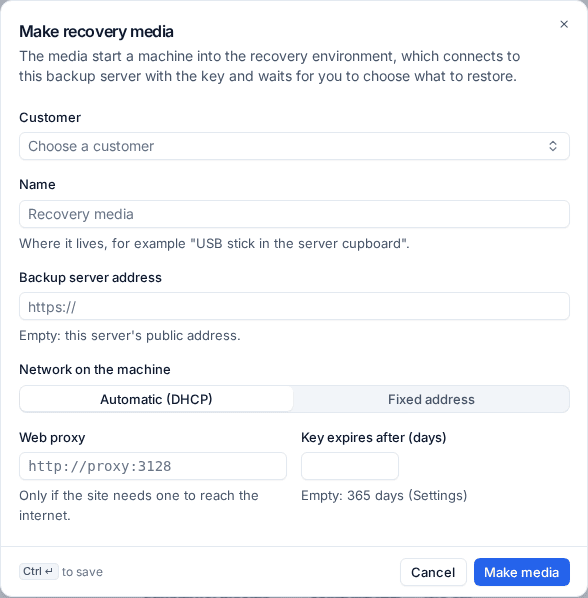
Make media for a customer before you need them: a USB stick in their server cupboard, or PXE on their network.
- Open Backup, then Recovery in the sidebar, and press Make recovery media.
- Choose the Customer.
- Give it a Name that says where it lives, for example "USB stick in the server cupboard".
- Leave Backup server address empty to use your backup server's public address, or enter another.
- Under Network on the machine, choose Automatic (DHCP) or Fixed address (with the address, gateway and DNS servers).
- Enter a Web proxy only if the site needs one to reach the internet.
- Set Key expires after (days), or leave it empty for the default (365 days).
- Press Make media, then download the files you need.
Each set of media carries a key for that one customer. The key is shown once; the downloads have it built in. To download on another machine, use a one-time link. Revoke the key stops its media working at once, for example when a stick is lost.
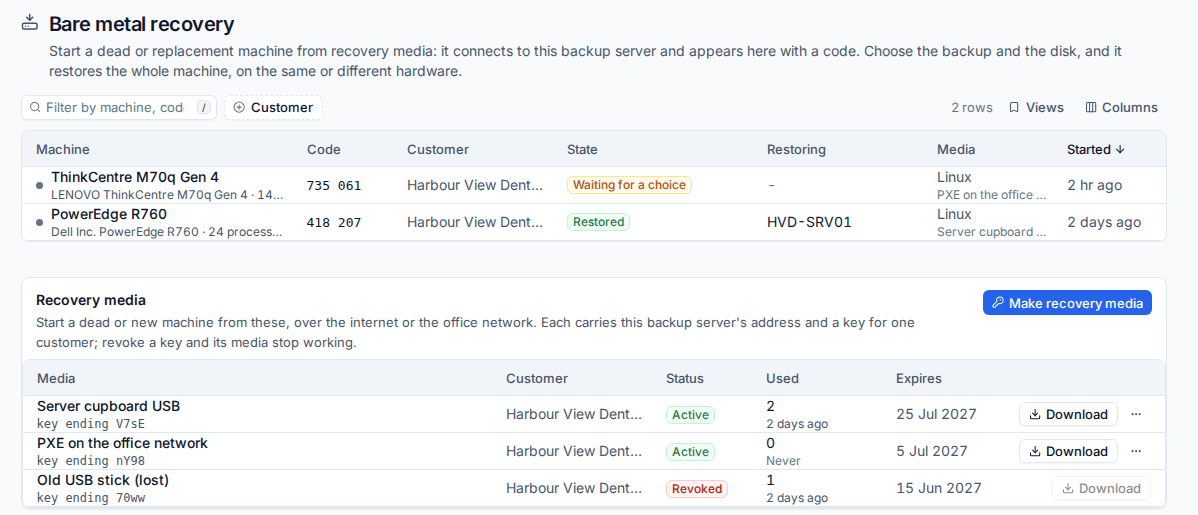
Backup > Recovery > Bare metal lists every machine in the recovery environment and, under Recovery media, every key with its customer, status, how often it was used and when it expires.
Restoring a machine
- Start the machine from the recovery media. It brings its network up, connects to your backup server and sends its hardware: firmware, Secure Boot, processor, memory, network cards and disks.
- The machine's screen shows a short code. The same machine appears in Backup > Recovery > Bare metal (and on the customer's page) with that code.
- Open it. The page shows the machine's hardware and storage controllers.
- Choose the machine whose backup you want, then Choose the backup.
- Under Restore onto, choose the disk to overwrite. Its partition table, boot partition and volumes are replaced with the backup's.
- Choose a Driver pack if the new hardware needs one (below).
- Leave Add the boot entry on for UEFI machines, and choose whether to Restart when done.
- Press Restore now.
The technician at the machine can also choose on the console instead.
Progress shows on the machine's page and in its job. When the restore finishes the machine restarts from its own disk, or turns off so you can take the media out first.
Note: A smaller disk works as long as the partitions fit. The page warns you when the last partition must fit on a smaller disk.
What the restore does
- Writes the partition table from the backup's own layout, keeping the original partition IDs, so Windows finds its volumes again.
- Streams every volume from the backup.
- Repairs the boot entries for the machine's firmware.
- Turns on the storage drivers Windows has but had switched off (SATA, NVMe, SCSI and Hyper-V), so the restored system finds its disk on a different controller.
- On Windows PE media, adds the chosen driver pack to the restored Windows.
Restoring onto different hardware
Restores onto different hardware and into virtual machines are covered by the storage driver step above. When the new machine needs drivers Windows does not have (for example a server model's storage or network drivers), add a driver pack:
- Open Settings > Backup, the Recovery tab, and find Driver packs.
- Upload a zip of
.infdriver folders. Tenvara lists the drivers in it. - Choose it as the Driver pack when you restore with Windows PE media.
You can restore into an empty virtual machine the same way, for example a new Hyper-V generation 2 virtual machine started from the media.
Good habits
- Make media for every customer with servers now, and keep a USB stick on site.
- Rehearse a bare metal restore into an empty virtual machine once in a while, so the steps are familiar before a real failure.
- Use boot checks so you know each image boots before you need it.
- When a machine has to be back in minutes rather than after a full restore, start it from its backup instead. See Instant recovery and standbys.
Was this page helpful?
Thanks for the feedback.