Test restores, boot checks and malware scans
Prove backups work with scheduled test restores and a PDF report, start image backups in a sandbox to prove they boot, and scan what a restore would write before it is written.
A backup only counts once it has been restored. Test restores restore sampled files from every repository on a schedule and check them, and boot checks start each machine's newest image backup as a virtual machine to prove it boots. Before any restore is written back, a malware scan checks it.
Scheduled test restores
Every repository has files picked at random from the newest recovery point of each of its units (volumes, folders, mailboxes or drives). They are restored into a scratch area on the backup server and checked:
- restored and decrypted, with every piece checked against its content hash;
- read back from disk with the same SHA-256 and size;
- read from the second copy with the same hash, when the repository has one;
- the recovery point's structure verified, with every object present.
Setting the schedule
Open Settings > Backup, the Protection tab, and find Test restores.
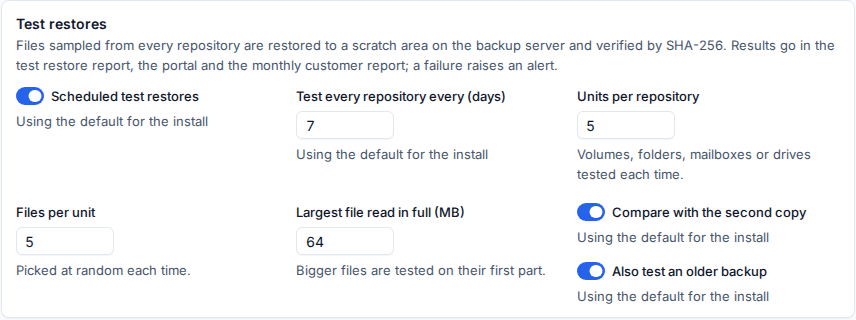
- Scheduled test restores: on or off.
- Test every repository every (days): 7 by default.
- Units per repository and Files per unit: how much is tested each time.
- Largest file read in full (MB): bigger files are tested on their first part.
- Compare with the second copy and Also test an older backup.
Reading the results
Backup > Test restores shows the last 30 days: how many test restores ran and passed, the share of files verified, how many repositories were tested and when the last test ran. Below is every run with its repository, customer, result, files verified, whether the copy was checked and which backup was tested.
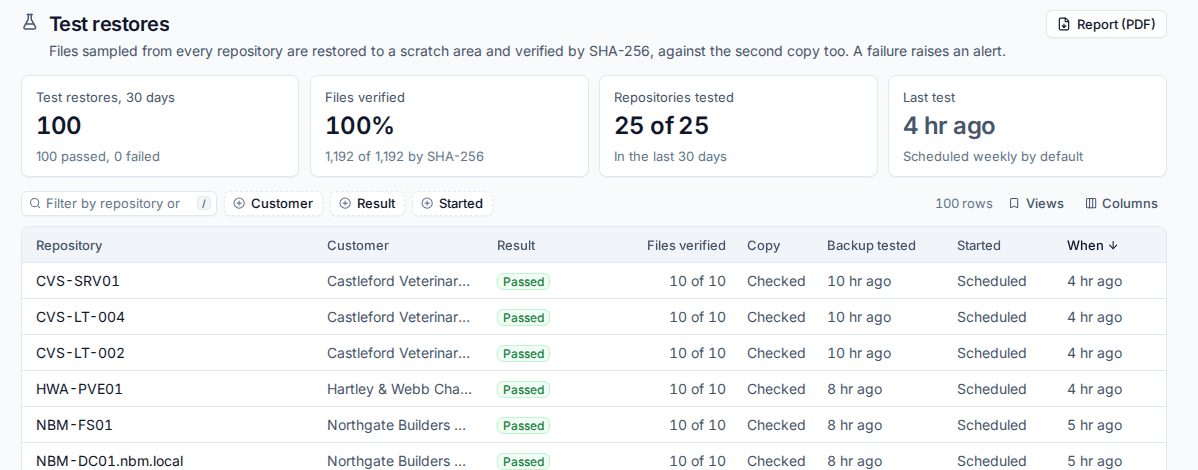
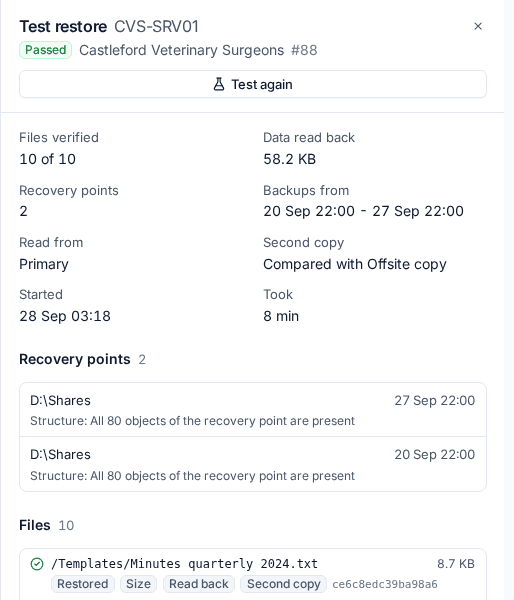
Click a run to see its details: files verified, data read back, the recovery points tested with their structure check, and each file with the checks it passed. Test again runs it now. Test now is also on a repository in Backup > Repositories.
A failed test restore raises a critical alert. The next pass clears it.
The test restore report
Report (PDF) on Backup > Test restores makes a PDF for one customer or everyone you can see, for any period. It lists the runs, files verified, backups tested and where each backup set is kept (its location, whether it is immutable, and its second copy), plus a page of machines started from their backups with each one's newest screen. It is the proof customers and insurers ask for.
The same report is on the customer portal's Reports page for contacts who may see reports, and a summary goes in the backup section of the monthly customer report.
Boot checks
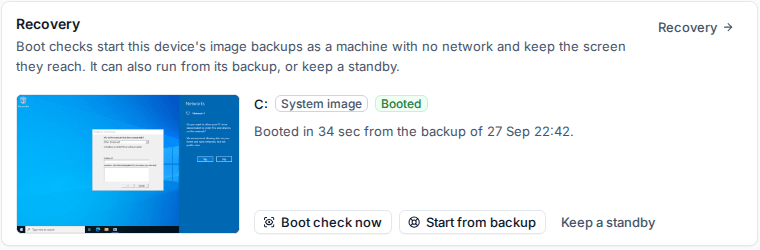
A boot check starts a machine's newest image backup as a virtual machine with no network in a sandbox, waits for the operating system and the sign-in screen, keeps a picture of the screen, runs any checks you set, then removes the machine. The backup is never changed.
Where boot checks run
Boot checks run in a sandbox:
- This backup server: the machine runs on the backup server itself. Give the backup service hardware virtualisation (KVM) so Windows boots in under a minute.
- A Hyper-V host that runs the agent: the backup is attached to a new virtual machine over iSCSI. Tenvara proves the boot with Hyper-V's heartbeat and the screen. It does not hold guest credentials, so checks inside the machine are recorded as skipped, not failed.
Add and check sandboxes in Settings > Backup, on the Recovery tab.
Setting boot checks up
On the Recovery tab, under Boot checks:
- Turn on Scheduled boot checks.
- Set Check each machine every (days) and Start between with how many hours the window lasts, so checks run out of hours.
- Set Wait for the operating system (minutes) and Then wait for the sign-in screen (seconds).
- Choose Alert after failures in a row, how many checks run at once, and the processors and memory each check gets.
- Under Checks in every machine, press Add a check for things every machine must pass: a Windows service running, a port listening, or a command that must succeed.
- Save.
Each device can turn boot checks off, choose its own sandbox and add its own checks, from the Recovery card on its device page or from its row in Backup > Recovery.
Reading boot checks
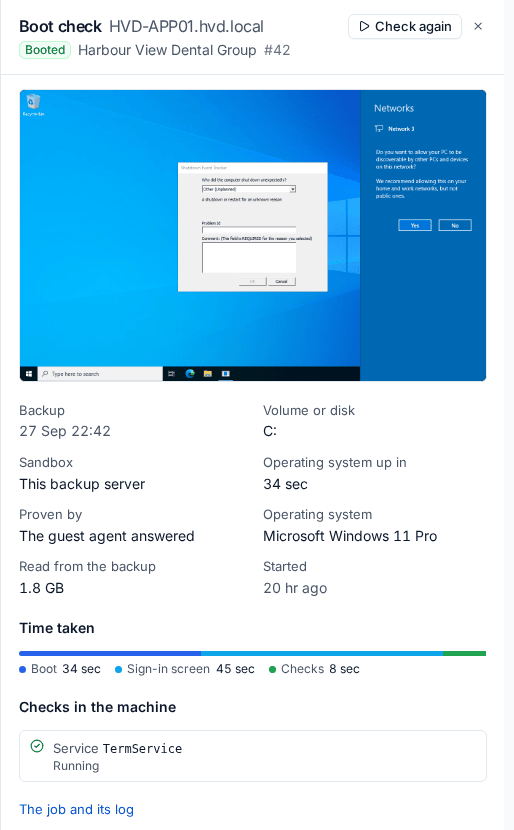
Backup > Recovery lists every machine with image backups and its last boot check, with a thumbnail of the screen. Boot checks in the sidebar lists every check; click one for the full screen, the time each stage took, how the boot was proved and each check's result. Check again runs it now, as does Boot check now on the device's Recovery card.
A machine that does not boot raises a critical alert after the number of failures you set. A pass clears it.
Malware scans before a restore
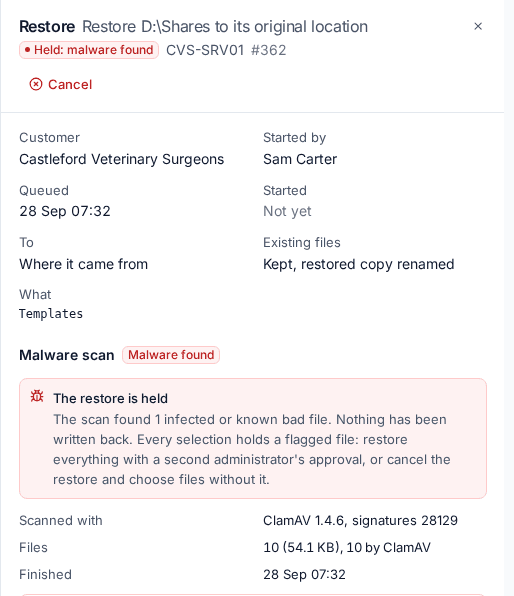
Every restore to a device or a Microsoft 365 tenant is scanned before anything is written back. Tenvara reads exactly what the restore would write, checks each file's SHA-256 against known bad hashes, and scans it with ClamAV on the backup server.
- Clean: the restore runs straight away.
- Something found: the restore is held, a critical alert is raised, and the job lists each flagged file with what was found. You can restore only the selections with nothing flagged, restore everything anyway (which needs a second administrator's approval), or cancel.
Downloads are not scanned, because nothing is written back.
Set scanning up on the Protection tab under Malware scanning before restores:
- Scan restores: on or off. Turning it off waits for a second administrator.
- ClamAV address and Test, which sends the standard EICAR test file. Tenvara's own install runs ClamAV for you and keeps its signatures current.
- When ClamAV is down: Hold the restore (it is tried again every five minutes) or Hashes only.
- Largest file sent to ClamAV (MB) and Most scanned per restore (GB). Bigger files are still hashed.
- Known bad hash feeds (MalwareBazaar's recent list by default, or any list with one SHA-256 per line) and Known bad files, your own hashes from an incident.
Related
Was this page helpful?
Thanks for the feedback.