Sessions, IP allowlists and API tokens
See and end sessions, limit where each role can sign in from, make scoped API tokens, ask staff to confirm it is them before sensitive changes, and set the staff password rules.
Settings > Sign-in holds the controls for how your team gets in and stays in, beyond passwords, two-factor and single sign-on. This guide covers sessions, network access, API tokens, Confirm it is you and the password rules. For two-factor and break-glass administrators, see Passwords and two-factor.
Sessions
A session is one sign-in on one browser or device, with how it signed in, the browser, the address and when it was last seen.
Your own sessions
Settings > Security > Where you are signed in lists every browser and device signed in to your account, with This browser marked.
Sign out ends one session straight away. Sign out everywhere else ends every other session, including remote control and backup. Sign out anything you do not recognise, then change your password.
Someone else's sessions
- Settings > Users, then Sessions and tokens in the person's row menu, shows where they are signed in and the API tokens that act as them. Sign out everywhere ends all their sessions at once, including remote control and backup.
- Settings > Sign-in > Active sessions lists every live session of every active person.
Note: Signing someone out does not stop their API tokens. Revoke those separately.
How long sessions last
Under Sessions on Settings > Sign-in:
- Access token lifetime: how long a signed-in browser can act before it quietly renews. Shorter means a turned-off account stops working sooner everywhere.
- Stay signed in for: how long someone stays signed in on a device without using it.
- Password reset links last: how long the link in a reset email works.
Where sessions are
Session locations can show roughly where each session is, using ip-api.com (free, no key) or ipinfo.io (with your own token). It is Off by default, so addresses are not sent anywhere.
Network access (IP allowlists)
Network access limits where each role can sign in from.
- Go to Settings > Sign-in > Network access.
- Next to a role, press Add address and enter a single address or a range such as
203.0.113.0/24(IPv4 or IPv6), with a Name such as "Office". Add my address adds the address you are on now. - Turn on Only allow sign-in from the addresses below.
- Press Save network access.
A role with no addresses can still sign in from anywhere. The rules apply to password sign-in, single sign-on, every session renewal and every API request. People elsewhere cannot sign in, and running sessions stop at their next request.
- Break-glass administrators are exempt is on by default and recommended, so a new office address or a mistake can always be put right by a break-glass administrator with their password and two-factor.
- Tenvara refuses a change that would lock out the administrator making it from where they are now.
Warning: On a self-hosted install, if nobody can get in, run
php artisan auth:network-access --offon the server to turn the rules off.
API tokens
API tokens let scripts and other systems use the Tenvara API. Each token acts as one person and can never do more than that person can do now: if the person loses a permission or is turned off, the token loses it too.
- Personal access tokens are made by people for themselves, in Settings > Security > API tokens.
- Integration tokens are made by an administrator for another system, acting as a chosen person (a service account works well), in Settings > Sign-in > API tokens with New integration token.
Make a token
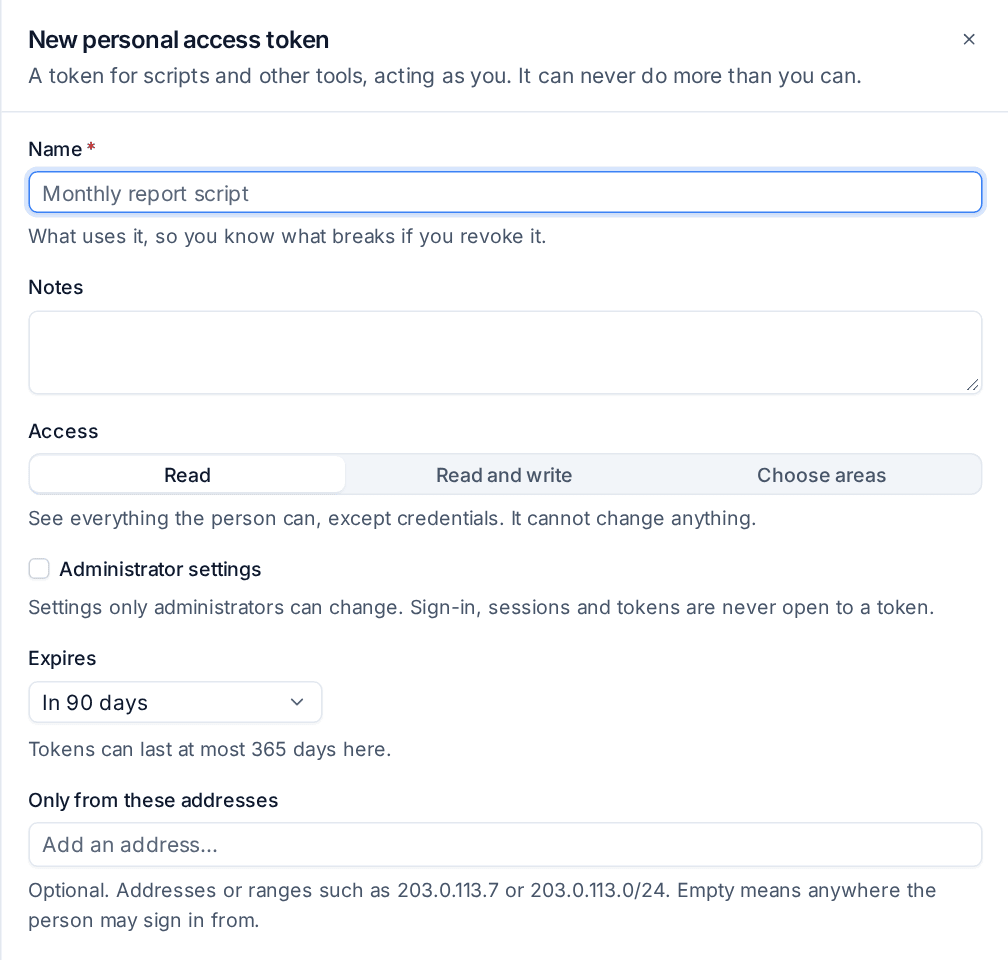
- Press New token (or New integration token).
- Enter a Name that says what uses it, so you know what breaks if you revoke it. For an integration token, choose who it Acts as.
- Choose Access:
- Read: see everything the person can, except credentials. It cannot change anything.
- Read and write: see and change everything the person can, except credentials.
- Choose areas: None, View or Manage per area. The credentials vault is only reachable this way.
- Tick Administrator settings only if the token needs settings that only administrators can change.
- Choose when it Expires.
- Optionally, limit it to Only from these addresses.
- Press Make token, then copy it. It is shown once only.
Send it as a bearer token in the Authorization header. No token can reach sign-in settings, sessions, tokens, or users and roles. Everything a token does is in the audit log, and making one emails the person it acts as.
Revoke in the token's menu stops it straight away and cannot be undone.
Token rules
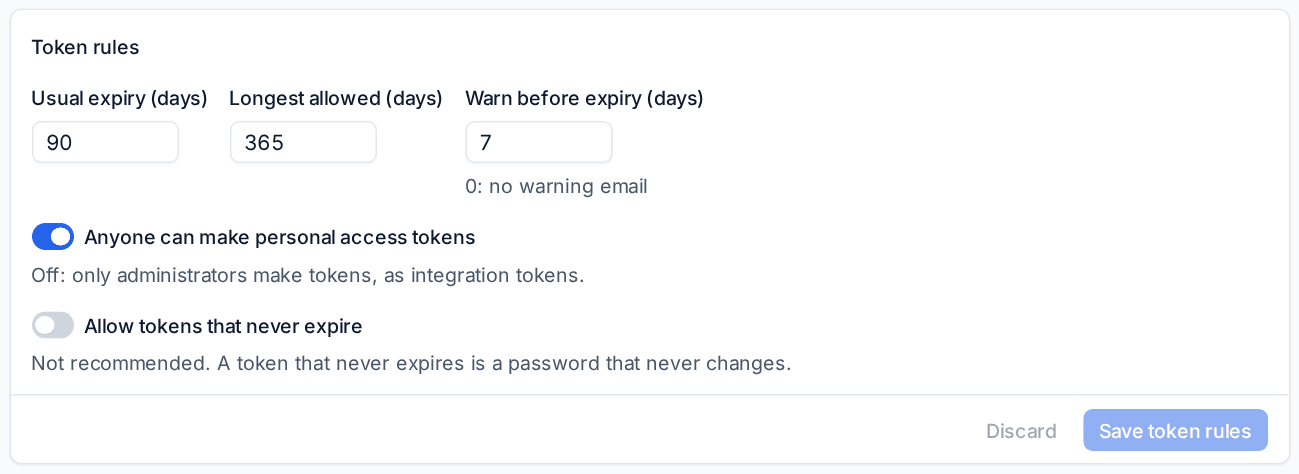
Under Token rules set the Usual expiry (days), the Longest allowed (days), how many days before expiry people are warned by email, whether Anyone can make personal access tokens (off means only administrators make tokens, as integration tokens) and whether to Allow tokens that never expire (not recommended). See Integrations and the API for the developer reference.
Confirm it is you
Confirm it is you asks staff to prove who they are again before the changes you choose, with their password, a two-factor code or single sign-on.
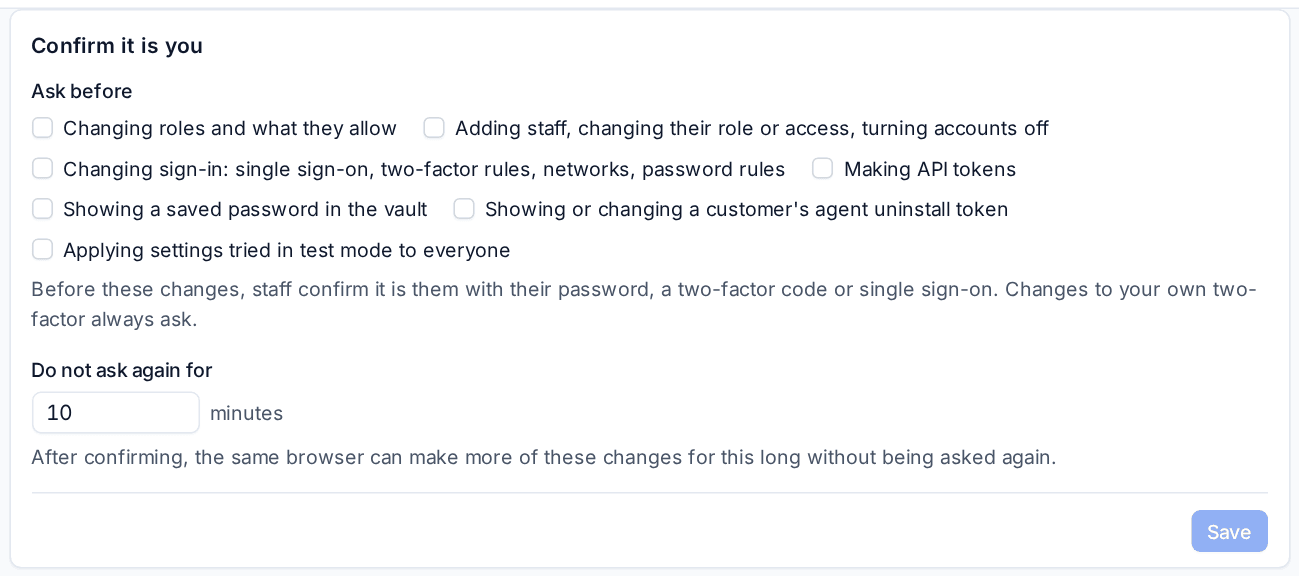
Under Ask before, tick any of: changing roles, changing staff accounts, changing sign-in, making API tokens, showing a saved password in the vault, showing or changing a customer's agent uninstall token, and applying settings tried in test mode. Do not ask again for sets how many minutes a confirmation lasts in that browser, so a run of changes asks once. Nothing is ticked by default; changes to your own two-factor always ask.
Password rules
Password rules decide what a staff password must be. By default it is at least 12 characters and nothing else.
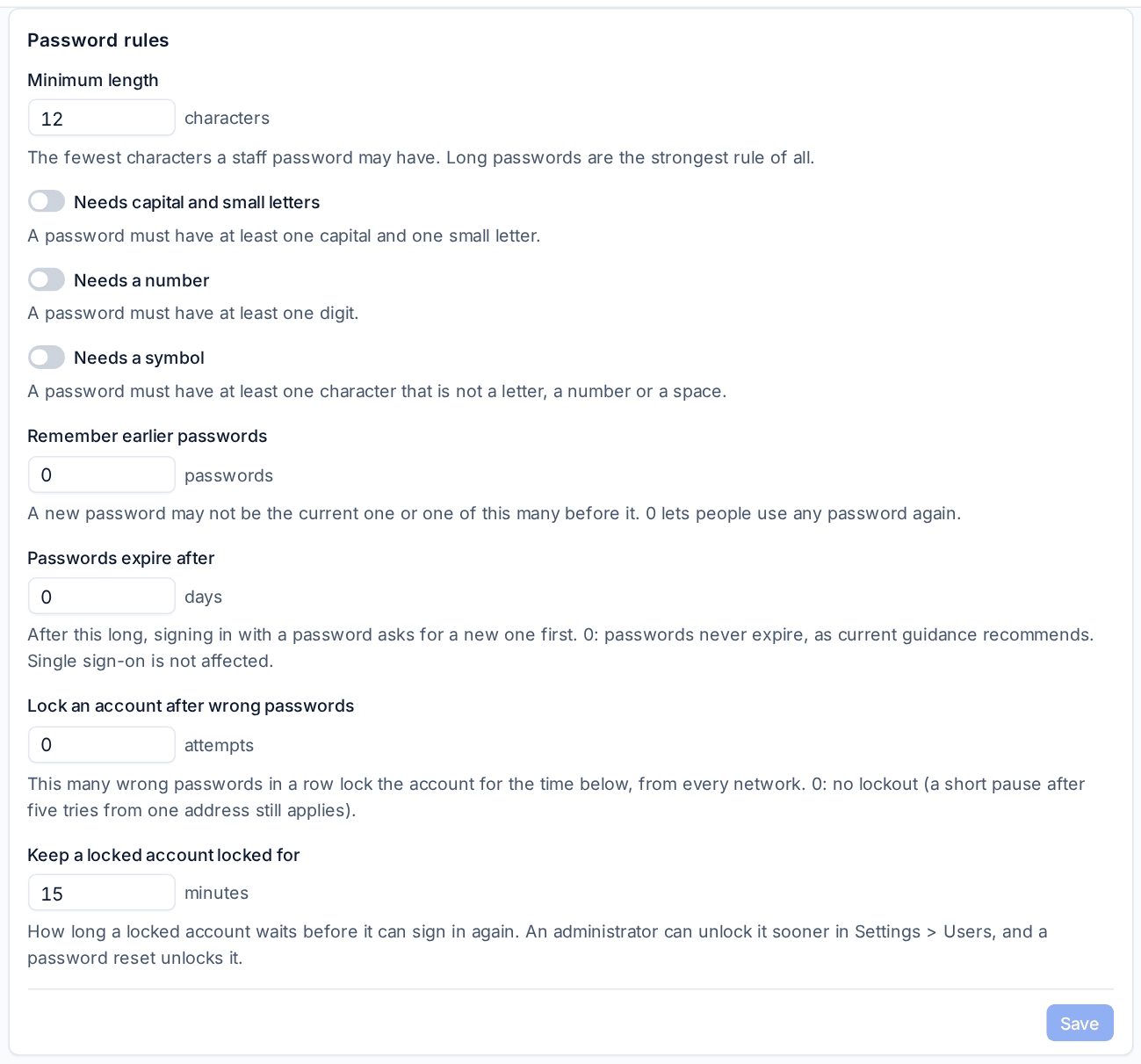
- Minimum length, and optionally Needs capital and small letters, Needs a number and Needs a symbol.
- Remember earlier passwords: a new password may not be the current one or one of this many before it.
- Passwords expire after: after this many days, signing in asks for a new password first. 0 means never, as current guidance recommends. Existing passwords count from when you turn it on, so nobody is locked out at once.
- Lock an account after wrong passwords and Keep a locked account locked for: an administrator can unlock an account sooner from Settings > Users, and a password reset unlocks it too.
The rules apply wherever a staff password is set. Single sign-on and customer portal contacts are not affected.
Related
Was this page helpful?
Thanks for the feedback.