Time, budgets and billing
Log time against project tasks, bill time and materials or fixed price milestones through your invoices, read a project's financials and profitability, and track slip against a baseline.
A project's budget is measured in hours and money. Time logged against its tasks (and against tickets attached to it) uses it up, and how the project is billed decides what reaches the customer's invoice.
Log time on a task
Project time goes through the same time system as ticket time, so it appears on timesheets, in approvals and in reports like any other time.
- On a task, press Log time in its panel.
- At the top of the project, press Log time and choose the Project task.
- From a customer's time, pick a project task to log it against if you like.
Completed visits booked for a task log their time against it too. Time logged on a ticket attached to the project counts against the project.
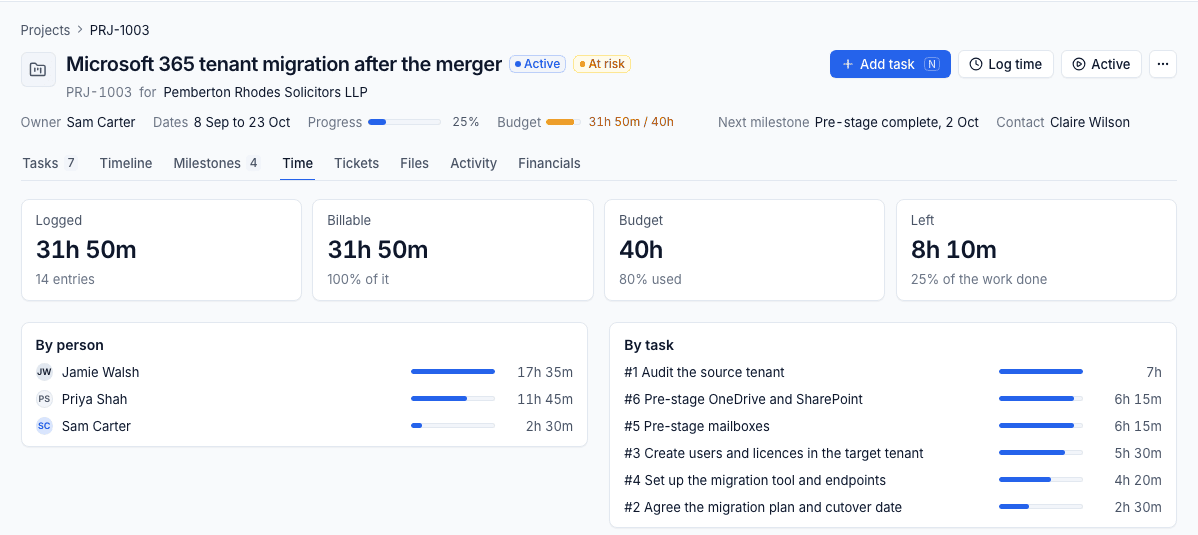
The Time tab shows what has been Logged, how much is Billable, the Budget and how much is Left, then the time by person, by task and every entry.
How projects are billed
What happens to the time depends on the project's Billing (set when you create it, see Creating a project).
Time and materials
Each month's billable time on the project is one line on the customer's invoice, at the project's hourly rate, for example "PRJ-1042 Office move: project time, September 2026". If the customer has a contract, the line goes on that contract's invoice; if not, the project gets an invoice of its own. Time logged late, after its month was billed, goes on the next run.
Fixed price and milestones
A fixed price project is billed by its milestones. Give a milestone an amount and it is billed once, on the next invoice run after it is reached (completed, and signed off by the customer when it needs sign-off). It is never billed twice, even if you re-run the month.
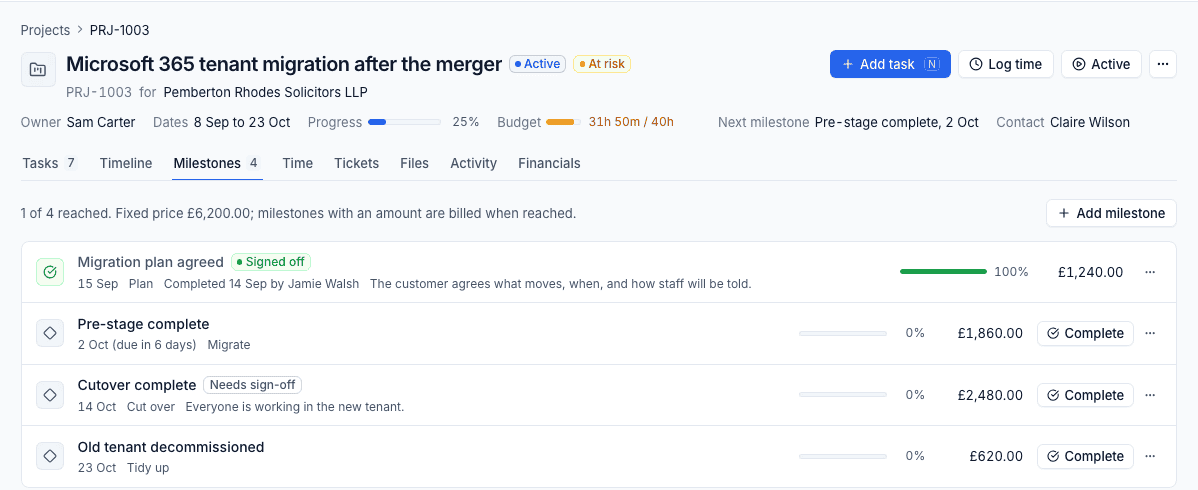
On the Milestones tab, press Add milestone, set its due date and amount, and choose whether it needs the customer's sign-off. Press Complete when the work is done. The line at the top tells you how many are reached and the fixed price.
When a fixed price project came from an accepted quote and its milestones carry amounts, the milestones bill the one-off work, so the quote's own invoice is not offered.
In a contract
The time counts against the customer's contract and its included hours, exactly like ticket time. The project bills nothing of its own.
Time on fixed price and time and materials projects is always kept out of the contract's included hours, so nothing is charged twice.
Billing per phase
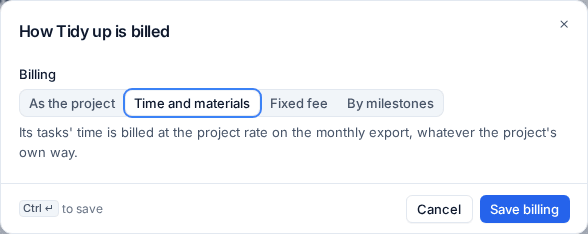
A phase can be billed differently from the rest of the project. Open the phase's ... menu, choose Billing, and pick:
- As the project (the default);
- Time and materials: its tasks' time is billed at the project rate, whatever the project's own billing;
- Fixed fee: a set amount, billed by a milestone the phase keeps ("[phase] delivered");
- By milestones: its own milestones bill it.
Invoices are covered in Invoice runs.
Note: Once time is on an issued invoice it is locked. To change a project's billing after time in an earlier month has been billed, or after a milestone has been invoiced, the change is refused so issued invoices stay correct.
Financials and profitability
The Financials tab is for people with the finance permission.
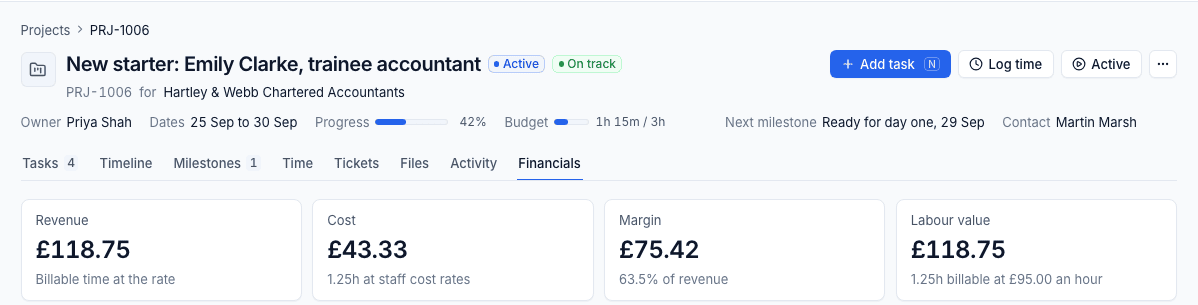
- Revenue: the fixed price, the billable time at the rate (time and materials), or nothing (in a contract).
- Cost: every hour logged at the person's staff cost rate on that day. People without a cost rate are listed. See Rates, costs and targets.
- Margin: revenue less cost.
- Labour value: the billable time at the project's rate.
Below are the Budget against what has been used, the time by month and by person, and the milestones invoiced and still to invoice. The figures are worked out the same way as the invoices, so they match to the penny. The same numbers feed Reports > Projects.
Baselines and slip
A baseline is the agreed plan saved on the project, so you can see how far the work has slipped from it.
- Open the project's ... menu and choose Set the baseline.
- Confirm. Every task's start, due date and estimate, every milestone's due date, the target date and the budget are copied as they are.
From then on:
- the key facts show Against the baseline, for example "4 days behind", "2 days ahead" or "On the baseline", with late and added tasks on hover;
- the timeline's Show baseline draws each task's agreed dates as a thin bar under it, and each milestone's as a hollow diamond;
- the task list's Columns > Slip shows how many days each task has moved, such as "+2d";
- the customer status report says whether the work is finishing as planned;
- Reports > Projects has a Slip column.
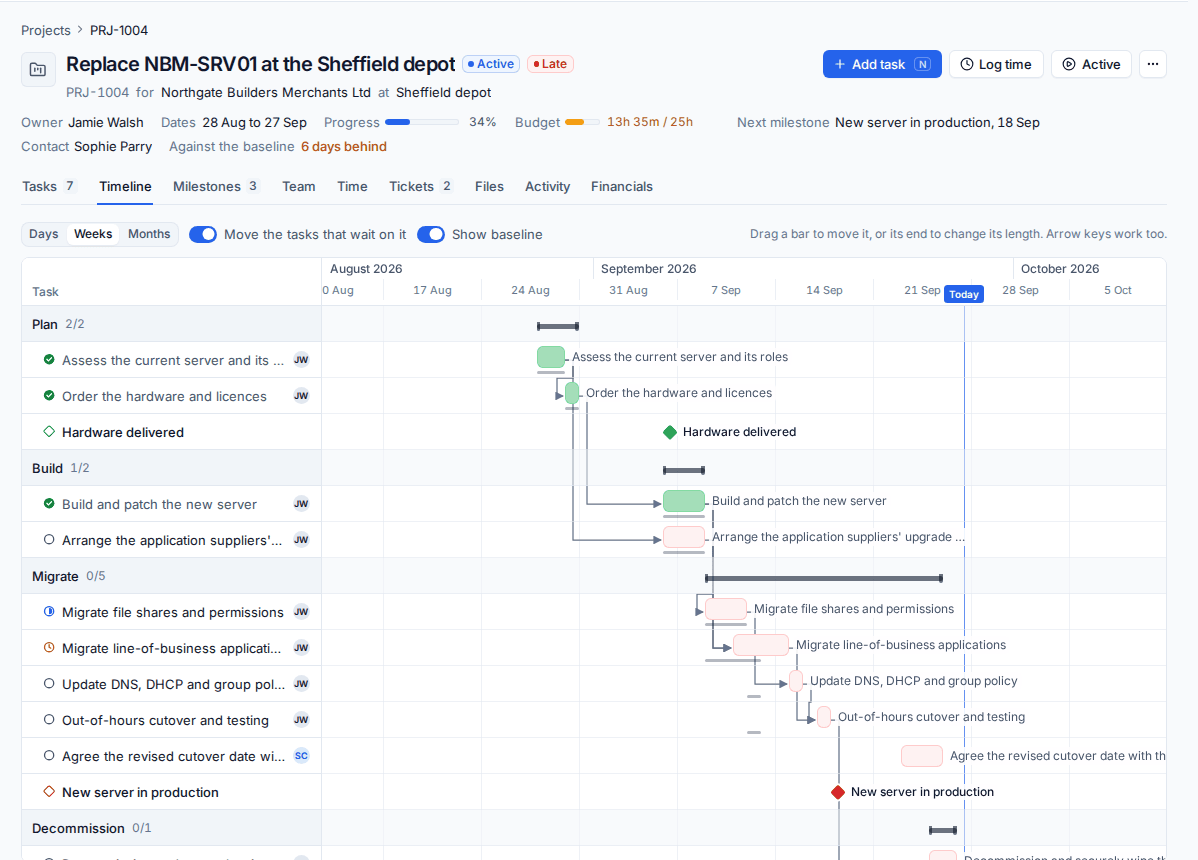
Tasks added after the baseline count as added, not late. Cancelled tasks do not count either way, so cutting work is not read as a slip. Use Set the baseline again to replace it (after a change the customer agreed), or Clear the baseline to remove it.
To set the baseline automatically on every project made from a template, turn on Set the baseline on projects made from a template in Settings > Projects.
Related: Project reports and status summaries.
Was this page helpful?
Thanks for the feedback.