Self-service password reset
Let your customers' staff reset a forgotten Microsoft 365 or Active Directory password, or unlock their account, from the portal after proving who they are with a code.
"I've forgotten my password" is one of the most common tickets an MSP gets. Self-service password reset lets your customers' staff sort it out themselves, at any hour, from the customer portal. They prove who they are with a one-time code, choose a new password, and Tenvara sets it on their Microsoft 365 account, their Active Directory account, or both. A locked-out Active Directory account can be unlocked the same way.
What it can reset
- Microsoft 365: the user linked to the contact, or with their email address, in the customer's connected tenants. The customer's tenant must be connected; see Connecting a tenant.
- Active Directory: the account with the same sign-in name in the customer's domain, through the agent on their domain controller. The domain must be added under Docs > Password rotation > Active Directory; see Password rotation and privileged access.
Administrator accounts, privileged domain accounts and accounts kept in your vault are always left to you, unless you allow them in the settings.
Switching it on
Self-service reset is off until you switch it on for a customer.
- Go to Settings > Documentation > Self-service password reset.
- Turn on Let customers' staff reset their own passwords for the customer.
- Under How people prove who they are, tick the channels to offer (below).
- Check the other settings and press Save.
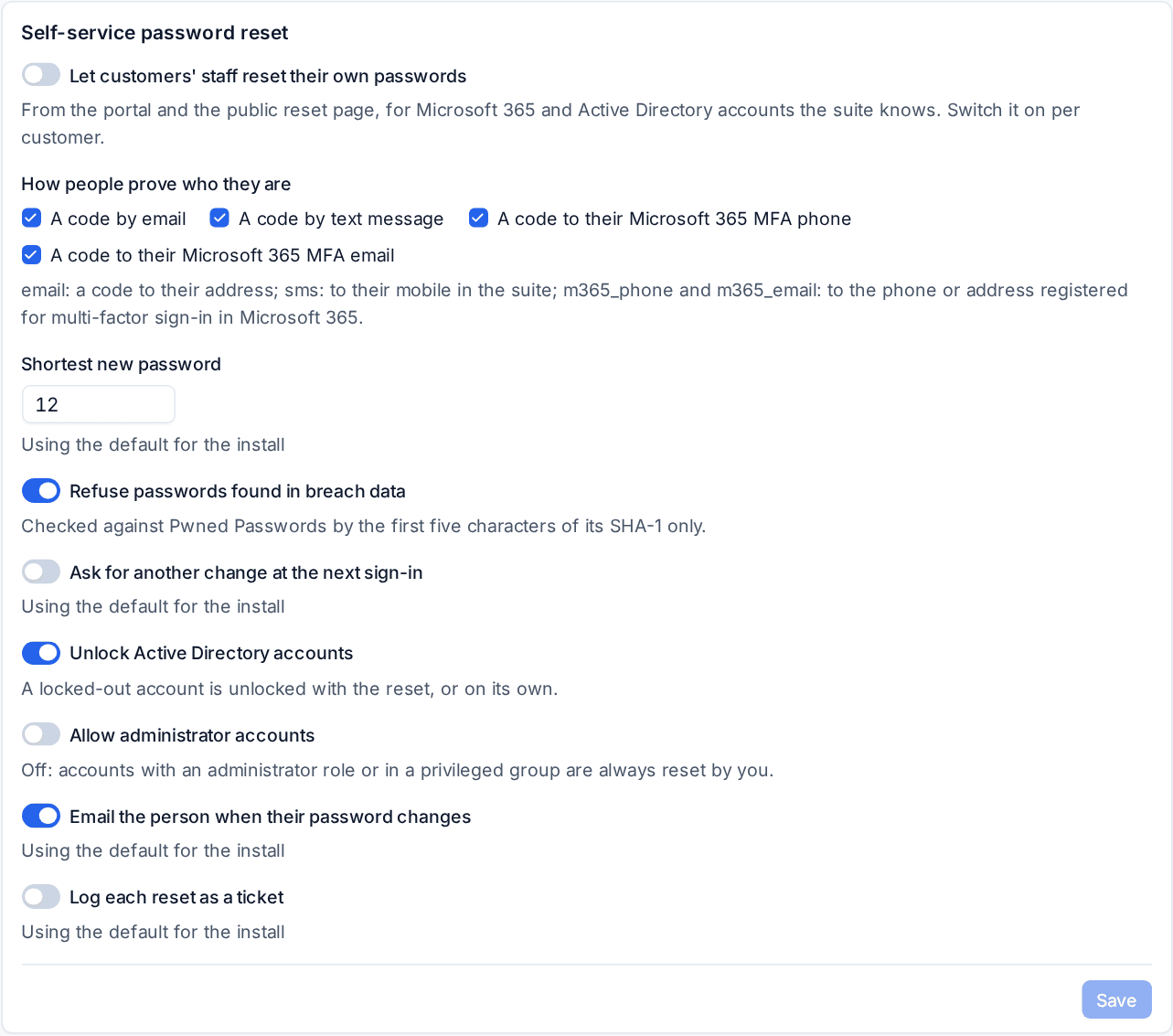
| Setting | What it does |
|---|---|
| Shortest new password | The minimum length, 12 by default |
| Refuse passwords found in breach data | Checks the new password against Pwned Passwords, sending only the first five characters of its SHA-1 hash |
| Ask for another change at the next sign-in | Makes them change it again when they next sign in to Microsoft 365 |
| Unlock Active Directory accounts | Unlocks a locked-out account with the reset, or on its own |
| Allow administrator accounts | Off: accounts with an administrator role or in a privileged group are always reset by you |
| Email the person when their password changes | Sends them a note saying which accounts changed and from where |
| Log each reset as a ticket | Adds a resolved ticket for each reset |
Ways to prove who they are
| Channel | Where the code goes |
|---|---|
| A code by email | Their email address |
| A code by text message | Their mobile number in Tenvara. Needs the text message channel set up with your own SMS account under Settings > Automation |
| A code to their Microsoft 365 MFA phone | The phone they registered for multi-factor sign-in in Microsoft 365 |
| A code to their Microsoft 365 MFA email | The email address they registered for multi-factor sign-in in Microsoft 365 |
Each code has six digits and works for ten minutes. Five wrong codes end the reset, and requests are rate limited.
What your customers do
People can start from the portal sign-in page with Forgotten your work password?, or, when signed in, from Work password in the account menu.
- They enter their Work email address and press Continue.
- Under First, prove it is you, they choose how to get a code and press Send the code.
- They type the Code and press Check the code.
- They see their accounts (for example Microsoft 365 and Windows network (Active Directory)), choose a New password, type it again and press Set the new password. If their Active Directory account is locked, Only unlock unlocks it without changing the password.
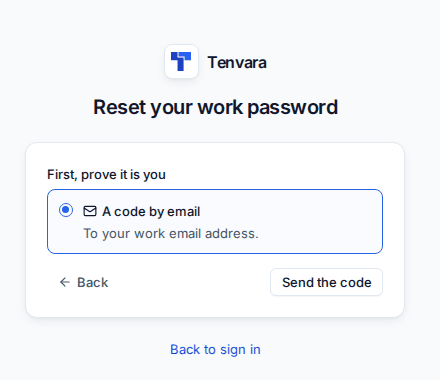
The new password must meet the minimum length, use three kinds of character (lower case, upper case, numbers and symbols), not contain their name or address, and not appear in breach data. Active Directory changes go through the agent on the domain controller, and the page follows them until they are done.
Note: The public reset page gives nothing away. Whether or not an address has an account, it answers the same way ("a code is on its way if we have a way to reach you"), so it cannot be used to find out who works at a customer.
Seeing every reset
Open Docs and choose Password resets under Security. It lists every reset with the Person, Customer, Accounts, Status (for example Done, Unlocked, Abandoned or Too many wrong codes), how they were Verified by and where they started From (Portal or Reset page).
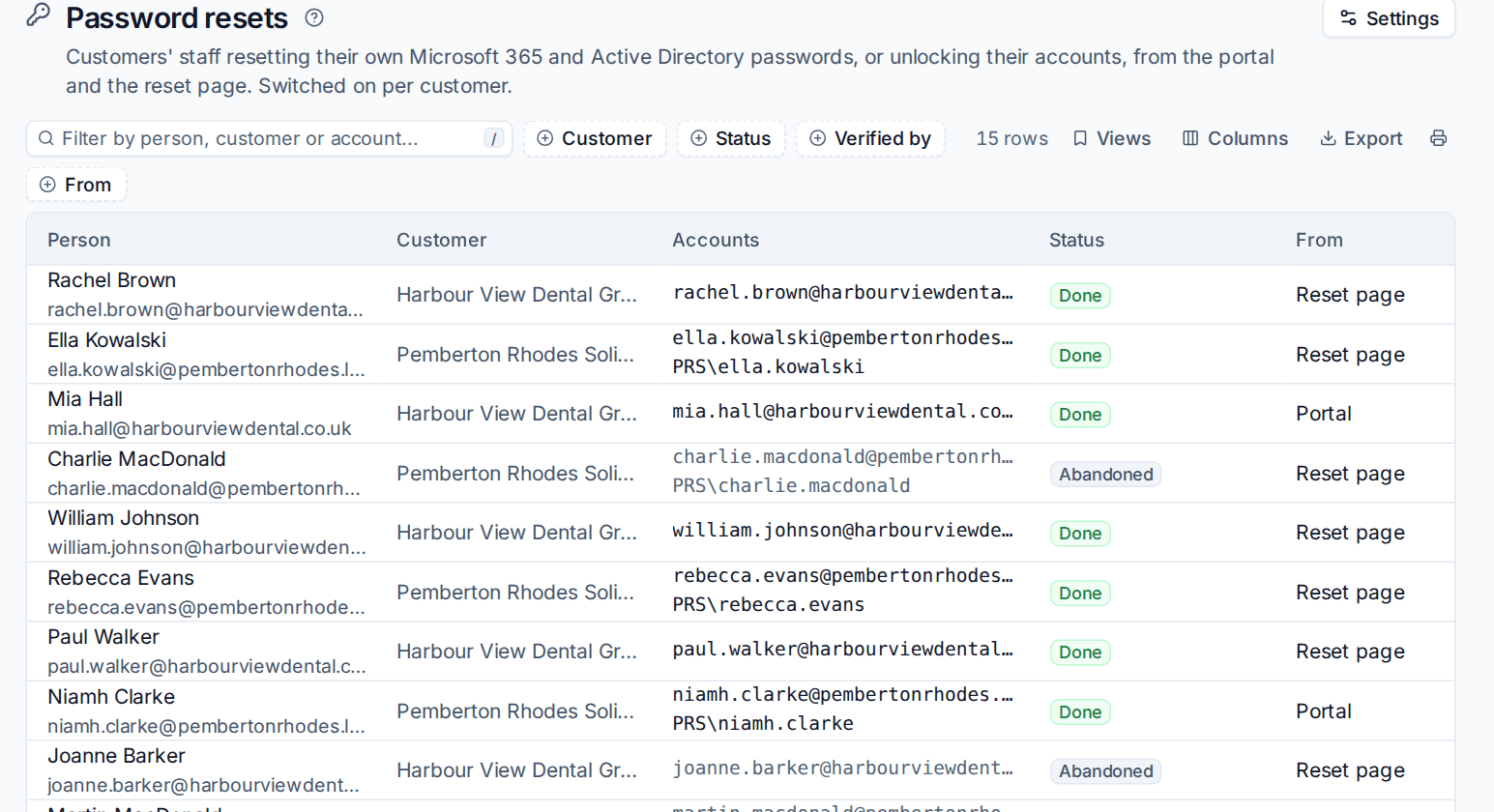
Each reset also appears on the contact's timeline. Filter by Customer, Status, Verified by or From.
Tip: Turn on Log each reset as a ticket for customers who want every password change on record, and leave it off for customers who would rather not see the noise.
Related: The customer portal, Dark web monitoring.
Was this page helpful?
Thanks for the feedback.