Goals, kudos and leaderboards
Recognise good work with leaderboards, kudos and badges, set goals for people and teams, and hold one-to-one check-ins.
The Team area in the rail is where the service desk sees how it is doing and recognises good work. It has:
- Leaderboards: the team ranked on the figures that matter to customers.
- Kudos: thanks from customers who rated a ticket good, and from colleagues.
- Badges: earned from the live figures, or given by hand.
- Goals: targets for a person or a team over a period.
- Check-ins: one-to-ones between a person and their manager.
- Me: your own page in Team.
Team needs the service desk and access to tickets. An administrator can switch each part on or off, and change how it works, in Settings > People.
Leaderboards
Team > Leaderboards ranks people on one figure at a time, with a tab for each figure:
- Customer satisfaction: the satisfaction score from rated tickets and chats.
- Tickets resolved.
- SLA met: response and resolution targets met, counted as the Reports overview counts them.
- Utilisation and Billable hours.
- Kudos received.
- Average first response (lower is better).
Pick Week, Month or Quarter (and Year, if allowed), use the arrows for earlier periods, and narrow it to one staff team with the team picker. Each person shows the change from the period before. The top three sit on a podium, and Your standing always shows where you are, even when you are not near the top.
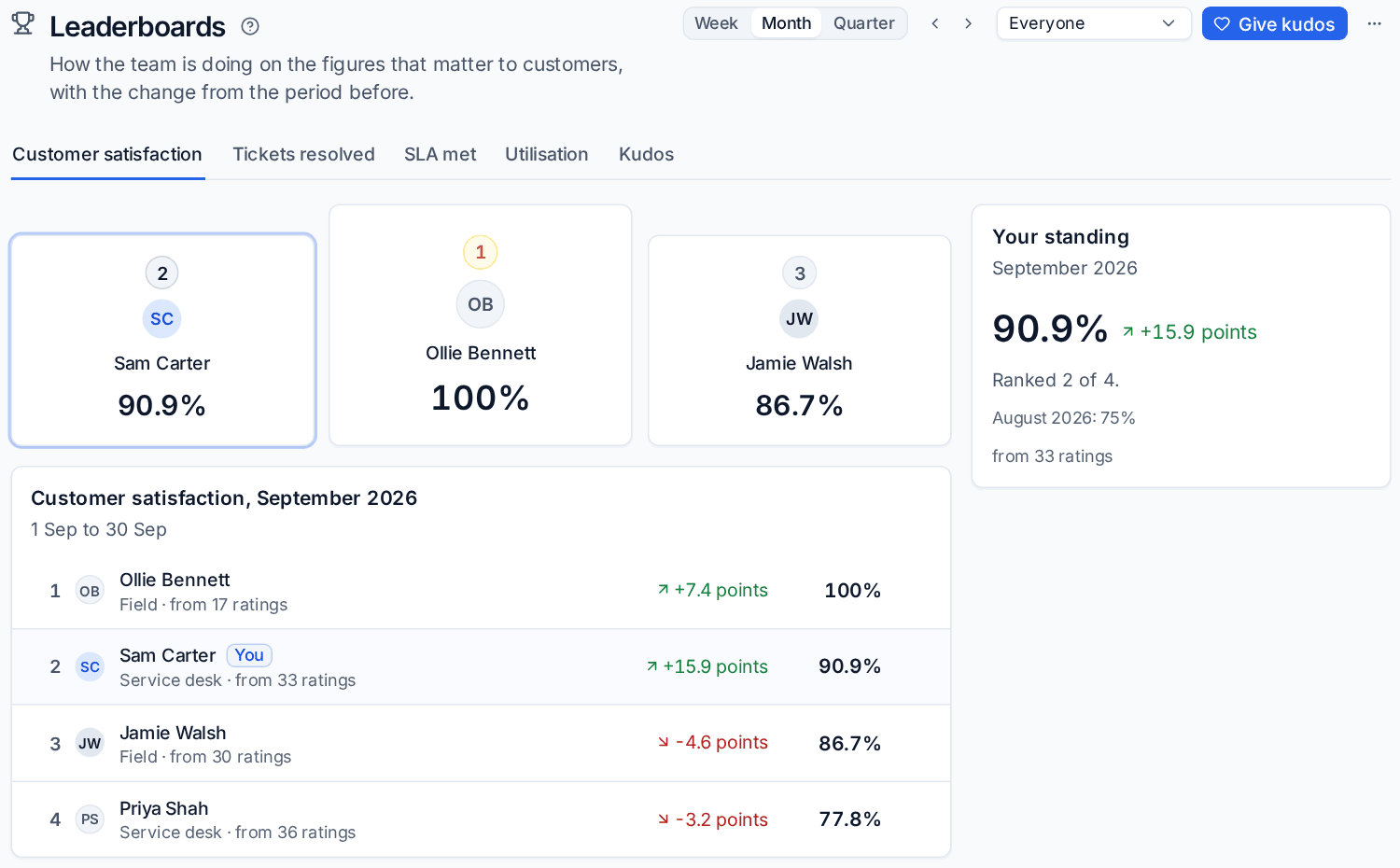
Fair ranking
- People share a rank when their figures tie.
- Nobody is ranked on satisfaction until their figure is made from a minimum number of ratings (three by default), and the same goes for SLA targets. One lucky rating is never 100%.
- Anyone below the minimum, or who has left, is listed under Not ranked with the reason.
- Other people's utilisation is only shown to people with finance access, unless an administrator lets everyone see it. Everyone always sees their own.
- If the administrator allows it, anyone can choose Leave the leaderboards others see from the ... menu. They still see their own figures; everyone else sees them as not ranked.
An administrator chooses which figures are ranked, in what order (the first is the tab Team opens on), which periods are offered and which roles appear, in Settings > People > Leaderboards.
Kudos
Kudos come from two places:
- Customers: a good rating on a ticket becomes kudos for whoever handled it. By default only a good rating with a comment counts; an administrator can count every good rating or switch this off. If the customer changes their rating away from good, the kudos goes.
- Colleagues: anyone can thank a colleague.
To give kudos:
- Click Give kudos on the leaderboards or the kudos wall.
- Choose the colleague under For.
- Pick what it was for (for example Teamwork or Customer hero; the kinds are set in Settings > People > Kudos).
- Add a Message saying what they did and why it mattered.
- Click Send kudos.
They are told, and it shows on the kudos wall. Whoever gave kudos, or an administrator, can take it back.
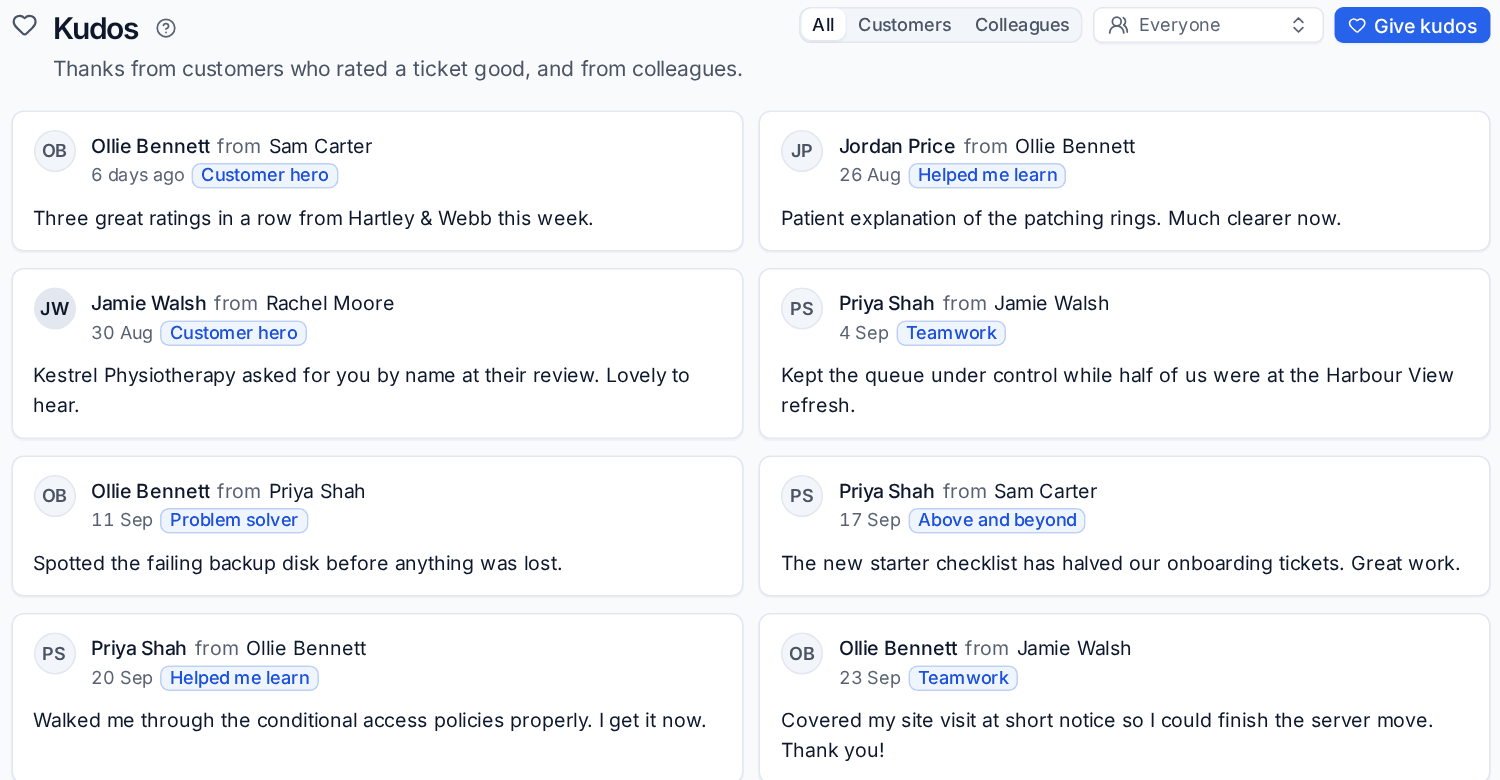
Team > Kudos shows both kinds, newest first. Filter by Customers or Colleagues, or by person. Customer kudos link to the customer, the contact and the ticket.
Badges
Badges are earned automatically from the live figures once per period, or given by hand. Six come built in:
| Badge | How it is earned |
|---|---|
| Five-star week | Every rating good in a week, with at least five ratings |
| Closer | Forty tickets resolved in a month |
| SLA hero | Every SLA target met in a month, with at least ten targets |
| Team player | Five kudos in a month |
| Quick off the mark | First replies within 30 minutes on average over a month, on at least ten tickets |
| Shout-out | Given by a lead for something that deserves it |
Team > Badges shows how each is earned and who earned what lately. Leads, managers and administrators can Give a badge with a note. Administrators use Manage badges to change the built-in ones, put one back as it was, switch one off, or add their own: a figure, at least or at most a threshold, per week, month or quarter, with a minimum to count from.
Goals
A goal is a target for a person or a staff team over this week, month, quarter, year or dates of your own. Goals with a standard period repeat: when the period ends, the goal is marked achieved or missed and a new one starts.
- Go to Team > Goals and click Set a goal.
- Choose Who for: A person or A team, then pick them.
- Name the Goal, for example "Keep satisfaction above 95%".
- Under Measured by, choose A live figure (any leaderboard figure, with At least or At most a Target) or Progress kept by hand (a number of anything, such as certifications or site visits).
- Choose the period and whether it Repeats.
- Add Notes if you like, then click Set goal.
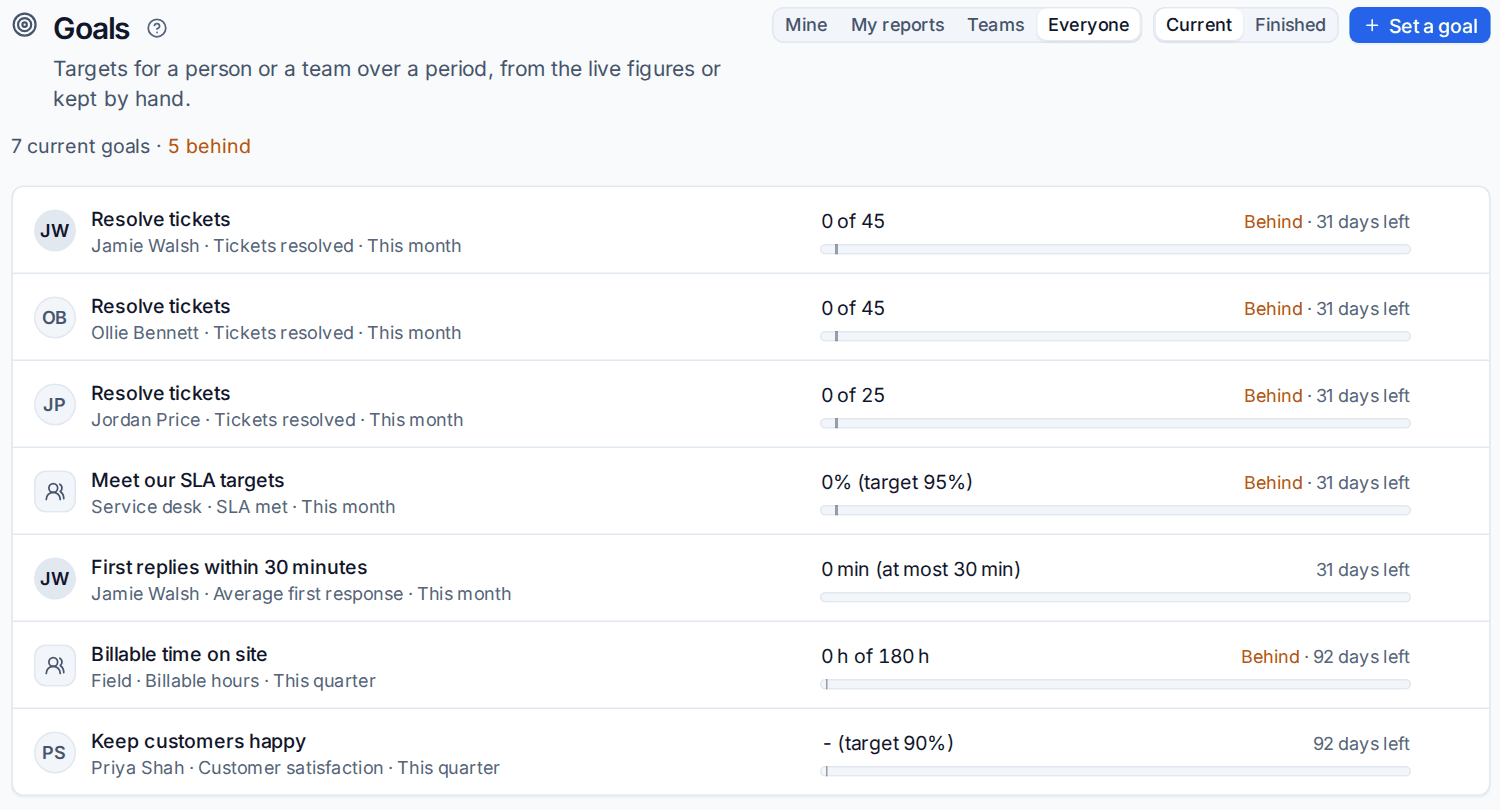
Each goal's bar shows progress against how much of the period has gone, so you can see straight away whether it is on track or behind. The owner gets a reminder near the end of the period while it is behind. Open a goal to add progress (for goals kept by hand) and notes.
Use Mine, My reports, Teams and Everyone to switch whose goals you see, and Current or Finished for the period.
Who can set goals: managers for their reports, leads and administrators for anyone and for teams, and people for themselves when Settings > People allows it.
Check-ins
A check-in is a one-to-one between a person and their manager. Only those two people can open it; administrators cannot. Who manages whom is set in Settings > People > Managers.
- Either person can Book a check-in, or the manager can Start regular check-ins every week, two weeks or month. The next one is booked ahead and both are reminded.
- A check-in follows a template of questions (answered in text or from 1 to 5) that both people answer before they meet. There is a mood, shared notes, the manager's private notes and agreed actions with who does them and by when.
- Open actions carry forward to the next check-in between the same two people.
Templates are set in Settings > People > Goals and check-ins.
Tip: Put the Leaderboard and Latest kudos widgets on an office TV dashboard so good work is seen as it happens.
Was this page helpful?
Thanks for the feedback.