Taking payments and autopay
Take card payments with your own Stripe account and Direct Debit with your own GoCardless account, let customers save a card for autopay, and record bank transfers.
Every invoice can be paid by bank transfer to the details printed on it. On top of that, Tenvara takes card payments through Stripe and Direct Debit through GoCardless. Both use your own accounts: money goes straight to you, and Tenvara never sees or stores card numbers. Paid invoices update by themselves.
What you need
| To take | You need |
|---|---|
| Card payments and autopay | A Stripe account. You add its keys and a webhook in Tenvara |
| Direct Debit | A GoCardless account. You add an access token and a webhook in Tenvara |
Both have a test or sandbox mode, so you can try the whole flow before you go live.
Connect Stripe
- Go to Settings > Integrations > Payments.
- Under Card payments with Stripe, press Keys and enter your Publishable key and Secret key. A restricted key with Checkout Sessions, Payment Intents, Refunds, Payouts and Balance transactions is best.
- Copy the Webhook endpoint address shown on the card. In Stripe, add it under Developers > Webhooks, then paste its signing secret back in Keys.
- Press Test, then switch the card on.
- Under Currencies offered, leave it empty to offer card for every currency you bill in, or pick some.
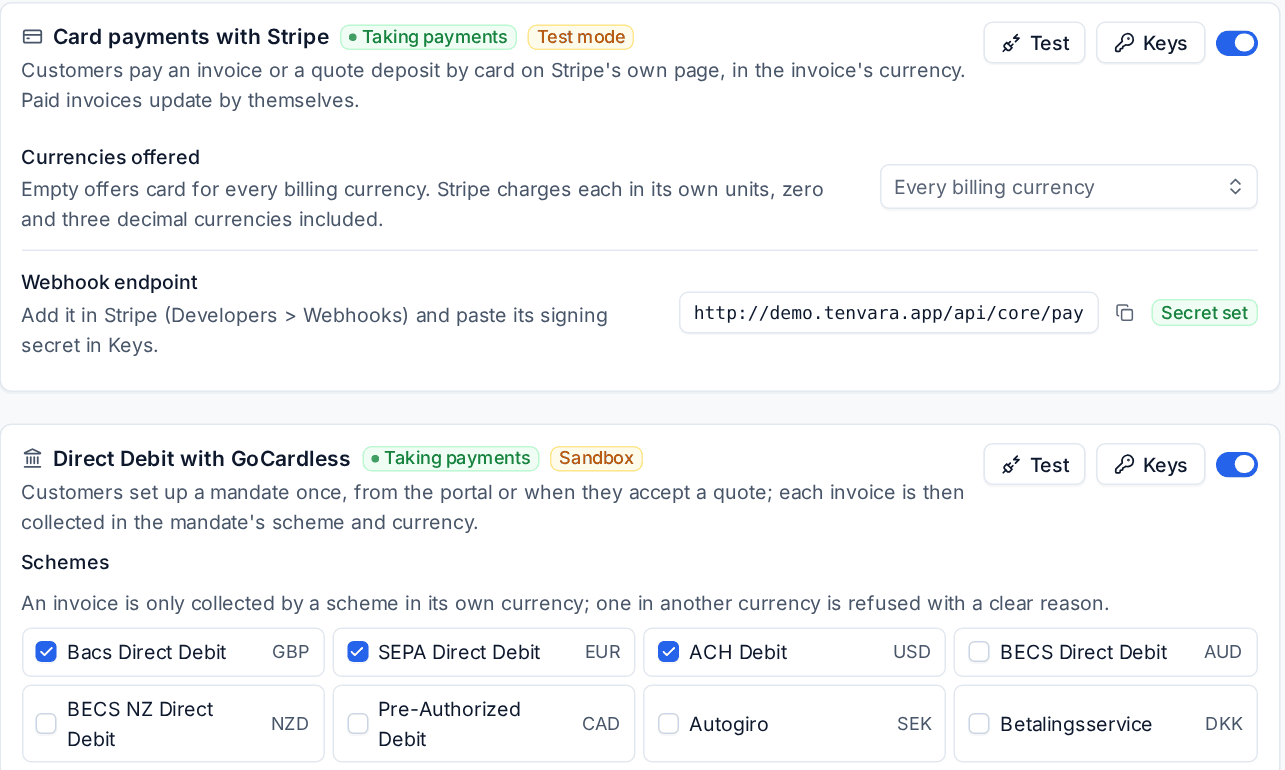
Stripe charges each invoice in its own currency, including zero and three decimal currencies. Below Stripe's minimum charge for a currency, card is not offered.
Connect GoCardless
- Under Direct Debit with GoCardless, press Keys and enter a read-write Access token from GoCardless (Developers > Create > Access token).
- Add the Webhook endpoint in GoCardless under Developers > Webhook endpoints and paste its secret in Keys.
- Press Test and switch it on.
- Tick the Schemes you collect with: Bacs Direct Debit (GBP), SEPA Direct Debit (EUR), ACH Debit (USD), BECS Direct Debit (AUD), BECS NZ Direct Debit (NZD), Pre-Authorized Debit (CAD), Autogiro (SEK) and Betalingsservice (DKK).
An invoice is only ever collected by a scheme in its own currency. One in another currency is refused with a clear reason before GoCardless is asked.
Collecting and fees
The Collecting and fees card sets how online payments behave on every invoice:
- Pay link in invoice emails: the email and the PDF carry a link to view and pay the invoice without signing in.
- Collect Direct Debit: for customers with an active mandate in the invoice's currency, timed so the money arrives on the due date.
- Card surcharge and Fixed card fee per payment: added on the payment page, never to the invoice, and none by default. Check the rules where you and your customers are: some countries do not allow a surcharge.
How customers pay
From the invoice email or the customer portal, the customer presses Pay and chooses how:
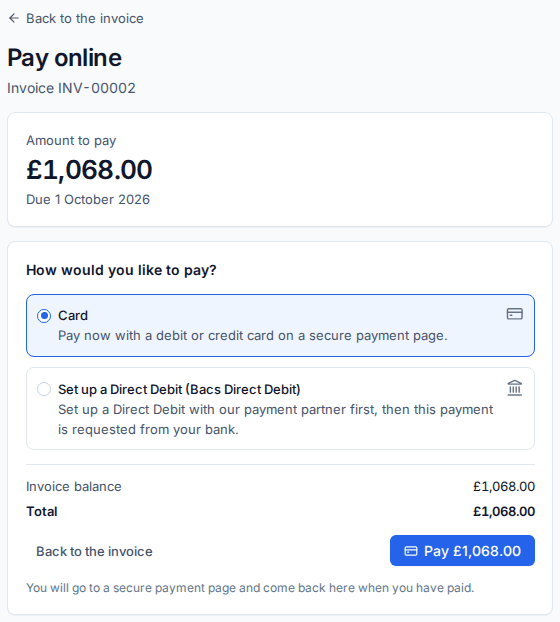
- Card: they go to Stripe's secure payment page and come back when they have paid.
- Direct Debit: they set up a mandate with GoCardless once; this invoice and later ones are then collected from their bank.
You can send a link yourself with Copy pay link on the invoice's Online payments card.
Direct Debit mandates
Each customer's Contracts and time tab has a Direct Debit and online payments section showing their mandates. Press Direct Debit set-up link to send them a GoCardless page where they authorise Direct Debit in one currency, or let them set one up from the portal or when accepting a quote. Cancel mandate stops future collections.
A failed Direct Debit shows on the invoice and its activity, and the invoice goes back to waiting for payment.
Card autopay
Customers can save a card so each invoice is charged on its due date without them doing anything.
- They tick to save the card when paying an invoice by card, use Add a card on the portal's billing page, or follow a link you send from their Card autopay section.
- Saving a card turns automatic payment on for that customer. They can turn it off or remove the card in the portal at any time.

On the customer's page, Card autopay shows the card (with its expiry, or why the last charge was declined), the Charge invoices automatically switch, the next charges with Charge now, and the recent automatic charges with each try. Link to change the card sends them a new set-up link, and Remove deletes the saved card. Tenvara keeps only the card brand, last four digits and expiry.
Set the rules in Settings > Integrations > Payments under Card autopay:
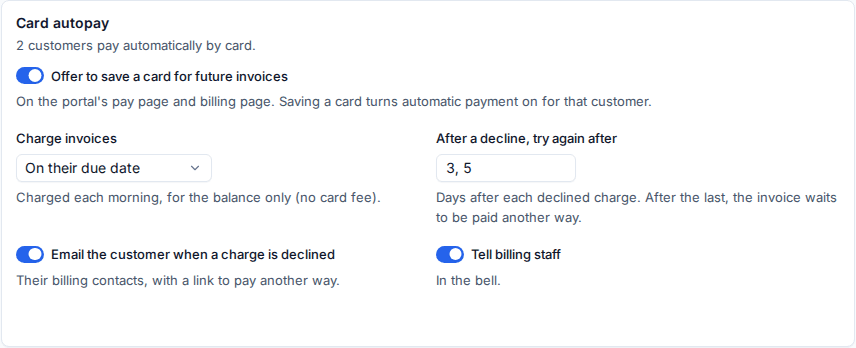
- Offer to save a card for future invoices (on by default).
- Charge invoices: on their due date, or as soon as they are issued. Charges run each morning, for the balance only, with no card fee.
- After a decline, try again after: the days between tries (3, then 5 by default). After the last try the invoice waits to be paid another way.
- Email the customer when a charge is declined and Tell billing staff.
Bank transfers
For money that arrives in your bank, open the invoice and press Record payment. See Invoices and credit notes. If your accounting package is connected, a payment recorded there comes back to the invoice by itself. See Xero and QuickBooks.
Deposits on quotes
A quote can ask for a deposit on acceptance, as a percentage or an amount, paid by card on the customer's acceptance page, and can ask the customer to set up a Direct Debit mandate at the same time. The deposit is taken off the invoice later. See Acceptance and what happens next.
Tip: Settings > Integrations > Sync log lists every payment and webhook from Stripe and GoCardless, and Export payments downloads every payment received between two dates.
Was this page helpful?
Thanks for the feedback.