Print quotas and costs
Price mono and colour pages, count every job, set quotas that warn or stop printing, and report usage by person, department, printer and customer.
Tenvara counts what your customers print and what it costs, so you can show them where the money goes, charge departments back, and stop the colour printer becoming everyone's personal photo lab. It counts jobs released through Secure print and documents sent in through the portal, and it can also count jobs printed straight to the printers Tenvara installed.
What is counted
| Source | How it is counted |
|---|---|
| Secure print | Each released job, with its pages, copies, colour and double-sided, as it was held |
| Uploads and guests | Documents sent in through the portal or a guest page, when they are printed |
| Printed directly | Jobs printed straight to printers Tenvara put on the device, read by the agent from the Windows print log |
Counting jobs printed directly is on by default (Count jobs printed straight to printers in the settings). Its page counts come from the computer's print log, so they can differ a little from what the printer's own meter says.
Page costs
Each page is priced at the printer's own mono or colour price if it has one, otherwise the price in the settings, times pages and copies, less any discount for double-sided pages. Costs are in the customer's currency.
Set the defaults in Settings > Device management > Secure print, under Page costs and quotas:
| Setting | What it does |
|---|---|
| Cost of a mono page | In hundredths of the customer's currency, so 3 means 3p |
| Cost of a colour page | The same, for colour |
| Discount for double-sided pages | A percentage taken off each page printed on both sides |
| Warn people when they have used | How far into a quota people are warned, 80% by default |
All four can be set per customer. To give one printer its own prices, edit the printer and fill in Mono page and Colour page.
Quotas
A quota limits how much people may print. It is checked when a job is released, so a job that would pass a quota is either stopped or released with a warning.
- Go to Devices > Printers > Quotas and press Add quota.
- Choose the customer, then who it is for: everyone at the customer, a Department (as set on their contacts or on the person), or one person.
- Set any of pages, Colour pages and cost, and Every week, month or quarter. The fullest one decides.
- Turn on Each person has this much to give everyone it covers their own allowance. Off, they share one.
- Turn on Stop printing when it is passed to refuse jobs over the quota. Off, people are only warned.
- Add Notes if useful and press Save quota.
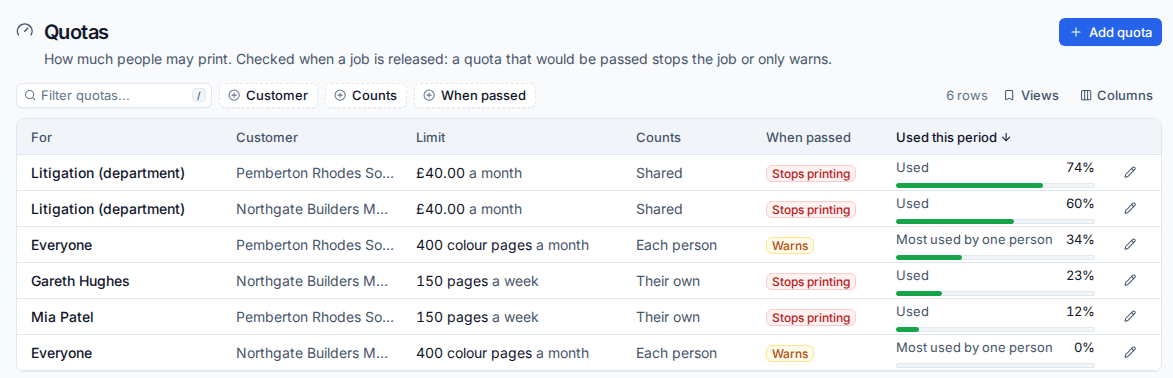
The Quotas list shows each quota's Limit, how it Counts, what happens When passed (Stops printing or Warns) and how much is Used this period. For quotas each person has, it shows the most anyone has used.
People see their own quotas and what they have used this month under Your printing this month on the portal's Printing page. A refused release tells them why.
Tip: Start with a colour quota that only warns. Once people see their own numbers, most print less colour without being stopped.
Usage reports
Devices > Printers > Usage shows what was printed in a period: total Pages, Sheets of paper, Colour pages and Cost, a chart of mono and colour pages by day, and a table grouped by Person, Department, Printer, Site or Customer with jobs, pages, sheets, colour, double-sided and cost for each.
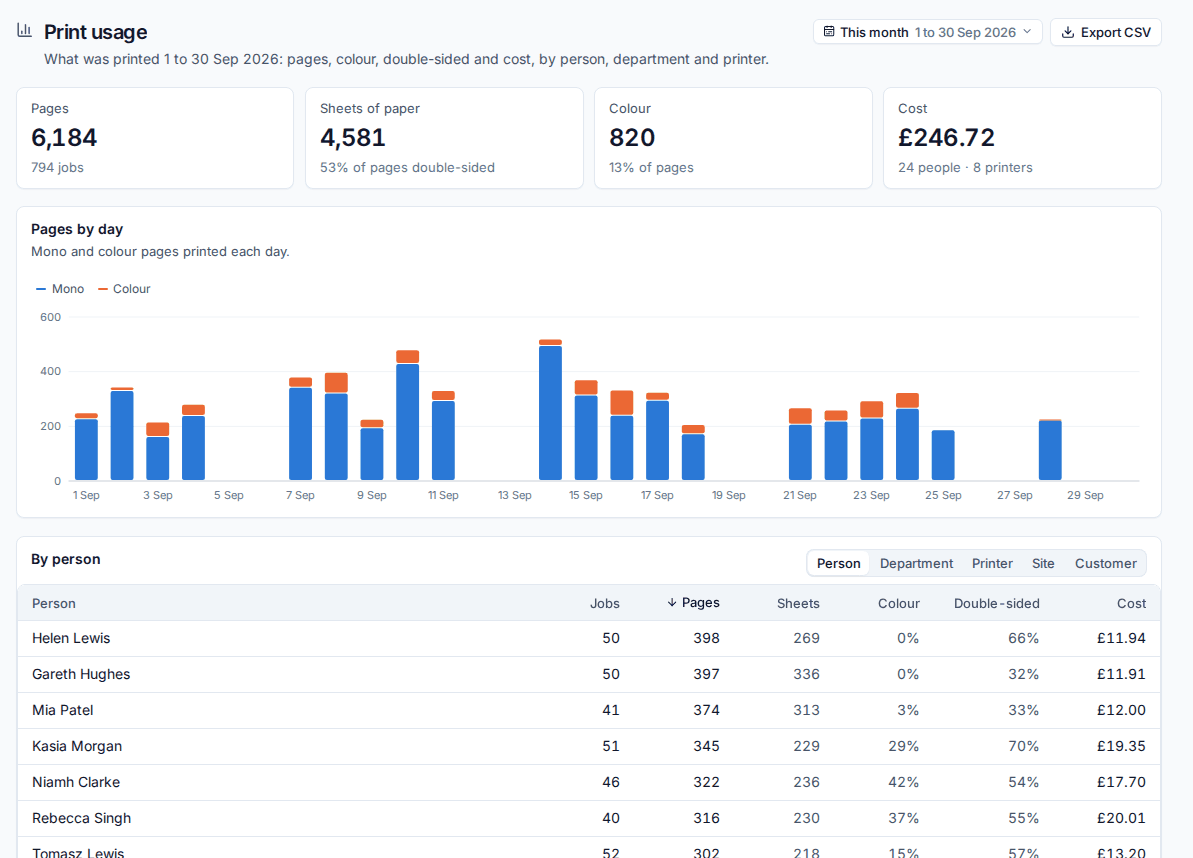
Choose the period at the top right and press Export CSV to download the figures for a spreadsheet or a recharge.
Each person's page on Devices > Printers > People shows their pages this month, when they last printed, and the quotas that apply to them.
Job history is kept for two years by default (Keep job history for in the settings, under Job accounting).
Related: Secure print release, Mobile, guest and self-service printing.
Was this page helpful?
Thanks for the feedback.