The hosting panel, resellers and site owners
Give customers a hosting panel for their own websites, with plans and quotas, site owner and reseller accounts, people with roles, and what they can do in the panel.
If you host websites for customers, the hosting panel lets them look after their own sites, the way Plesk or cPanel would, while the sites stay on the web servers you run in Tenvara. Each customer gets a hosting account on a plan with quotas. A reseller (for example a web design agency) can sell hosting to its own clients from its panel, within its own quotas.
The panel is part of the customer portal, in your brand, at /portal/hosting on your portal address. It works with the sites on your web servers: Linux with nginx, and Windows with IIS.
Plans
A plan sets what an account may use. Open Infrastructure > Hosting accounts and press Plans (or go to Hosting plans).
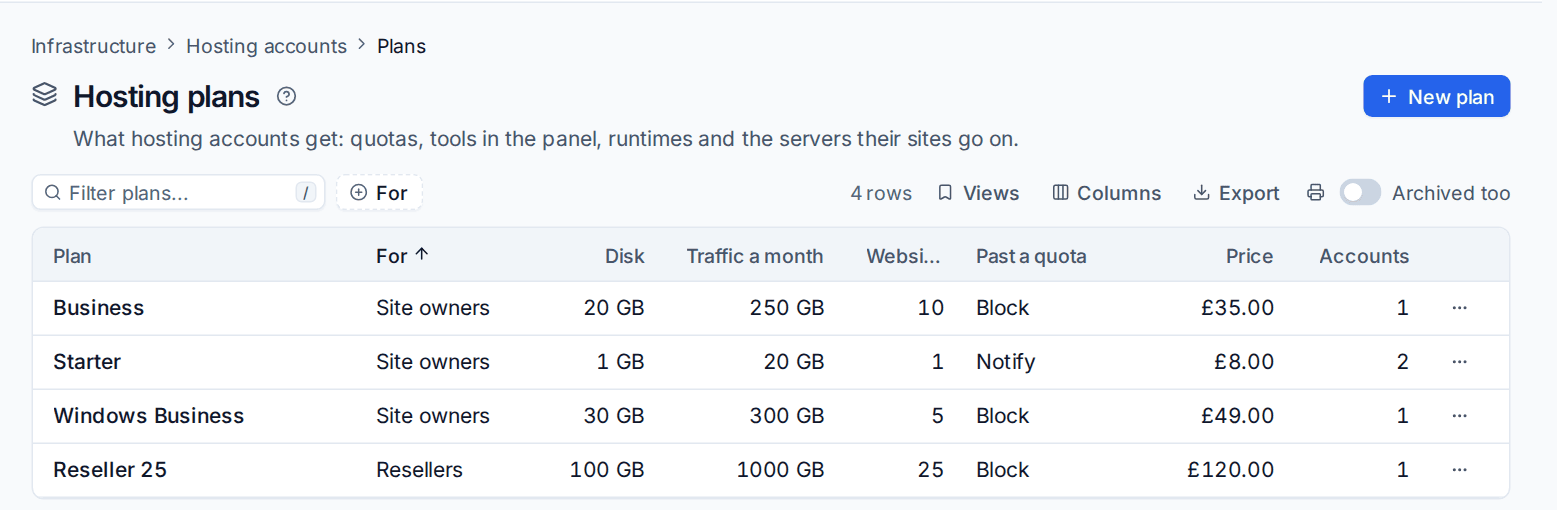
Press New plan and set:
- For: Site owners or Resellers.
- Quotas: Disk, Traffic a month, Websites, domains and aliases, Databases, cron jobs, backups kept, and for resellers how many clients.
- Tools: what the panel includes, such as certificates, the file manager, databases and the web database tool, SFTP, FTP, cron, backups, git deploys, WordPress and staging copies, DNS, PHP settings, IIS settings and logs.
- Runtimes: the kinds of site allowed (static, PHP, Laravel, WordPress, Node.js, .NET).
- Past a quota: Notify, Block new things, or Suspend the account's sites.
- The servers new sites go on, and a Price.
A plan nobody uses can be deleted; one in use can be archived so it is no longer offered.
Hosting accounts
Infrastructure > Hosting accounts lists every account with its Kind, customer, plan, number of websites and Fullest quota, so accounts near or over a limit stand out.
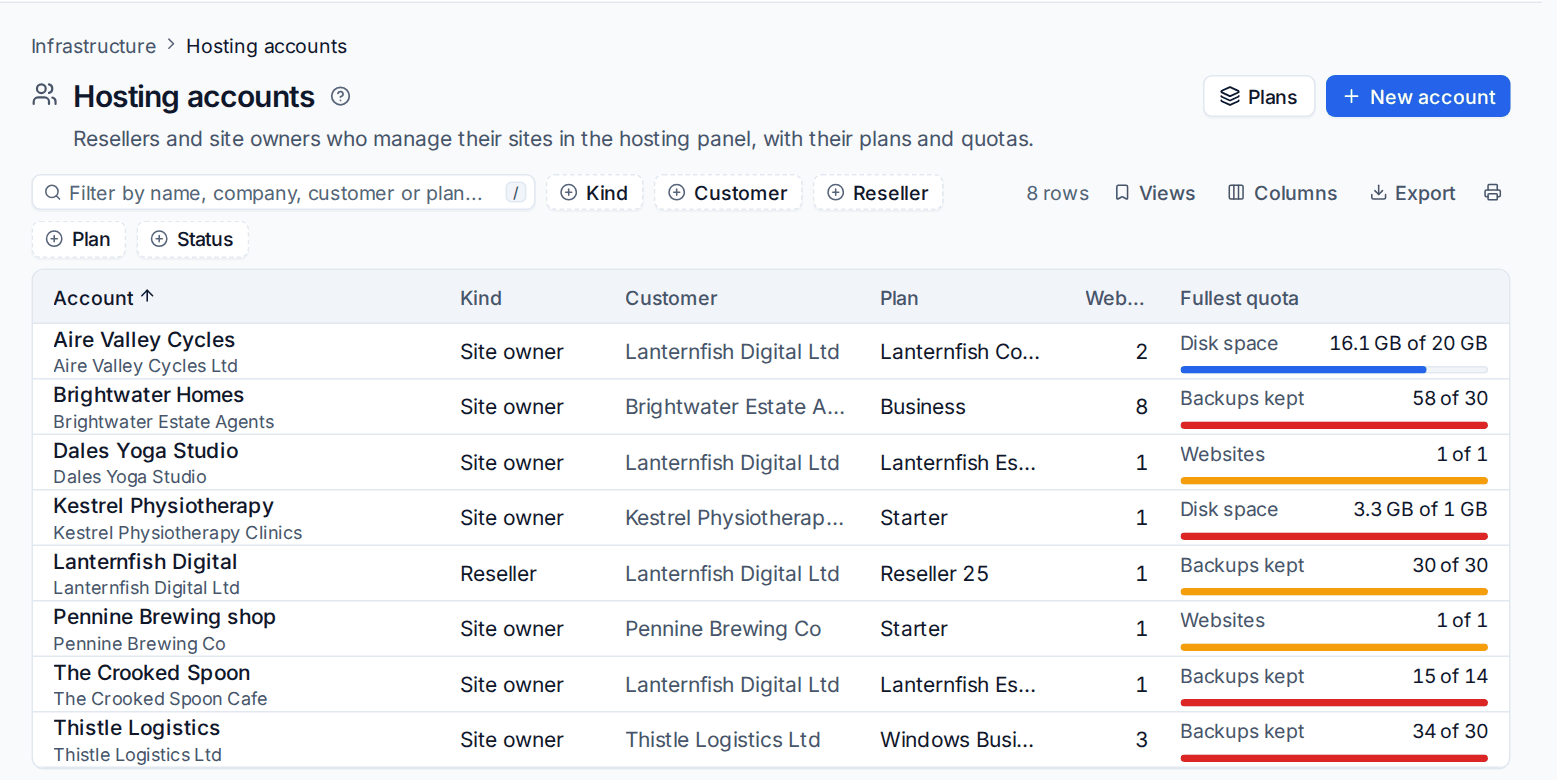
Making an account
- Press New account.
- Choose the Kind: Site owner (manages their own sites) or Reseller (sells hosting to their own clients).
- Choose the Customer: whose account this is in the PSA, for tickets, contracts and billing.
- Enter the Name, Company, Email address and Phone (used for quota warnings and suspensions).
- Choose the Plan. Under Changes to the plan's quotas, give this account more or less of anything; empty keeps the plan's.
- Enter the First owner and leave Email them an invitation to the hosting panel now on, or add people later.
- Press Make account.
To put an existing site into an account, open the account and press Put a site in it, or use Create site to make a new one there.
The account page
The account page shows Usage against every quota (counted every hour from the servers' reports), its sites, and its people. For a reseller it also shows its Clients with their plan, sites, fullest quota and status, and The reseller's plans it sells to them.
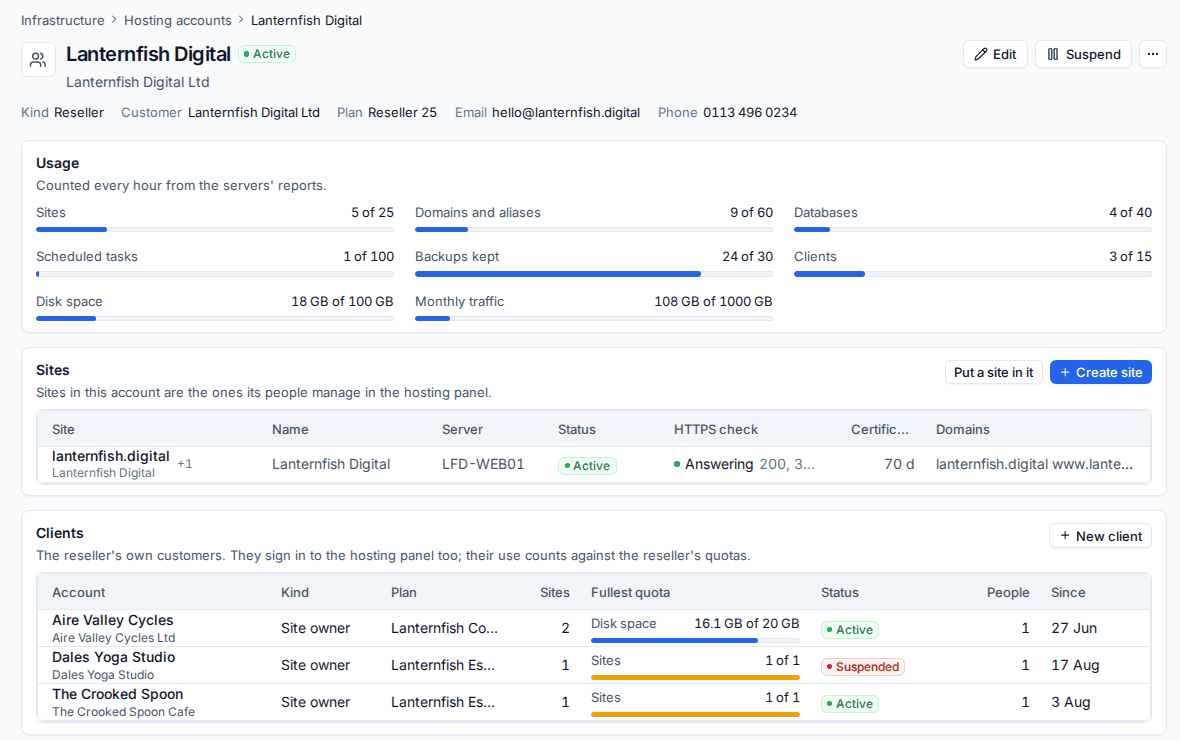
- Edit changes the details, plan and quota changes.
- Suspend shows the maintenance page on all its sites and makes its panel read-only, with the reason you give. Resume undoes it.
- Count usage now counts its usage straight away instead of waiting for the hourly count.
Quotas
Tenvara checks quotas before anything new is made (a site, domain, database, cron job, backup, staging copy or upload) and counts usage every hour. Near a limit the account gets a warning (90% by default); over it, an alert is raised and the plan's policy applies: new things refused, or the sites suspended until usage is back under, then resumed automatically.
People in the panel
Each account has people who sign in to the panel:
| Role | What they can do |
|---|---|
| Owner | Everything |
| Admin | Everything except managing people |
| Developer | Only the sites chosen for them |
| Viewer | Look, but not change anything |
People sign in with their email address and a password, set from an invitation link. A person linked to one of your customer's portal contacts can get in with their portal sign-in instead. From the account page you can invite people, send a password reset, change their role or sites, or Open the panel as them to see exactly what they see. That session lasts an hour, is marked in the panel, and records your name on anything you do.
What customers can do in the panel
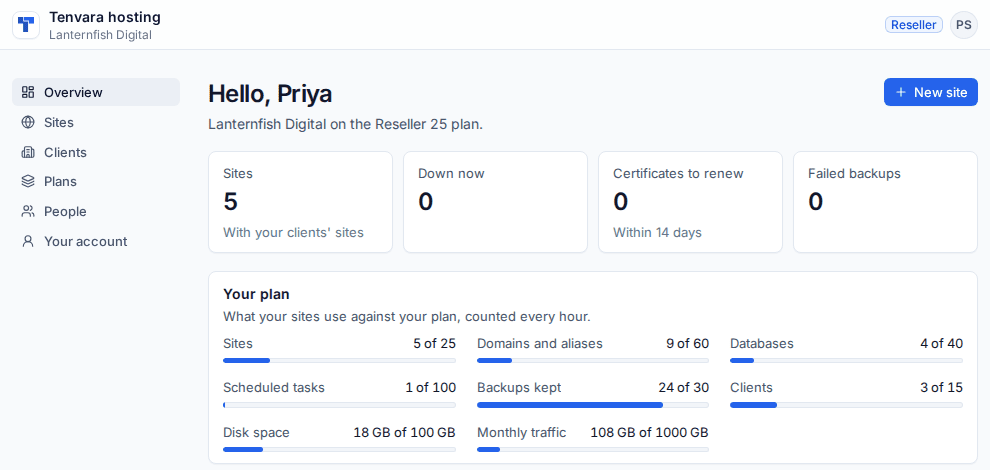
The panel's overview shows the plan and use of each quota, sites that are down, certificates to renew, failed backups, the sites, and the latest changes. Within what their plan includes, people can:
- make a New site with its domains, kind and PHP version, with WordPress set up and DNS pointed at the server when the zone is managed in Tenvara;
- change domains and certificates, renew, or use their own certificate;
- manage files in the file manager (upload, edit, rename, unzip), reaching exactly what the site's own login can;
- create databases, change passwords, save and restore copies, and open the web database tool;
- turn SFTP (or FTP on Windows) on and off, set passwords and SSH keys;
- manage cron jobs, backups (schedule, back up now, restore files and databases), logs and git deploys;
- for WordPress: updates, plugins, the admin password, and staging copies that can be pushed back to live;
- see Usage: daily traffic and requests, disk and databases over 30, 90 or 365 days;
- on Windows, change IIS settings (see Windows hosting).
A reseller also has Clients (with their use, suspend and resume, and people), Plans for its clients, and People. A client's use counts against its own plan and the reseller's.
Everything done in the panel runs as the panel person and appears in the site's operations and the account's latest changes.
Settings
Open Settings > Infrastructure for the panel's settings:
- Hosting panel: sign-in on or off, how long sessions last, invitation and reset link lifetimes, the shortest password, and lockout after wrong passwords.
- Hosting quotas: the default policy past a quota, the warning percentage, and whether alerts are raised.
- Hosting tools: how long a web database tool link lasts, the staging address label, the largest file the file manager opens, and the largest upload.
Related
Was this page helpful?
Thanks for the feedback.