The browser extension
Fill customers' usernames, passwords and two-factor codes into websites from the vault, save new sign-ins, and control what the extension may do.
The Tenvara browser extension puts the credentials vault where technicians sign in: on the customer's web portals, firewalls and cloud consoles. It finds the right credential for the page, fills the username, password and two-factor code, and offers to save sign-ins the vault does not know yet. Every fill is written to the vault audit log.
It works in Chrome, Edge, Firefox and Safari.
Installing and connecting it
Open Docs and choose Browser extension under Security. The page shows how to install the extension in each browser and lists Your connected browsers.
Once it is installed:
- Open the extension from the browser toolbar.
- Enter your workspace address, the one you use for the Tenvara web app, and press Connect.
- The extension shows a short code, and Tenvara opens in a new tab asking you to Connect the browser extension. Check that the code on the page matches the one in the extension, and the browser and address are yours.
- Press Approve and connect.
The extension signs in as you, with the same sign-in method you used (password and two-factor, or single sign-on). Its session appears with your others in your security settings, follows the same sign-in policies, and can be signed out from there, from the Browser extension page or from the extension itself.
Warning: Only approve a code you can see in your own browser right now. An approved browser can fill every credential you can see.
People without the Credentials permission cannot connect the extension.
Finding and filling a credential
On any website, the extension looks for vault credentials whose saved Web address matches the page: the same site first, then the same domain. The toolbar button shows how many it found, and a key appears in sign-in fields.
- Click the key in the username or password field, or open the extension from the toolbar.
- Choose the credential. In the toolbar list, press Fill.
- The extension fills the username and password. On a site that asks for a two-factor code on the next step, it fills the current code too.
Nothing secret is kept in the browser. Each fill is one request to Tenvara, recorded in the vault audit log as filled in by the extension, with the site it filled. Copying a password or two-factor code from the extension is logged the same way as in the web app.
The extension only offers credentials for customers you are allowed to see, and administrators-only credentials only to administrators.
Tip: Fill in the Web address on every credential. It is what the extension matches on, and it also gives you the Open button on the credential.
Saving a new sign-in
After you sign in to a site the vault has no credential for with that username, the page shows Save this sign-in to the vault?
- Press Save.
- Choose the Customer, and check the Name, Address, Username and Password.
- Save it. It becomes an ordinary credential, encrypted and audited like every other.
If the vault already has a credential for that site and username but the password you typed is different, the extension offers to update the stored password instead.
Saving is only offered to people who can manage credentials.
Settings
Settings > Documentation > Browser extension controls the extension for your whole team.
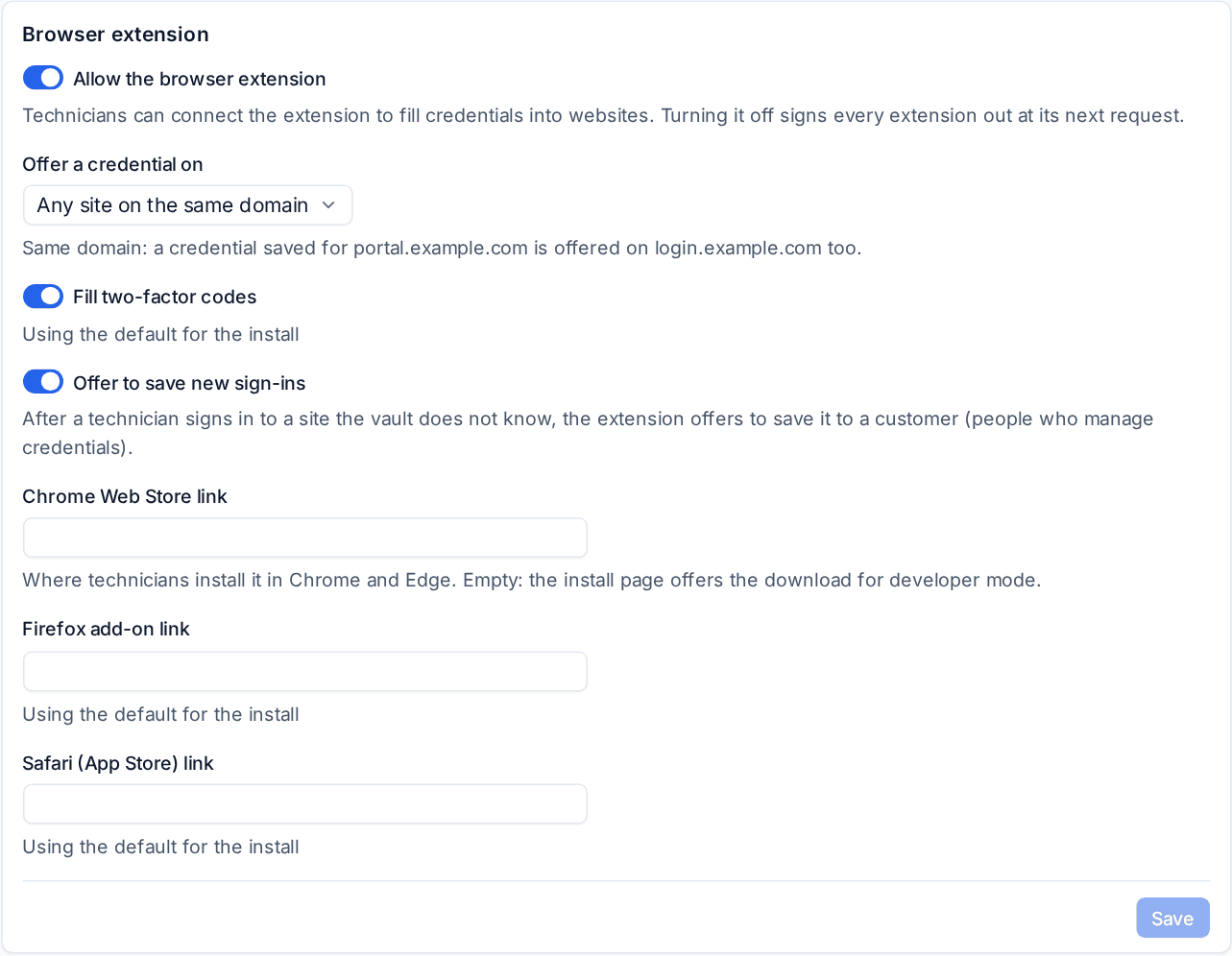
| Setting | What it does |
|---|---|
| Allow the browser extension | Off signs every extension out at its next request |
| Offer a credential on | Any site on the same domain (a credential for portal.example.com is offered on login.example.com too) or Exactly the address saved on it |
| Fill two-factor codes | Whether the extension fills the current code as well |
| Offer to save new sign-ins | Whether the save offer appears after signing in somewhere new |
| Chrome Web Store link, Firefox add-on link, Safari (App Store) link | Where technicians install it, shown on the Browser extension page |
Signing a browser out
To disconnect a browser, sign it out from the extension, from Your connected browsers on the Browser extension page, or from your sessions in your security settings. An administrator turning off Allow the browser extension signs every browser out.
Related: The credentials vault, Reviews and the vault audit log.
Was this page helpful?
Thanks for the feedback.