Currencies and exchange rates
Bill customers in any currency, keep your books in your base currency, and convert with daily European Central Bank rates or your own.
Tenvara keeps every amount in its own currency, exactly, to the currency's own decimal places (none for the Japanese yen, three for the Kuwaiti dinar). Your base currency is the one you report in; customers, quotes, contracts and invoices can use any other currency you bill in.
Your base currency and the currencies you bill in
- Open Settings > Regional > General.
- Under Money, check the Base currency. It starts as your country's currency.
- Under Also bills in, add every other currency you invoice in. Customers, quotes, contracts and invoices can then use these as well as the base currency.
- Set Prices include tax if your prices are usually quoted with tax included. It is the default for new quotes and invoices, and each one can change it.
- Save.
A customer's currency
- Open the customer and press Edit.
- Open Billing and region and choose Billed in. The base currency is the default.
- Press Save changes.
New quotes and contracts for the customer use their currency, and invoices are issued in it. Each quote, contract, project and catalogue item has one currency, and its lines use it.
Exchange rates
Settings > Regional > Exchange rates shows the rates against your base currency for every currency you bill in.
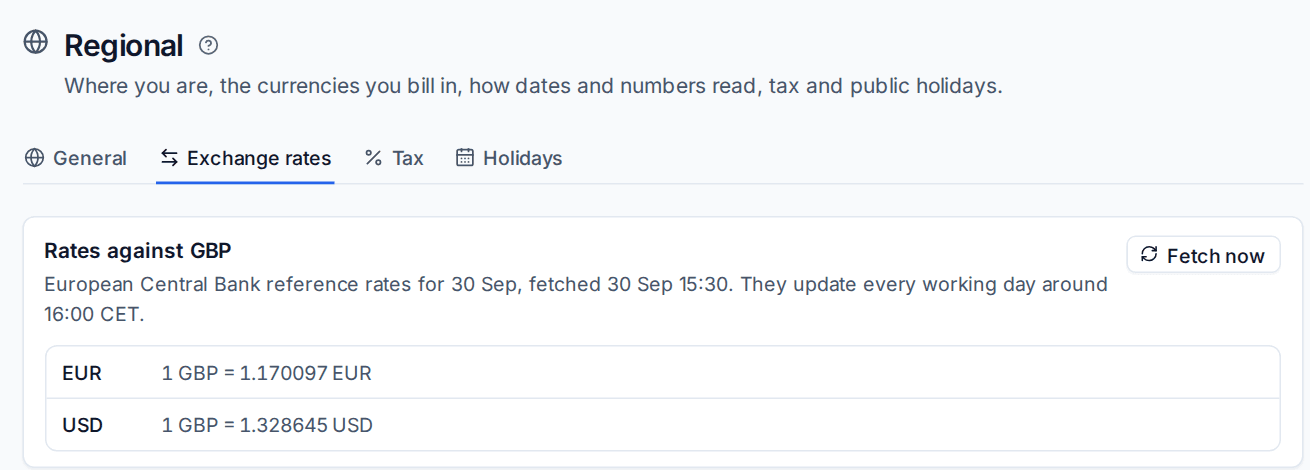
- Rates come from the European Central Bank reference rates, fetched every working day after they are published (around 16:00 CET). No account or key is needed.
- Fetch now gets the latest rates straight away.
- If the ECB cannot be reached, Tenvara uses the rates it already has.
Your own rates
Add your own rate for a currency the ECB does not publish, or to match the rate your bank gives you.
- Under Your own rates, press Add a rate.
- Choose From and To currencies and enter the Rate.
- Set From date: the rate applies from that day until you remove it.
- Optionally add a Note, for example where the rate came from.
- Press Add rate.
Your own rate always wins over the ECB's for that pair, from its date onwards.
How conversions work
- Documents never change. An invoice keeps the rate it was issued at for its total in your base currency. Later rate changes do not re-price it.
- Reports and dashboards that add up several currencies convert to your base currency at each amount's own day's rate, and say so under the total, for example "Totals in GBP at ECB rates on 27 Sep".
- A currency with no rate is never added in unconverted. The total says which amounts were left out, with a link to add a rate.
- One customer's views, such as their billing panel and profitability, are in their own currency.
Money elsewhere in Tenvara
| Where | How currency works |
|---|---|
| Expenses | A receipt is entered in the currency and country it was spent in. The claimant is paid back in your base currency at that day's rate, and a rebilled expense is charged in the customer's currency |
| Licences | A subscription keeps the distributor's currency. A contract line priced in another currency is converted when it is first written or its price changes, so it does not move with the rates every day |
| Profitability and recurring revenue | Worked in your base currency across customers. Recurring revenue movements are worked at one day's rate, so exchange rates never show as growth or churn |
| Report builder | Money columns are in your base currency, and CSV columns name the currency, for example "Amount (GBP)" |
| AI costs | AI usage is billed in US dollars, so AI costs and caps stay in US dollars |
Tip: Accounting exports and CSV files use your install's formats for dates and numbers, and open correctly in Excel wherever you are.
Related: Tax, Invoices and credit notes, Expenses and mileage.
Was this page helpful?
Thanks for the feedback.