Hyper-V hosts and virtual machines
How the agent finds Hyper-V hosts, adopting a host, the host and virtual machine pages, power actions, checkpoints, replication health and backups of Hyper-V virtual machines.
Windows servers with the Hyper-V role sit in Infrastructure beside your Proxmox VE clusters, in the same screens: Hypervisors, Guests, Tasks, the overview, alerts, and the device and customer pages. The agent you already install on the host does the work, so there is nothing else to deploy and no credentials to store.
How hosts are found
The agent's Hypervisor role recognises a Windows machine with the Hyper-V role and reports, every few minutes:
- the host: processor cores and sockets, memory, uptime and Windows version;
- its storage: fixed volumes and cluster shared volumes;
- every virtual machine: state, uptime, processor and memory use, generation, disks, network adapters (switch, VLAN, MAC and the guest's addresses), checkpoints, notes, and the guest's operating system and host name from the integration services;
- replication: mode, state, health, how often it replicates, when it last did, and the primary and replica servers;
- CPU, network and disk figures for the charts.
A host in a failover cluster shows under a cluster named after it, with each host reporting its own virtual machines. A virtual machine that runs the agent itself is matched to its device, so its page links to it.
Adopting a host
A host that reports in is only Detected: Tenvara shows its figures, but runs no actions on it and raises no alerts until someone adopts it.
- Open Infrastructure > Hypervisors, or Detected under Needs attention.
- Open the host and press Adopt.
Adopted hosts count in the overview, raise alerts, and take power actions and checkpoints.
The host page
Infrastructure > Hypervisors lists every host and cluster with its Platform (Hyper-V, Proxmox VE), health, customer, nodes online and guests running. Open a Hyper-V host to see:
- its health and the reason, the Hyper-V version, customer, nodes online, guests running, last report and who adopted it;
- Nodes: the host with its status, device, address, CPU, memory, guests and cores;
- Guests: every virtual machine with its status, Replication health, CPU, memory, Last backup and Own device (the guest's own agent, when it has one);
- Recent tasks and Storage.
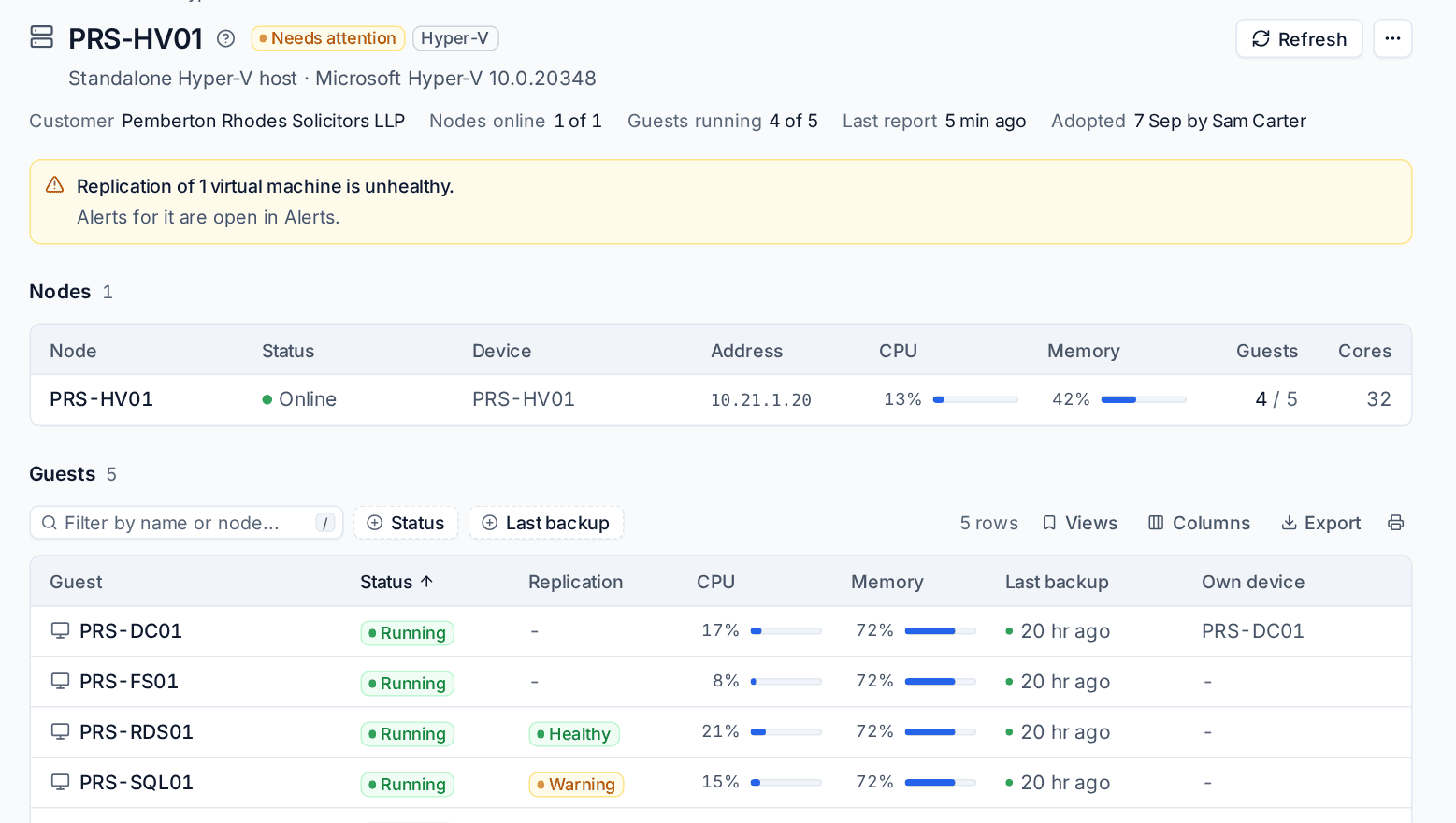
Refresh asks the agent for a fresh report now.
The virtual machine page
Open a guest from the host page or Infrastructure > Guests (filter by platform to see only Hyper-V). The page shows its state, operating system, customer, host, host name, addresses, own device and uptime, then performance charts (CPU, memory, network and disk over 24 hours to 90 days), checkpoints, backups, tasks and its configuration: generation, cores, memory, disks with where they live, start at boot, network adapters and notes.
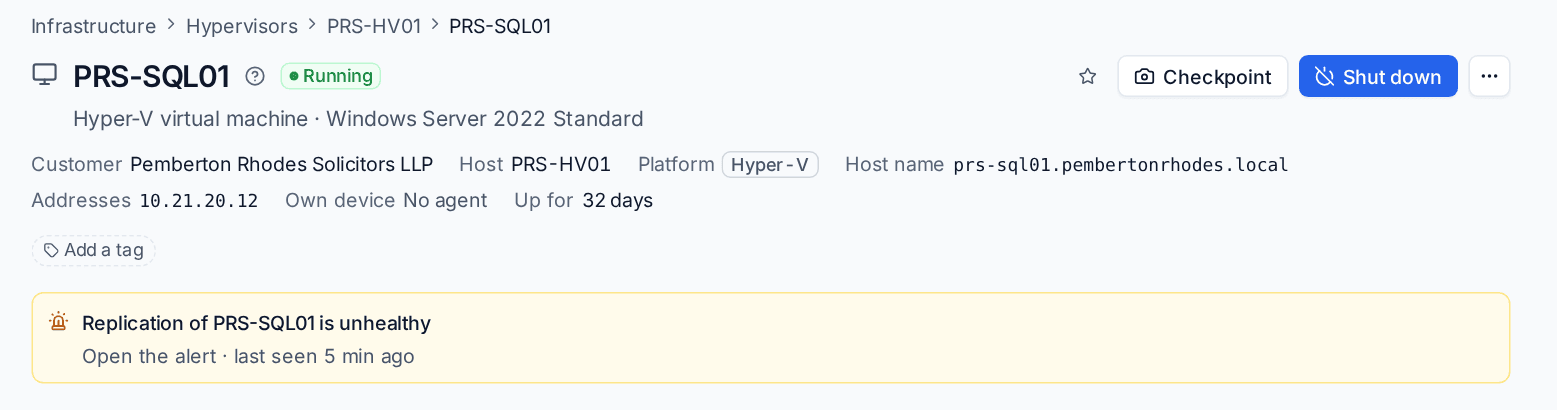
Power actions
With Manage permission for Infrastructure:
- Shut down asks Windows (or Linux) in the guest to shut down cleanly, through the integration services.
- Start starts a stopped or saved machine.
- More actions has Reboot, Pause, Save state, Reset and Stop.
Each action runs on the host through the agent, shows as a task on the guest and the host, and the state updates as soon as it is done.
Checkpoints
Checkpoints lists the virtual machine's checkpoints. Hyper-V checkpoints are what Proxmox calls snapshots.
- Press Checkpoint at the top of the page, or Take checkpoint above the list.
- Enter a Name, for example "Before changes 2026-10-01".
- Press Take checkpoint.
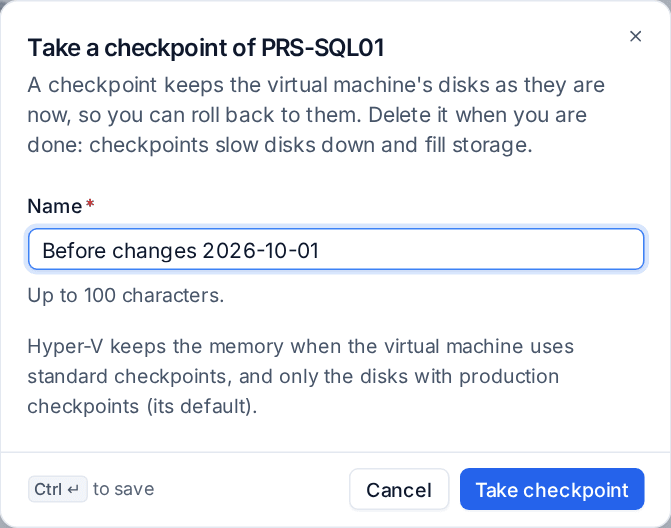
Hyper-V keeps the memory too when the machine uses standard checkpoints, and only the disks with production checkpoints (its default).
On a checkpoint's row:
- Roll back returns the machine to that checkpoint, optionally starting it afterwards.
- Delete removes the checkpoint and merges its disks back.
Tip: Delete checkpoints once a change has gone well. Checkpoints slow disks down and fill storage.
Replication health
For a virtual machine replicated with Hyper-V Replica, the Replication card shows its health, role (primary or replica), state, the replica and primary servers, when it last replicated and how often.
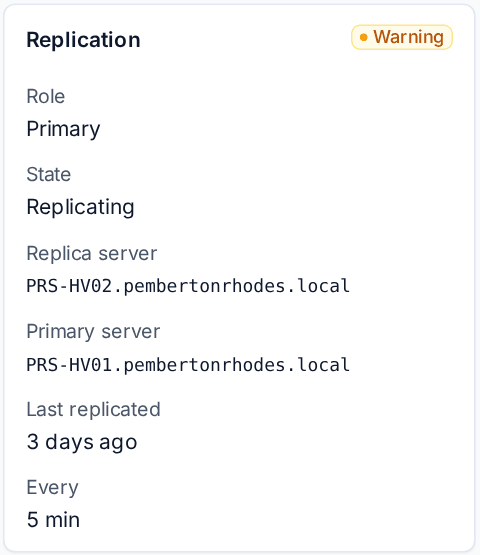
Replication in Warning or Critical raises an alert, shown on the guest and host pages and in Alerts, so your alert rules can turn it into a ticket. It clears when replication is healthy again.
Backing up Hyper-V virtual machines
Hyper-V virtual machines are backed up by the Backup module through the backup helper on the host, from a checkpoint it takes and tidies up itself. The Last backup column and the guest's Backups card read from it. See Protecting devices.
A Hyper-V host can also be a sandbox where machines are started from their backups, for boot checks, instant recovery and warm standbys. See Instant recovery and standbys.
Related
Was this page helpful?
Thanks for the feedback.