SaaS discovery
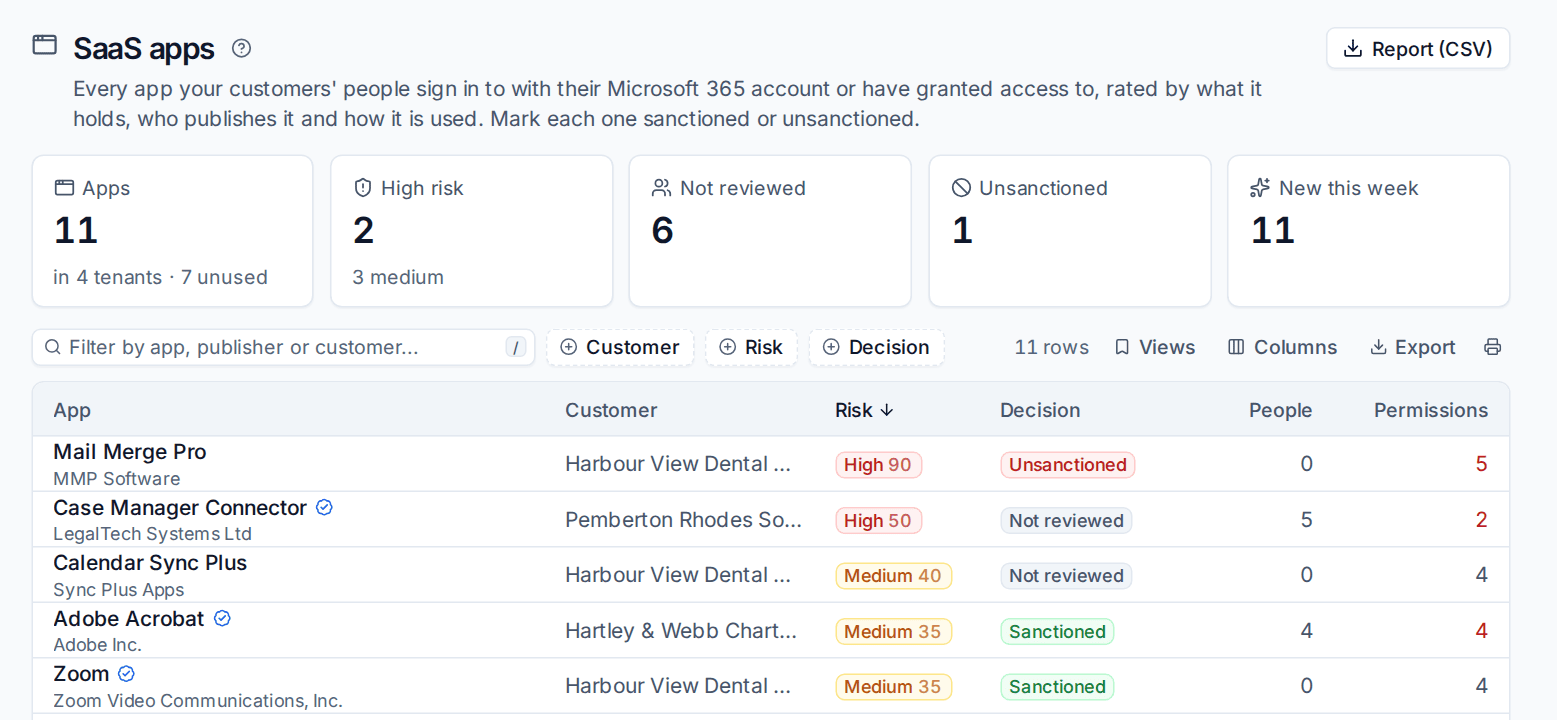
See every app your customers' people sign in to with Microsoft 365 or have granted access to, how risky each one is, and mark it sanctioned or unsanctioned, turn it off or take its permissions away.
Staff sign up for apps with their Microsoft 365 account all the time: mail merge tools, calendar sync, PDF editors, AI note takers. Some of them hold permission to read every mailbox. Microsoft 365 > SaaS apps finds them from each tenant's sign-ins and the permissions granted to apps, rates how risky each one is, and lets you decide what is allowed.
Where the list comes from
- Sign-ins: every sign-in Tenvara reads is counted per app, person and day, so you see who actually uses an app and how often. Microsoft keeps when each app last signed anyone in, beyond the 30 days of the sign-in log, and Tenvara reads that too.
- Enterprise apps: the apps with permissions in the tenant, what they hold, who publishes them and whether the publisher is verified.
Apps nobody uses that hold nothing are left out. Sign-in counts need Entra ID P1 in the tenant; without it, Tenvara says that whether anyone uses an app is not known.
The SaaS apps list
Open Microsoft 365 > SaaS apps (under Operations). The top counts Apps (with how many are unused), High risk, Not reviewed, Unsanctioned and New this week. Each app shows its publisher, customer, Risk, Decision, how many People use it and how many Permissions it holds. Filter by Customer, Risk and Decision.
How risk is worked out
Each app gets a risk score from 0 to 100, with the reasons in words. Points are added for:
- Application permissions that reach everyone's data without anyone signed in (the most).
- Delegated mail, files or directory permissions consented for everyone, or by individual people.
- A publisher Microsoft has not verified.
- Holding permissions while nobody has used it for a while.
- Ten or more people using it with those permissions.
The score is halved when the app is turned off. 50 and above is High, 25 and above is Medium. Microsoft's own apps and Tenvara's own app are always low and never alert.
An app's panel
Click an app to open its panel:
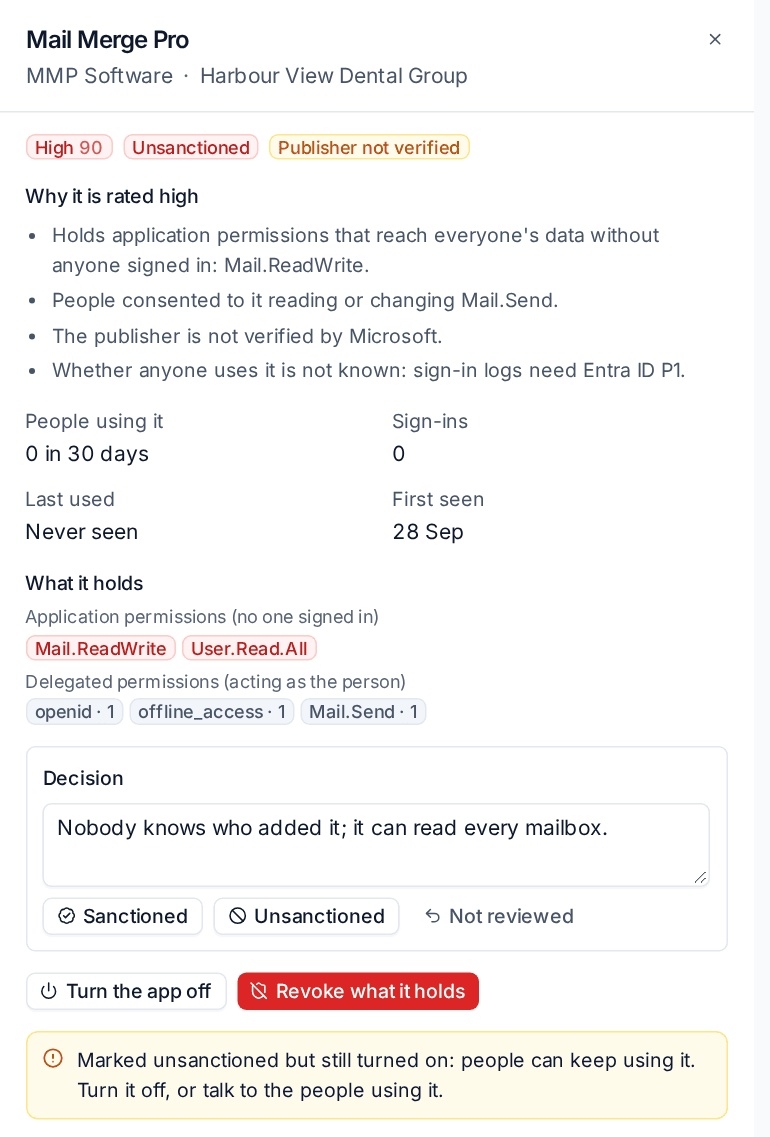
- Its risk, decision and publisher status (Publisher verified by Microsoft, Publisher not verified or Publisher not given).
- Why it is rated high, medium or low, as a list of reasons.
- People using it, sign-ins, when it was last used and first seen.
- What it holds: Application permissions (no one signed in) and Delegated permissions (acting as the person), with how many people consented to each.
- Daily use, who uses it, and the other tenants that have it.
Deciding on an app
Under Decision:
- Write a note, for example why it is allowed or who asked for it. It is kept with the decision.
- Press Sanctioned or Unsanctioned, or Not reviewed to take a decision back.
- Where the app is in other tenants too, choose whether the decision is for this tenant only or For every tenant that has it.
The decision is recorded on the customer's timeline.
Stopping an unsanctioned app
Marking an app unsanctioned does not stop anyone using it, and the panel says so. To stop it:
- Turn the app off: nobody can sign in to it in that tenant.
- Revoke what it holds: removes the permissions it was granted.
Both go through the change dialog and the change log, with undo where Microsoft allows (see Making changes safely).
Alerts
Set in Settings > Microsoft 365 > SaaS discovery:
- Alert on new risky apps: an app seen for the first time at or above the risk you choose (High only by default, or Medium and high) raises an alert until someone marks it sanctioned or unsanctioned.
- Alert when an unsanctioned app is used: someone signing in to an app marked unsanctioned raises an alert.
The first time a tenant is read, its apps are listed without alerting, so connecting a customer does not flood you.
The same page sets how many days of use are counted, when an app counts as unused, and how long daily use is kept.
Reporting to the customer
Press Report (CSV) for the apps of one customer, or use the SaaS apps dataset in the report builder to filter, schedule and send it. It is a useful page in a quarterly review: what their staff use, what it can reach, and what you recommend turning off.
Related: Account threat response (a consent to a high-risk app is one of its detections), Sign-ins, apps and policies.
Was this page helpful?
Thanks for the feedback.