Getting the app and signing in
Get the Tenvara app on your iPhone, iPad or Android phone or tablet, connect it to your Tenvara server and sign in with two-factor.
The Tenvara app puts your service desk in your pocket. It works on iPhone, iPad, Android phones and Android tablets, in light and dark, and talks to the same Tenvara server your team uses in the browser. Everything you do in the app is the same work as on the web: a reply sent from your phone is on the ticket for everyone straight away.
This guide covers version 1.1.0 of the app.
Getting the app
The Tenvara app is available to beta customers. Ask us for access and we'll send you an invite (TestFlight on iPhone and iPad, a test build on Android).
- iPhone and iPad: open the invite on the device, install Apple's TestFlight app when it asks, then install Tenvara from TestFlight. Updates arrive through TestFlight.
- Android: open the link in the invite on the phone or tablet and install the Tenvara build.
Each person on your team signs in with their own account, so what they see in the app follows their own role and permissions.
Connecting to your server
Tenvara runs on your company's own server, so the first thing the app asks is where that is.
- Open the app. The first screen says Sign in to your company.
- In Server address, type the address you use in the browser, for example
https://yourmsp.tenvara.appor your own domain if you host Tenvara yourself. - Press Continue.
If you are not sure of the address, look at the address bar when you use Tenvara on your computer, or ask whoever looks after Tenvara at your company. The address is remembered, so you only type it once. Use a different server on the sign-in screen takes you back to change it.
Signing in
- Enter your Work email and press Continue.
- Enter your password and sign in. It is the same password you use on the web.
- If you have two-factor on, the Two-factor code screen asks for the six-digit code from your authenticator app. Type it and press Verify.
Lost your authenticator? Press Use a recovery code and type one of the recovery codes you saved when you set two-factor up. Each works once. Back returns to the password step.
When two-factor is required
If your administrator requires two-factor for your role and you have not set it up, the app walks you through it during sign-in, the same as the web: add the key to your authenticator app, confirm with a code, and the app shows your recovery codes. Save them somewhere safe, such as your password manager, before you carry on. They are only shown once. See Signing in for how two-factor and recovery codes work.
Once you are in
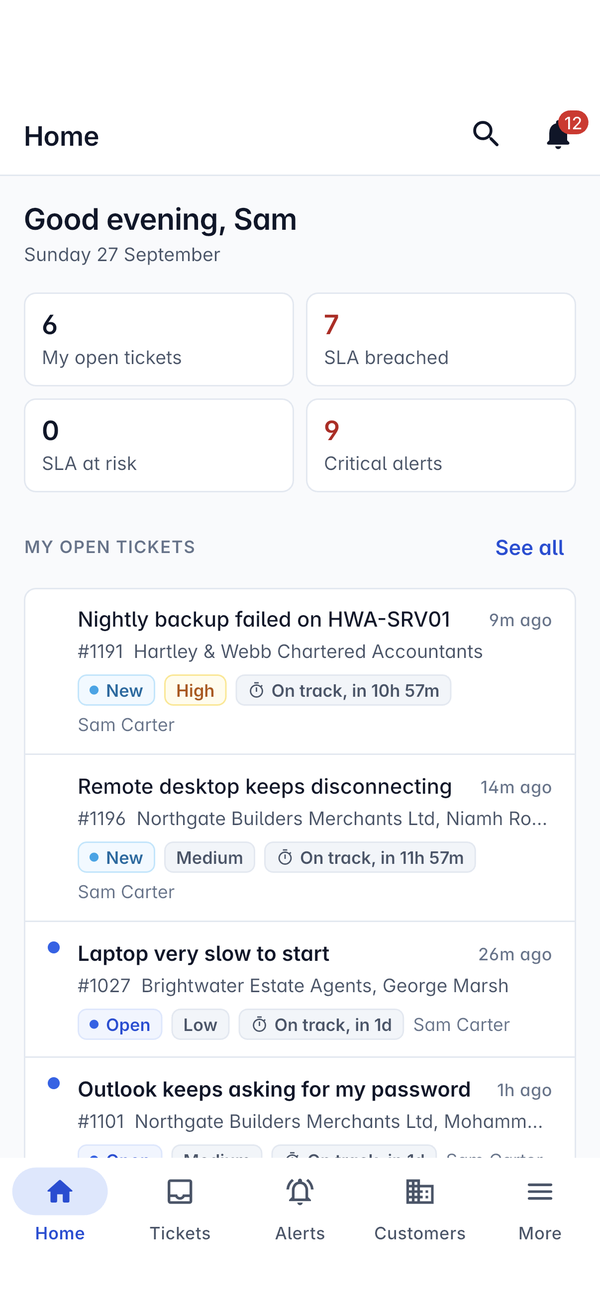
The app opens on Home, with your open tickets, SLA figures and critical alerts at the top. See Finding your way around for the rest of the app.
You stay signed in until you sign out. Your sign-in is kept in the phone's secure storage (the Keychain on iPhone and iPad, the Keystore on Android), and passwords are never saved on the phone. To make the app ask for Face ID or your fingerprint every time you come back to it, turn on the lock in Settings > Security. See Settings and security.
What you will see
The app only shows the areas and actions your role allows and your modules have switched on. If a colleague has Quotes or Run script and you do not, that is why. See Roles and permissions and Modules.
Was this page helpful?
Thanks for the feedback.