Agent updates and release channels
How new agent releases reach your devices from the release feed, with stable and beta channels, a pilot ring and soak, halts, pins and maintenance windows.
New releases of the Tenvara agent, and of the backup helper that runs beside it, reach your devices without anyone downloading or uploading a package. Your Tenvara server checks the release feed every day, imports the releases your licence covers, and rolls each one out in stages: first to a small pilot group, then to everyone else once the pilot has run it safely for a while.
You follow and control this under Devices > Agent updates.
How a release reaches your devices
- The feed is checked. Once a day your server asks the release feed for new versions. Every release is checked before it is accepted: the release signature, the size and hash of every file, the Authenticode signature of Windows packages and the installer signature of macOS packages. A release that fails any check is refused, and the check's record says why.
- A rollout is made. Each accepted release gets a rollout for its component (Agent or Backup helper). A newer release replaces older rollouts of the same component that are still running.
- The pilot goes first. The release is offered to the pilot devices only.
- The soak. When the first pilot device has updated, the soak starts (72 hours by default). If no pilot device fails or rolls back during the soak, every other device is offered the release.
- Devices report back. Each device says when it starts, finishes, fails or rolls back, and the rollout page counts them.
Every package is signed again with your own server's key, and each agent checks that signature, the checksum and (on Windows) the Authenticode signature before it installs anything. On macOS and Linux, if the new version does not start and stay up, the previous version is put back and the device reports a rollback.
Note: An update is never offered to a device while someone is remoted into it or while it is running a backup. The device waits and the rollout page says why.
The Agent updates page
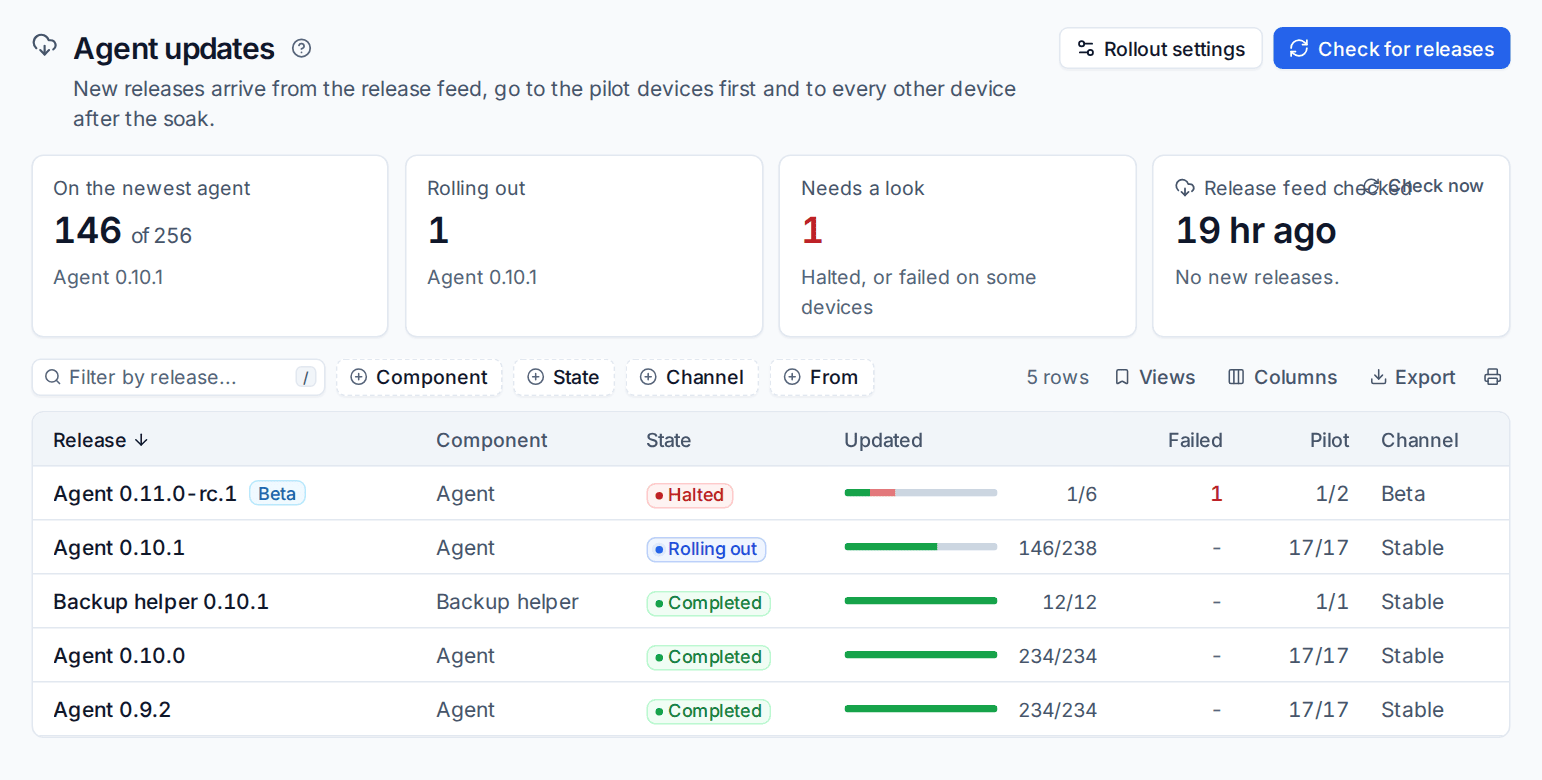
The tiles show how many agents are on the newest version, how many rollouts are running, how many need a look (halted, or failed on some devices) and when the release feed was last checked. Check for releases asks the feed straight away instead of waiting for the daily check.
The list has one row per rollout with its component, state, how many devices have updated, how many failed, the pilot's progress and the channel. Filter by Component, State, Channel or From. Click a rollout to open it.
Following a rollout
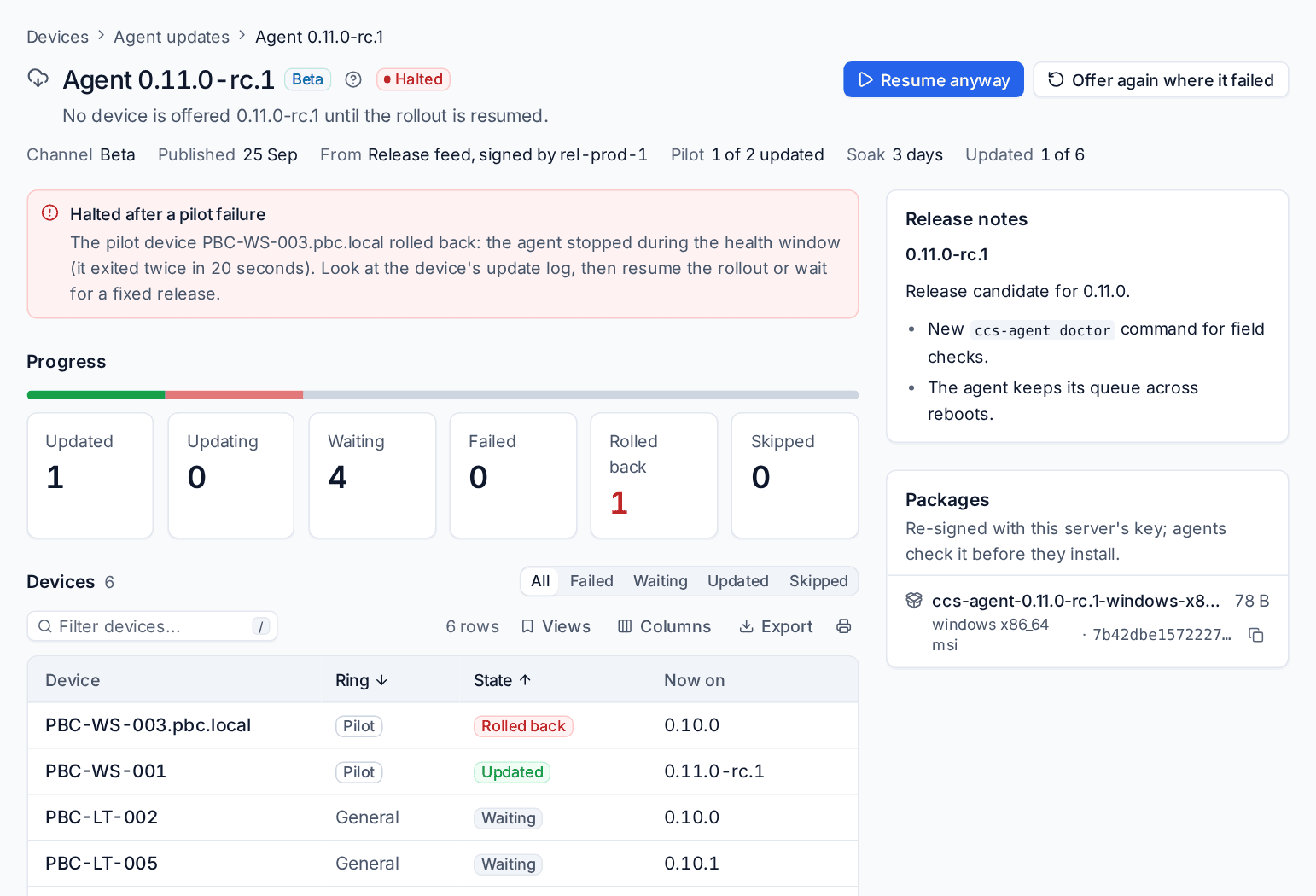
A rollout's page shows its channel, when the release was published, where it came from, the pilot's progress, the soak and how many devices have updated. Below are the counts (Updated, Updating, Waiting, Failed, Rolled back, Skipped), every device with its ring and state, the reports devices sent, the release notes and the packages.
When a rollout halts
If a pilot device fails or rolls back, the rollout halts: no other device is offered the release, an alert is raised, and the page names the device and the reason. Look at the device, then choose:
- Resume anyway: carry on past the failures there are now. Another failure halts it again.
- Offer again where it failed: offer the release again to the devices that failed or rolled back, and lift the halt they caused.
You can also pause a rollout at any time and resume it later. Failures among the general devices raise an alert for the device but do not halt the rollout.
Rollout settings
Click Rollout settings, or go to Settings > Devices and agent.
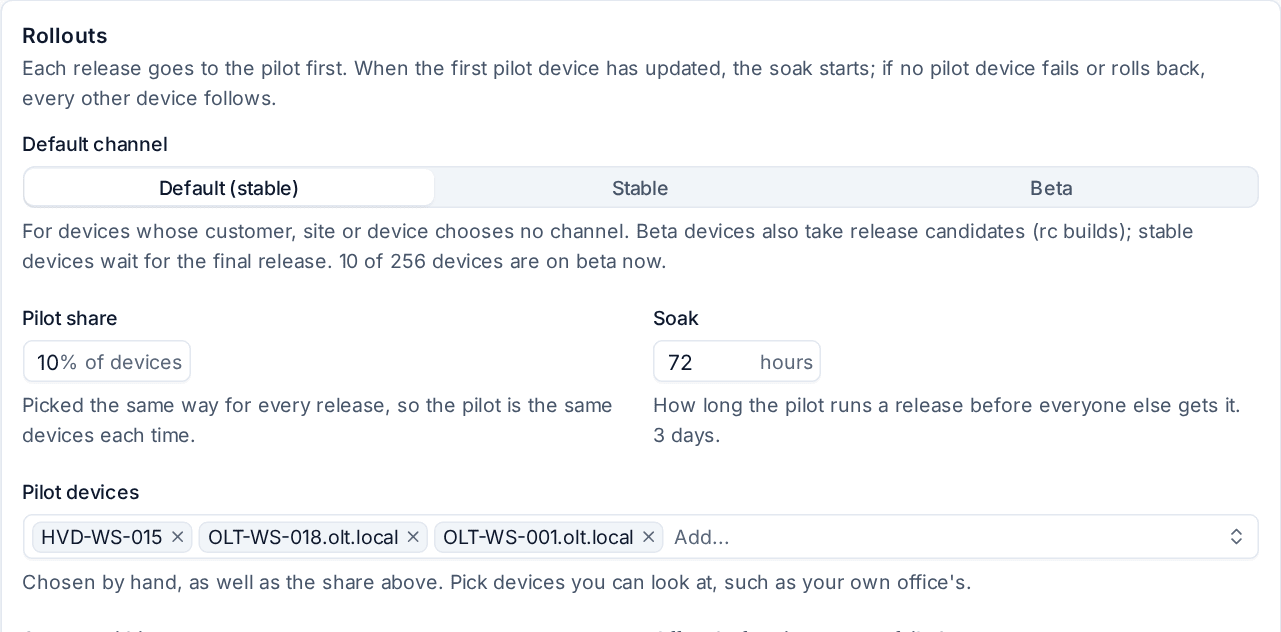
| Setting | What it does |
|---|---|
| Check the release feed every day | Imports new releases on its own. Turn it off on a server without internet access and upload packages under Devices > Installers instead; uploads go through the same rollouts. |
| Default channel | Stable or Beta for devices whose customer, site or device chooses no channel. |
| Pilot share | The percentage of devices picked as the pilot (10% by default). The same devices are picked for every release. |
| Pilot devices | Devices chosen by hand as well as the share. Pick devices you can look at, such as your own office's. |
| Soak | How long the pilot runs a release before everyone else gets it (72 hours by default). |
| Answer within | How long a device has to report on an offer before it is offered again. |
| Offers before it counts as failed | A device that never answers fails after this many offers. |
| Time zone for new maintenance windows | The time zone new windows start in. |
Update agents automatically on the same page is the master switch: turn it off and every rollout stops.
Channels, pins and maintenance windows
These are set on a customer, a site or a device, and the most specific one wins. Open the customer or site page and find the Agent updates block, or the Updates card on a device page, then click the pencil to edit.
- Channel: Stable devices take final releases only. Beta devices also take release candidates, before everyone else. Put a few of your own machines on beta to see new releases first.
- Pin the agent to and Pin the backup helper to: a pinned device stays on that version. It is not offered newer ones, and it never goes back to an older one.
- Maintenance windows: click Add to give a customer or device the times updates may start. A device's own windows replace its customer's; with none, updates may start at any time.
The device's Updates card shows its agent and backup helper versions, its channel, whether it is pinned, its windows, and whether it is in the pilot.
Tip: If one customer needs to stay on a known version while you test a release, pin the customer rather than turning off automatic updates for everyone.
Related
Was this page helpful?
Thanks for the feedback.