Customers, sites and contacts
Look up a customer, a site or a contact from your phone, call or email them in one tap, get directions to a site and raise a ticket for them.
Customers in the app has everything you need to know about the people you look after, with the actions a technician on the road needs most: call, email, directions and raise a ticket.
The customer list
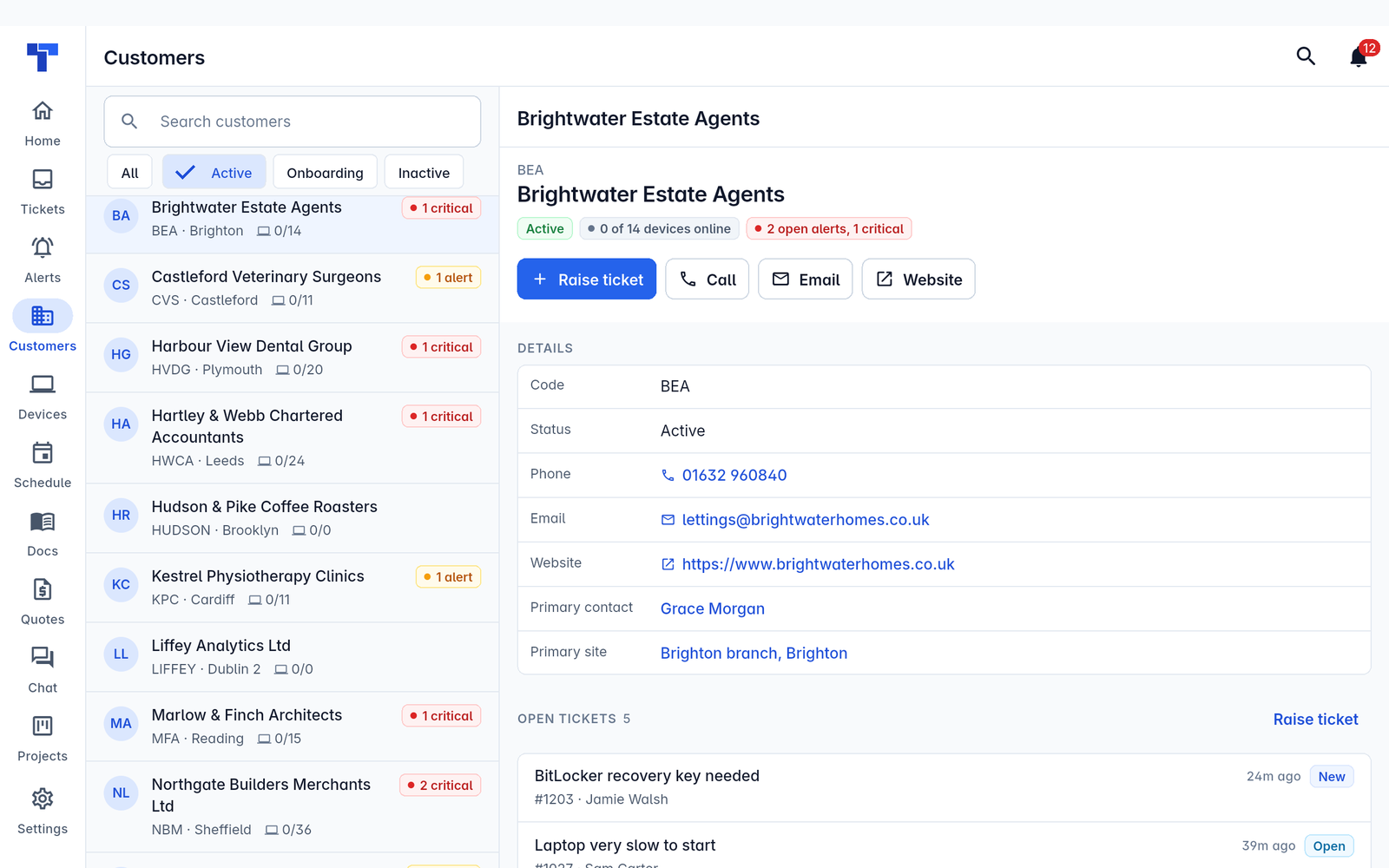
Type in Search customers to find one by name or code, and use All, Active, Onboarding and Inactive to choose which customers to show (Active is picked to start with).
Each customer shows its initials, name, code and town, and how many of its devices are online out of the total. A red 1 critical or amber 1 alert badge means it has open alerts.
A customer
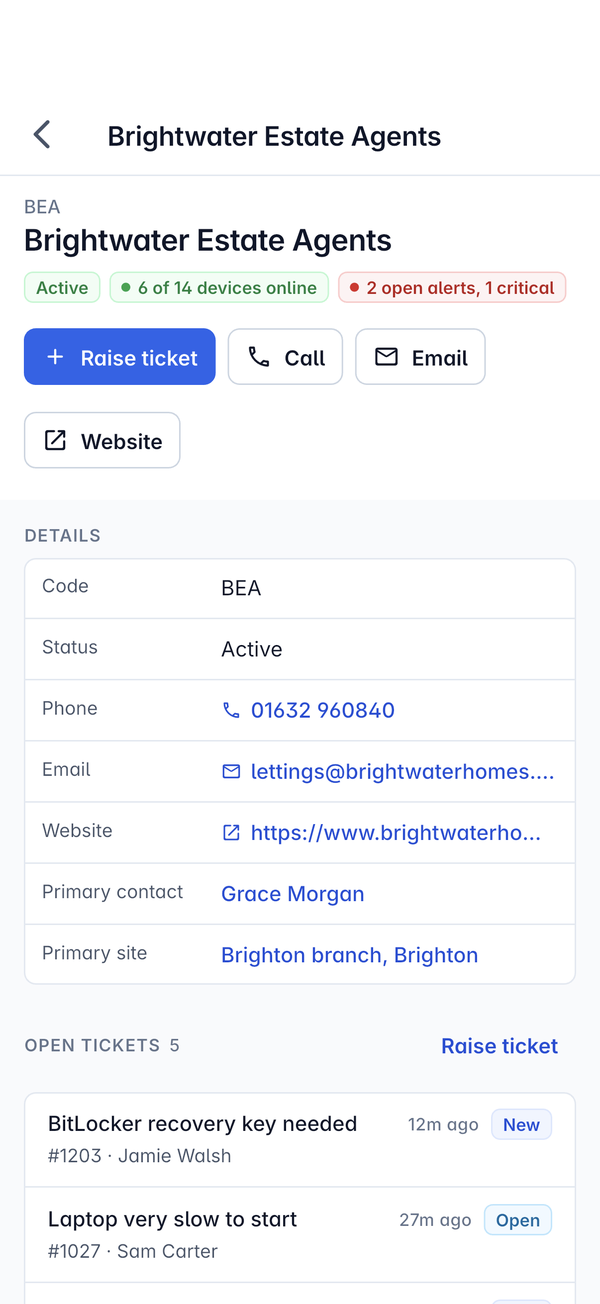
The top of a customer's page shows its code and name, its status, how many devices are online (6 of 14 devices online) and its open alerts (2 open alerts, 1 critical).
- Raise ticket starts a new ticket for this customer.
- Call and Email use the customer's main phone number and email address.
- Website opens their website.
Details lists the Code, Status, Phone, Email, Website, Primary contact and Primary site. Tap a phone number or email address to call or write, and tap the primary contact or site to open it. Open tickets lists the customer's open tickets with their status, with another Raise ticket link, and more of the customer is further down the page.
A site
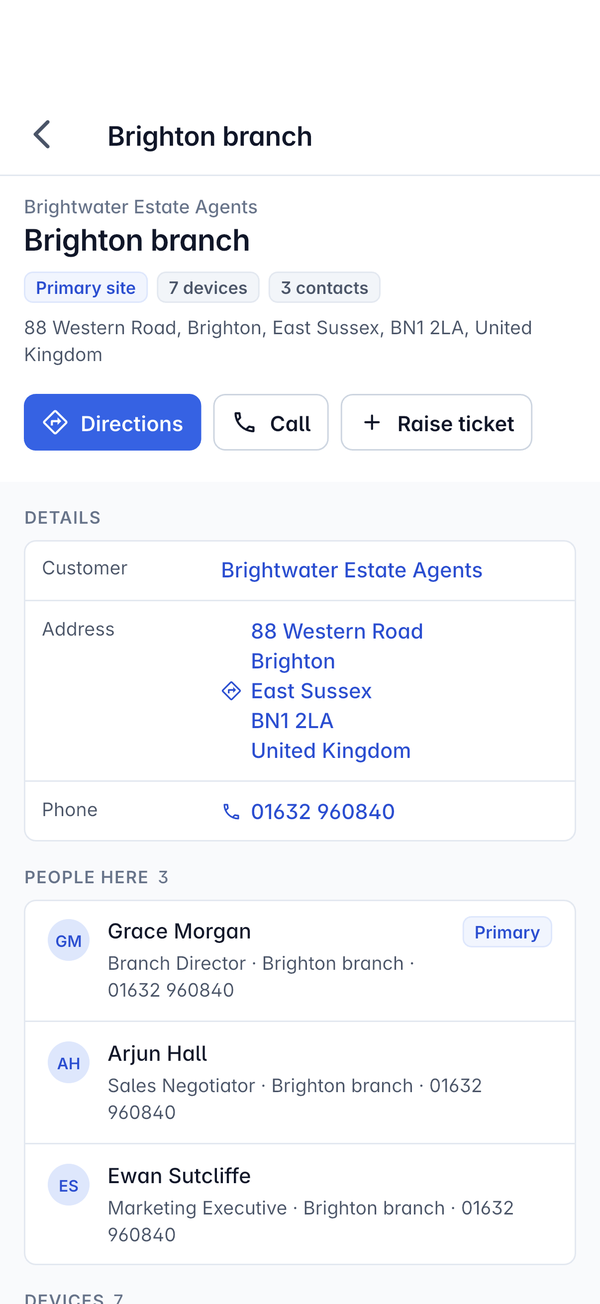
A site's page shows the customer, the site's name, Primary site if it is the main one, how many devices and contacts it has, and its address.
- Directions opens the address in your phone's maps app. Tapping the address under Details does the same.
- Call rings the site's phone number.
- Raise ticket starts a ticket for the customer at this site.
People here lists the site's contacts with their job title and number, with the primary contact marked Primary. Tap one to open them. The site's devices are listed below.
A contact
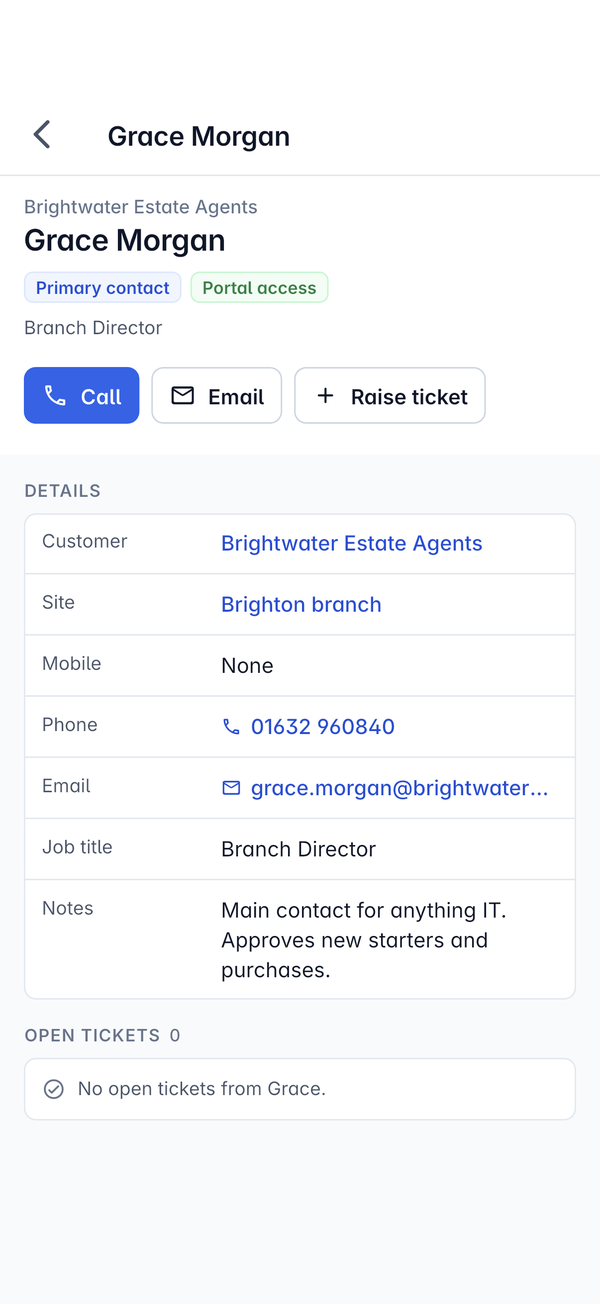
A contact's page shows their customer, name and job title, with Primary contact and Portal access pills when they apply.
- Call and Email reach them directly.
- Raise ticket starts a ticket from them.
Details has their Customer, Site, Mobile, Phone, Email, Job title and any Notes, such as who approves purchases. Open tickets shows what they have open, or says there is nothing.
On a tablet
On a tablet the customer list stays on the left and the customer opens alongside it.
Customers you have looked at stay readable when you have no signal. See Working offline and sync conflicts. Customers, sites and contacts are set up on the web: see Customers, sites and contacts.
Was this page helpful?
Thanks for the feedback.