TV dashboards
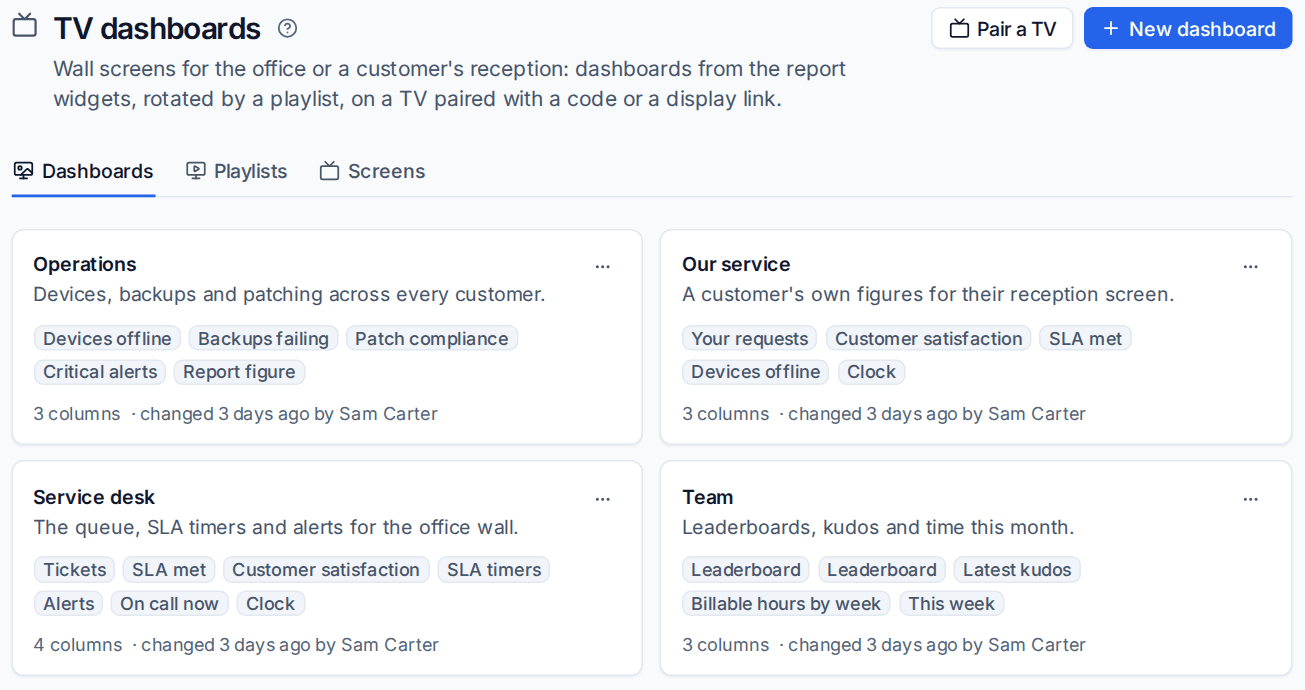
Build wall screens for the office or a customer's reception, rotate them with playlists, and put them on a TV with a pairing code or a display link.
TV dashboards put your figures on a wall screen: the service desk queue and SLA timers for the office, devices and backups for the NOC, the leaderboard for the team, or a customer's own figures for their reception. They use the same figures as Home and Reports, refresh by themselves and need nobody signed in at the TV.
There are three parts:
- Dashboards: a grid of widgets.
- Playlists: which dashboards a screen shows, in turn, and for how long each.
- Screens: the TVs and display links showing a playlist.
All three live in Settings > TV dashboards, which is for administrators.
Building a dashboard
- Go to Settings > TV dashboards and click New dashboard.
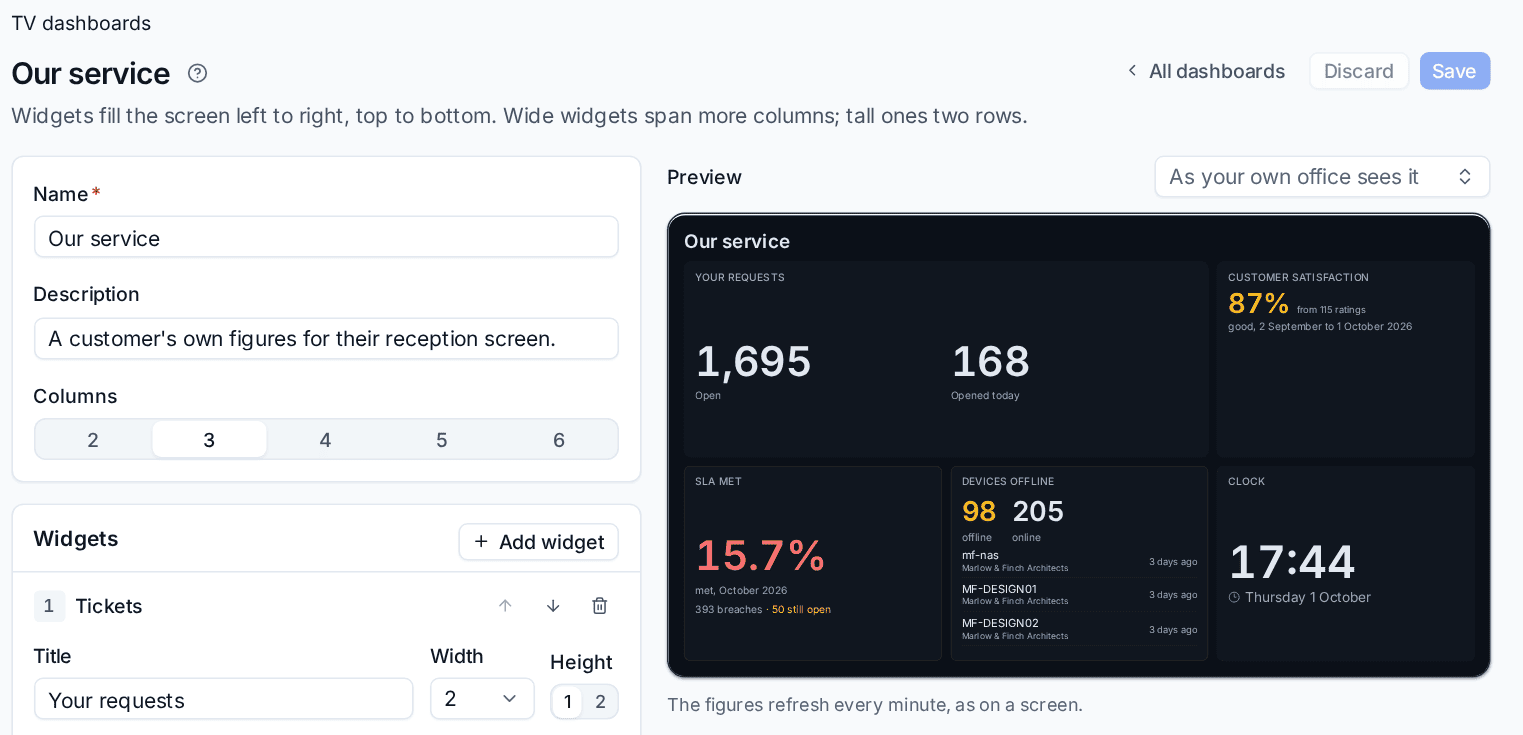
- Give it a Name and a Description (what it is for and where it hangs).
- Choose the Columns, from 2 to 6. Four suits a 55 inch screen across a room.
- Click Add widget and pick one. Repeat for each widget.
- For each widget set a Title (or leave it empty to use the widget's own name), its Width in columns and its Height (one or two rows), plus its own options such as the Period or which Counts to show.
- Use the arrows to change the order and the bin to remove a widget.
- Click Save.
Widgets fill the screen left to right, top to bottom. The Preview on the right draws the dashboard exactly as a screen will. Layout changes show at once; new or changed widgets show their figures once saved. Use the selector above the preview to see it As your own office sees it or as one customer's screen.
The widgets
| Widget | What it shows |
|---|---|
| Tickets | Counts you choose: open, unassigned, SLA breached, at risk, awaiting our reply, opened today |
| SLA timers | The tickets closest to (or past) their response and resolution targets, counting down |
| SLA met | Targets met for the period, with breaches and how many are still open |
| Customer satisfaction | The satisfaction score for the period, optionally with the latest good comments |
| Alerts | Open alerts by severity, with the latest listed |
| Devices offline | Offline and online devices, with the ones offline longest |
| Backups failing | Failing backups out of everything protected |
| Patch compliance | Devices up to date, per customer |
| On call now | Who is on call on each rota |
| Leaderboard | One leaderboard figure, ranked |
| Latest kudos | The newest kudos from customers and colleagues |
| Report figure | A figure from the Reports overview with its change, such as SLA met or MRR |
| Billable hours by week | Billable time logged each week |
| Saved report | One of your saved reports from the report builder, as a table, bars or its total |
| Clock | The time and date |
| Message | Your own text, in a colour you choose |
Note: Money and utilisation figures are marked as finance figures. You need finance access to add them, and they never show on a customer's screen. Keep dashboards with them off screens the whole office or visitors can see.
Make a copy on a dashboard's ... menu is the quickest way to start a variant, for example a quieter version for reception.
Playlists
A screen always shows one playlist. Click Playlists, then New playlist.
- Enter a Name.
- Under Dashboards, in turn, add each dashboard and set its Seconds on screen.
- Choose the Theme (Dark or Light) and whether to Show the time.
- Set Refresh the figures every (at least 30 seconds).
- Leave Drift to protect the screen on. It moves the picture a few pixels every minute so nothing burns in, which matters on OLED and plasma screens.
- For a customer's reception, set For a customer. Every widget then shows only that customer, and people (leaderboard, kudos), on-call and money are left out. Leave it empty for your own office.
- Click Save.
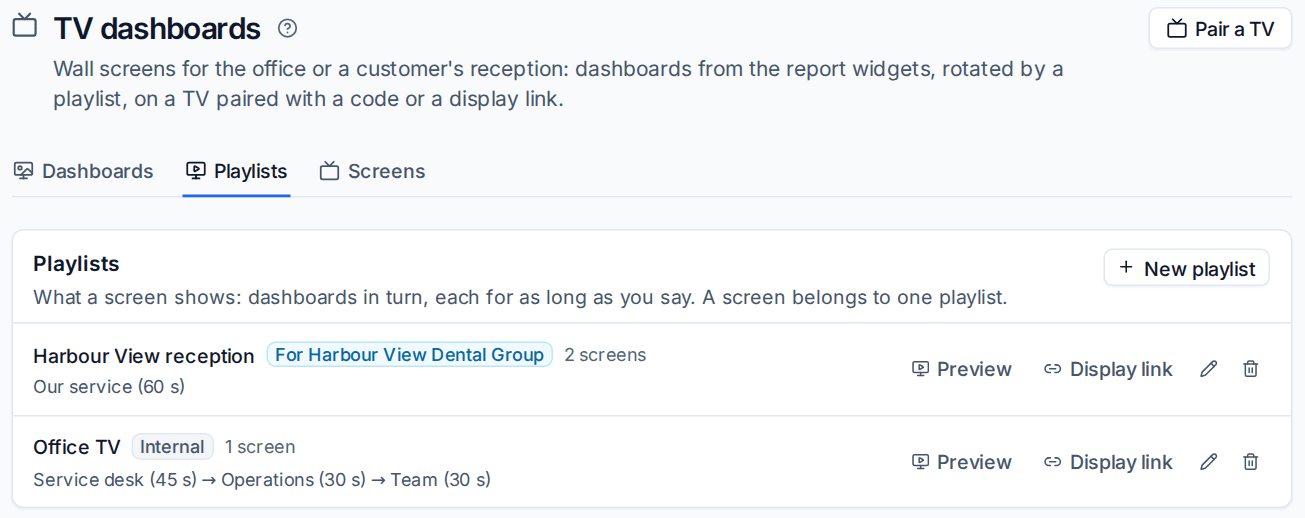
Preview on a playlist shows exactly what its screens show now.
Putting a playlist on a TV
Any TV, monitor or small computer with a web browser will do. There are two ways to connect it.
Pair a TV with a code
- On the TV, open your Tenvara address followed by
/tv. It shows an eight letter code and a QR code. - In Tenvara, click Pair a TV (or scan the QR code with your phone, which opens the same page with the code filled in).
- Enter the Code on the TV. Tenvara shows where the request came from (address and browser), so you can check it is the right screen.
- Choose the Playlist and Name this screen, for example "Reception screen".
- Click Pair. The TV starts showing the playlist straight away.
Codes last 15 minutes and change by themselves.
Use a display link
- On a playlist, click Display link.
- Choose when it Expires (or never), then Make link.
- Open the link on the screen. It is shown once, with a QR code, so copy it now.
Anyone with the link sees that playlist and nothing else, so treat it like a password.
On the screen
The screen uses large type on a 1920 by 1080 layout scaled to fit any display, rotates the dashboards with a fade, hides the pointer and keeps the display awake. Press F for full screen. Nothing needs a mouse or hovering.
If the network or server drops, the screen keeps the last figures, says "Reconnecting" with the time of those figures, and tries again until it is back.
Managing screens
Screens lists every paired TV and display link with its playlist, its state, when it last fetched its figures and from where, and when it expires. From each screen's menu you can rename it, move it to another playlist, change its expiry, switch it off or remove it. A switched-off screen stops at its next refresh and shows that it needs pairing again.
Tip: Set an expiry on display links you hand to a customer, and switch a screen off as soon as a TV is moved or replaced.
Related: Goals, kudos and leaderboards, The report builder.
Was this page helpful?
Thanks for the feedback.