Webhook triggers and inbound alerts
Start a rule when another system calls its address, and turn alerts from Uptime Kuma, Datadog, Grafana, PRTG and other tools into Tenvara alerts by webhook or email.
Other systems can start things in Tenvara in two ways:
- A webhook trigger on a rule: Zapier, Make, a website form, a script or any tool that can call an address starts the rule, and the rule can use everything the caller sent.
- An alert source: a monitoring tool sends its alerts to Tenvara by webhook or email, and they arrive as Tenvara alerts, matched to the customer and device, deduplicated and resolved when the tool says it recovered. From there, alert rules, automation and on-call treat them like any other alert.
The webhook trigger
Setting it up
- Go to Automation, click New rule and start From scratch.
- Under When, choose the trigger A webhook is received.
- If the payload names the customer, enter the path to it under Customer in the payload, for example
customer.nameorcompany. It can be the customer's name, code or id. Leave it empty when there is none. - If the payload names a device, enter the path to its host name under Device in the payload, for example
hostordata.device. It is matched to that customer's devices. - Add conditions and actions as for any rule, then save.
Once the rule is saved, the Webhook address panel on the right shows its own secret address with a copy button. Paste that address into the other system.
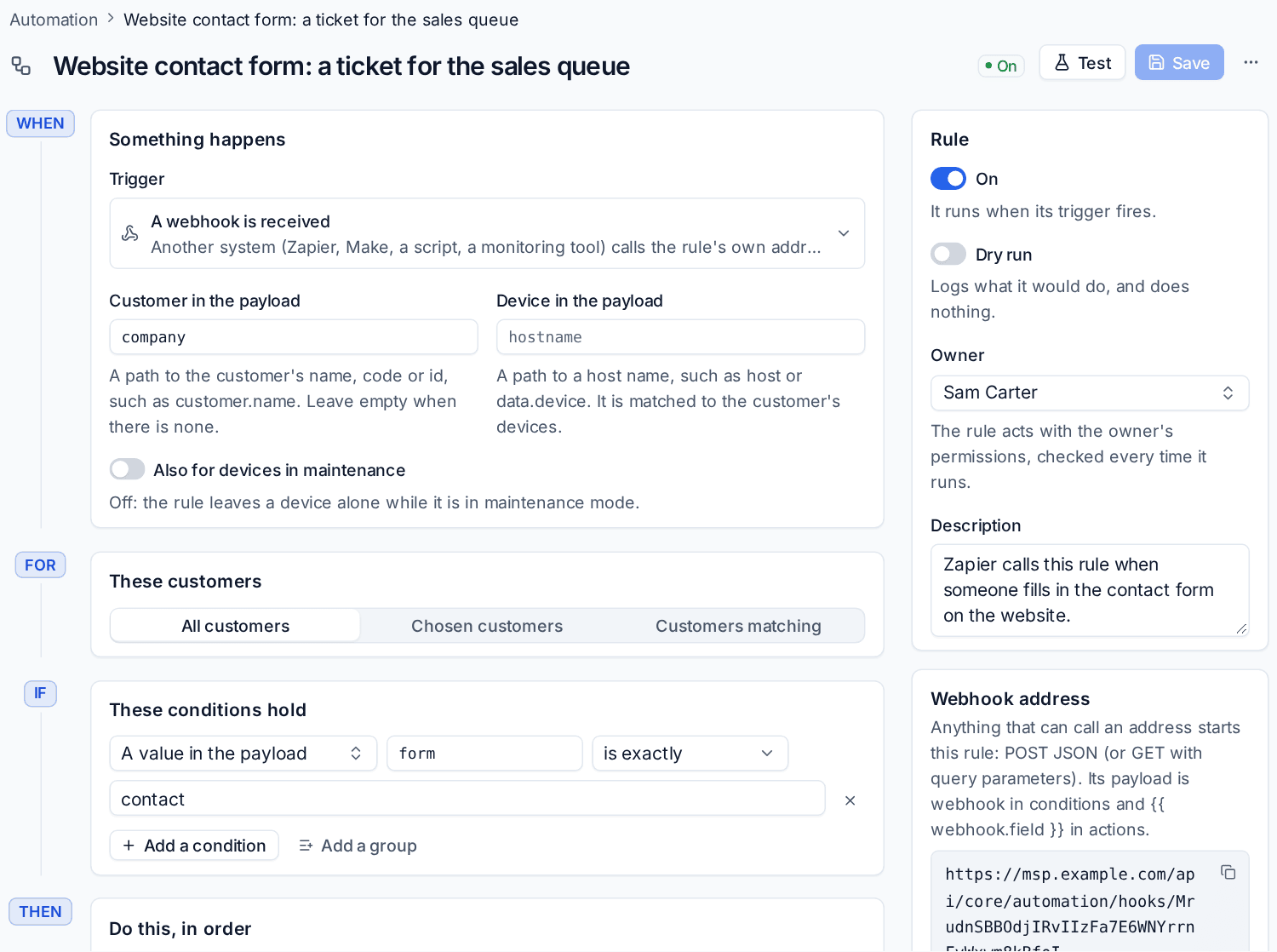
The address takes a POST with JSON or a form, or a GET with query parameters for tools that can only call a link, up to 128 KB. The panel shows how often it has been called and the last call it refused.
Using what was sent
The payload is webhook inside the rule:
- In conditions, choose A value in the payload, enter the path (such as
form) and compare it, for example is exactlycontact. - In any text field of an action, use
{{ webhook.name }},{{ webhook.email }}and so on. For example, the subject "Website enquiry from {{ webhook.name }}".
When the payload names the customer and device, customer, device and ticket actions work as they do for any other trigger.
Signed calls
To make sure only your system can start the rule, click Make a signing secret and switch on Only signed calls. Each call must then carry an X-Signature header with the HMAC SHA-256 of its body, made with the secret. Tenvara's own signed webhooks are accepted too, so one Tenvara install can start rules in another.
New address replaces the address; the old one stops working at once.
Tip: Zapier and Make both work this way. In Zapier, add a "Webhooks by Zapier" action that POSTs to the rule's address; in Make, use an HTTP module. Test the rule in dry run first to see what each call would do.
Alert sources
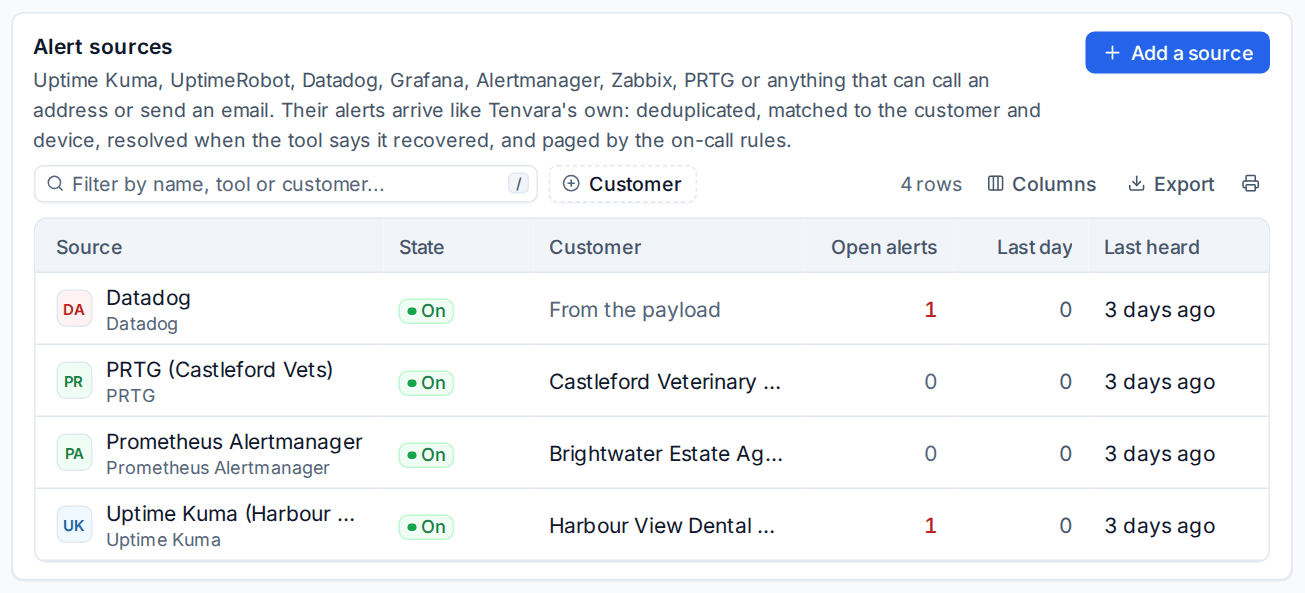
An alert source is one tool, or one of its accounts, that sends alerts. Presets fill in the mapping for Uptime Kuma, UptimeRobot, Datadog, Grafana, Prometheus Alertmanager, Zabbix, PRTG and Generic JSON. Any tool that can send an email works too.
Adding a source
- Go to Settings > Integrations > Alert sources and click Add a source.
- Pick the Tool. Its mapping is filled in for you.
- Enter a Name: what people see on its alerts, for example "Uptime Kuma (Harbour Dental)".
- Choose the Customer if the tool watches one customer. Leave it empty when it watches several: each alert's customer then comes from the payload or from the device.
- Turn on Match the host name to a device so alerts land on the right device.
- Choose how calls prove who they are: A secret address, or Signed calls only with a signing secret (HMAC SHA-256 of the body).
- Click Add the source, then copy the address into the tool. A signing secret is shown once.
To check it, click Send the sample to raise the tool's sample alert (marked as a test), then Send the sample recovery to resolve it. Try a payload shows what any payload would raise without raising anything.
The mapping
Each source has a mapping from the tool's payload to the alert's title, message, severity, key, host name, customer and status. Fields take placeholders in the tool's own spelling, such as {{ monitor.name }}, with filters after a pipe (upper, lower, truncate: 80, default: "text", prefix: " on "). For tools that send a list, such as Alertmanager, each item is item.
- Severity map: the tool's words on the left become Critical, Warning or Information on the right. Anything else uses the Default severity.
- Resolved values: the statuses that mean the problem has cleared, such as up, ok or resolved. With Resolve the alert when the tool says it recovered on, the matching alert closes by itself.
- The key ties repeats and recoveries to the same alert, so a tool that sends the same problem every minute updates one alert instead of opening sixty.
Alerts by email
For tools that can only send email, turn on Take alerts by email too. The source gets its own address on your inbound mail domain (set in Settings > Tickets > Email). Its email rules read each message: the subject, or part of it, is the title; words in the subject or body mark it resolved, critical or warning; and you can limit which senders it takes mail from.
What it sent
Each source's What it sent tab lists every call with its outcome (raised, updated, resolved, ignored or refused, and why), the payload and the address it came from. Calls are kept for 30 days by default (Settings > Integrations > API and limits).
Note: Alerts from other tools follow your alert rules and on-call settings. A critical alert from Datadog pages whoever is on call just as a critical alert from the agent does. See On-call rotas and paging.
Related: Building a rule, Integrations and the API.
Was this page helpful?
Thanks for the feedback.