Project reports and status summaries
Reports > Projects for profitability, budget burn, late tasks and utilisation, close survey results, AI status summaries on demand and weekly, and automation rules that act on projects, tasks and milestones.
Once you are running several projects at once, you need to see which ones are in trouble without opening each one. Tenvara gives you reports across every project, short status summaries written by AI, and automation that reacts when a project changes.
Reports > Projects
Open Reports > Projects. It follows the customer switcher at the top, so you can look at one customer or all of them.
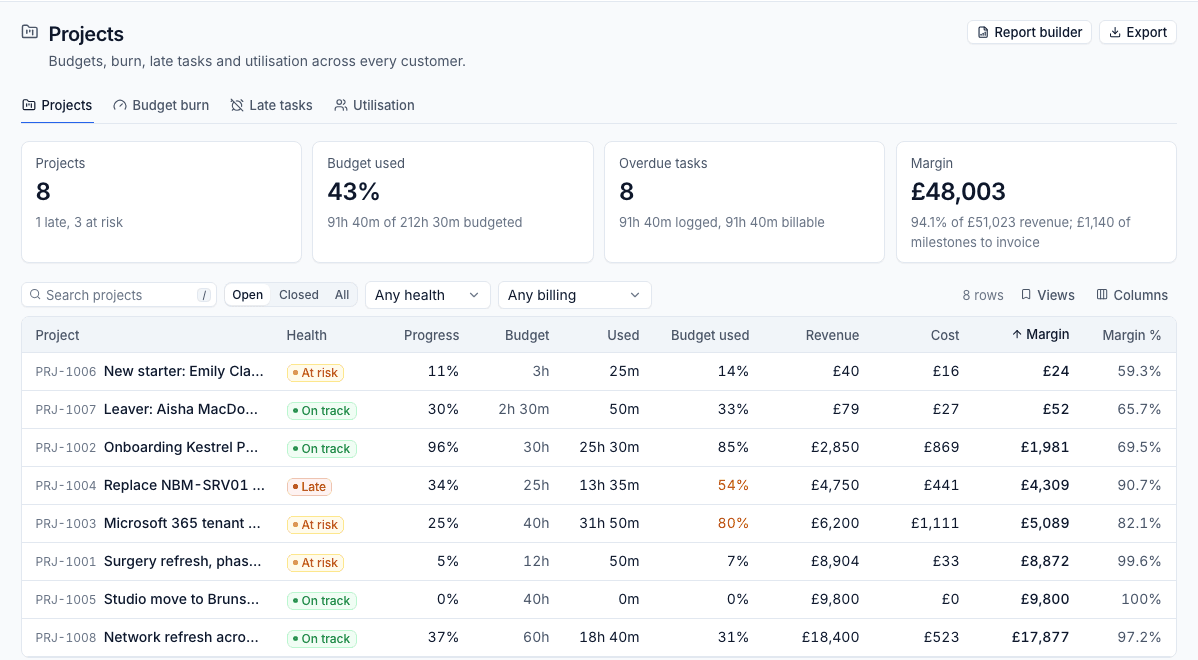
The figures at the top count the Projects (and how many are late or at risk), the Budget used, Overdue tasks and, for people with the finance permission, the Margin. The tabs are:
- Projects: every project's health, progress, budget against time used, budget used, and with the finance permission its revenue, cost, margin and milestones still to invoice. A Slip column shows how many days a project is behind its baseline. Filter by Open, Closed or All, health and billing.
- Budget burn: projects with a budget, budget used beside the work done, those spending ahead of the work first.
- Late tasks: open tasks past their due date on open projects, longest overdue first, with a count per assignee.
- Utilisation: each person's time, including the time they spent on projects (finance permission).
Export downloads the report as a CSV (money columns only for people who can see finance). Report builder opens the builder, which has project and project task data, with ready-made reports such as "Project budgets and profitability this year", "Open projects by health" and "Late project tasks by assignee". See The report builder.
Project time also counts in the main profitability and utilisation reports: time and materials time as billed time, and milestones as one-off work.
Reports > Project surveys
Reports > Project surveys shows how customers rated their completed projects over a period, against the same length of time before it.
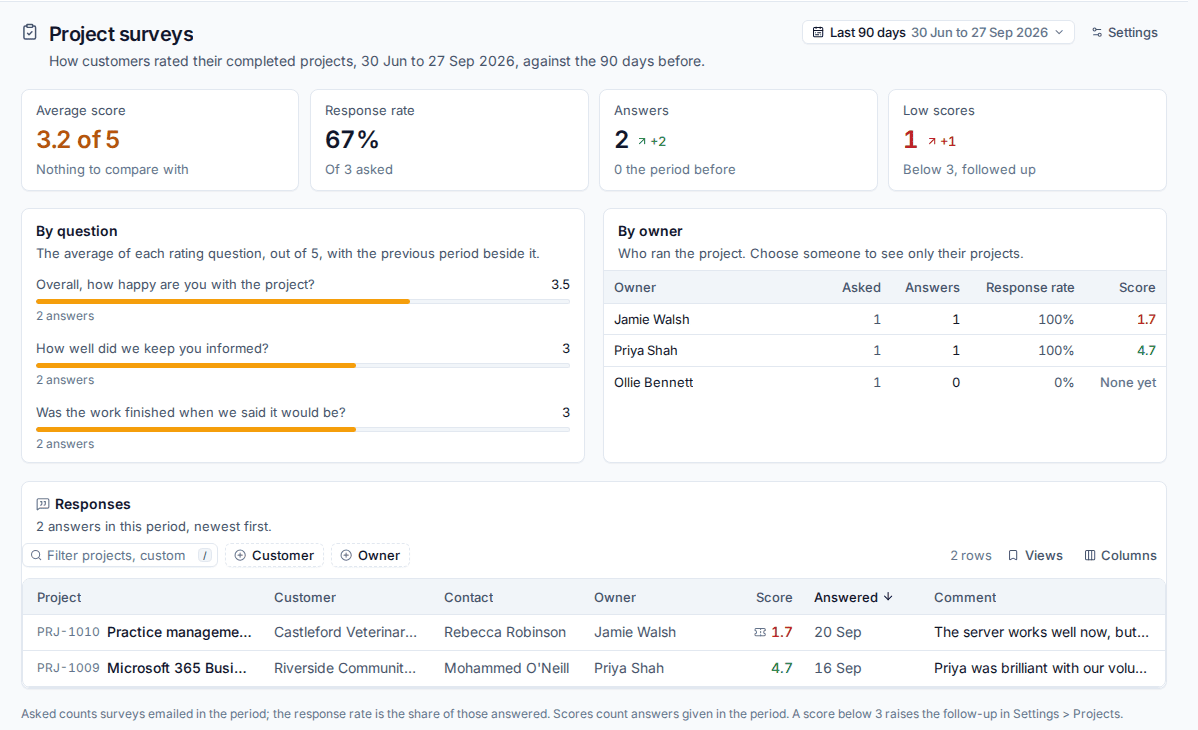
- Average score, Response rate, Answers and Low scores.
- By question: the average for each rating question.
- By owner: who ran the project, how many were asked and answered and their score. Choose someone to see only their projects.
- Responses: each answer with the project, customer, contact, owner, score, when and the comment. Click one to open the project's Activity tab.
See Projects in the customer portal for how the survey is sent.
AI status summaries
With AI set up, a project can have a short status summary written for it: a headline, what is Done, what is Late, the Risks and the Next steps, from its tasks, milestones, health, budget hours and recent activity.
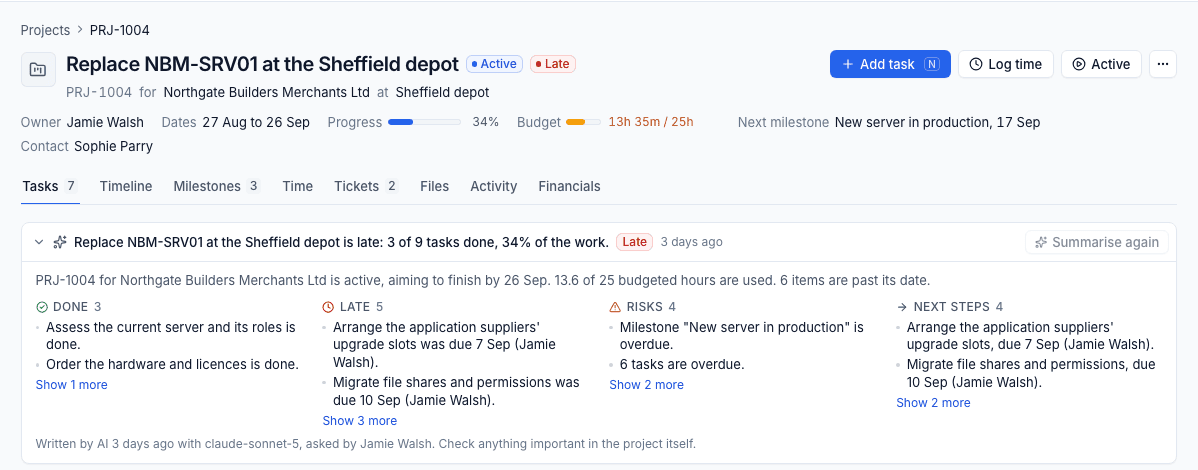
- On demand: press Summarise (or Summarise again) on the project's summary card. Earlier summaries are kept.
- Weekly: each owner gets one email on the day chosen in Settings > Projects under Weekly status summary, with a summary of each of their active and on hold projects.
Each summary says it was written by AI, with the model and who asked. It uses your own AI settings: it only runs when AI is set up and switched on, customers who have opted out of AI are skipped, your cost caps apply, and every call is listed in Settings > AI. No money beyond the budget hours is sent. Asking for a summary needs the AI manage permission. See Setting up AI and Privacy and customer controls.
Tip: The AI also sees the project when you investigate a ticket attached to it, or a device with open project tasks, so its suggestions take the project into account.
Automation for projects
Automation rules can start when something happens on a project. The triggers, in the Projects group, are:
- A project is created (by hand, from a template or from a quote);
- A project changes status;
- a project's health changes;
- A project task is completed;
- A project task is overdue (once per task per due date);
- A milestone is reached;
- A customer signs off a milestone (signed off or declined).
Narrow them with conditions such as Project type, Project template, Project status, Project status before this change, Project health, Project billing, Project owner, Task priority, Task assignee, Task shared on the portal, Sign-off answer and Milestone name.
The actions are Create a project (from a template), Add a project task, update a task (status, priority, assignee, due date, sharing) and update a project (status, owner, portal visibility). Placeholders such as {{project.reference}}, {{task.title}} and {{milestone.signed_by}} fill in the details.
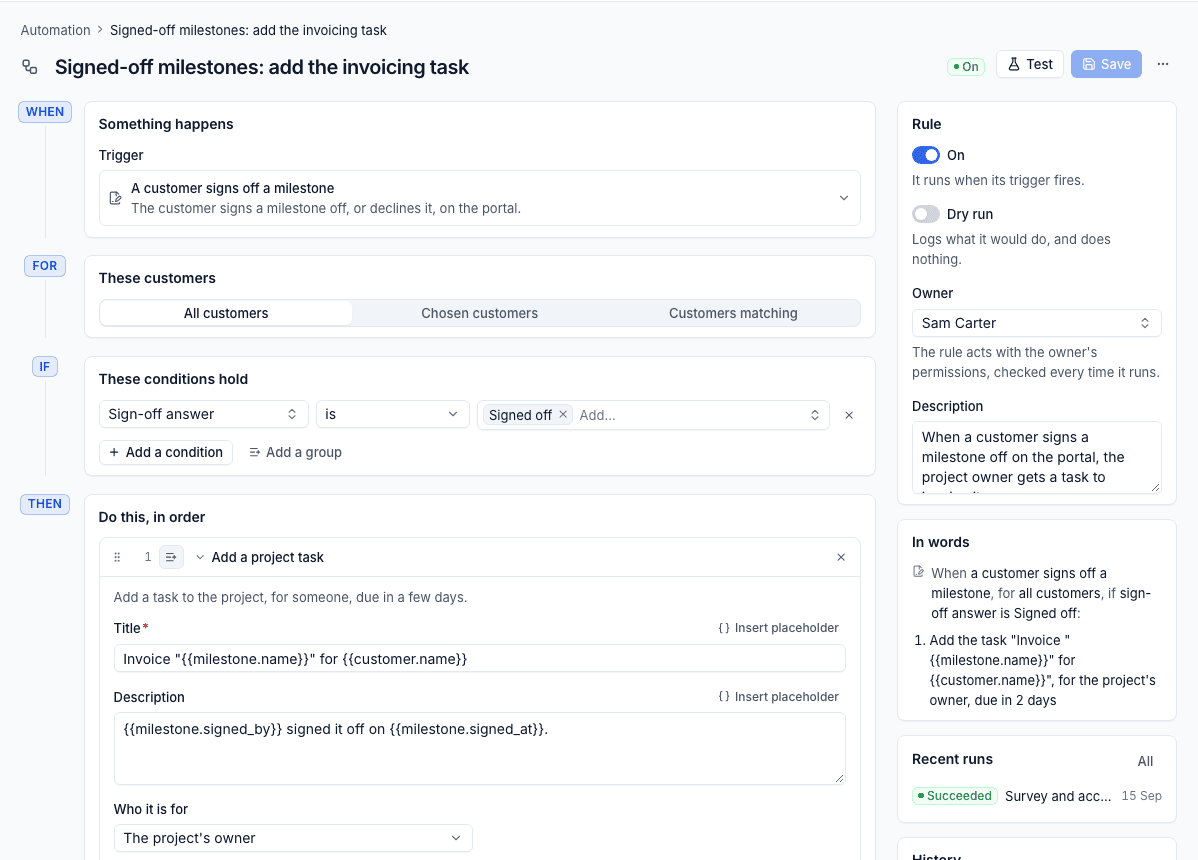
For example, "when a customer signs off a milestone, add the task 'Invoice {{milestone.name}} for {{customer.name}}' for the project's owner, due in 2 days". Dry run, the run log, Test and loop protection work as for every rule. See Building a rule.
Related: Time, budgets and billing, Projects overview.
Was this page helpful?
Thanks for the feedback.