Reminders, late fees and account on stop
Chase overdue invoices with automatic reminders, charge late payment interest or a fixed fee, and put customers who do not pay on a credit hold.
Tenvara checks every issued invoice each morning. Anything unpaid past its due date becomes Overdue, and three optional tools help you get paid: reminder emails, late payment fees and putting the account on stop. All three are off until you turn them on.
Payment reminders
- Go to Settings > Billing > Invoices and find Emails and reminders.
- Turn on Send payment reminders.
- Each step has the Days overdue it goes at, a Subject and a Text. The built-in steps go at 7 and 14 days overdue; change them, remove one, or press Add a step.
- Leave a subject or text empty for the built-in wording, or write your own with placeholders such as
{customer},{number},{balance},{due_date},{days_overdue}and{link}. - Press Save changes.
Reminders go once per step to the customer's billing contacts, in their language, with the PDF and the link to view and pay. Each one is listed in the invoice's activity. To leave a customer out (a charity you invoice gently, say), open their Billing details and turn off Send payment reminders.
The same section holds the Invoice email subject and Invoice email text used when an invoice is first sent.
Late payment fees
Late payment fees are off by default. In Settings > Billing > Invoices, under Late payment fees:
- Turn on Charge for late payment.
- Choose What is charged: Interest each month (a percentage of what is still owed, for each month or part of one it stays unpaid) or A fixed fee, once.
- Set the Interest a month or the fee, and the Grace days after the due date before anything is charged.
- Choose How fees are billed: On the next invoice run, or straight away as a draft invoice of their own for you to issue.
- Choose the Tax on fees. Late payment interest is usually outside the scope of tax; the tax engine works out the rate for each customer.
- Press Save late payment fees.
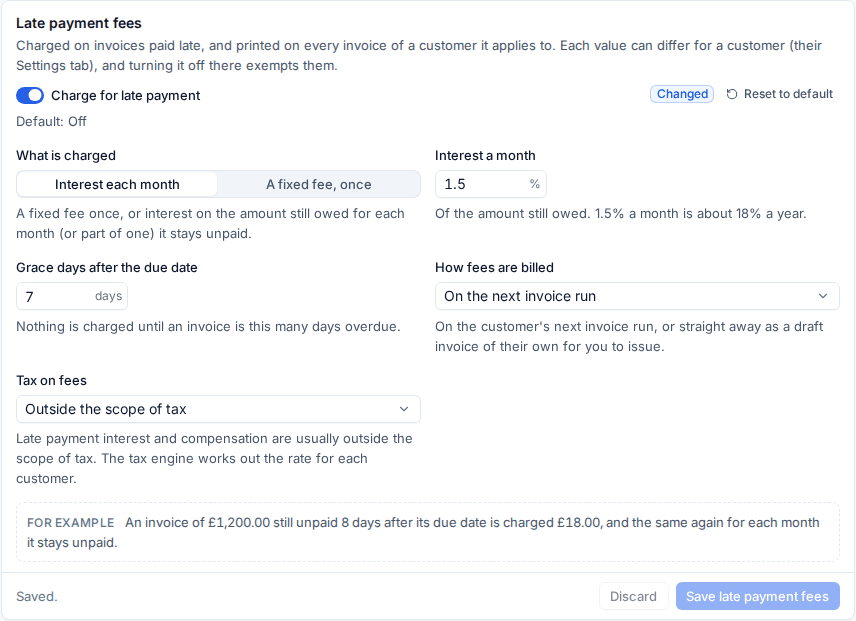
The box at the bottom works through an example, so you can see what a £1,200 invoice paid a week late would cost. The terms are printed on every invoice of a customer they apply to, under how to pay, and fixed when each invoice is issued. A fee's line names the invoice it is for, and each fee is billed once.
Every value can differ for a customer on their Settings tab, and turning late fees off there exempts them.
Account on stop
Putting a customer on stop is a credit hold: everyone sees it on their tickets, visits, devices and quotes, and new billable work for them is warned about or refused.
By hand
- Open the customer's Contracts and time tab and find Account on stop.
- Press Put on stop and give a Reason, such as "Three invoices over 60 days. Agreed with the account manager."
- To lift it, press Take off stop.

The customer's When on stop can follow the setting below, or be Warn only or Refuse new work for them alone. Never put on stop by itself is for a customer who pays late but always pays.
The rules
In Settings > Billing rules > Account on stop:
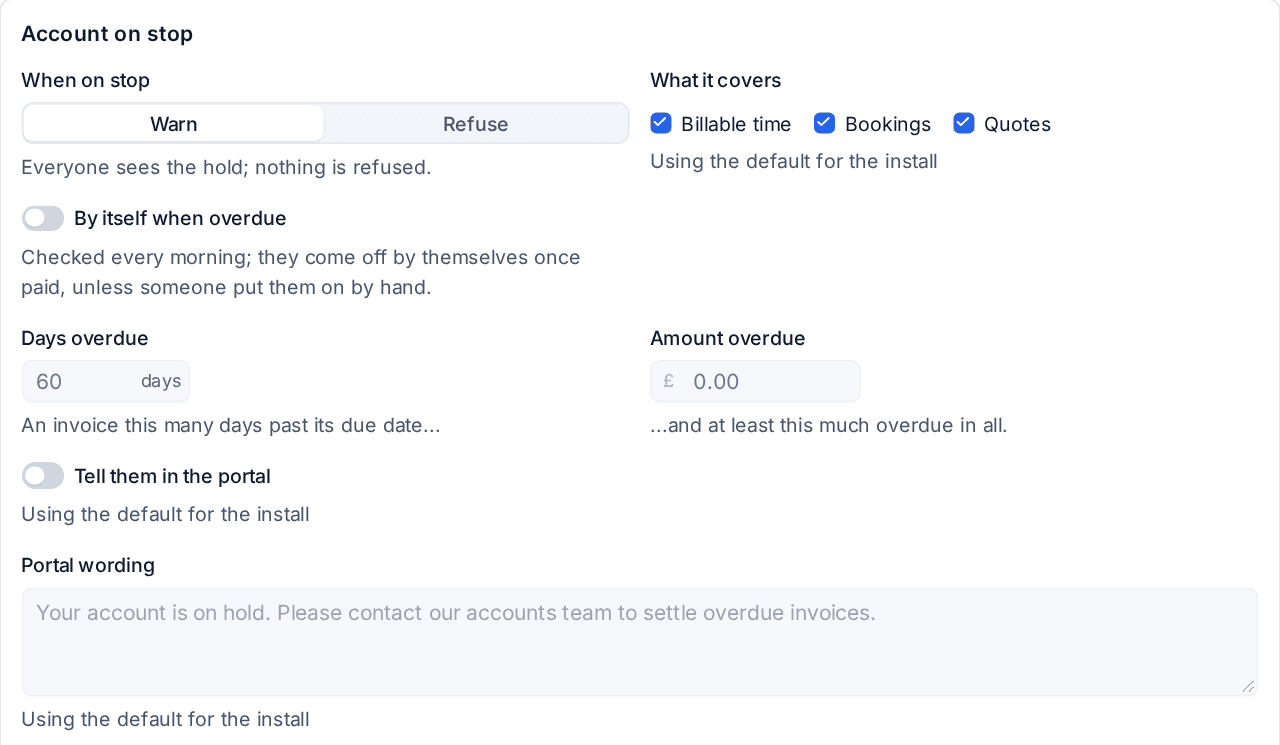
- When on stop: Warn (everyone sees the hold; nothing is refused) or Refuse.
- What it covers: Billable time, Bookings and Quotes.
- By itself when overdue: customers go on stop when an invoice is the set number of Days overdue and at least the Amount overdue in all is owed. It is checked every morning, and they come off by themselves once paid, unless someone put them on by hand.
- Tell them in the portal with your Portal wording, shown on the portal's home page.
When work is refused, people who manage billing can tick Go ahead anyway, so a customer on stop never blocks an emergency. Imports and scheduled work are never stopped.
Billing > On stop in the Sales sidebar lists every customer on stop, since when, and why.
Sticky notes
Alongside the hold, Pin a note puts a note on a customer, site, contact or device (for example "Send invoices to accounts@, not the old practice manager"). Notes show as a banner on the related tickets, visits, quotes and time forms, can end on a date, and can be shown in the portal.
Related
Was this page helpful?
Thanks for the feedback.