Admin elevation on request
Let people without administrator rights ask, with a reason, to run one program as administrator or to be an administrator for a while, approved by you or by rules.
Taking local administrator rights away from users is one of the best security steps you can take, but it means a stream of "can you install this for me" tickets. Admin elevation lets the person at the device ask for exactly what they need, with a reason, and you (or a rule) decide. Rights are granted just in time and taken away again by the agent, and everything is recorded.
There are two kinds of request:
| Kind | What the person gets |
|---|---|
| Run a program | One program runs as administrator for them. Their account does not change, and nothing else they run is elevated. |
| Admin session | They become an administrator for a set time (15 minutes by default): added to the local Administrators group, the admin group on a Mac, or sudo on Linux. When the time is up, the rights are removed again. |
Turning it on
Go to Settings > Agent protection and find Admin elevation.
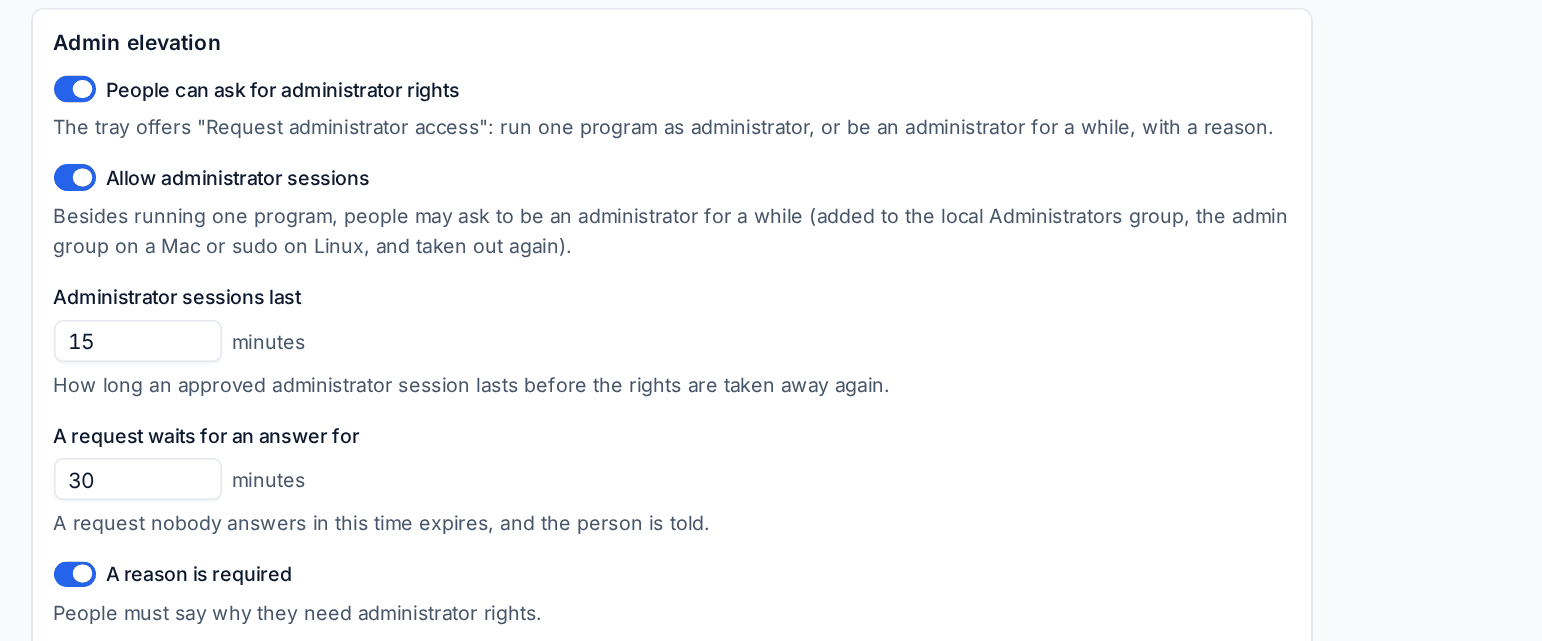
| Setting | What it does |
|---|---|
| People can ask for administrator rights | The tray offers Request administrator access. |
| Allow administrator sessions | Besides running one program, people may ask to be an administrator for a while. |
| Administrator sessions last | How long an approved session lasts before the rights are taken away. |
| A request waits for an answer for | A request nobody answers in this time expires, and the person is told. |
| A reason is required | People must say why they need administrator rights. |
These are the defaults. A customer can have its own values through the settings catalogue's customer overrides.
How people ask
On Windows, the person clicks the tray icon and chooses Request administrator access. A window asks for a reason, then either Run a program as administrator (with a file picker) or Be an administrator for a while when sessions are allowed. They see whether their request is waiting, was approved by a rule, or was refused.
On Linux, and on servers without a desktop, the same request can be made from the command line through the agent, which prints where the request stands.
The account making the request is taken from the operating system, never from what the request says, so nobody can ask on someone else's behalf.
Answering requests
Requests arrive under Endpoint, in Requests under Admin elevation in the sidebar. The number beside it is how many are waiting.
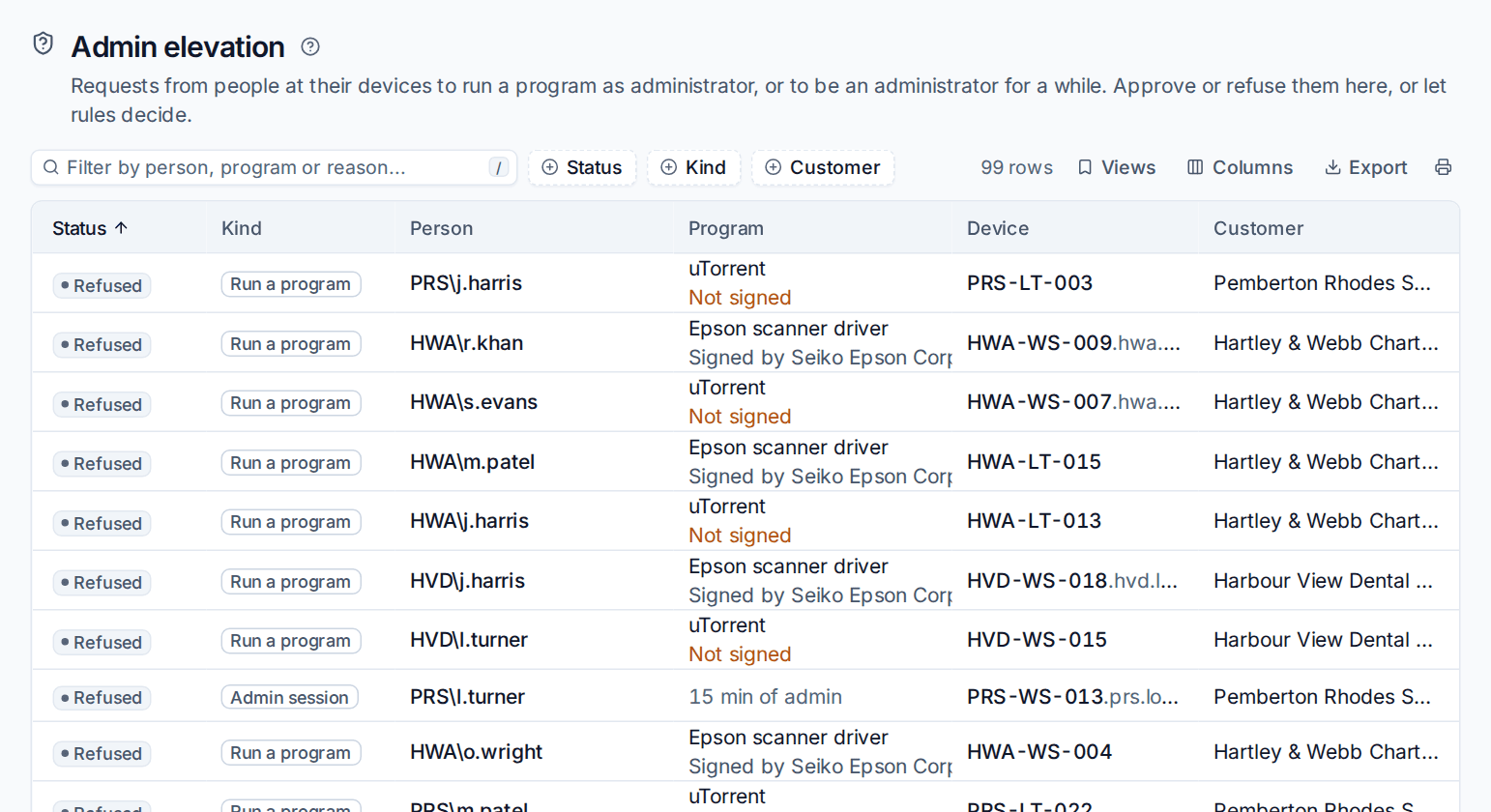
Each row shows the status, the kind, the person, the program (with its publisher, or Not signed), the device and the customer. Filter by Status, Kind or Customer. Click a request to open it.
- Read the reason and check the program's path, SHA-256 hash and publisher.
- For an admin session, adjust the length if you want.
- Click Approve or Refuse. To approve similar requests without being asked again, tick Approve programs like this automatically from now on, which makes a rule.
The agent grants the rights straight away. An active admin session can be ended early with End now. When a session ends, the request shows what was installed while it was on.
Note: A program run as administrator on its own runs without the person's network credentials, so it cannot reach network shares as them. If they need to install from a network share, approve an admin session instead.
Sessions always end
The end time of an admin session is enforced by the agent, not just by Tenvara. If the device restarts or the agent is stopped mid-session, the agent removes the rights the next time it starts, before anything else, and reports the end.
Rules
Rules decide requests to run a program without anyone waiting. Go to Endpoint and choose Rules.
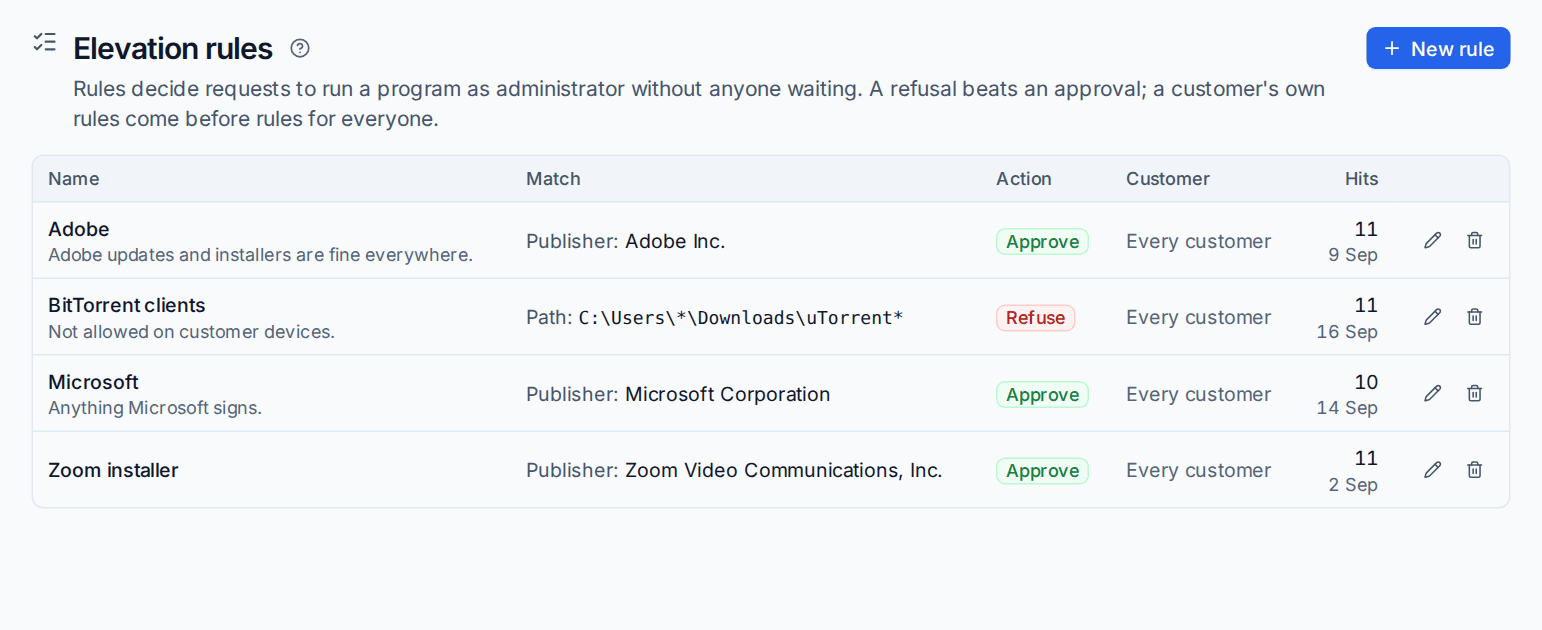
- Click New rule.
- Choose what to match:
- Publisher (signer): the company that signed the program, for example Microsoft Corporation or Adobe Inc. Windows' own tools are matched through their security catalogue, so they read as Microsoft too.
- This exact file (SHA-256): one specific file and nothing else.
- Path ( matches anything)*: for example
C:\Users\*\Downloads\uTorrent*.
- Choose Approve or Refuse.
- Choose the customer it applies to, or every customer, and save.
A refusal beats an approval, and a customer's own rules come before rules for everyone. Each rule shows how many requests it has decided and when it last did.
Tip: Start with approve rules for publishers you trust (Microsoft, Adobe, your line-of-business vendors) and refuse rules for things you never want installed. Everything else comes to a person.
The elevation report
Endpoint > Report covers the last month: how many requests there were, how many were approved or refused, how many a rule decided and the median time a person took to answer. It breaks requests down by program, by customer and by person, and lists what was installed during admin sessions. Use it to spot programs worth a rule, and people who ask more than they should.
Related
Was this page helpful?
Thanks for the feedback.