Phases, tasks and dependencies
Lay out a project in phases, add tasks with assignees, estimates, checklists and files, talk with @mentions, link tasks that wait on each other, and turn tasks into tickets and back.
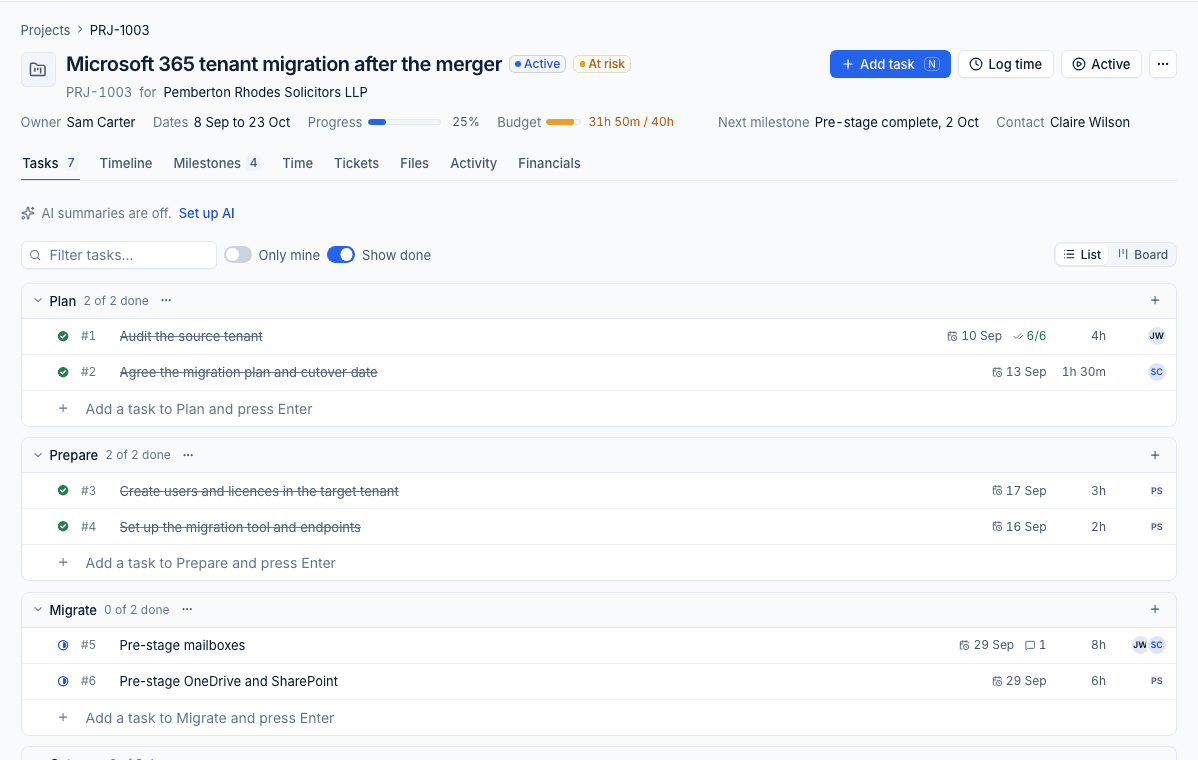
The Tasks tab is where a project's work lives. Tasks are grouped by phase, and each one opens in a side panel with everything about it.
Phases
A phase is a stage of the work, such as Plan, Migrate or Tidy up. Each shows how many of its tasks are done.
- Add a phase at the bottom of the list.
- The phase's ... menu renames it, moves it up or down, sets how it is billed, or removes it.
- Drag a task's handle (or use
Alt+UpandAlt+Down) to reorder it or move it into another phase.
Add tasks
- Type into Add a task to [phase] and press Enter under any phase for a quick task.
- Press Add task (or
n) at the top of the project for the full form.
Use Filter tasks, Only mine and Show done above the list to narrow it down, and j and k to move between tasks, Enter to open one and . to change its status.
The task panel
Click a task to open it in a panel over the project. Its reference (for example PRJ-1003 #8) is at the top.
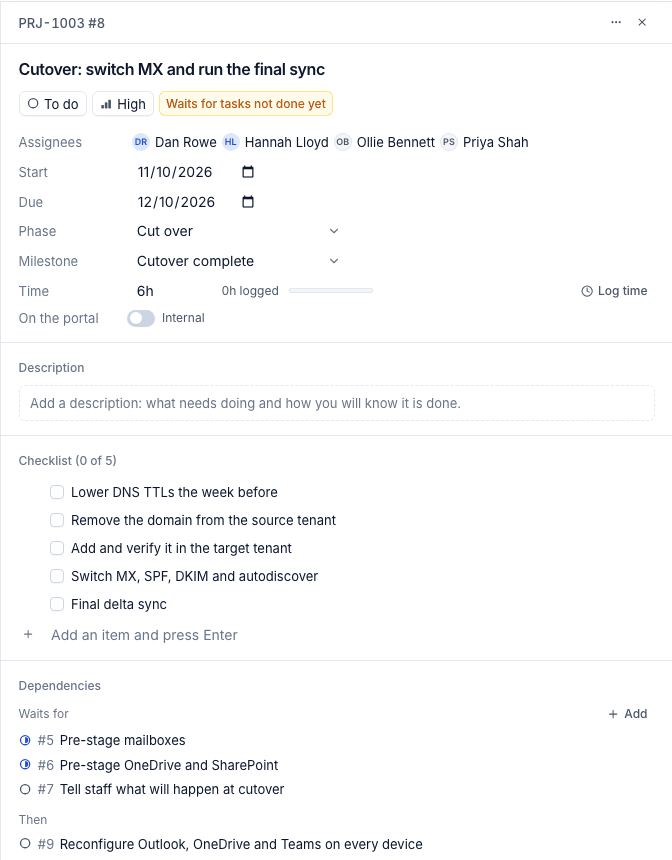
- Status and priority: click the status, or press
.and then1to5. Priorities are Low, Normal, High and Urgent. - Assignees: one or more people. Each is told in their inbox.
- Start and Due: the dates the task runs between.
- Phase and Milestone: where the task belongs.
- Time: the estimate, the time logged so far against it, and Log time.
- On the portal: off (Internal) by default. Turn it on to share the task with the customer on the portal, where they can comment on it.
- Description: what needs doing and how you will know it is done. Press
eto edit the title. - Checklist: type an item and press Enter. Tick items off, edit them or drag them into order.
- Links: the devices, sites, contacts, tickets, documents, records and credentials the task is about.
- Files: drop files on the panel or pick them, up to 25 MB each.
- Comments and the task's History at the bottom.
People with View can change the status, tick the checklist and log time on tasks assigned to them. Everything else needs Manage.
Comments and @mentions
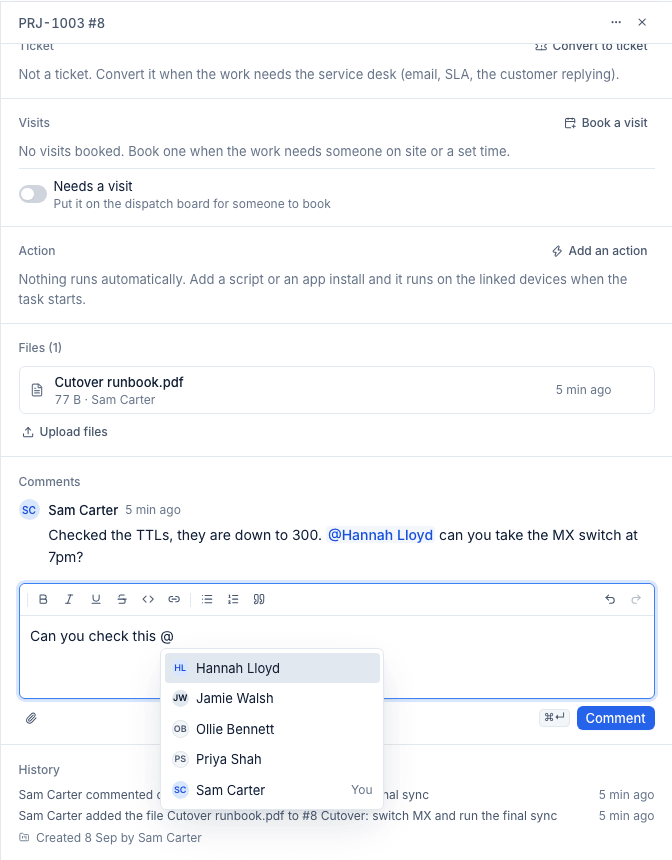
Press c to comment. Type @ to mention someone: they get a notification that takes them straight to the task. On a task shared with the customer you choose whether a comment is internal or one the customer sees.
Dependencies
A dependency says one task cannot start until another has finished (finish to start). Open the task and, under Dependencies, press Add next to Waits for and choose the tasks it waits on. Then lists the tasks waiting on this one.
- A task with a dependency that is not done shows Blocked in the list, on the board and in My work, and Waits for tasks not done yet in its panel.
- When the last task it waits for is done, the assignees are told it can start.
- Dependencies stay within one project, and loops are refused with the path, such as "That would make a loop: A waits for B which waits for A".
- Moving a task's dates on the timeline can move every task that waits on it by the same number of days. See The board, the timeline and My work.
Visits for a task
When a task needs someone on site, the Visits block in the panel books it:
- Book a visit opens the booking form with the customer, site and contact from the project, the task's assignees and the time left on its estimate.
- Needs a visit puts the task on the dispatch board, so whoever plans the diary can drag it onto a technician.
When the visit is completed, its time is logged against the task. See The dispatch board.
Tasks and tickets
Some work starts as a project task and needs the service desk; some starts as a ticket and belongs in a project.
Turn a task into a ticket
Under Ticket in the task panel, press Convert to ticket. The ticket takes the task's title and description, the project's customer and site, the devices linked to the task and the first assignee. The two are linked both ways and the ticket is attached to the project. From then on, resolving or closing the ticket completes the task.
Turn a ticket into a task
- On the ticket, open the ... menu and choose Convert to project task.
- Choose the Project (one of the customer's open projects) and the Phase.
- Leave Keep the ticket open off to resolve the ticket with a note pointing at the task, or turn it on to keep working it.
- Press Convert.
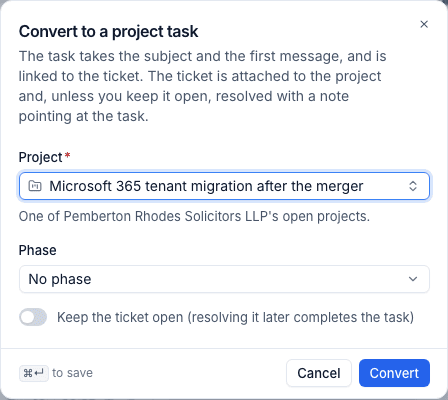
The task takes the ticket's subject, first message, assignee and devices, and the ticket's time moves to the project.
Attach a ticket
To keep a ticket as a ticket but count its time against a project, choose Attach to project from the ticket's menu. The ticket's Project block then shows the project's health and progress, and the project's Tickets tab lists it.
Related: Creating a project, Time, budgets and billing.
Was this page helpful?
Thanks for the feedback.