Invoice runs
Build a month's invoices in one go, review them with the warnings Tenvara raises, approve, issue, post and send them, or let a scheduled run do it for you.
An invoice run is how you bill a month. It builds one draft invoice per customer and currency for everything billable in that month that is not on an invoice yet: contract fees and recurring lines, licences, time beyond included hours, counted units, prepaid blocks, expenses and mileage, project time and milestones, accepted quotes, ticket time without a contract, parts ordered for customers and late payment fees. You review the drafts together, then approve, issue and send them in a few clicks.
Start a run
- Go to Invoices and press Invoice runs, or choose Invoice runs in the sidebar.
- Press Start a run.
- Choose the Month.
- Press Build drafts.
Nothing is numbered or sent at this point. If everything in the month is already on an invoice, Tenvara says so and makes no run.
Review the drafts
The run's page lists every draft with its Customer, Lines, Before tax and Total, and Since last month, which compares each customer with their previous invoice ("+£1,281.05, 5 new lines", "Same as last month", or New for a first invoice). The header totals the run in each currency, with an All in total in your base currency at the reference exchange rate.
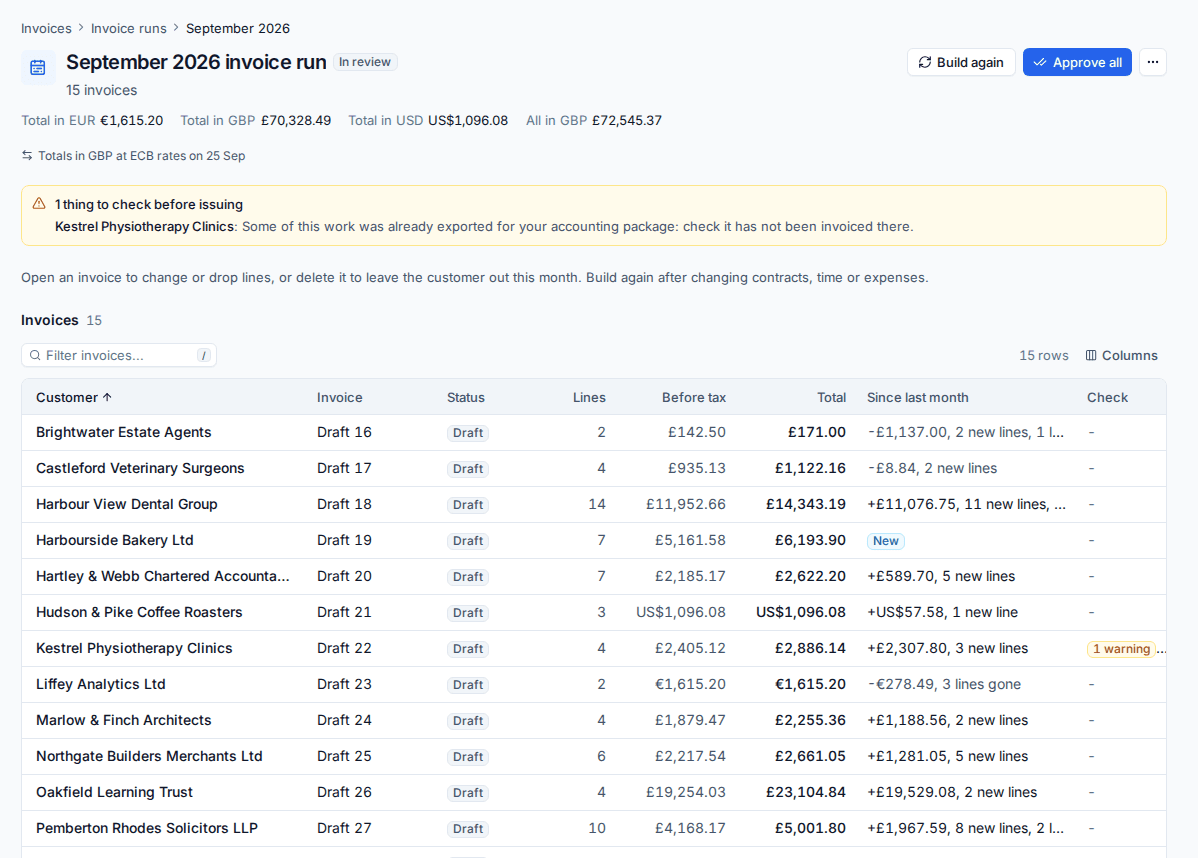
Above the list, Tenvara lists the things to check before issuing, customer by customer. For example:
- a customer with no billing email, so the invoice cannot be emailed;
- billed time that was changed after it was invoiced;
- work that was already exported for your accounting package, so you can check it was not invoiced there as well;
- a price that is new or different from last month.
To change what a customer is billed:
- Open their draft to edit, add or drop lines. See Invoices and credit notes.
- Delete their draft to leave them out this month. The work stays unbilled for a later run.
- Fix the source (a contract, a time entry, an expense) and press Build again. The drafts are rebuilt from the latest figures.
Late time and overage adjustments
Time logged after its month was invoiced is picked up by the next run as Late time from earlier months, one line per entry with its own date. If hours are added to a contract month whose overage was already invoiced, the run works the overage out again and bills the difference as an Overage adjustment at that month's rate. Fewer hours than were invoiced are only ever suggested as a credit: you decide whether to give it.
In Settings > Billing > Invoices, Late time and extra contract hours chooses whether these go on the drafts by themselves (Bill automatically) or are only listed in the run review for you to add (Show for review only). Look for late time from stops very old unbilled time being picked up, which is useful after you move to Tenvara with years of history.
Approve, issue and send
- Press Approve all when the drafts are right.
- Press Issue all. Each invoice gets the next number, in customer name order, and its wording, tax and totals are fixed. From now on it can only be credited or voided.
- If you use Xero or QuickBooks Online and do not post invoices as they are issued, press Post to Xero (or Post to QuickBooks). See Xero and QuickBooks.
- Press Send 14 invoices (the button counts the invoices still to send). Each invoice is emailed to the customer's billing addresses with its PDF and a link to view and pay it. Customers with no billing email are skipped and named.
To email invoices as soon as they are issued, turn on Email invoices as soon as a run is issued in Settings > Billing > Invoices.
Tip: If a run went wrong before you issued it, open the More actions menu and choose Delete run. Its drafts are deleted and their work can go on another run.
Scheduled runs
Tenvara can make the month's run for you. In Settings > Billing > Invoices, under Scheduled runs:
- Turn on Make invoice runs on a schedule.
- Choose the Day of the month (1 to 28, or the last day) and the hour (From), in your install's time zone.
- Choose what it is Invoicing: the month just ended (in arrears) or the month it runs in (in advance).
- Turn on Issue by itself when there are no warnings if a clean run should be approved and issued without anyone touching it, and Email the invoices it issues to send them too.
- Choose Who is told. By default everyone who manages billing hears about it in the bell.
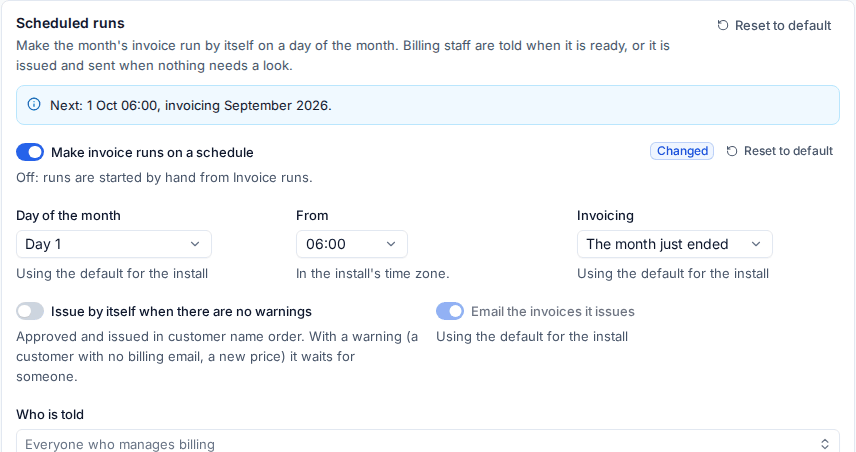
The box at the top shows when the next run will be made and for which month. A run with warnings, or with auto-issue off, waits for someone to review it. Scheduled runs are marked Scheduled in the list of runs.
Related
Was this page helpful?
Thanks for the feedback.