Status pages
Publish your own public status page and a page per customer, with services driven by monitoring, incidents and planned maintenance, and updates to subscribers by email or text.
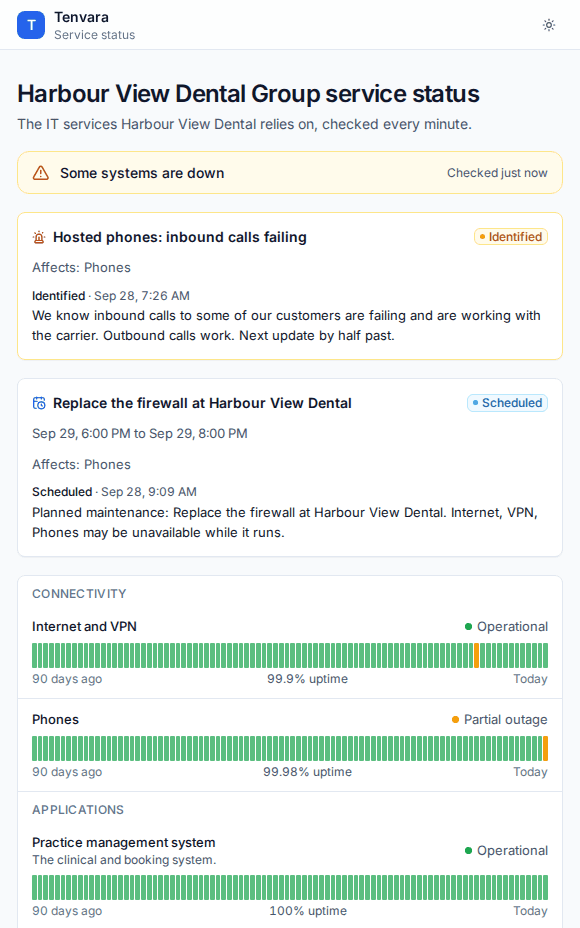
A status page tells people how your services are doing before they pick up the phone. Tenvara gives you your own public page and a page for each customer who wants one, showing their services, any incident or planned maintenance, and 90 days of uptime. Pages wear your brand, or the customer's brand profile when you white-label, and live on your portal's address.
Create a page
- Go to Status pages in the tickets sidebar and press New status page.
- Choose For: Our own public page (your services, for every customer and anyone else) or a customer. A customer's page starts private.
- Press Create.
- On the page's Settings, set the Title, an Introduction (a line or two under the title) and the Address (lower case letters, numbers and hyphens).
- Under Who can see it, turn on Public (otherwise only with the link below) to let anyone open it, or leave it off so only people with the link can.
- Leave Visitors can subscribe by email or text on.
Your own page is always public, at /status on your portal's address. A customer's page is at /status/<address>. While it is private, share it with Copy the link. Make a new private link replaces the link if it has spread further than it should.
Components
Components are the services people care about: email, internet, phones, the line of business application. On the page's Components tab press Add component, then:
- Enter the Name and a Description shown under it.
- Put it in a Group, such as Connectivity or Applications, so related services sit together.
- Choose where its Status comes from:
- Set by hand: you set it; an open incident or maintenance shows over it.
- Monitoring: choose the Devices it watches (and Whose devices). All of them offline is a Major outage, some offline is a Partial outage, an open critical alert is a partial outage and a warning is Degraded.
- Leave Show the uptime history on for the 90-day bars and the uptime figure.
- Press Save.
Monitored components are worked out every minute, and every change is kept, so the uptime bars show exactly when something was down.
Incidents and maintenance
Press Post on a page to tell people what is happening:
- An incident: a title, the impact, the Components affected (or none for the page as a whole) and What to tell people, then Post incident. Its status moves through investigating, identified, monitoring and resolved as you Post update.
- Scheduled maintenance: a title, when it Starts and Ends, and the components affected. It moves through scheduled, in progress and completed, or is cancelled.
Subscribers are told straight away.
Two kinds of notice are posted for you:
- A major incident posts its public updates on the affected customers' pages, and on your own page too if you choose. See Problems and major incidents.
- A change marked Announce on the status pages becomes scheduled maintenance on the affected customers' pages once it is approved, and moves on with the change. See Change management.
Past incidents and maintenance stay listed at the bottom of the page.
Subscribers
Visitors subscribe under Get updates, by Email or Text message.
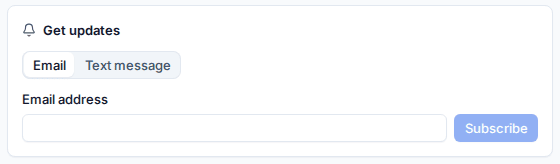
- Email subscribers confirm by a link first, when that setting is on. Nothing is sent to an address until it is confirmed.
- Text subscribers confirm with a six digit code, sent through your SMS channel in Settings > Automation > Channels.
Each person hears once per update, however many of their pages it appears on, and every message has its own unsubscribe link. The Subscribers tab lists who is subscribed and whether they have confirmed.
Note: Text messages go through an SMS channel you connect with your own SMS provider account. Without one, people subscribe by email.
A badge for an intranet
Copy the badge HTML gives a small badge showing the page's status, to put on a customer's intranet or your own website. For a private page the badge carries the private link's token.
Settings
Settings > Ticket setup > Service desk has the status page settings:
- Sender name on status emails (empty uses the page's brand),
- Email subscribers confirm by a link first,
- SMS channel for text updates,
- Show major incidents for every customer on our own page.
Related: What your customers see, The customer portal and feedback.
Was this page helpful?
Thanks for the feedback.