Vault break-glass export
Keep an encrypted copy of the credentials vault that opens without Tenvara, approved by a second administrator, with scheduled exports and an offline viewer.
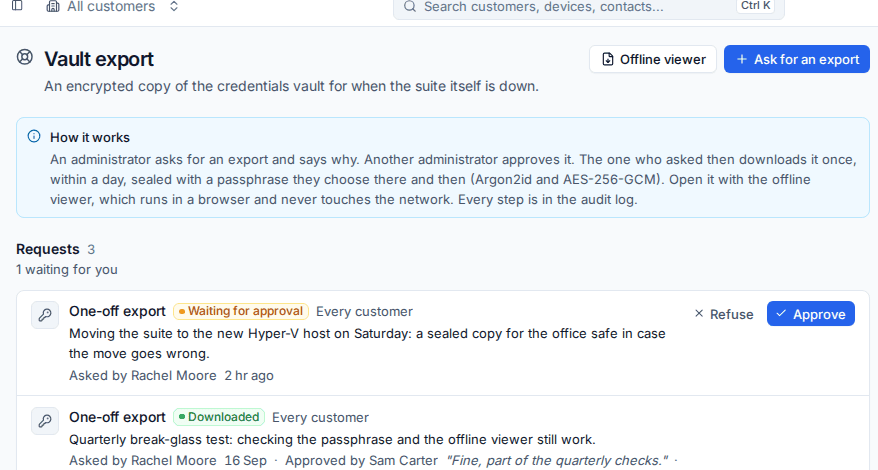
If Tenvara itself is down, the passwords you need to fix it may be inside it. The break-glass export is an encrypted copy of the credentials vault that opens in any browser, offline, without Tenvara. Taking one needs two administrators, and every step is in the audit log.
Go to Settings > Vault export. It is for administrators only, and cannot be used with an API token.
How it is protected
- Two administrators. One asks and says why; another approves. Nobody can approve their own request. If you have only one active administrator, add a second in Users first.
- One download, one passphrase. Once approved, the person who asked downloads it once, within a day, choosing a passphrase at that moment. The file is built then and never stored by Tenvara.
- Strong encryption. The file is sealed with AES-256-GCM under a key made from the passphrase with Argon2id. Without the passphrase nobody can open it.
- Logged. Requests, decisions, downloads and scheduled exports go in the audit log, and every credential in an export gets an entry in the vault audit log, so its Who has seen it list shows the export too.
Asking for an export
- Press Ask for an export.
- Under Why is it needed?, say why. The approver sees this, and it is kept in the audit log.
- Under Customers, choose Every customer or Choose customers.
- Leave Include administrators-only credentials on unless you have a reason not to. Break-glass accounts are usually exactly what you need when Tenvara is down.
- Press Ask for approval.
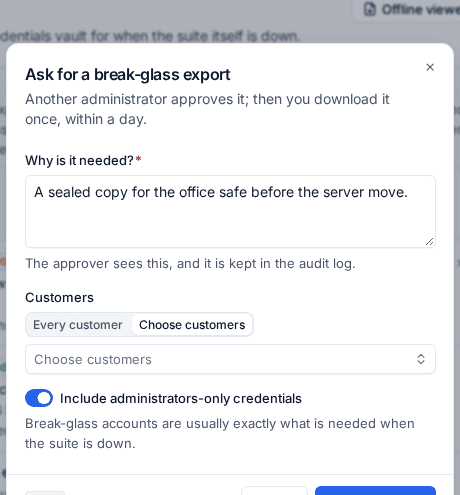
Every other active administrator gets an inbox entry and an email. A request nobody decides lapses after a week. You can cancel your own request while it waits.
Approving or refusing
- Open Settings > Vault export. Requests waiting for you are at the top.
- Read their reason.
- Press Approve or Refuse, adding a Note if you like. They see it, and it is kept in the audit log.
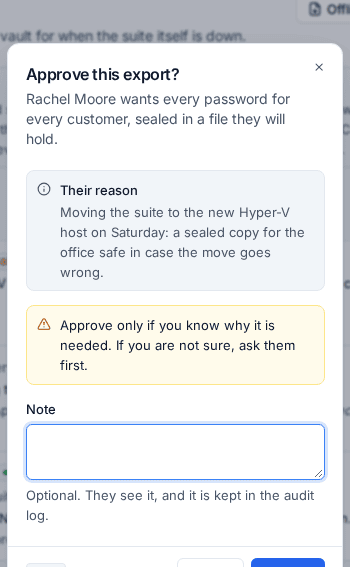
Warning: Approve only if you know why the export is needed. If you are not sure, ask them first.
Downloading it
Once approved, the person who asked has a day to download it:
- Press Download on the request.
- Choose a Passphrase of at least 12 characters and type it again. The strength meter shows how good it is.
- Download the file. It can be downloaded only once.
Keep the file and the passphrase in different places, for example the file on a USB stick in the safe and the passphrase in a sealed envelope.
The offline viewer
Press Offline viewer to download the viewer: a single web page that opens exports with no network at all. Keep it with your exports.
To use it, open the viewer in any browser from disk, choose or drop the export file, and type the passphrase. You can then search customers, credentials, usernames and devices. Passwords stay hidden until you show them, everything can be copied, two-factor codes count down live, and the viewer locks itself after ten minutes without use.
Scheduled exports
A schedule writes a fresh sealed copy, with the viewer, so there is always one to hand without asking.
- Under Scheduled export, press Set up a schedule.
- Choose How often (Every day or Every week), the Day and Time, and how many to Keep the newest.
- Choose where to Write to: A folder on the server (such as a mounted NAS share) or An S3-compatible bucket with its endpoint, bucket, region, folder and keys.
- Choose the passphrase the exports are sealed with. Write it down and keep it apart from the exports.
- Press Test to check Tenvara can write there.
- Say Why and press Ask for approval.
Turning a schedule on or changing it needs a second administrator's approval, the same as a one-off export. Turning it off does not. Once running, the page shows where it Writes to, the Next export, the Last export and each export written. Export now writes one straight away. If a scheduled export fails, every administrator is emailed.
Tip: Ask for a one-off export before you need it and open it with the viewer. Test the passphrase and the viewer now, not during an outage.
Related: The credentials vault, Reviews and the vault audit log.
Was this page helpful?
Thanks for the feedback.