Receiving, serials and supplier invoices
Book deliveries into stock with a serial number for each unit, hand customers' goods over automatically, and match the supplier's invoice against the order before you pay it.
When a delivery turns up, booking it in does three jobs at once: the stock goes into a location, each unit gets its serial number, and anything ordered for a customer is given to them. Later, when the supplier's invoice arrives, Tenvara checks it line by line against what you ordered and what arrived.
Book in a delivery
- Open the purchase order and press Book in delivery.
- Choose Into: the location it arrived at (the order's own by default).
- Enter the Delivery note or consignment number.
- For each line, enter how many arrived. You cannot book in more than is still to come.
- For serialised items, enter a serial for each unit. Type them, paste a list (it fills the fields from the one you pasted into), or scan them: a scanner's Enter moves to the next empty field. Repeated serials are refused.
- Add Notes for anything odd (a damaged box, a missing item) and press Book in (the button counts the units).
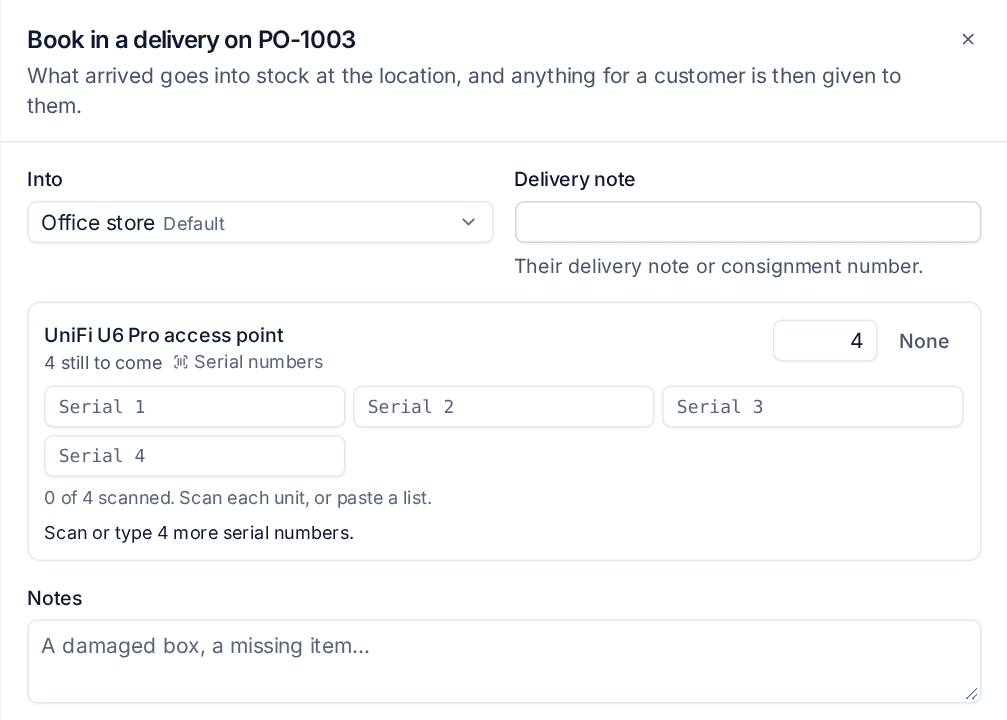
The order becomes Part delivered, or Received once nothing is outstanding. Book in each delivery as it comes; the order page lists every delivery with its note and serials.
What happens to each line
- Stock items go into the location at the order's cost.
- Lines for a customer (ordered from a ticket, project, quote or for the customer) go into stock and are given straight to that customer. The ticket's assignee is told "Goods received for #1234" and the ticket gets a note.
- Drop ships to a customer's site never touch your stock; their serials are kept on the delivery.
- Typed lines and items that do not track stock are just counted as arrived.
Serial numbers become devices
A serial number received for a customer, whether given to them from stock or drop shipped to their site, becomes one of their devices: an asset record with the model, serial, site, supplier, cost, the date it arrived and its warranty. If they already have a device with that serial, the unit is linked to it instead. When the agent is installed on it later, it keeps the same record.
Switch this off with Serial numbers given to a customer become their devices in Settings > Procurement, under Supplier invoices and assets.
Supplier invoices
Supplier invoices in the Procurement sidebar holds the invoices your suppliers send, each checked against its orders.
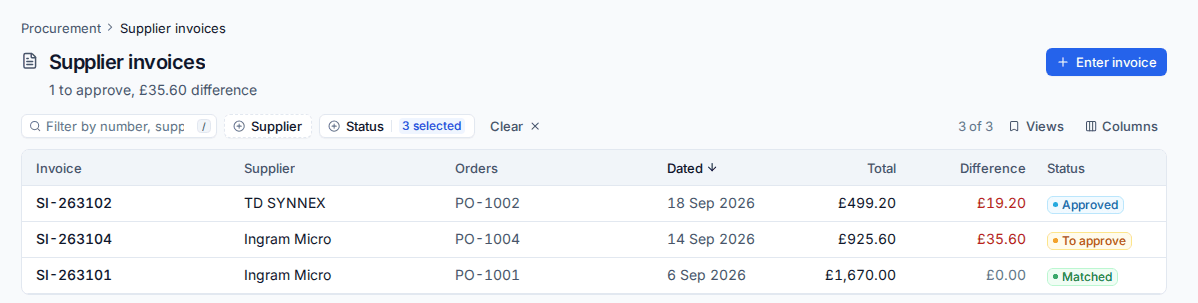
Enter a supplier invoice
- Press Enter invoice.
- Choose the supplier and enter their invoice number, the dates and the currency.
- Add the lines. For each, pick the order line it charges for: the supplier's open lines are offered (what arrived, or else what was ordered, less what was already invoiced). A line for something not on an order, such as a delivery charge, needs no order line.
- Save.
Each line is checked against its order line: the quantity against what arrived and what was ordered, and the unit cost against the order's cost, within a tolerance (1% or 1.00 of the currency, whichever is more, by default). An invoice with nothing out of line is Matched and accepted straight away. Invoicing for more than arrived is flagged on the line.
Approve a difference
An invoice that differs from its orders waits as To approve. Open it to see each line's difference, such as "Cost differs from the order".
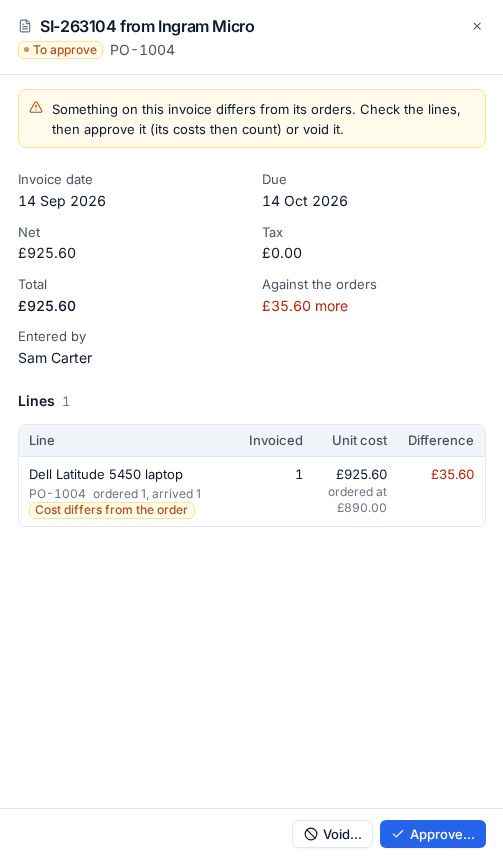
Someone who manages procurement checks it and either presses Approve... with a note, which accepts the invoiced costs, or Void... if the invoice is wrong. Voiding frees the order lines to be invoiced again.
Once accepted:
- stock units from those lines take the invoiced cost;
- each order line keeps what was invoiced and the cost difference, shown under Supplier invoices on the order;
- for goods bought for a customer, the difference counts in that customer's margin for the month (switch this off with Count accepted differences in the customer's margin).
Every step is in the order's activity.
Tolerances
In Settings > Procurement, under Supplier invoices and assets, set A cost within this percentage matches and ...or within this amount, so that rounding never needs approving.
Related
Was this page helpful?
Thanks for the feedback.