Running side by side and switching
Keep your old tool running while you move, re-run imports to pick up changes, decide matches by hand, undo an import, and switch each customer over when you are ready.
You do not have to move everything in one weekend. Imports in Tenvara can be repeated as often as you like, so you can keep working in your old tool while you set Tenvara up, bring changes across as they happen, and move customers over one at a time.
Running an import again
Run the same source again whenever you want to catch up with the old tool. For a CSV file or an IT Glue export, replace the file first with a newer one; Hudu is read live.
Tenvara remembers every record it imported and where it came from, so a second run never duplicates anything:
- Records unchanged since the last import are left alone.
- Records that changed are brought up to date where that is safe: empty fields are filled in, and nothing your team has changed in Tenvara is overwritten.
- New records are created.
- If someone deleted an imported record in Tenvara, the next run creates it again. Skip it by hand (below) if you do not want it back.
Each run is listed on its source with its status, what it found, who started it and when.
Tip: Run a dry run before each import, even on a source you have imported before. It takes a moment and shows exactly what will change.
Deciding by hand
Sometimes Tenvara cannot know that "Harbour View Dental" in your old tool is the "Harbour View Dental Group" you already added, or you want a record left out. In any run:
- Click the record to open it. The side panel shows What it read from the old tool (never secrets).
- Choose what should happen:
- Match it by hand: search for the record already in Tenvara and press Match. The next run brings that record up to date instead of creating another.
- Create anyway: make a new record even though it matches one.
- Skip it: leave it out.
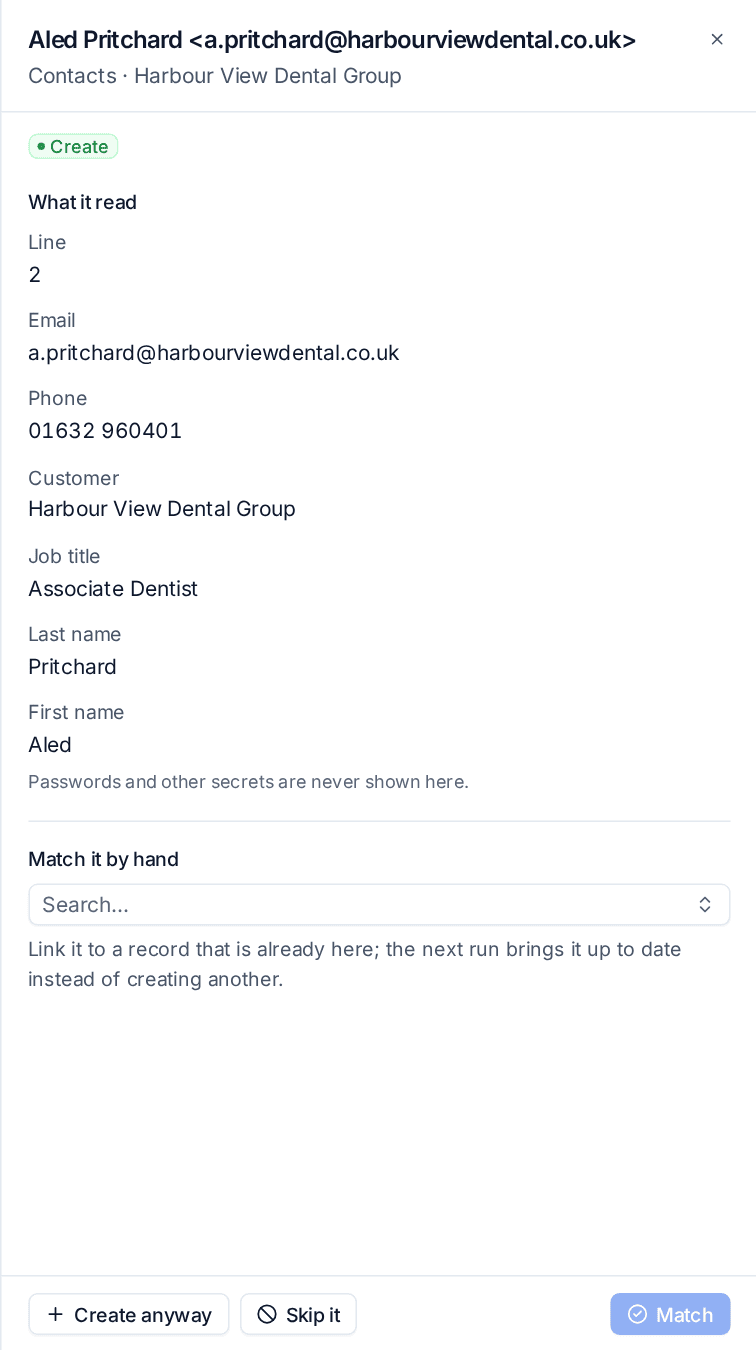
Records you decided are marked by hand in the run, and every later run follows your decision. Match automatically again clears it.
Undoing an import
If an import was wrong, open the import's run and press Undo import. Tenvara:
- removes everything the import created, newest first, including credentials it put in the vault and articles it made;
- unlinks records it matched, without deleting them, because they were already in Tenvara.
An undo is refused while another source has imported records under a customer this import created. Undo that other import first.
Archiving and deleting sources
When you have finished with a source, open its ... menu:
- Archive hides it from the list but keeps its runs and what it brought across. Show archived on Settings > Migration shows it again, and Bring back restores it.
- Delete source removes it and its saved connection. A source something was imported from cannot be deleted until those imports are undone; archive it instead.
Switching a customer over
Once a customer's data is in Tenvara and checked, switch them over:
- Install the agent on their devices. When the agent is installed on a device you imported, it takes over that device's record (matched by serial number and host name), so its documentation and credentials stay linked. See Installing the agent.
- Connect their Microsoft 365 tenant. See Connecting a tenant.
- Point their support email at Tenvara so new emails become tickets. See Email and alert tickets.
- Invite their contacts to the customer portal. See The customer portal.
- Run a final import from the old tool so nothing changed in the meantime is missed.
- Remove the old tool's agents from their devices, using the old tool's own uninstall, and stop using it for that customer.
Note: Keep the old tool available, read-only if you can, for a few weeks after the last customer moves. It is the simplest way to answer "what did the old system say?" while everyone gets used to Tenvara.
Related: Moving to Tenvara overview, Importing from CSV, Importing from IT Glue and Hudu.
Was this page helpful?
Thanks for the feedback.