Purchase orders
Raise purchase orders by hand or from a quote, ticket, project or the reorder list, get large ones approved, send them by email or through a distributor, and follow them until everything arrives.
A purchase order records what you ordered from a supplier, at what cost, where it should be delivered and who it is for. Orders are numbered PO-1001 upwards, in the supplier's currency, with tax worked out the way a purchase from that supplier is taxed.
Raise an order
By hand
- Go to Purchase orders and press New purchase order.
- Choose the supplier.
- If it is for a customer, choose them. Choose where it is delivered: one of your stock locations (the default location unless you pick another) or the customer's site, for a drop ship.
- Set the date you want it by, and create the draft.
- Add lines from the catalogue or type them in. Tenvara fills in the supplier's SKU from their distributor feed, the cost converted into the order's currency, and the tax category. Serialised items are ordered in whole units.
From an accepted quote
Open the accepted quote's Pricing tab and find Orders. Order the hardware previews the quote's one-off hardware and software lines grouped by each item's preferred supplier, with what is already ordered. Pick a supplier for any line without one, then create the drafts: one per supplier, each line linked to the quote and the quote's customer. The quote's history notes which orders were raised.
To do this by itself, turn on Raise draft orders when a quote is accepted in Settings > Procurement. The quote's owner is told the drafts are ready to check and send.
From a ticket, a project or the reorder list
- On a ticket, the details panel has an Orders block with Order parts. The order is for the ticket's customer, and the ticket's assignee is told when the goods arrive.
- A project's Orders tab raises orders for the project.
- Reorder in the Procurement sidebar lists everything at or below its reorder point. Adjust the quantities and press Raise orders (the button counts them) for one draft per preferred supplier. See Stock locations and vans.
Approval
In Settings > Procurement, under Orders, Approve large orders before they are sent sets an amount (in your base currency) above which a draft needs approving. Press Ask for approval on the draft and the approvers are told. An administrator, or anyone who manages procurement and did not raise the order, can approve it. Changing an approved draft's total needs approving again.
Send it
- Open the draft and press Send.
- Under How it goes, choose Email it, or Already ordered another way if you ordered by phone or on the supplier's website.
- Check To (the supplier's orders address), Copy to, the Subject and the Message. The wording comes from Settings > Procurement, with placeholders such as
{number}and{supplier}. - Press Preview PDF to check the order, then Send.
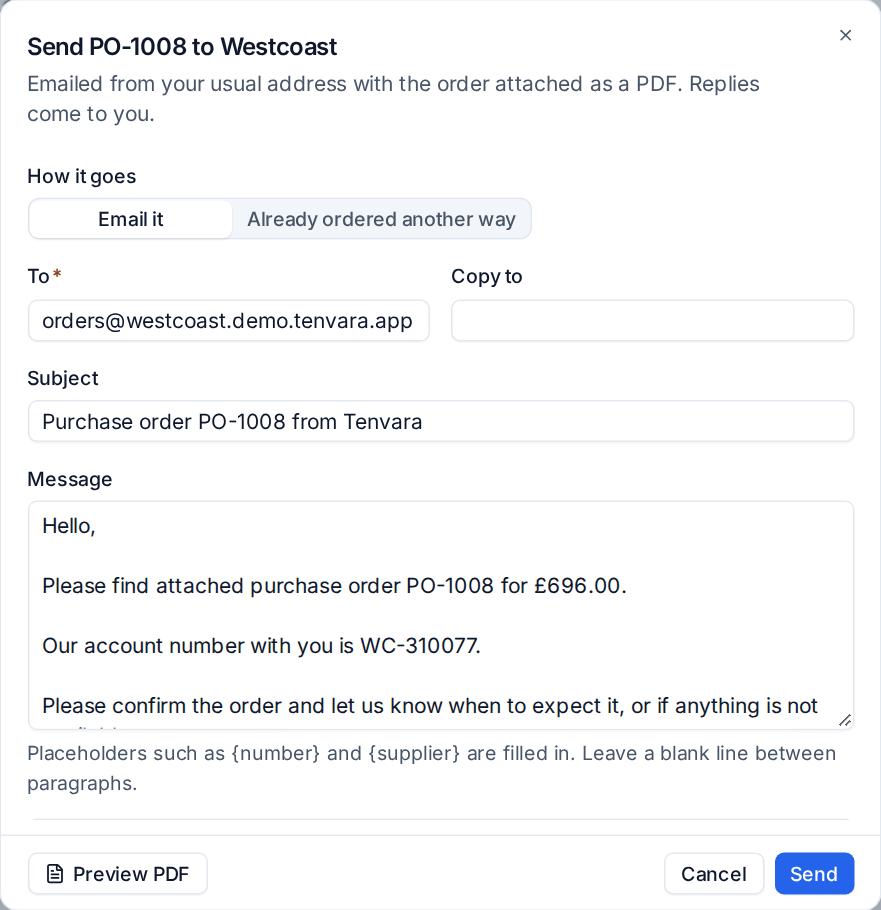
The PDF carries your details, the supplier, the delivery address (the customer's site for a drop ship), your account number with them, the lines with costs and tax, and your footer from the settings. Once sent, the order's expected date defaults from the supplier's lead time.
Placing an order through a distributor
For a supplier whose distributor feed takes orders (Ingram Micro, TD SYNNEX and Pax8, connected with your own accounts), the send dialog offers Place with the distributor instead of email. It first lists anything the distributor would refuse, such as a missing SKU or address, or a customer with no Pax8 company. The order keeps the distributor's order number and status. If the distributor refuses it, the draft stays as it was with their reason in the activity.
Follow an order
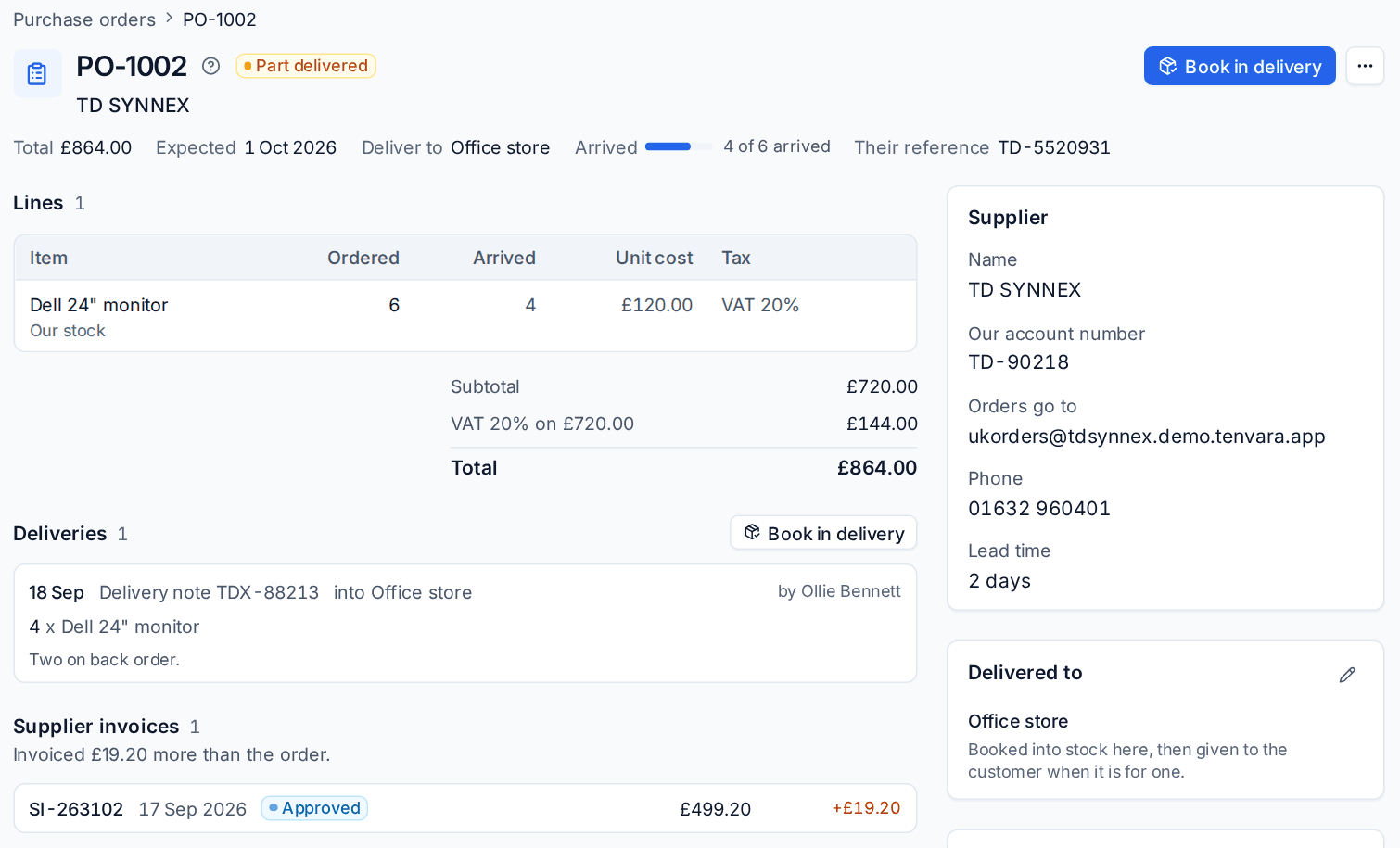
The order page shows the Total, Expected date, where it is delivered and how much has Arrived, with the Lines, Deliveries, Supplier invoices and Activity. Its status moves from Draft to Waiting for delivery, Part delivered and Received.
- Overdue: each morning, orders past their expected date are marked Overdue and whoever raised them is told once per expected date. Chase the supplier, or change the date.
- Close: when the rest of a part delivered order is never coming, close it. What never came is recorded.
- Cancel: for a draft or a sent order nothing has arrived on. A draft that was never sent can simply be deleted.
Automation rules can start when an order is received or goes overdue, for example to post in a channel or add a note to the ticket. See Building a rule.
Billing what you ordered
A line ordered for a customer (from a ticket, a project or the customer) goes on their next invoice once everything on it has arrived, or the order was closed, at the price on the line or the catalogue price. A quote's lines are billed by the quote, never here. Turn this off with Bill customers for what is ordered for them in Settings > Procurement.
Related
Was this page helpful?
Thanks for the feedback.