Projects in the customer portal
What your customers see of their projects in the portal, how they sign off or decline milestones, comment on shared tasks and download a status report, and the close survey they get at the end.
Your customers can follow their projects in the customer portal: how far along the work is, which milestones are coming up, and the tasks you have chosen to share. They sign milestones off there, ask questions on shared tasks, and tell you how it went when the project is finished. Nothing internal ever reaches them.
What the customer sees
Projects appears in the portal's navigation once the customer has a project shown on the portal.
- Portal managers at the customer see every project of their company that is shown on the portal.
- Other portal users see the projects they are the contact for.
Cancelled projects are not shown.
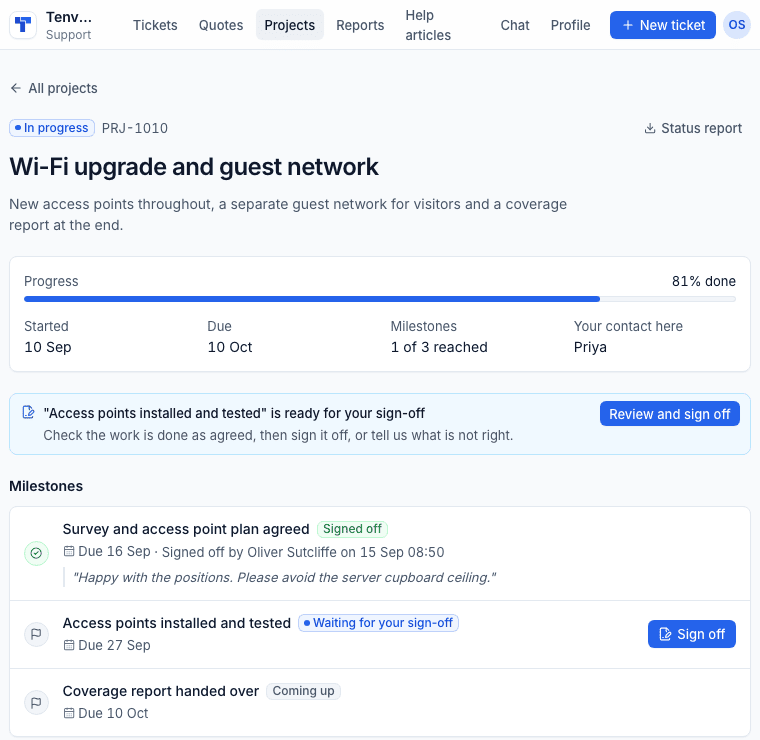
The project's page shows:
- the name, reference, status and description;
- Progress, when it Started, when it is Due, how many Milestones are reached and Your contact here (the project owner's first name);
- the Milestones with their due dates and sign-off;
- how each phase is going;
- Things we are sharing with you: the tasks you have shared, with their status and the conversation on each;
- Status report, a branded PDF of the project's progress.
They never see internal comments, tasks you have not shared, budgets, rates, costs, time or the project's health.
Choosing what is shown
- A project is on the portal when Show on the customer portal is on (in New project or Edit). Whether new projects start on is set in Settings > Projects under Customer portal.
- A task is shared when On the portal is on in its panel. Template tasks can be shared from the start.
Milestone sign-off
A milestone can need the customer's sign-off before it counts as reached, for example "Access points installed and tested".
Ask for sign-off
- On the project's Milestones tab, open the milestone's ... menu and choose Request sign-off.
- Check Who signs it off (the project's customer contact) and write a Message, such as "The new network is live at the main office. Please check and sign off."
- Press Send request.
They get an email with a link to the portal. The link opens the project with the sign-off ready; they sign in as usual, so a forwarded email opens nothing on its own.
What the customer does
The page shows a banner saying the milestone is ready for their sign-off, with Review and sign off.
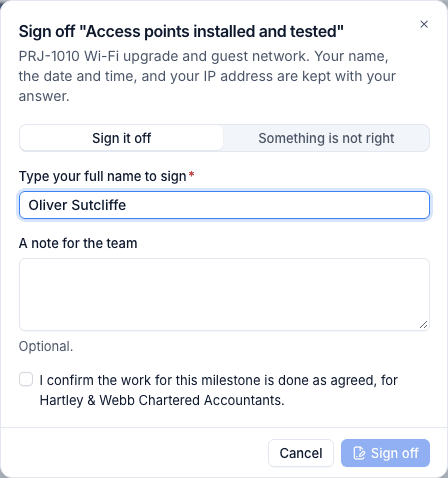
- They choose Sign it off, or Something is not right.
- They type their full name. A note is optional when signing off and needed when declining.
- They tick to confirm the work is done as agreed, and press Sign off.
Their name, the date and time and their IP address are kept with the answer. The project's contact and the customer's portal managers can sign off. The owner is told either way, and the milestone shows Signed off (with who and when) or Declined with their note. A milestone that is complete and signed off counts as reached, so on a fixed price project its amount goes on the next invoice.
Comments on shared tasks
Under each shared task the customer can Add a comment or ask a question. Your team sees it on the task straight away, and the assignees are told. Reply from the task panel with a comment the customer sees; staff appear by first name.
The status report
Status report on the portal (and Status report in the project's ... menu for staff) downloads a PDF branded like your monthly customer reports: progress, milestones and their sign-off, what is done and what is next among the shared tasks, and things to know, such as a milestone waiting for their sign-off or the work running behind. When the project has a baseline, it says whether the work will finish as planned.
The close survey
When a project is completed, its contact is asked how it went: a short survey by email, and the same questions on the completed project's page in the portal (Tell us how it went).
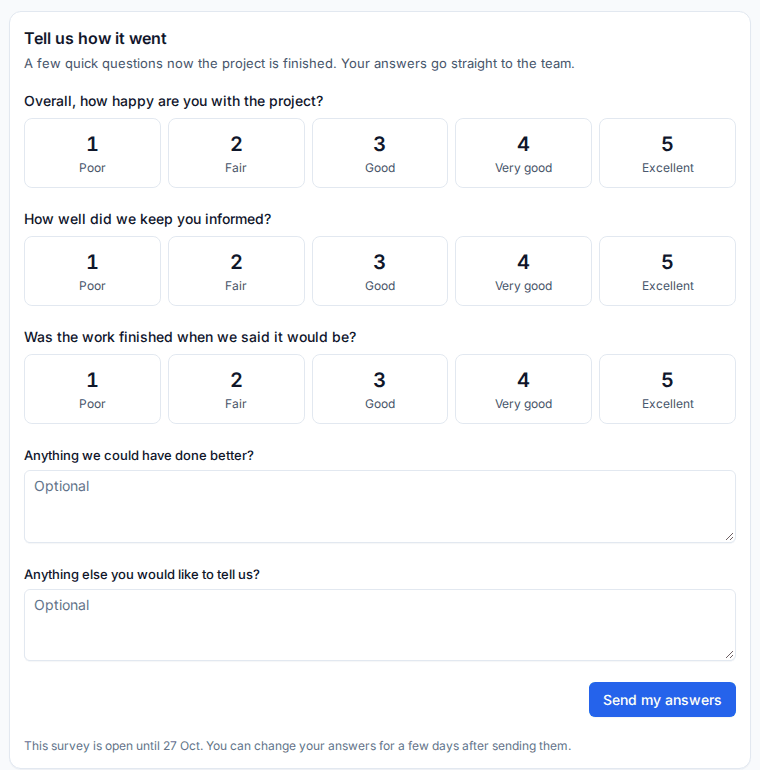
- The email goes to the project's contact (else the customer's primary contact), the day after completion by default, with one reminder after seven days if there is no answer.
- Rating questions are answered from 1 (Poor) to 5 (Excellent); text questions are optional.
- The customer can change their answers for a few days after sending them.
- Cancelled projects are never asked, and each project is asked only once.
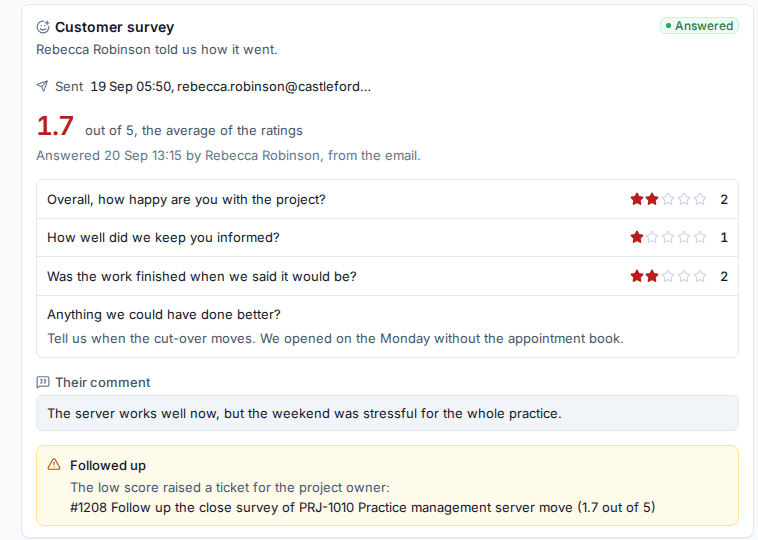
Answers show on the project's Activity tab in the Customer survey card, and the owner is told. A low average raises a follow-up ticket for the owner (or an internal note, as you choose). From the card, people who manage projects can send the survey by hand, send it now instead of waiting, send it again or choose another contact.
Set the questions, timings, follow-up, customers never asked and the email wording in Settings > Projects under Close survey; Preview the email shows it as it will go. The results across projects are in Reports > Project surveys; see Project reports and status summaries.
Related: The customer portal.
Was this page helpful?
Thanks for the feedback.