The board, the timeline and My work
See a project's tasks as a board by status or phase, plan dates on the timeline with dependency arrows, and work through your own tasks and tickets in My work.
The same tasks can be seen three ways: as a list grouped by phase (see Phases, tasks and dependencies), as a board, and on a timeline. My work then brings your tasks from every project together with your tickets.
The board
On a project's Tasks tab, switch from List to Board at the top right. Choose By status or By phase.
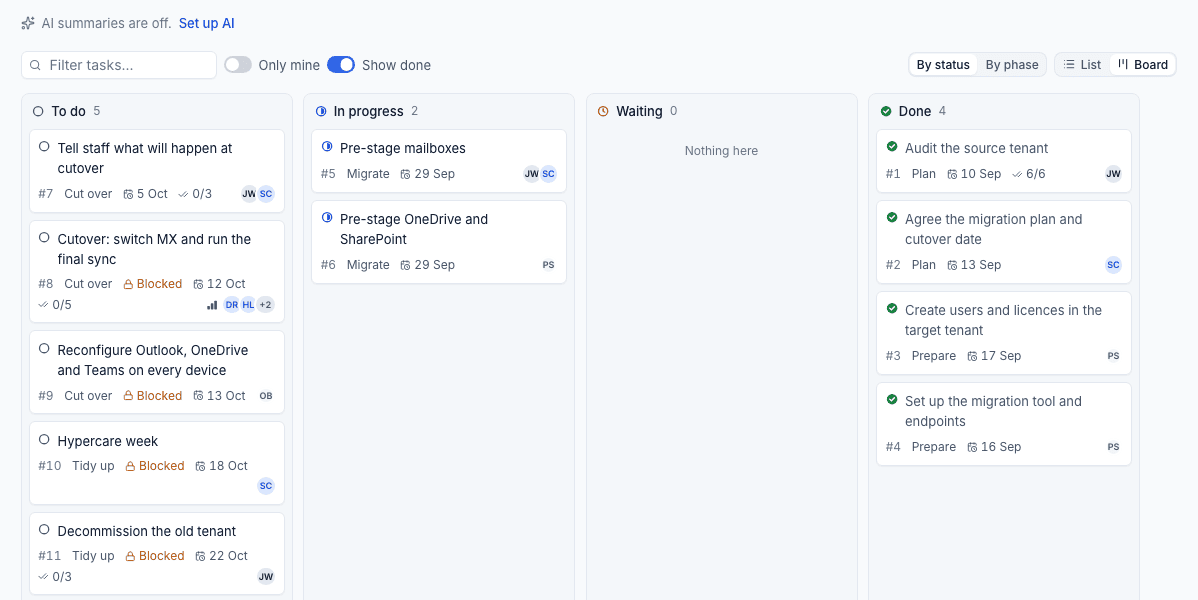
- By status has a column each for To do, In progress, Waiting and Done (and your own statuses, if you have added any). Drag a card to another column to change its status.
- By phase has a column per phase. Drag a card to move the task to another phase.
Each card shows the task number, phase, due date, checklist progress, a Blocked badge when it waits on unfinished work, and the assignees. Click a card to open the task. The board keeps the same filters as the list: Filter tasks, Only mine and Show done.
Tip: The project list has a board too. On Projects, use the icons at the top right to see every project as a card by status, and drag one to change its status.
The timeline
The Timeline tab is a Gantt chart of the project.
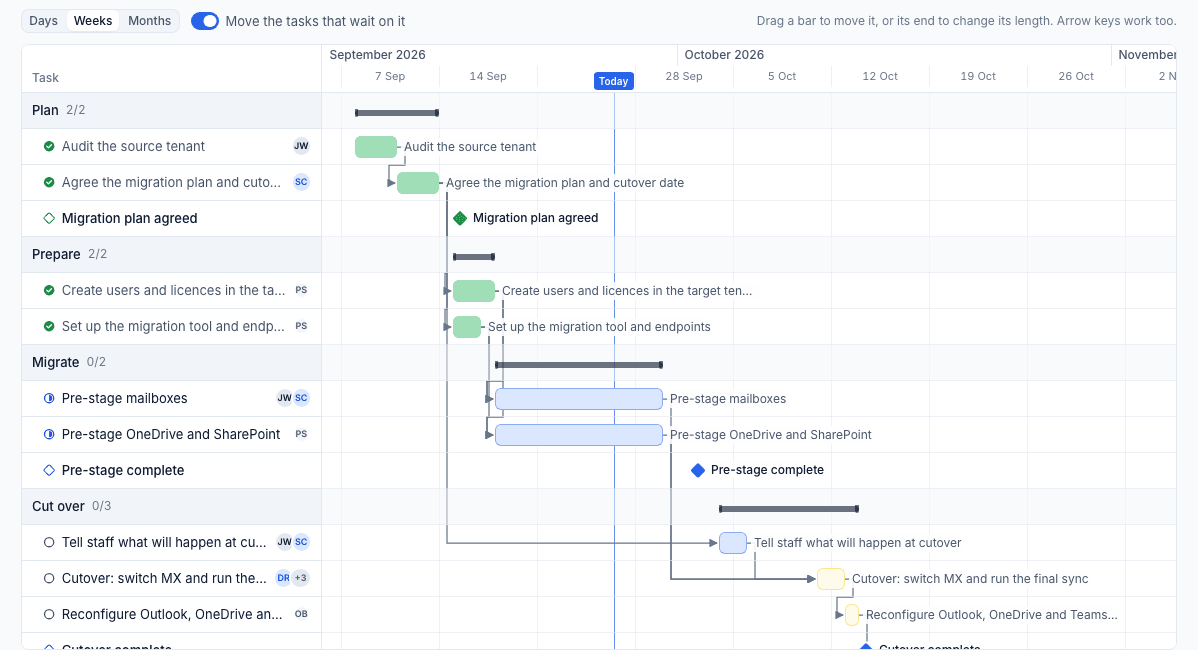
- Each phase is a row with a bar spanning its tasks, and each task is a bar from its start to its due date. Milestones are diamonds.
- Arrows join tasks that wait on each other. An arrow turns red when the dates break the dependency, for example a task starting before the one it waits for is due.
- The blue line is today.
- Days, Weeks and Months change the zoom.
Move tasks on the timeline
People who manage projects can plan on the timeline:
- Drag a bar to move the task, or drag its end to change its length. Arrow keys work too.
- With Move the tasks that wait on it on (the default), every task that waits on the one you moved shifts by the same number of days, and the knock-on shows while you drag. A task is never moved to start before the task it waits for is due.
- Let go to save.
Turn Move the tasks that wait on it off to move one task on its own.
When the project has a baseline, Show baseline draws the agreed plan as a thin bar under each task, so you can see where it has slipped. See Time, budgets and billing.
Note: People working a task change its status, not the plan. Dragging dates needs the Manage permission for projects.
My work
Projects > My work is your own list: your open project tasks and the tickets assigned to you, side by side, by when they are due.
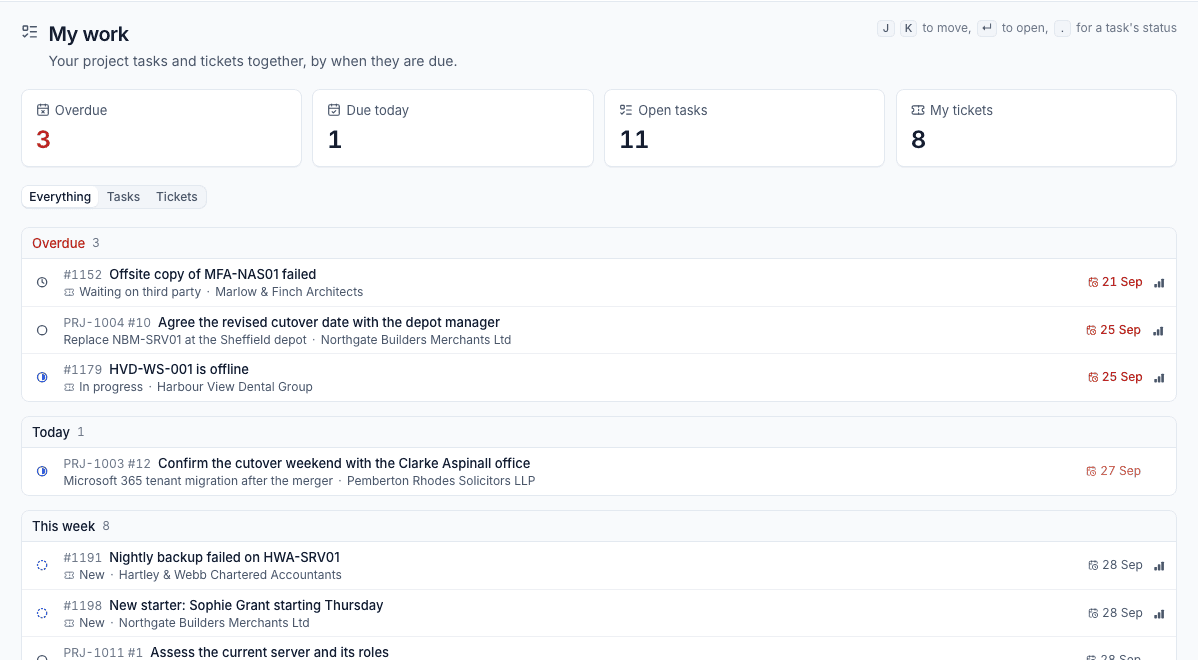
The figures at the top count what is Overdue, Due today, your Open tasks and My tickets. Below, everything is grouped into:
- Overdue;
- Today;
- This week (the next seven days);
- Later;
- No date.
A task's date is its due date; a ticket's is its resolution target. Each row shows the reference (PRJ-1003 #12, or the ticket number), the project or ticket status, the customer and the date, with Blocked on tasks still waiting for others. Switch between Everything, Tasks and Tickets to narrow it.
Use j and k to move up and down, Enter to open the task or ticket, and . to change a task's status without leaving the page.
Tip: Your project tasks also appear on Home, and you are told in the inbox each day about tasks of yours that are overdue.
Related: Project team and resource planning.
Was this page helpful?
Thanks for the feedback.