GDAP, LAPS and BitLocker
Follow each customer's GDAP relationships and their end dates, and reveal BitLocker recovery keys and Windows LAPS passwords with the vault's permission and audit log.
This page covers two things technicians reach for on the phone with a customer: whether your partner access to their tenant is still in date, and the BitLocker recovery key or local administrator password for one of their machines.
GDAP relationships
If you manage customers through Microsoft Partner Center, each tenant's GDAP relationships are shown on its Settings tab under GDAP. Partner access is set up once in Settings > Microsoft 365 (see Connecting a tenant).
For each relationship you see:
- Its name and state, for example Active.
- When it ends, and whether it auto-extends (for example Auto-extends by 180 days).
- The roles it holds, by name.
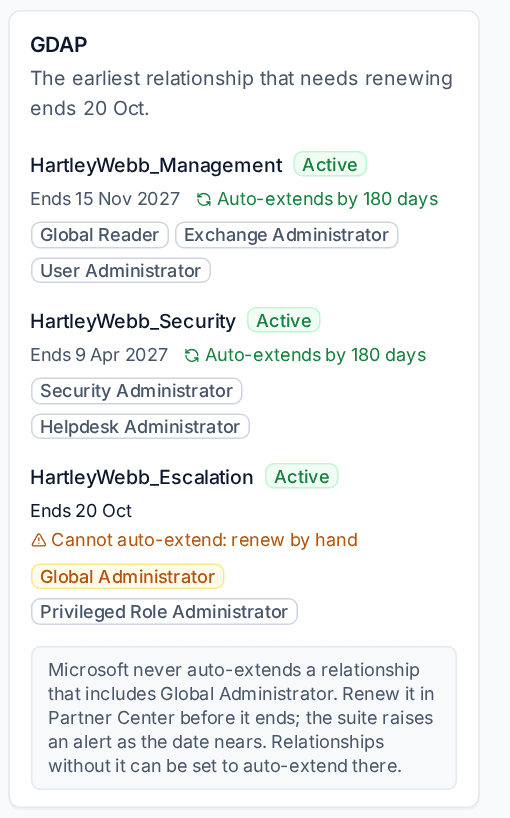
Microsoft never auto-extends a relationship that includes Global Administrator. Tenvara marks those Cannot auto-extend: renew by hand, with the Global Administrator role highlighted, so you know to renew them in Partner Center before they end.
GDAP alerts
Once a day Tenvara checks every relationship's end date:
- A relationship ending within 30 days raises a warning alert, and a critical one within 7 days. To change the 30 days, search Settings for Warn about GDAP ending within.
- Relationships that renew themselves are left out.
- The alert names every relationship that is ending with its roles, and says which ones must be renewed by hand.
- When the partner connection is signed in, the relationships are read again before the check, so renewing in Partner Center clears the alert.
The Microsoft 365 overview lists tenants with a GDAP relationship ending soon under Tenants that need a look.
BitLocker keys and LAPS passwords
Windows devices joined to Entra ID back their BitLocker recovery keys up to Microsoft 365, and Windows LAPS can back the local administrator password up there too (the Windows LAPS Intune starter template does this; see Intune and Autopilot). Tenvara can reveal both.
It needs the BitLocker and LAPS read permissions of the app registration consented in the customer's tenant. Until they are, the device shows Microsoft would not say (see the tenant's settings).
Where to find them
- Microsoft 365 > Intune > BitLocker and LAPS: every device with a BitLocker key or LAPS password in Microsoft 365, with how many keys and whether a LAPS password is backed up.
- The device page, in its Microsoft 365 block, when the device is matched.
- The Intune device panel, under BitLocker and LAPS.
- A ticket's linked device.
- Search (Cmd+K): type, for example, "BitLocker key for LAPTOP-12" or "laps password HV-RECEPTION".
Revealing a key or password
- Open the device and find BitLocker and LAPS. Each BitLocker key shows its drive (system or data), when it was backed up and its Key ID.
- Press the eye to reveal it, or the copy button to copy it without showing it.
- If your settings ask for a reason, Tenvara asks Why do you need it? first. Enter a ticket number or what the person asked for, then press Reveal.
The key or password is read from Microsoft at that moment. It is shown for 30 seconds, then masked again. Tenvara never stores or caches it: only the fact that a key exists, its ID and its date are kept, so lists and search work.
Tip: Matching the Key ID the recovery screen shows to the one in Tenvara makes sure you read out the right key when a device has more than one.
Who can reveal them
BitLocker keys and LAPS passwords use the vault's permission: anyone who can see a customer's credentials in the credentials vault, and who has Microsoft 365 view, can reveal them for that customer. Reveals are limited to 30 a minute.
In Settings > Microsoft 365 > Intune and devices, under BitLocker keys and LAPS passwords:
- Ask for a reason before revealing a BitLocker key or LAPS password: the reason is kept in the vault audit log with the reveal.
- Only administrators can reveal BitLocker keys and LAPS passwords.
Both can be set per customer, so a customer with stricter rules can have them on while others do not.
The audit trail
Every reveal and every copy is written to the vault's audit log, naming the device, the key and the reason, so the vault audit log stays the one place to see who looked at a secret (see Reviews and the vault audit log). Each device also shows Who has revealed these, with the person, what they revealed or copied and when.
Rotating after use
After you read a key or password out to someone, rotate it from the Intune device menu: Rotate the LAPS password or Rotate the BitLocker keys. Both go through the change log like any other Intune action.
Was this page helpful?
Thanks for the feedback.