Data from other tools
Report and bill on figures from other vendors: backups from Datto BCDR, Cove and Veeam, security agent counts, and any other tool's numbers as a dataset.
Not every figure you report on lives in Tenvara. Your customers may still have backups in another vendor's product, endpoint protection from a security vendor, or a phone system with its own call statistics. Tenvara brings those figures in so they work like its own data: in the report builder, in customer scope, and in billing.
There are three ways in:
- Backup vendors: Datto BCDR, Cove Data Protection and Veeam, connected with your own vendor accounts.
- Security vendors: Huntress, SentinelOne and Microsoft Defender for Endpoint, connected with your own accounts, count the devices running their agents.
- Datasets: any other tool's numbers, from a CSV file or an address Tenvara reads.
Everything here is set up in Settings > Integrations, which is for administrators.
Backups from other vendors
Connect Datto BCDR, Cove or Veeam and Tenvara reads what each one protects and how its last backup went. You need an account with the vendor and these details:
| Vendor | What you need |
|---|---|
| Datto BCDR | An API public key and API secret key from the Datto portal (Admin > Integrations > Datto REST API) |
| Cove Data Protection | Your Partner name, an API user with the API role made in the Cove console, and its Password |
| Veeam | Your Veeam Service Provider Console Console address and an API key |
To connect one:
- Go to Settings > Integrations > Connectors.
- Under Backup from other vendors, click Set up on the vendor.
- Enter the details. Secrets are stored encrypted and never shown again.
- Click Test the credentials, then save.
- Click Sync now for the first read. After that it syncs by itself every hour (the interval is in Settings > Integrations > API and limits).
On each sync Tenvara reads the vendor's organisations and matches them to your customers by name. Match the rest by hand on the connector's Organisations tab, or ignore ones you do not look after. Each protected machine, virtual machine, Microsoft 365 tenant or job is matched to a device by host name.
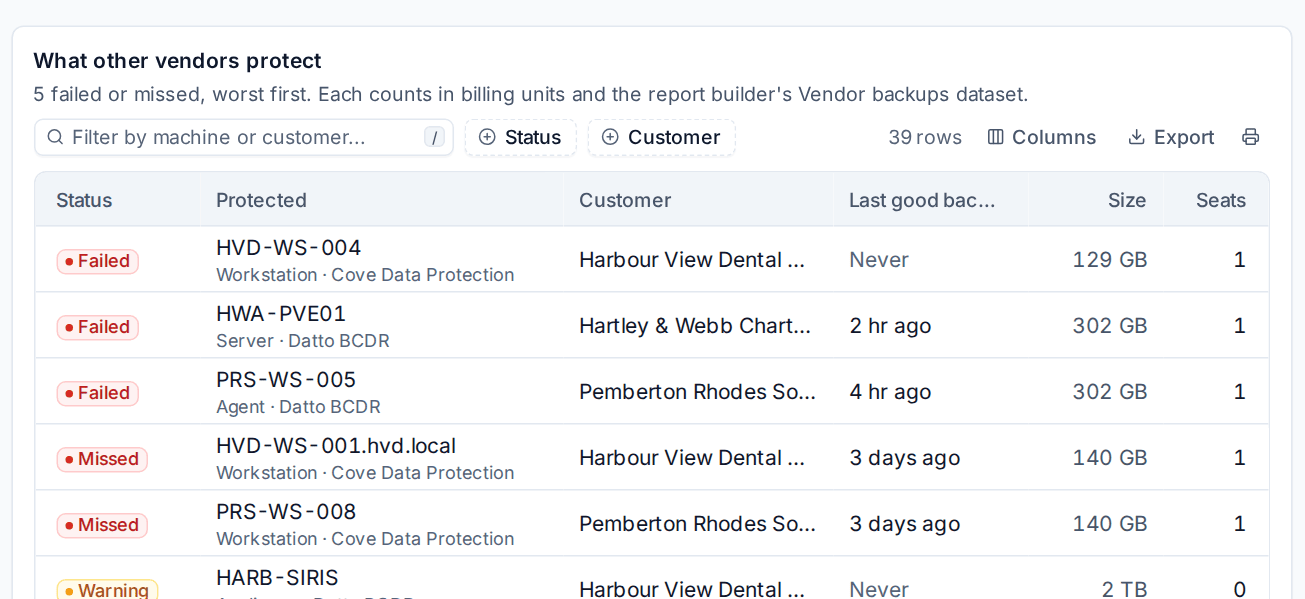
What other vendors protect lists everything, worst first: its status, the customer, the last good backup, the size and seats. With Raise an alert when a backup fails or is missed on, a failed backup, or none for longer than the hours you set (48 by default), raises an alert on the customer and the device, at the severity you choose. It clears when a good backup arrives.
Vendor figures in billing
What the vendors count can be billed like Tenvara's own figures. These billable units are counted per customer every day:
| Unit | Counts |
|---|---|
| Backups from other vendors | Machines, virtual machines and Microsoft 365 users protected in Datto BCDR, Cove or Veeam (seats) |
| Backup storage with other vendors | Storage the customer's backups use in those products, in GB |
| Huntress agents | Devices with the Huntress agent |
| SentinelOne agents | Devices with the SentinelOne agent |
| Microsoft Defender devices | Devices onboarded to Defender for Endpoint |
Put one of these units on a contract line and each invoice bills what the vendor counted, with no spreadsheet in between. The security units come from the security integrations, which you connect with your own Huntress, SentinelOne or Defender for Endpoint account. See Billable units for how units are counted and billed.
Vendor backups in the report builder
The report builder has a Vendor backups dataset with the customer, device, vendor, kind, last result, last backup, seats and size. Use it to list failed or missed backups across every customer, or to add other vendors' backups to a customer's report. See The report builder.
Datasets: any other tool's numbers
A dataset brings any table of figures into the report builder: a licence count, a phone system's call statistics, a distributor's usage export, anything with a header row.
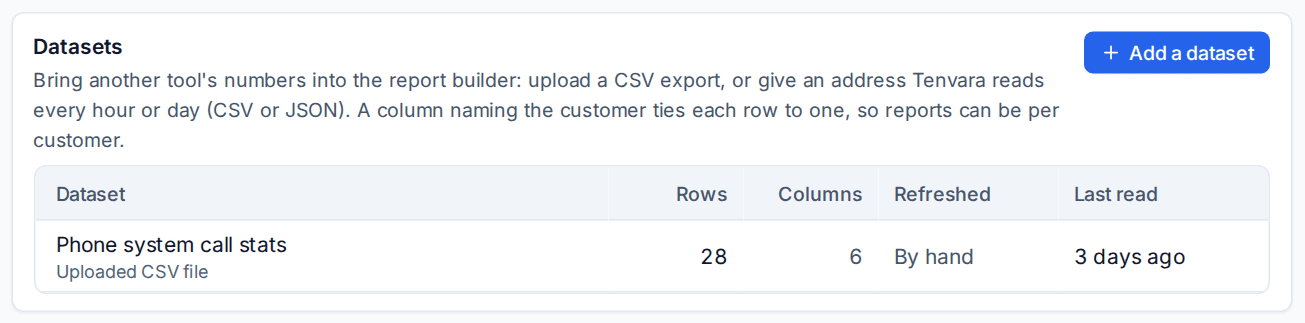
Adding a dataset
- Go to Settings > Integrations > Datasets and click Add a dataset.
- Enter a Name (what it is called in the report builder) and a Description.
- Choose where it comes from:
- A CSV file: upload it. The first line holds the column names; commas or semicolons, up to 10 MB.
- An address: a public https address Tenvara reads, as CSV or JSON (a list of objects, or an object holding one). Add an Authorization header if the address needs one, for example "Bearer abc123"; it is stored encrypted. Choose how often to read it: by hand, hourly or daily.
- Choose the Customer column, the column that names the customer (by name, code or id). Leave it at None if the data is not per customer.
- Click Add and read it.
Tenvara reads the columns and works out each one's type (number, date, date and time, yes or no, or text). You can rename a column or change its type. The First rows are shown so you can check it read correctly, and the count of rows Without a customer tells you which rows did not match a customer.
Up to 50,000 rows per dataset.
Using it
Click Report on it to open the dataset in the report builder, where it is listed with its own columns. Filter, group, chart, save and schedule it like any other report.
Rows tied to a customer follow customer scope, so someone who can only see some customers only sees their rows.
To refresh it, click Read it again (for an address) or Replace with a new file (for an upload). Removing a dataset removes its rows, and saved reports built on it stop showing data.
Tip: A daily dataset from a tool's export address keeps a scheduled report up to date with no one uploading files.
Related: Integrations and the API.
Was this page helpful?
Thanks for the feedback.