Devices and running scripts
Find a device from your phone, see its details, health and patches, run a script from the library, patch or restart it and raise a ticket.
Devices (under More on a phone) lists every machine the agent looks after. It is handy on site when someone says "it's the laptop by the window" and you need the hostname, the serial or the last time it checked in.
The device list
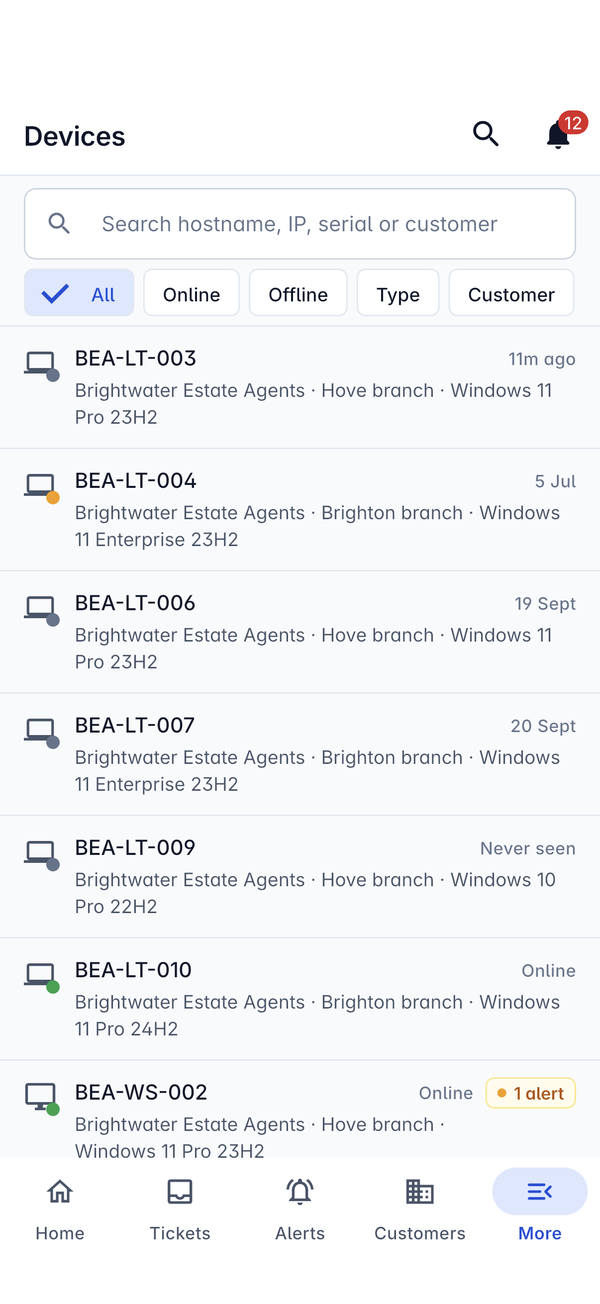
Type in Search hostname, IP, serial or customer to find a device, and use the filters All, Online, Offline, Type and Customer to narrow the list.
Each device shows:
- an icon for its type with a dot for its status: green when online, grey when offline, amber when it needs a look;
- its hostname, customer, site and operating system;
- Online, or when it was last seen (11m ago, 5 Jul, or Never seen for one that has not checked in);
- a badge such as 1 alert when it has open alerts.
A device
Tap a device to open it. The top shows the customer and site, the hostname, Online or Offline, the operating system and when it was last seen.
The buttons under the title:
| Button | What it does |
|---|---|
| Remote in | Opens the device's screen on your phone, when the device is online. See Remote control from your phone. |
| Run script | Runs a script from your library on the device (see below). |
| Patch now | Asks the device to install its updates now rather than waiting for its patch window. See Patching. |
| Restart | Restarts the device. |
| Raise ticket | Starts a ticket for the device's customer, with the device on it. |
You only see the buttons your role allows and the device's modules support.
Further down:
- Details: the Customer, Site, Type, Operating system (with its build), IP address, Serial, Model and Last seen. Tap the customer or site to open it.
- Health: the latest figures from monitoring.
- Patches: whether the device is up to date, under Compliance.
Running a script
- Open the device and press Run script.
- The list shows the scripts published for the device's operating system, with what each one does. Type in Search scripts to find one, for example "Flush DNS" or "Clear the Teams cache".
- Tap the script to run it.
As the screen says, the script runs on the device straight away, or when it is next online. The run is recorded against the device like any other, so you can follow the output on the web too. See Running and scheduling scripts.
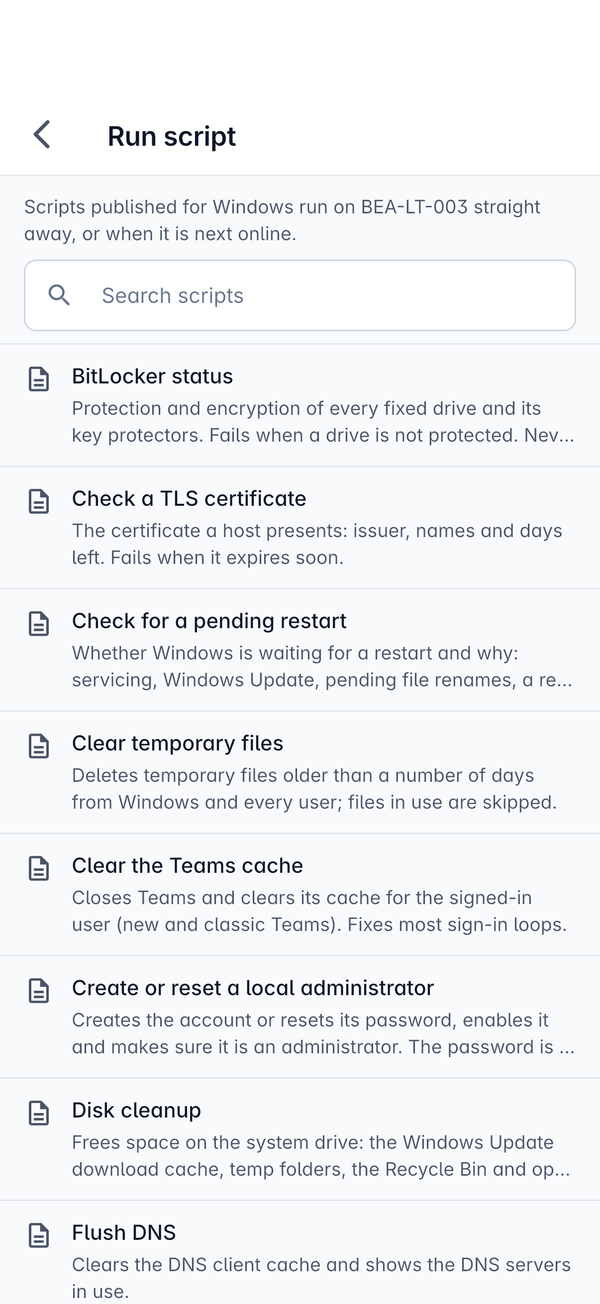
Which scripts appear is up to your script library: only published scripts for the device's operating system are offered.
Offline
The device list and the devices you have opened stay readable without a signal. Running a script, Patch now, Restart and Remote in need a connection, because the server has to check and send them to the agent there and then.
For everything the web's device page shows, see The device page.
Was this page helpful?
Thanks for the feedback.