Project templates
The six starter templates, building your own plan with tasks timed from the start, assignee rules by owner, person or skill, and template tasks that run a script or deploy software through the agent.
A template is a reusable plan: phases, milestones and tasks timed in days from the start, with who does each one, checklists, dependencies and, if you like, a script or software install that runs by itself. Creating a project from a template lays all of that out from the start date in one go.
Open Projects > Templates.
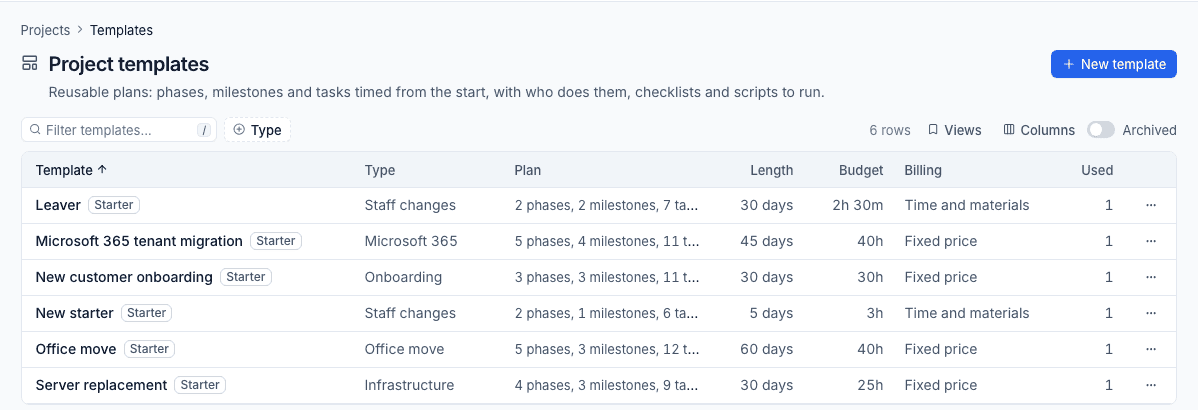
Each row shows the Type, the Plan (phases, milestones and tasks), the Length in days, the Budget, the Billing and how many projects have Used it. Turn on Archived to see templates no longer offered.
The six starters
Tenvara comes with six templates to use as they are or change to suit you:
| Starter | Type | What it covers |
|---|---|---|
| New customer onboarding | Onboarding | Discovery, taking over credentials, Microsoft 365 and the estate, backup, monitoring and a 30-day review |
| New starter | Staff changes | The Microsoft 365 account, preparing the laptop and a "Ready for day one" milestone |
| Leaver | Staff changes | Blocking sign-in on the last day, the mailbox, the licence, the laptop and closing the account |
| Microsoft 365 tenant migration | Microsoft 365 | Planning, pre-staging mailboxes and OneDrive, the cutover and decommissioning the old tenant |
| Server replacement | Infrastructure | Assessment, build, migrating shares and applications, cutover and wiping the old server |
| Office move | Office move | Surveying the new office, the room and network plan, the move itself and tidying up |
Starters are marked Starter. Deleting one archives it, so it is not put back.
Build or change a template
Press New template, or open a template to change it. To start from a project you have already run, use Save as a template in that project's ... menu.
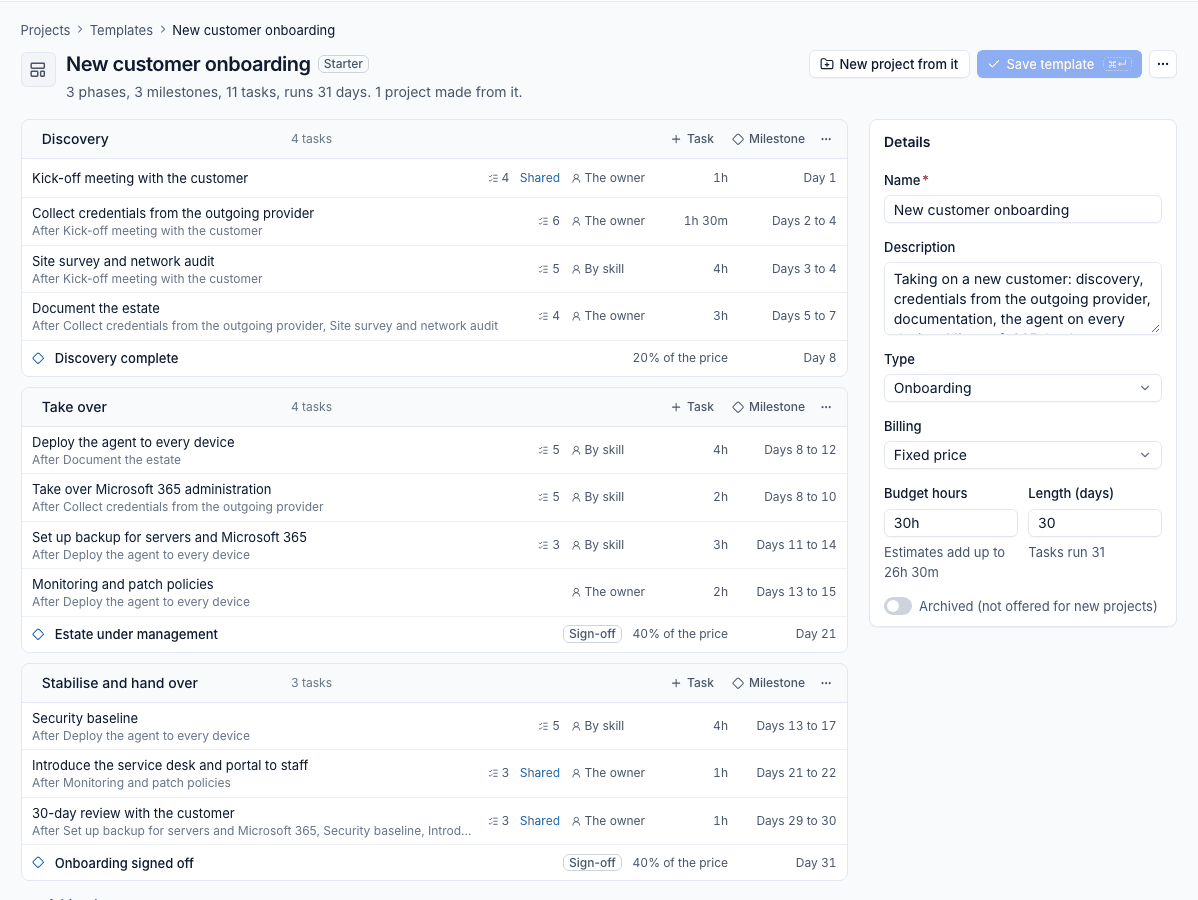
Details
On the right, set the Name, Description, Type, Billing, Budget hours and Length (days). The editor tells you what the task estimates add up to and how long the tasks really run, so you can check the budget and length against them. Archived (not offered for new projects) retires a template without losing it.
Phases, tasks and milestones
- Add a phase at the bottom.
- In each phase, + Task adds a task and + Milestone adds a milestone.
- Each row shows the checklist size, whether it is shared with the customer, who it is assigned to, the estimate and the days it runs.
- A milestone can need the customer's Sign-off, and on a fixed price template carry a share of the price, such as 40%. Shares are rounded so they always add up to the price exactly.
A template task
Click a task to open it.
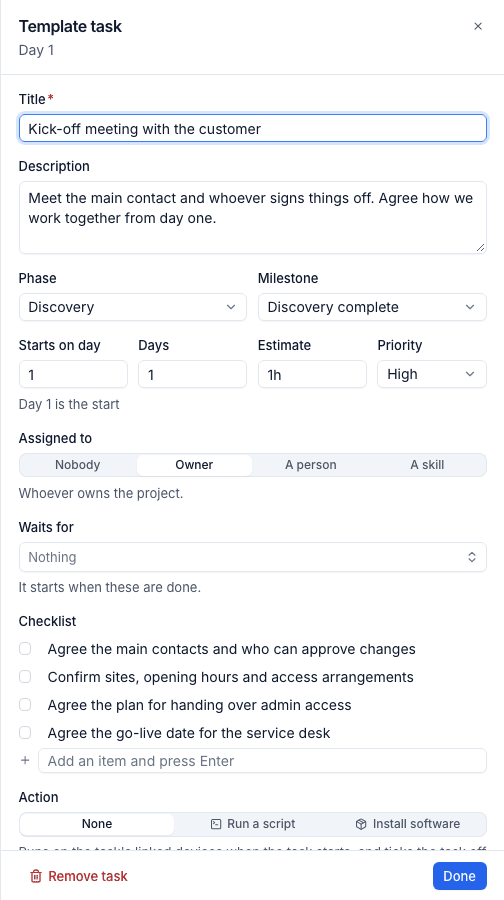
- Enter the Title and Description.
- Choose the Phase and Milestone.
- Set Starts on day (day 1 is the start), Days, the Estimate and the Priority.
- Choose who it is Assigned to:
- Nobody;
- Owner: whoever owns the project;
- A person: a named member of staff;
- A skill: someone with that skill from Scheduling.
- Under Waits for, choose the tasks it starts after. Loops are refused.
- Add the Checklist items.
- Choose an Action (below), then press Done.
When a task's rule names someone who cannot take it (nobody has the skill, or the person has left), the task is created unassigned with an internal note saying why.
The Plan preview under the phases shows the template laid out on a timeline as if it started today. Press Save template (Cmd+Enter) to keep your changes; leaving with unsaved changes asks first.
Tasks that run a script or deploy software
A template task can do the work itself through the Tenvara agent. Under Action choose:
- Run a script: pick the script and fill in its parameters;
- Install software: pick the app.
Then choose whether to tick the task off when it succeeds.
When a project is created, the task carries the action. It runs on the devices linked to the task:
- when the task moves to In progress (from the panel, the board or automation); or
- when someone presses Run now in the task's Action block.
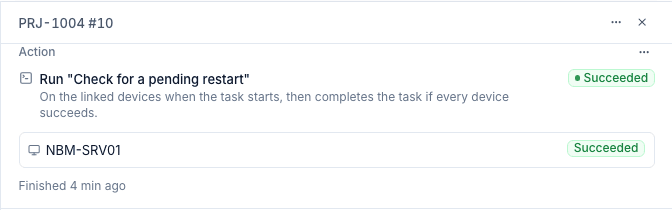
The panel shows each device's result. When every device succeeds the task completes itself (if you chose that). If any device fails, the task stays open, the message says what went wrong, for example "It did not succeed on NBM-SRV01: Exited with code 3.", and the assignees are told. Run now tries again.
You can add or change an action on any project task too, from the Action block in its panel.
Note: Setting an action needs permission to manage scripts (for a script) or software (for an install). Secret script parameters are never kept on a task or template: the script's own default is used when it runs. A device with no agent, or one too old for the action, is skipped with the reason.
Related: Creating a project, Phases, tasks and dependencies.
Was this page helpful?
Thanks for the feedback.