Account threat response
Spot signs that someone else is using a customer's Microsoft 365 account, from impossible travel and stolen tokens to MFA fatigue, and sign them out, block them or force a new password automatically or with one click.
Microsoft 365 > Threats looks for signs that someone other than the person is using a customer's Microsoft 365 account. It reads every sign-in, Microsoft's own risk detections, new inbox rules, new MFA methods and app consents, raises a detection with the evidence, and can answer it straight away.
What is detected
| Kind | What it means |
|---|---|
| Impossible travel | Two successful sign-ins by one person further apart than anyone could travel in the time between them (500 km or more, faster than 900 km/h, by default) |
| Token theft signs | Microsoft flags an anomalous token or session, or a person's token is used from a country they have not signed in from themselves, straight after they signed in elsewhere |
| MFA fatigue | Several MFA requests denied, ignored or reported as fraud within a few minutes. One reported as fraud is enough, and is critical |
| Risky app consent | Someone consents to an app that SaaS discovery rates high risk and nobody has sanctioned |
| Inbox rule after a risky sign-in | A new inbox rule on the mailbox within 48 hours of a risky sign-in |
| New MFA method after a risky sign-in | A new MFA method registered within 48 hours of a risky sign-in |
A risky sign-in is a medium or high risk sign-in or detection from Microsoft, or one of the detections above. Microsoft's own risk detections for impossible travel, token theft and MFA fraud become detections here too.
Microsoft only gives sign-in logs for tenants with Entra ID P1.
The threats page
The top counts Open threats (with how many are critical), the Last 30 days, how many were Answered automatically and how many Kinds answered automatically. A row of kinds shows each one's count and, where it is set, its automatic response. Below, each detection shows the account, kind, customer, severity and status. Filter by Kind, Customer and Severity, and switch between Open, Closed and All.
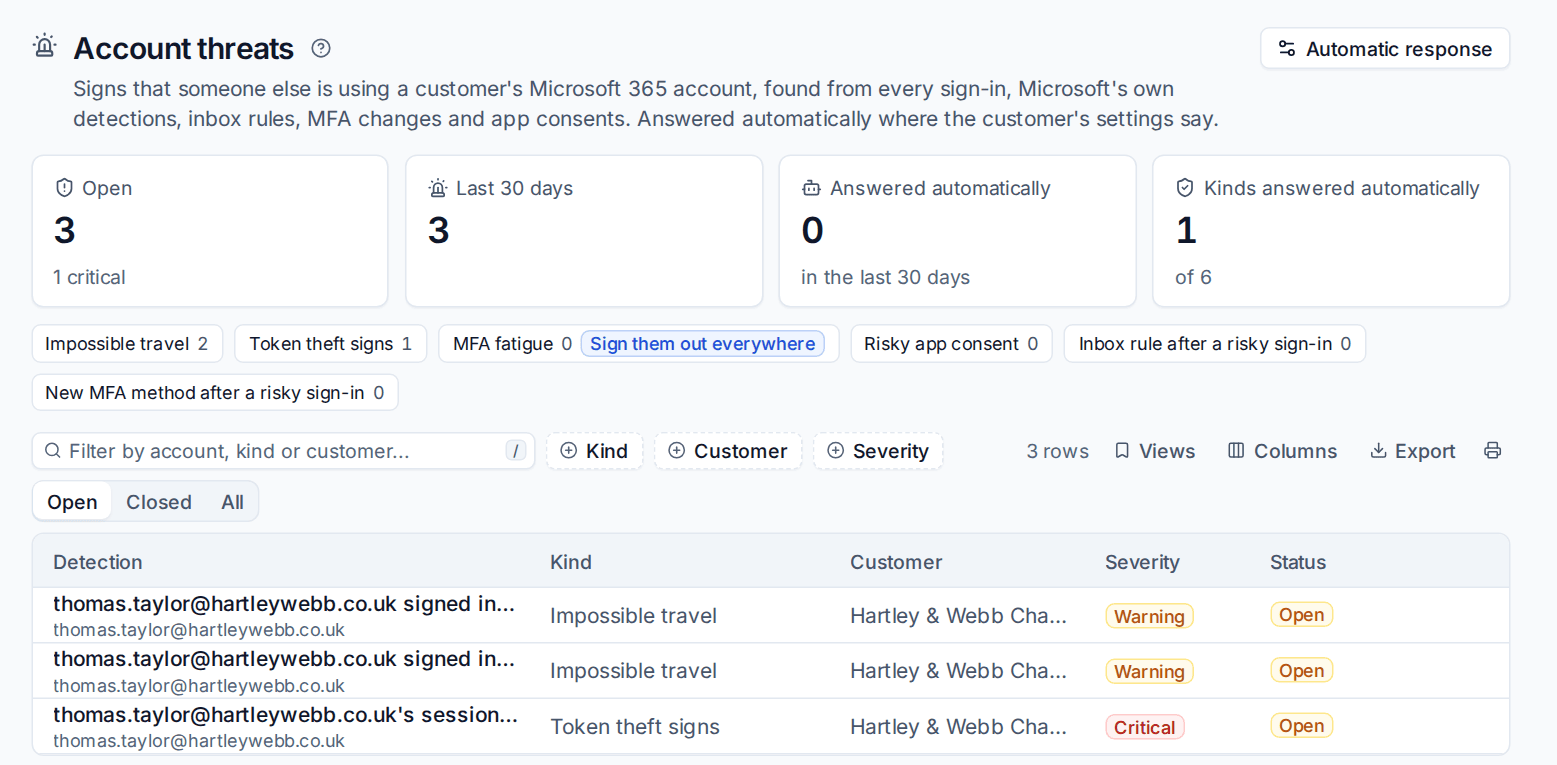
Each tenant also has a Threats tab, and the customer's Microsoft 365 tab shows the tenant's open threats.
Working a detection
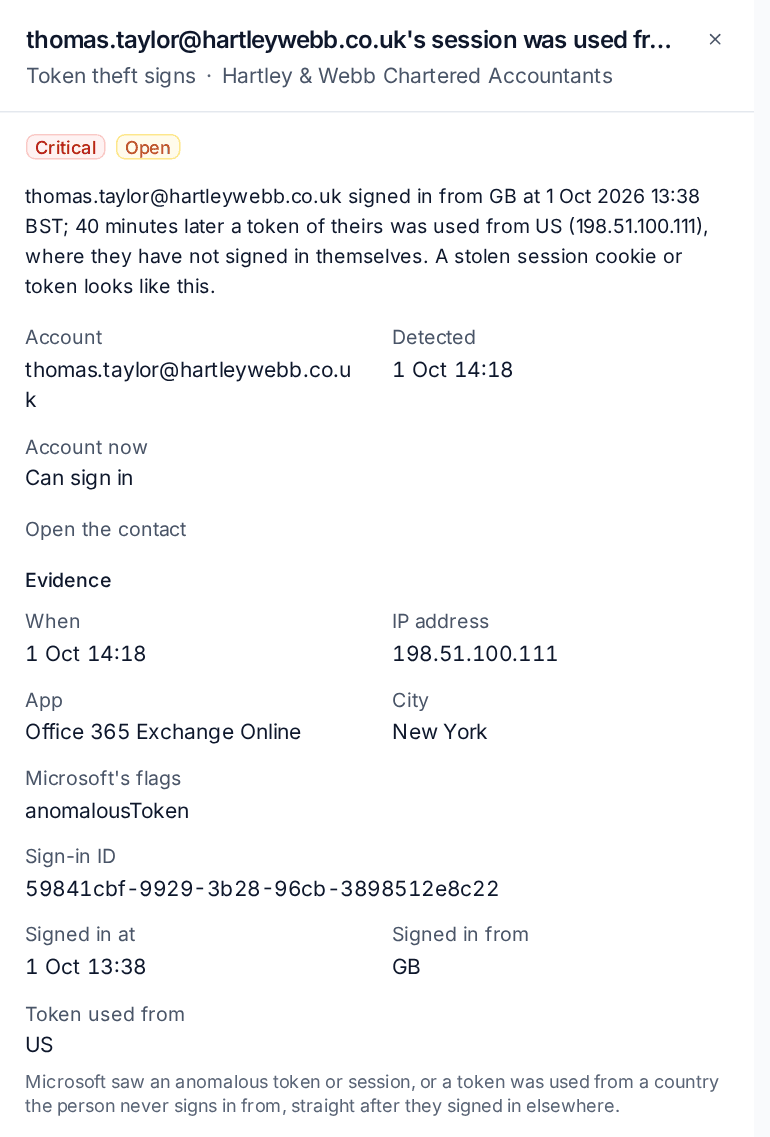
Click a detection to open it. It says in words what happened, for example that the person signed in from GB and 40 minutes later a token of theirs was used from the US, with:
- The Account, when it was Detected, and whether the Account now can sign in.
- Open the contact to go to the person in Tenvara.
- Evidence: when, the IP address, app, city and country, Microsoft's flags and the sign-in ID; for impossible travel the distance and speed between the two sign-ins.
- What was done: any automatic response, by whom and when.
Then:
- Press Respond to act on the account: sign them out everywhere, block sign-in, make them choose a new password, turn off new inbox rules, or turn off the app. Each is a change through the change log, with undo, and the usual approvals apply (see Making changes safely).
- Close it as Resolved, a False positive or Dismiss it, with a note. The alert clears.
Open again reopens a closed detection.
Automatic response
Tenvara can answer a detection the moment it is found, so a stolen session is cut off at 2am without waiting for someone to read the alert.
Set it in Settings > Microsoft 365 > Account threats, under Automatic response, or press Automatic response on the threats page. For each kind, tick what Tenvara does at once:
- Sign them out everywhere
- Block sign-in
- Make them choose a new password
- Turn off the new inbox rules (inbox rules after a risky sign-in)
- Turn off the app (risky app consent)
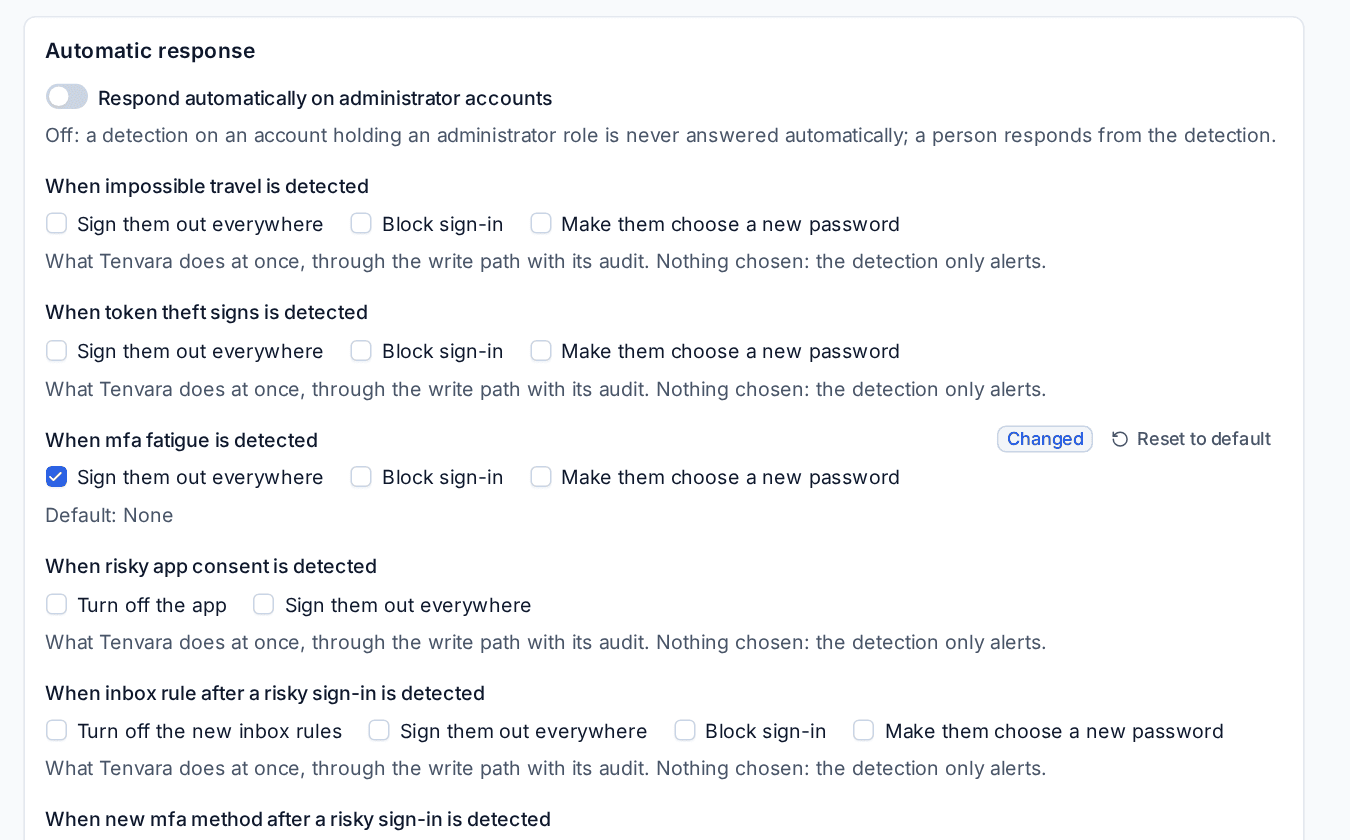
Nothing ticked means the detection only alerts. Responses run through the change log as Tenvara, with the detection named as the reason, so you can see and undo them like any other change.
Warning: Respond automatically on administrator accounts is off by default. A detection on an account that holds an administrator role is then never answered automatically: a person responds from the detection.
A customer can have its own automatic response on the customer's settings, for example a customer who wants accounts blocked rather than only signed out.
The top of the same page sets what counts as a threat: the speed and distance for impossible travel, how many denied MFA requests in how many minutes count as MFA fatigue, how long an account is watched after a risky sign-in, and after how many days a country counts as new for a person.
Alerts and automation
Every detection raises an alert, so your alert rules can open a ticket and page whoever is on call. The first time a tenant is read, detections older than 48 hours are listed as history without alerting.
In automation, the action Microsoft 365: act on an account signs out, blocks, requires a new password or resets MFA for the account a threat or risky sign-in alert is about, or for an address you give, within the trigger's customer. On an administrator's account it asks an administrator to approve.
Related: Sign-ins, apps and policies, SaaS discovery, Working detections.
Was this page helpful?
Thanks for the feedback.