Booking pages and calendar sync
Let customers book their own time from real availability, add a Schedule button to ticket replies, and keep technicians' Outlook or Google calendars in step with the schedule both ways.
Booking pages let a customer pick a time that suits them instead of trading emails. The times offered come from real availability: working hours, approved leave, public holidays, other bookings with their travel, and busy time in each technician's own calendar. Calendar sync keeps that calendar in step with the schedule in both directions.
Booking pages
Settings > Scheduling > Booking pages (administrators) lists your pages with the booking type, how they assign people, the lengths offered, the notice needed and how many bookings each took in the last 30 days.
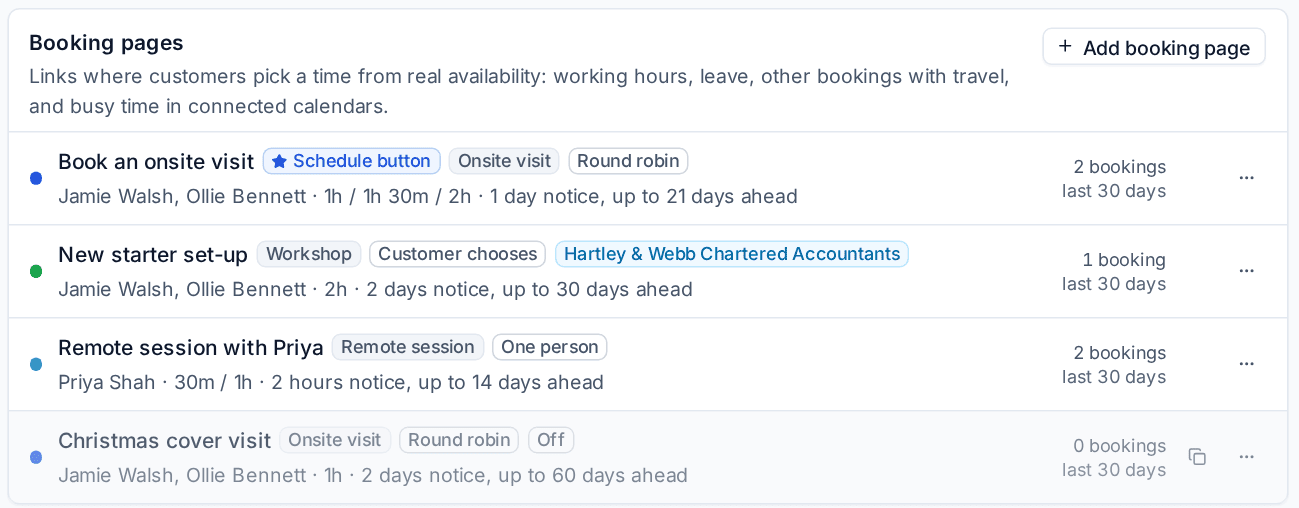
Add a booking page
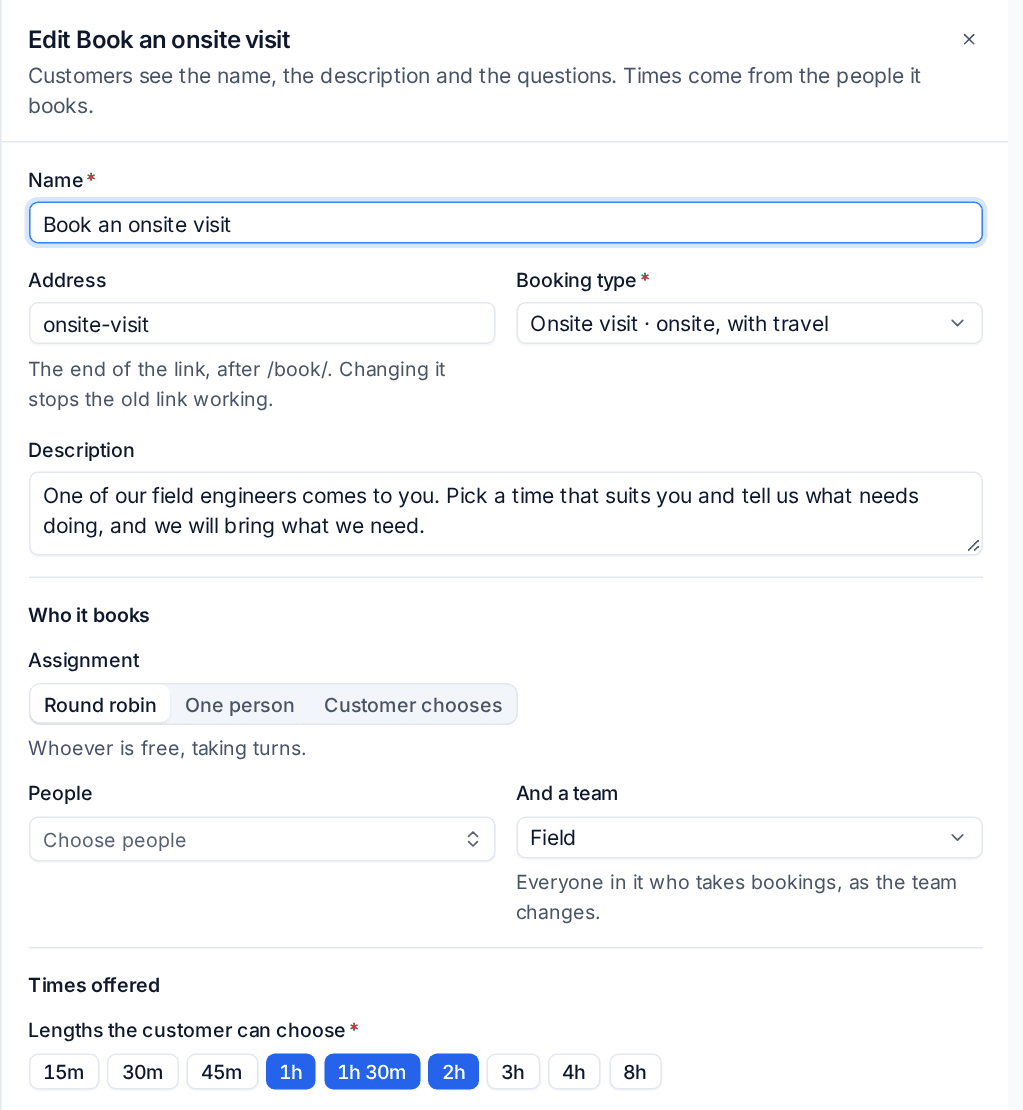
- Press Add booking page.
- Enter the Name and a Description. Customers see both.
- Set the Address: the end of the link, after
/book/. Changing it stops the old link working. - Choose the Booking type, for example Onsite visit. Onsite types add travel before and after, from the site's travel time, just as staff bookings do.
- Under Who it books, choose the Assignment:
- Round robin: whoever is free, taking turns,
- One person,
- Customer chooses: the customer picks from the people (shown by first name).
- Choose the People, and optionally And a team, which follows the team as its members change.
- Under Times offered, set the Lengths the customer can choose, the Minimum notice, how many days ahead (Up to), a Gap before and Gap after, and how often start times are offered (Start times every).
- Under Who can book, optionally choose a Customer: the page is then theirs and wears their brand. Choose People who can book: Contacts we know, or Anyone (who is added as a contact of the page's customer).
- Leave Open a ticket for each booking on to raise a ticket with their answers.
- Add Questions: a short answer, paragraph, choice or tick box, each optional or Must be answered.
- Write the Message on the confirmation and leave Page is on turned on.
- Check Next times offered at the bottom, then press Save booking page.
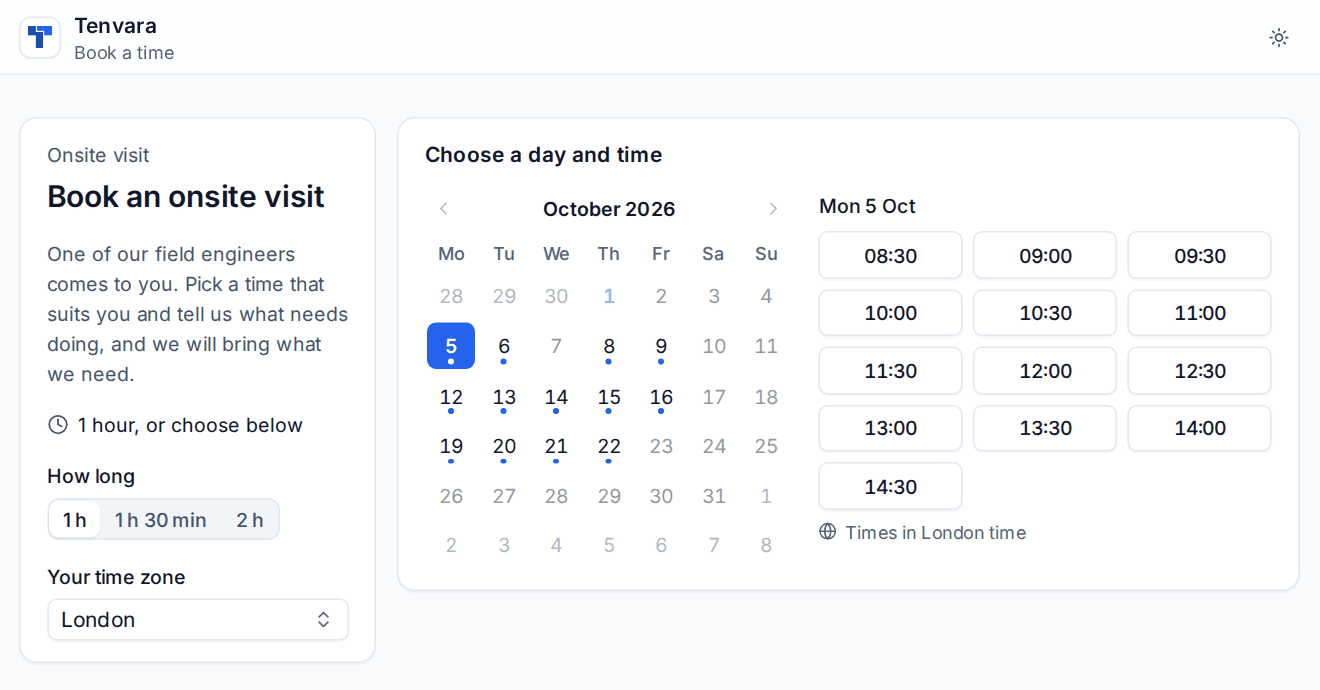
What the customer sees
The page shows your brand (or the customer's), the description, a choice of length, the people when they choose, and a calendar of days with free times in their own time zone, which they can change.
When they book, Tenvara checks the time is still free, makes the booking, opens a ticket (or books onto the ticket the link came from), and emails a confirmation with a calendar invitation and the visit link. The booking appears on the schedule and the dispatch board with their answers, and gets the usual visit reminders. See Customer confirmations and reminders.
The Schedule button on a ticket reply
In a ticket's composer, Add a Schedule button puts a "Schedule a time" link in your reply (choose the booking page if you have several). In the email it shows as a button in the customer's brand colour. The link already knows the ticket and the contact, so they only pick a time and answer the questions. It books onto that ticket once; after that it shows what was booked.
Moving and cancelling
Under Customer changes on the same settings page, choose what customers can do from the link in their confirmation, for visits they booked themselves:
- Move to another free time, among the same people's free times,
- Cancel, with an optional reason that is noted on the ticket,
- Until so many hours before the visit. After that they ask you, as they do for visits your team booked.
Ticket booking links last sets how many days the link behind a Schedule button works.
Tip: Gaps on a booking page and buffers on a booking type keep time free around visits, for example 15 minutes after each onsite visit. The booking panel shows them as "Kept free".
Calendar sync
Settings > Scheduling > Calendar sync connects technicians' calendars, so that:
- busy, away and (by default) tentative time in their calendar holds their availability, and shows on the schedule as "Busy (calendar)",
- their bookings are written into their calendar, updated when moved and removed when cancelled,
- a booking moved in their calendar moves on the schedule too, and one deleted there is written again (you can choose other behaviour under Syncing).
Microsoft 365 calendars
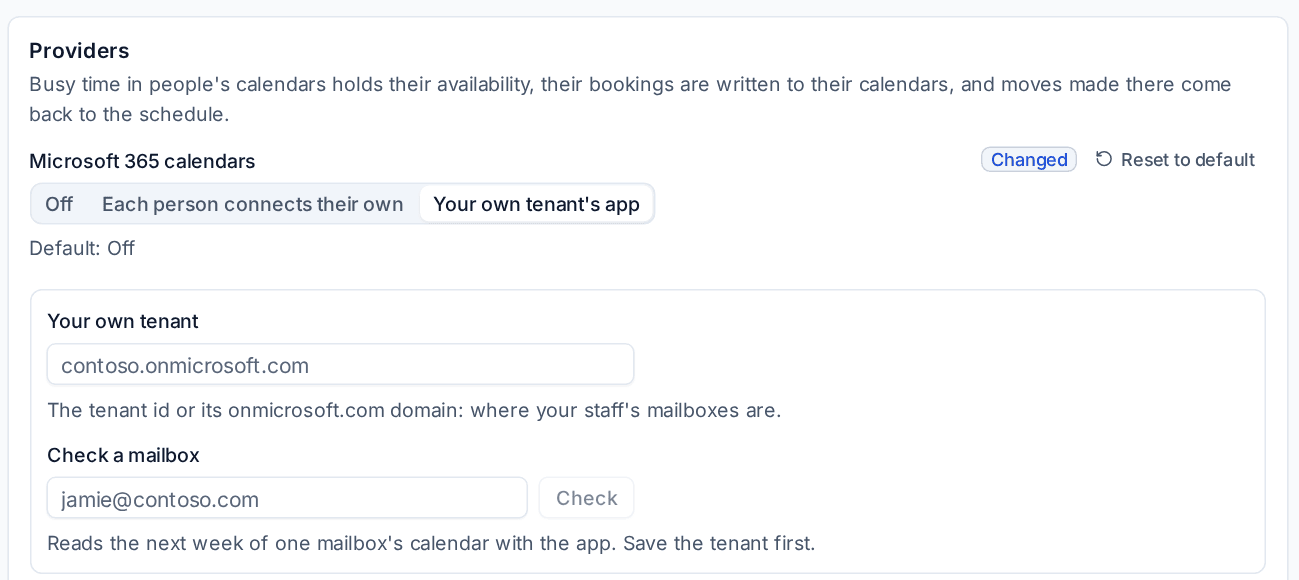
Calendar sync with Microsoft 365 uses an app registration in your own Microsoft 365 tenant:
- In Microsoft Entra, register an app (or use the one you already use with Tenvara) and give it the Microsoft Graph application permission
Calendars.ReadWrite, with admin consent. - In Microsoft 365 calendars, choose Your own tenant's app.
- Enter Your own tenant: the tenant ID or its onmicrosoft.com domain.
- Press Save providers, then use Check a mailbox to read the next week of one person's calendar and prove it works.
- Under People, press Connect mailbox for each technician.
Google calendars
To sync Google calendars, connect your own Google Cloud project:
- In Google Cloud, turn on the Google Calendar API and create an OAuth client.
- Add the redirect address shown in Tenvara as an authorised redirect address on the client.
- Turn on Google calendars and enter the OAuth client id and Client secret (stored encrypted).
- Each person connects their own Google calendar from Schedule > Your calendar.
Syncing options
Under Syncing, choose how often calendars are read, whether Tentative events hold time, the Calendar event title (with placeholders such as {{visit.type}} and {{customer.name}}), whether to Put the visit's details in the event, and what happens when A booking moved in the calendar or A booking deleted from the calendar. You can also email the customer the new time when a technician moves a visit in their calendar.
The People list shows each person's connection, when it was last read, how many busy events lie ahead and how many bookings have been written.
Related: Booking a visit, Working hours, leave and skills.
Was this page helpful?
Thanks for the feedback.